
Working with the Mobile App
Logging into the App
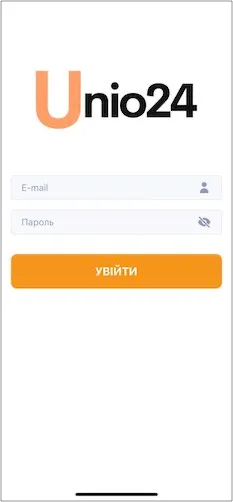
Section titled “Logging into the App”After launching the app, enter the UNIO24 username and password (same as on the website) on the opening screen.
Main Menu
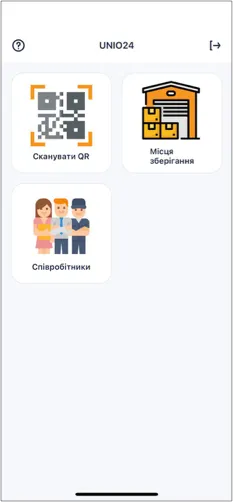
Section titled “Main Menu”It allows you to:
- Scan an asset’s QR code to get detailed information.
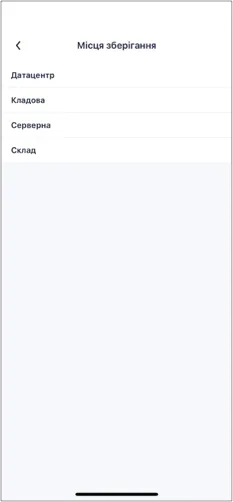
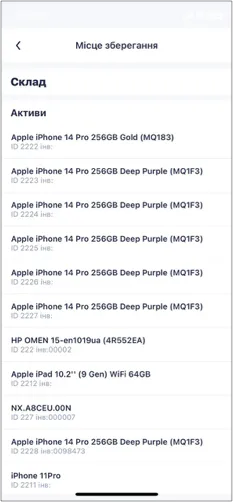
- View a list of storage locations and check the assets stored in them.
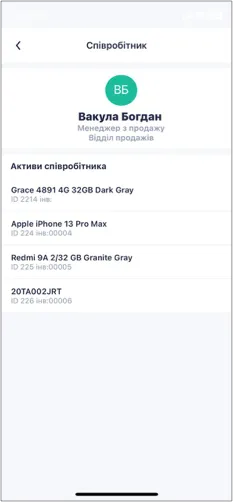
- View a list of employees and see the assets assigned to each employee.
Viewing Asset Information
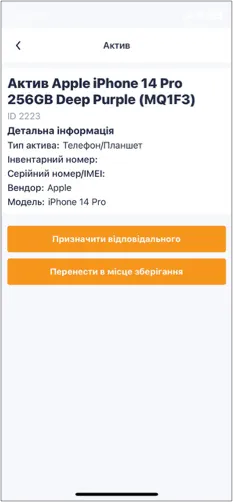
Section titled “Viewing Asset Information”After scanning an asset’s QR code or navigating to the asset from the storage location or employee profile, you can view information about the asset and perform asset movement operations.
Viewing Employee Assets
Section titled “Viewing Employee Assets”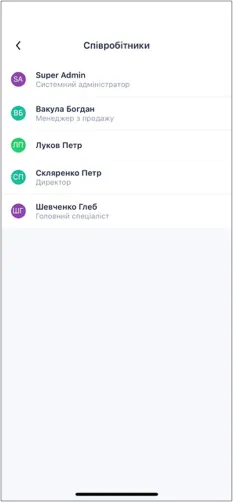
Viewing Storage Location Assets
Section titled “Viewing Storage Location Assets”