

Employees
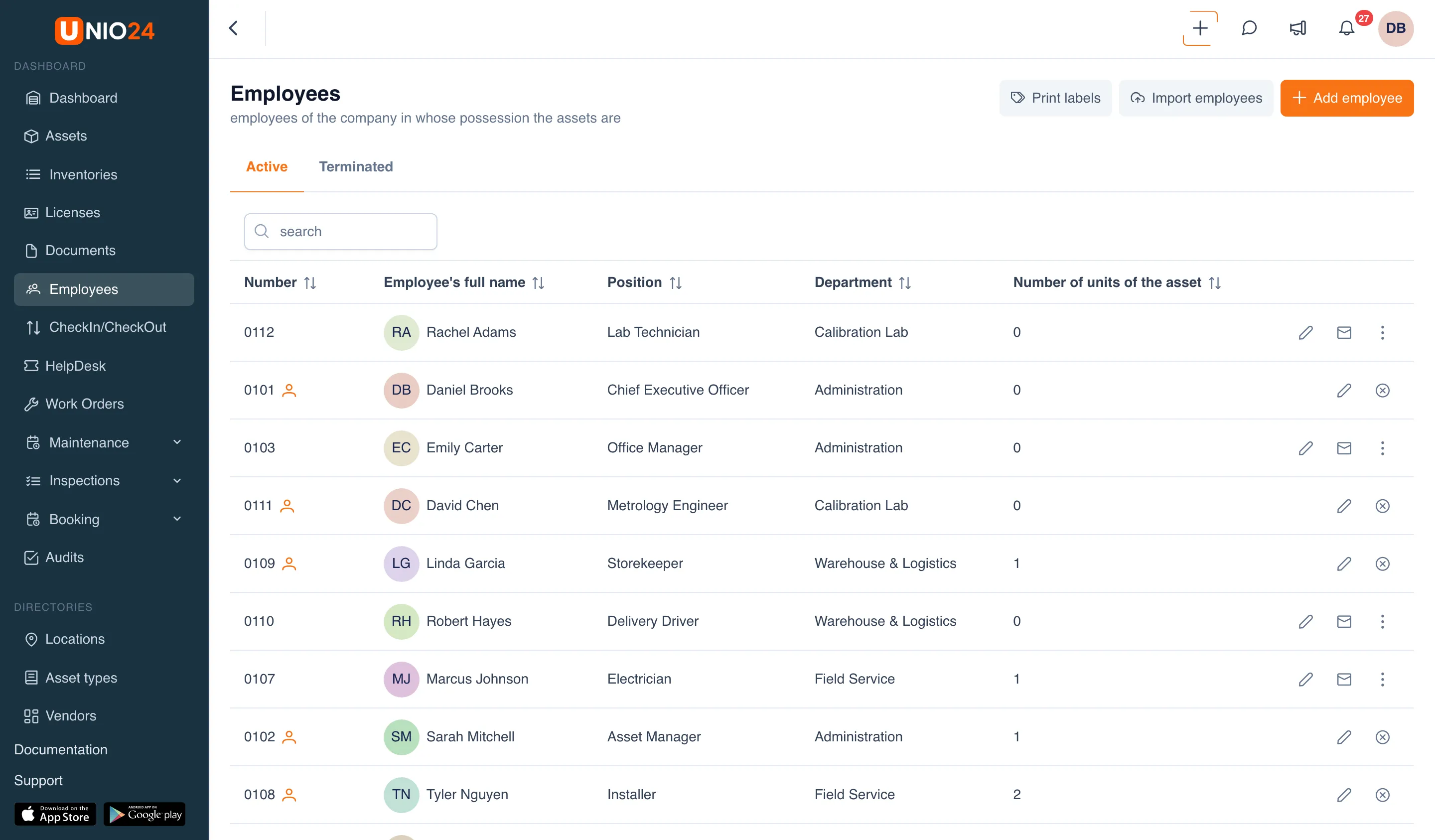
An employee is a record of a person who can have assets checked out to them for work. An employee doesn’t have to be formally accountable for property: the directory exists mainly so you can see who has an asset and who is using it. Open it from the left menu with Employees.
Employees and system users
Section titled “Employees and system users”An employee and a system user are two different things.
- An employee is a record in the directory. On its own, an employee doesn’t sign in or manage anything; assets are simply assigned to them.
- A system user is an account with an email, a password, and a role that gives access to the web and mobile apps.
An employee card can be linked to a user account: invite the employee from the directory, create a card when inviting a user, or link an existing account. The link lets the person work with their own assets: take and return them through self-service, see My assets, and book assets for themselves. All the options and how they differ are in Employees and users.
The employee list shows whether a record has a user account: next to the number there’s either a user icon (the person already signs in; on hover you’ll see “Has system access: name (email)”) or an Invited tag (the invitation hasn’t been accepted yet).
Employees and assets
Section titled “Employees and assets”Assets are assigned to an employee through asset transactions. An assigned asset appears on the employee’s card, and the asset’s card shows who has it. The link works both ways.
On the employee card, each asset shows its lifecycle status — the same one as in the asset list. The asset lifecycle is described in Assets.
The number of assets an employee holds is shown in the employee list, in the Number of units of the asset column. This count doesn’t include assets in the employee’s responsible locations.
Responsible locations
Section titled “Responsible locations”Besides the assets they hold, an employee can be made responsible for a location — a warehouse or an office, for example. They are then responsible for all the assets kept in that location, but those assets don’t count as checked out to them personally.
That’s why the system tracks them separately: assets in responsible locations aren’t included in the Number of units of the asset count and don’t appear in the employee’s activity. The responsible person is assigned in Locations.
Employee card
Section titled “Employee card”The employee card brings together everything related to a person. At the top is a block with the main details: avatar (or initials if there’s no photo), full name, position, department, phone, and email. You can upload an avatar — see Files and photos. If the record has custom fields, they appear below this block.
Below it are the tabs:
- Employee assets — the assets the employee currently holds, with their status.
- Activity — check-outs and returns of assets this employee was part of.
- Responsible location — the locations they’re responsible for; the tab appears only if at least one location is assigned to them.
- Licenses — licenses assigned to the employee; the tab appears when the Licenses module is enabled. You can assign a license from the Action menu on the card.
- Documents — files attached to the employee, in the Attachments view (see Files and photos).
For what each tab contains, see the Employees reference.
Offboarding an employee
Section titled “Offboarding an employee”When an employee leaves, they aren’t deleted — they go through offboarding, a managed process that returns the assets assigned to them, frees up licenses, reassigns tickets and locations, and blocks their access to UNIO24.
That’s why the employee list is split into two tabs — Active and Terminated — and each employee has an employment status (active, offboarding, terminated). How this works and how to run an offboarding is described in Offboarding.
Useful links
Section titled “Useful links”- Manage employees — step-by-step instructions
- Employees reference — the full list of columns, fields, and statuses
- Employees and users — invite an employee to UNIO24 and link them to a user account