

Audits
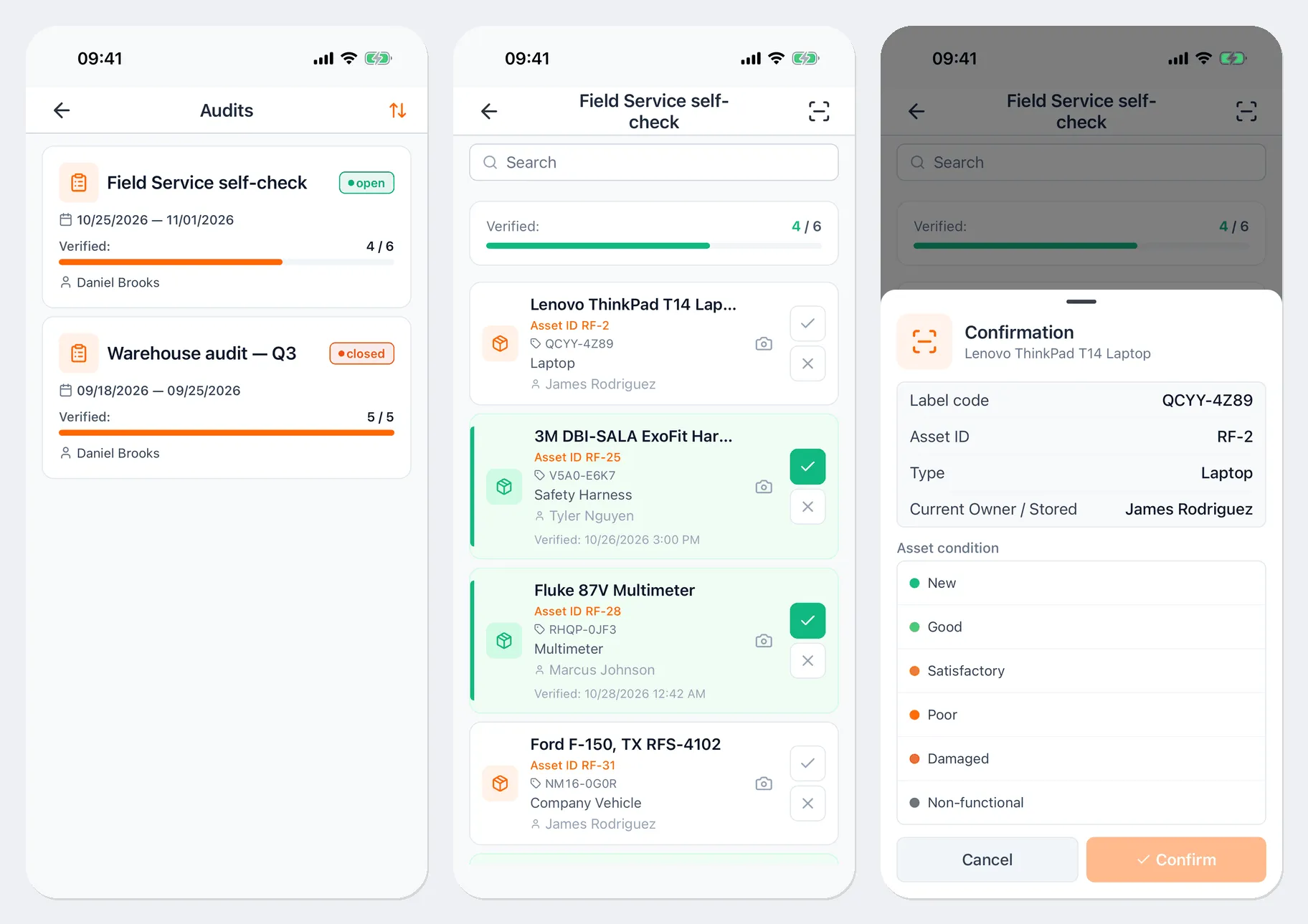
Audits are created and closed in the web app, but walking the warehouse and checking off assets is easiest with a phone.
Open an audit
Section titled “Open an audit”- Open Menu → Audits.
- The list shows audits with their period, who created them, and how many assets have already been verified. Tap the one you need.
The audit screen has search, a Verified counter, and the asset list. Each asset shows its asset ID, label code, type, and who it’s checked out to. Verified assets are highlighted in green with the date they were verified.
Mark an asset
Section titled “Mark an asset”By scanning — the fastest way in a warehouse:
- Tap the scanner button in the top-right corner of the audit screen.
- Point the camera at the label or hold your phone near the NFC tag.
- In the Confirmation window, check the asset details, choose the Asset condition if needed, and tap Confirm.
Manually — if the label is damaged:
- the ✓ button in the asset’s row — the asset is found. The same Confirmation window opens;
- the ✗ button — the asset isn’t where it should be.
If the scanned asset isn’t on this audit’s list, you’ll see “Asset not found in this audit list.” If it’s already marked, you’ll see “Asset already verified”.
Marking assets requires permission to edit audits; without it, you can only view the list.
Attach a photo
Section titled “Attach a photo”The camera icon in an asset’s row opens the photos for that item: you can take a photo of the asset or choose one from your gallery. Photos can only be attached while you’re online.
Without internet
Section titled “Without internet”Open audits are stored on the phone, so you can mark assets even without a connection. Your marks are saved on the phone, and the screen shows how many are waiting to be sent. They’re sent automatically once you’re back online. See Working offline for details.
A closed audit is view-only: it’s marked Closed (read-only).
Useful links
Section titled “Useful links”- Audits — how to create an audit and review the results
- Working offline — how marks made offline are sent