

Working offline
The app keeps part of your data on the phone, so you can use it in a warehouse, a basement, or on the road without a connection. Changes you make offline are saved on the phone and sent automatically once you’re back online.
What works offline
Section titled “What works offline”You can view what’s already saved on the phone: asset, employee, location, inventory, and license lists and cards, your tickets and work orders, open audits, and dictionaries. The scanner finds records saved on the phone.
You can do — and send later:
- mark assets in an audit;
- run inspections (if the template is already on the phone);
- write comments and change the status of tickets and work orders.
You need a connection to:
- check out, check in, and transfer assets, including Take for myself and Return;
- create tickets;
- book assets and check them out against a booking;
- close inspection defects and view the inspection journal;
- upload photos and files.
How to see the connection status
Section titled “How to see the connection status”A status line appears under the screen title:
- “No internet connection” or “Offline · N pending” — there’s no connection, and N changes are waiting to be sent;
- “Syncing…” — the app is exchanging data with the server;
- “N conflicts · Tap to view” — a change couldn’t be applied because the record was already changed elsewhere. Tap it to see the details.
If a card is shown from saved data, it’s marked “Showing cached data — will refresh when online”. If the record isn’t saved on the phone, you’ll see “Details not loaded. Connect to the internet.”
Unsent changes aren’t lost when you sign out — they’re sent after you sign in again.
Choose what to keep on the phone
Section titled “Choose what to keep on the phone”Open Menu → Offline mode.
- Always cached — open audits, your tickets, your work orders, and dictionaries are always kept on the phone.
- Entities — for assets, employees, locations, inventories, tickets, work orders, and licenses, you can set how many records to keep: List cache is how many list rows, Detail cache is how many full cards. For tickets and work orders, the settings are Mine and Others. “0” means load only when opened; “All” keeps every record (this can take up a lot of space on your phone).
- Cache freshness — how long saved data is considered fresh; after that, the app refreshes it in the background when there’s a connection.
- Cache management — how much space the data takes up and when the last sync happened. Refresh now downloads fresh data; Clear cache deletes the saved data from the phone.
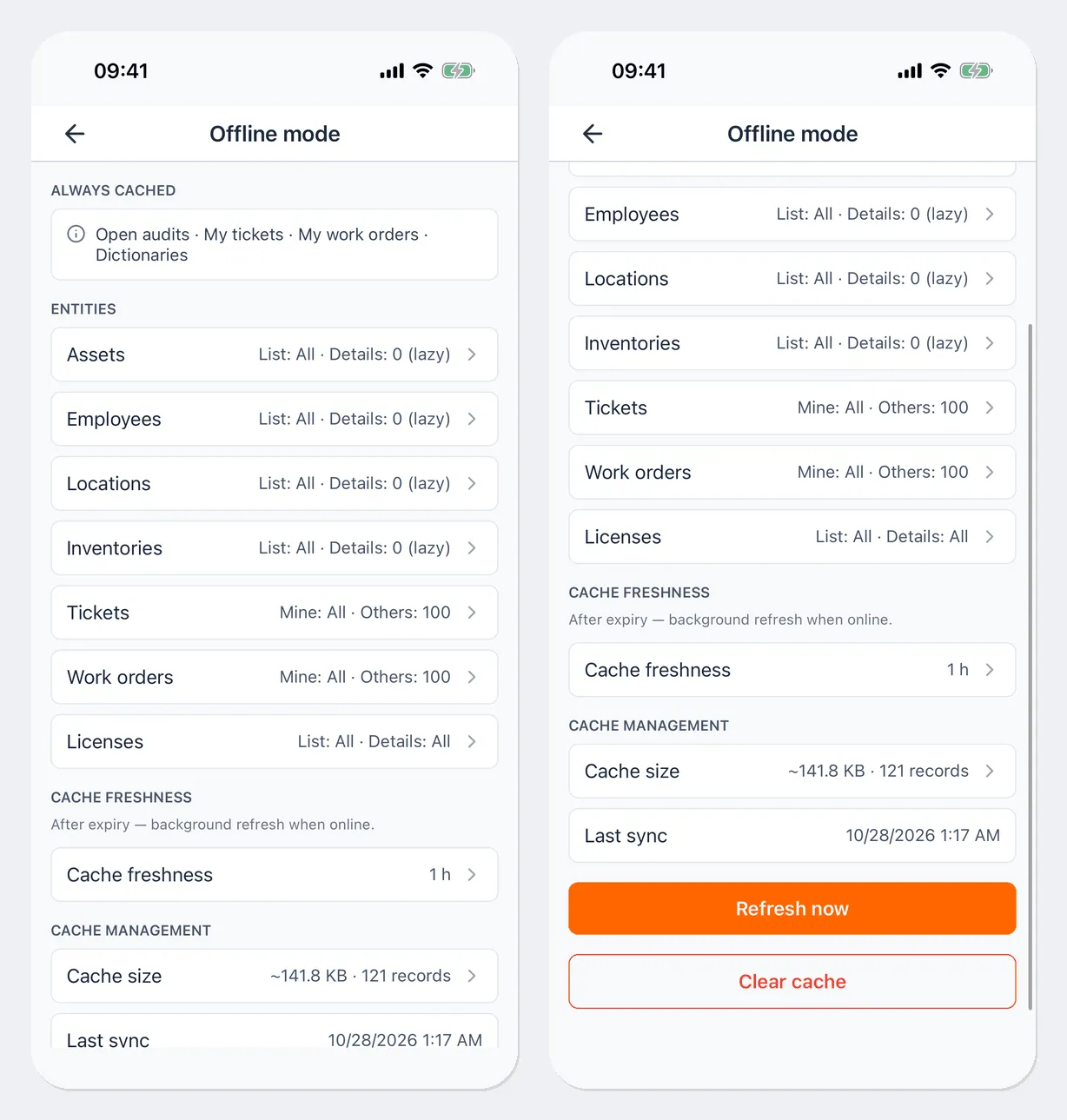
If you often work offline with a large number of assets, increase the Detail cache for assets and tap Refresh now while you’re still online.
Useful links
Section titled “Useful links”- Inspections — offline inspections and the send queue
- Audits — marking assets offline
- Introduction — what the app can do