

Configure inspections
These tasks are done by an administrator or an employee with the Manage inspection templates permission.
Enable the module
Section titled “Enable the module”Inspections is an optional module, and it doesn’t turn itself on.
- In the main menu on the left, open Settings.
- Choose the Modules page.
- Find the Inspections card and turn on its switch.
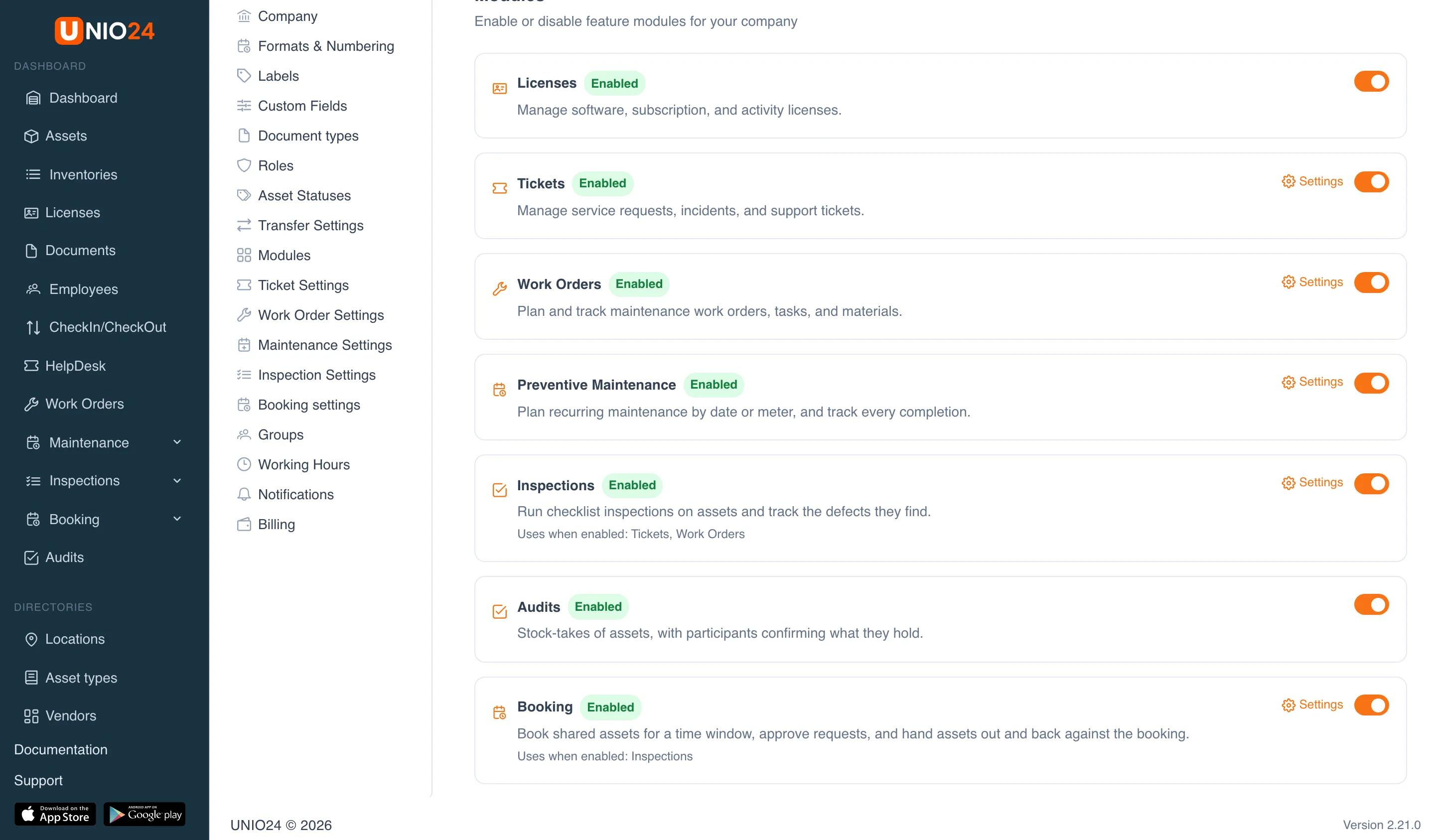
After that, an Inspections group appears in the menu with Schedules, Defects, Journal, Templates, and Library, and an Inspection Settings page appears in Settings.
The module uses Tickets and Work Orders when they are enabled: defects can open tickets and work orders, and inspections can be added to work orders. Without those modules inspections still work, but these options aren’t available.
Ready-made inspection templates
Section titled “Ready-made inspection templates”The fastest way to start is with a ready-made template.
- Open Inspections → Library. Templates are shown in your interface language.
- Find a template by name or description using the search box.
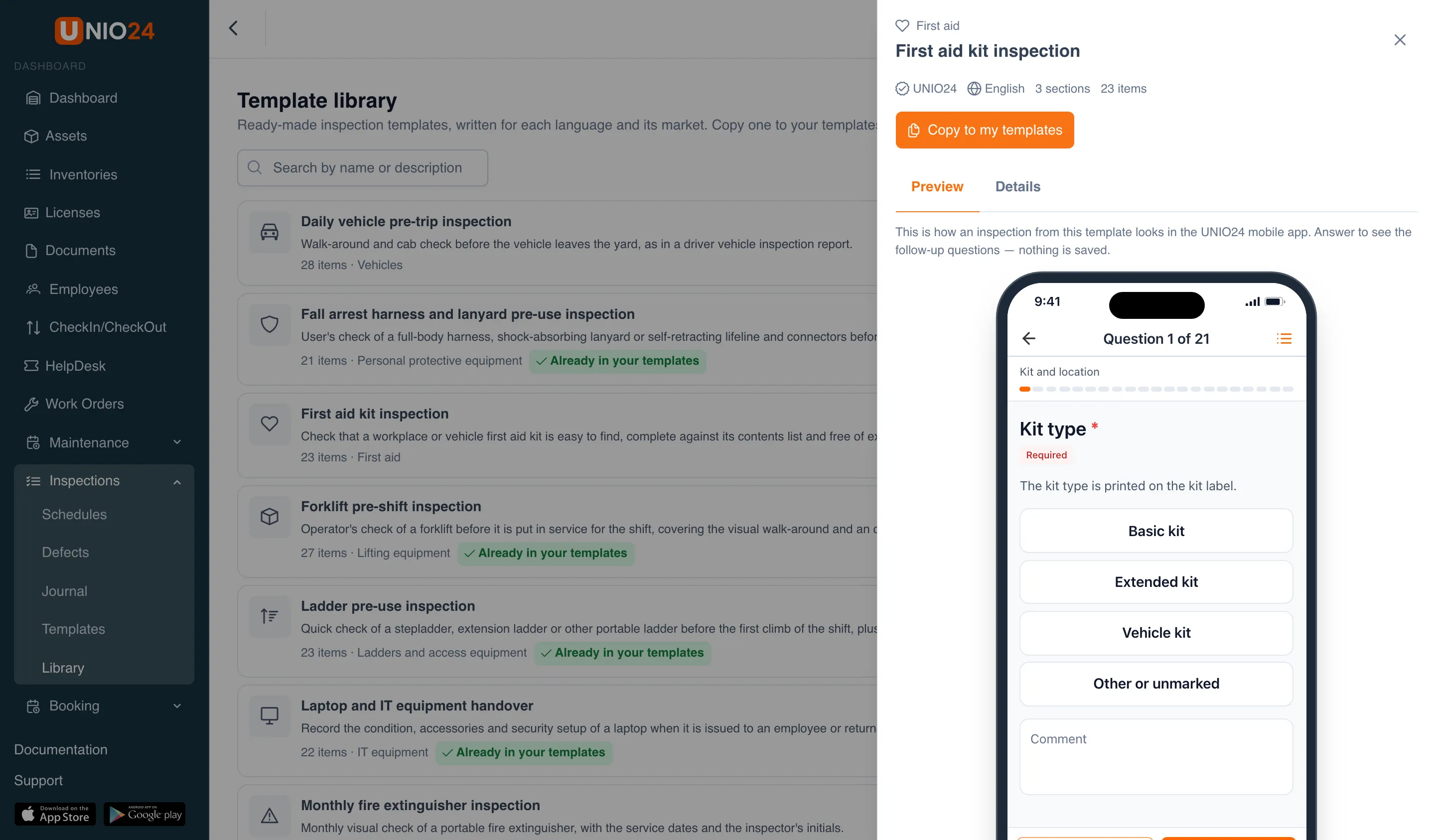
- To look at a template before copying it, click View (the eye icon) in its row. A panel with two tabs opens on the right:
- Preview: how an inspection from this template looks in the mobile app. You can answer the questions to see the follow-up questions; nothing is saved;
- Details: what the template is for and how to adapt it.
- Click Copy in the template’s row (or Copy to my templates in the preview panel).
- The copy opens in the template builder. Adjust it (see Create or edit a template) and click Save.
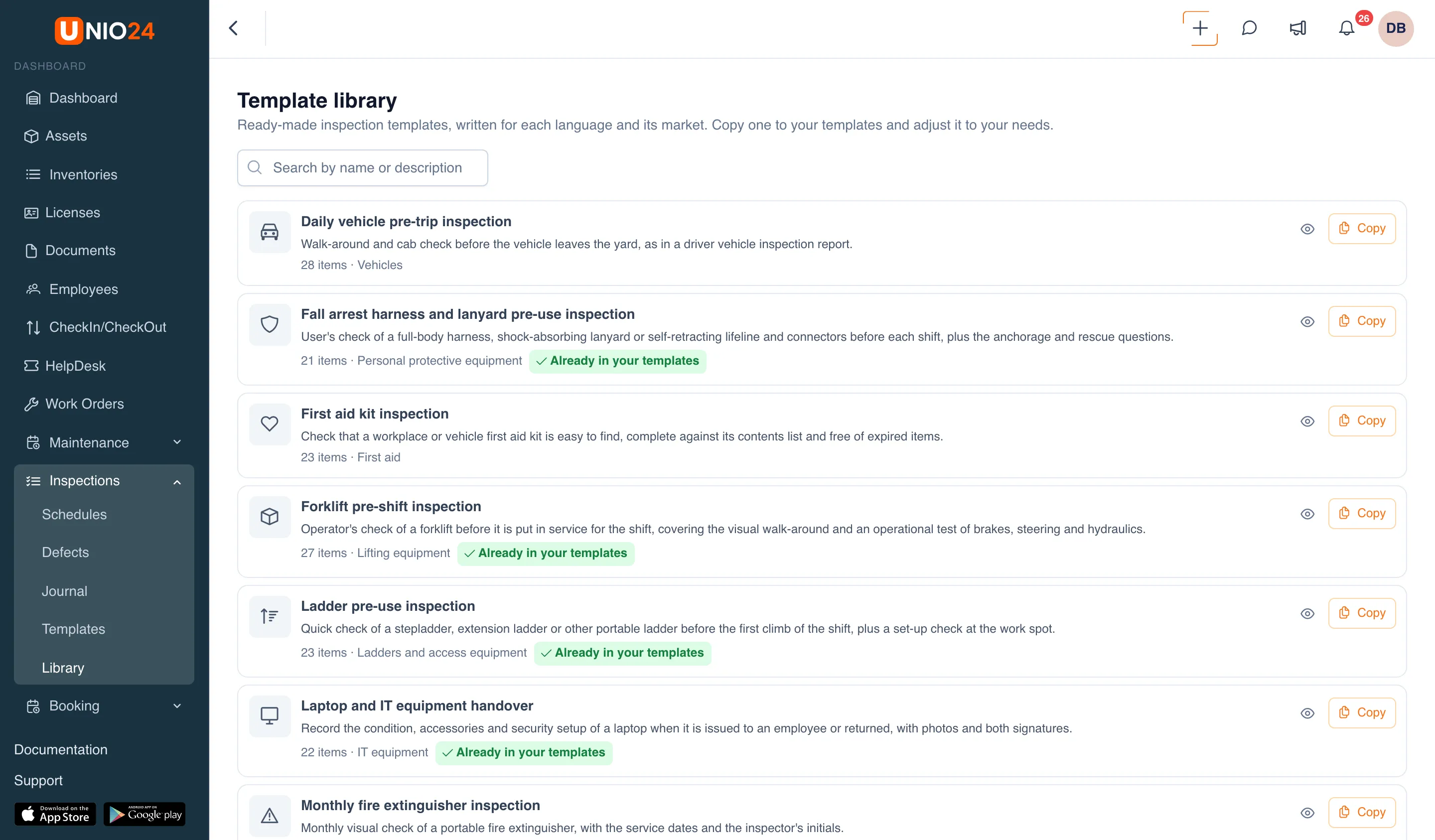
A copy is created active and without an asset type. If a template has already been copied, its row shows the Already in your templates tag; copying it again creates another copy. Changes to the library don’t affect copied templates.
Create or edit a template
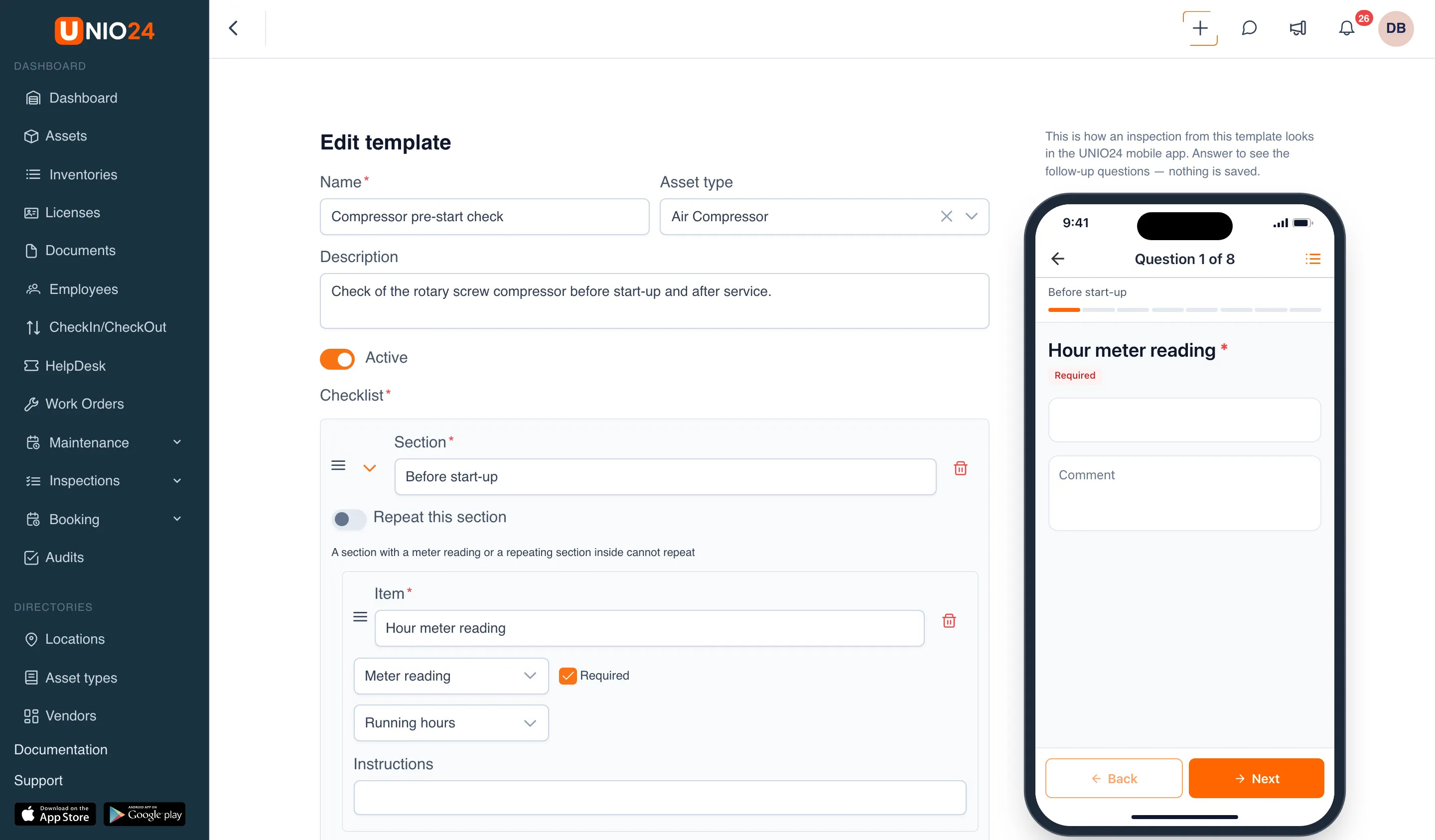
Section titled “Create or edit a template”- Open Inspections → Templates.
- Click New template, or click Edit (the pencil icon) in a template’s row to change it.
- Fill in the Name. This field is required.
- If the template is for one type of asset, choose the Asset type. If you leave it empty, the template works for any asset.
- Fill in the Description if needed.
- Leave the Active switch on so the template can be used for inspections.
- Build the Checklist from sections and items, as described below.
- Click Save.
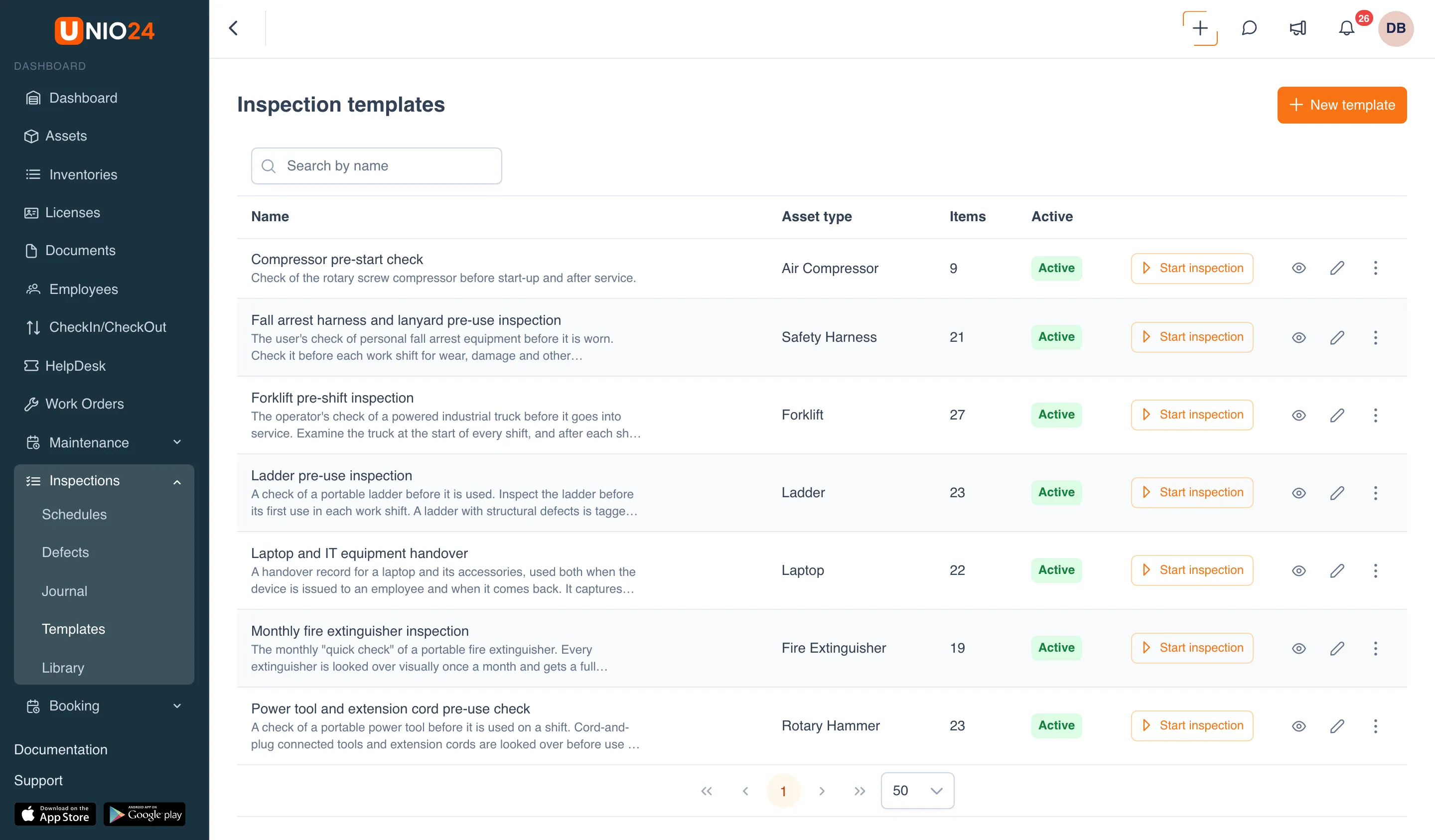
Preview (the eye icon) in a template’s row shows the template on a phone mockup without opening the builder. The three-dot menu in a template’s row also lets you:
- Duplicate: create a copy of the template with the same asset type and checklist. The copy appears in the list with “(copy)” added to its name and is inactive: adjust it and activate it when it’s ready. This is a handy way to make a variant of a template without touching the original;
- Deactivate: stop offering the template for new inspections and schedules. Inspections already carried out with it are kept. Activate brings a deactivated template back;
- Delete: remove the template for good. This is only possible while the template has no inspections and isn’t used in any schedule; otherwise deactivate it instead (see Deactivate or delete a template).
To the right of the builder there is a phone mockup showing how an inspection from this template will look in the mobile app. On a narrow screen, the mockup opens with the See it on a phone button.
Sections and items
Section titled “Sections and items”- Click Add section and type the section name in the Section field.
- Inside the section, click Add item.
- In the Item field, write what to check, for example “No oil or air leaks”.
- In the Type field, choose the answer type. Some types show extra fields:
- Number: Min, Max, and Unit. A value outside the range fails the item;
- Choice: a list of Choices, each with a Value and a Label. Check Fails the item for the choices that mean something is wrong. Add choice adds another option;
- Rating: Number of stars (from 3 to 10) and Fails at or below;
- Meter reading: the Meter: running hours, mileage, or cycles.
- In the If it fails field, choose the severity: Minor, Major, or Critical. The field only appears for items that can fail.
- Check Required if the inspection can’t be submitted without an answer to this item.
- Use the Instructions field to explain how to check, if needed. The instructions are shown under the item during the inspection.
To change the order of sections and items, drag them by the handle to the left of the name; on hover it shows “Drag to reorder”.
Follow-up questions
Section titled “Follow-up questions”A condition adds questions that only appear for certain answers. Conditions can be added to Choice, Pass / fail, Yes / no, and Rating items.
- Under the item, click Add condition.
- In the If the answer is one of field, choose the answers that should bring up the extra questions.
- Under Then ask, add items or sections with Add item and Add section.
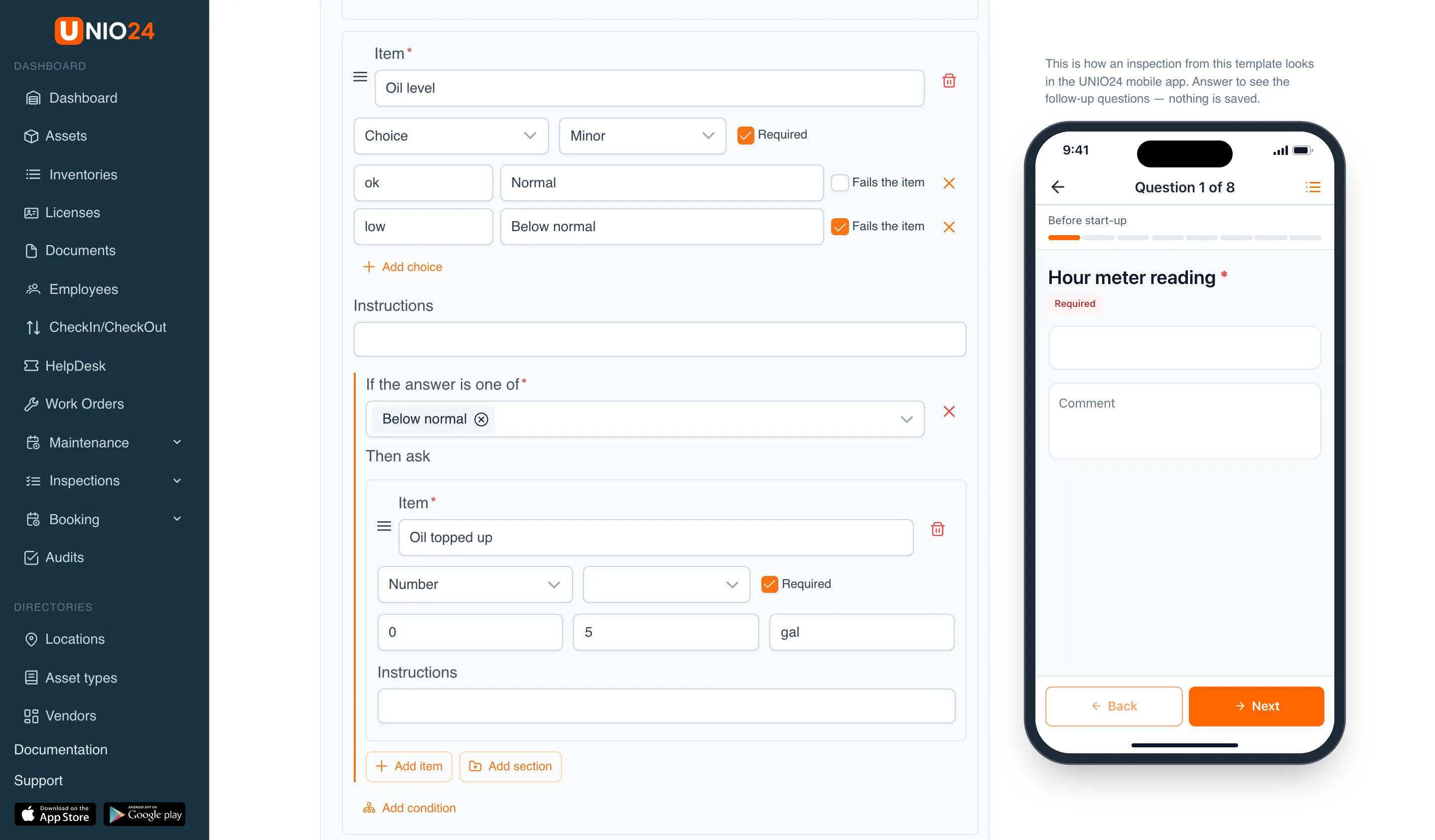
If the answer doesn’t match the condition, the extra questions aren’t shown and aren’t required.
Repeatable sections
Section titled “Repeatable sections”A repeatable section is filled in several times during one inspection, for example once for every piece of equipment.
- In the section, turn on Repeat this section.
- In the Minimum records field, enter the minimum number of records to fill in.
A section that contains a meter reading or another repeatable section can’t repeat.
Deactivate or delete a template
Section titled “Deactivate or delete a template”A template that has already been used for inspections or is part of a schedule can’t be deleted; you deactivate it instead.
- Open Inspections → Templates.
- In the template’s row, click the three-dot button and choose Deactivate.
A deactivated template is no longer offered for new inspections and schedules, and inspections already carried out with it are kept. Only a template that has never been used can be deleted: in the three-dot menu, choose Delete and confirm.
Changes to a template don’t affect inspections that have already been started or submitted: every inspection keeps its items exactly as they were when it started.
Set up a schedule
Section titled “Set up a schedule”- Open Inspections → Schedules.
- Click New schedule.
- Choose the Template.
- In the Applies to field, choose Every asset of a type and pick the Asset type, or choose One asset and pick the asset.
- Set how often:
- turn on By time and in the Every fields enter a number and a unit: day, week, month, or year;
- and/or turn on By meter, choose the Meter and the step, for example every 250 running hours.
- In the Remind this many days ahead field, enter how many days before the due date the asset becomes Due and the reminder is sent. The value can’t be larger than the interval.
- In the Responsible field, choose the person or group who gets the reminders. If you leave it empty, everyone who can perform inspections gets them. Anyone with the right permission can carry out the inspection, not just the responsible person.
- Leave Active on and click Save.
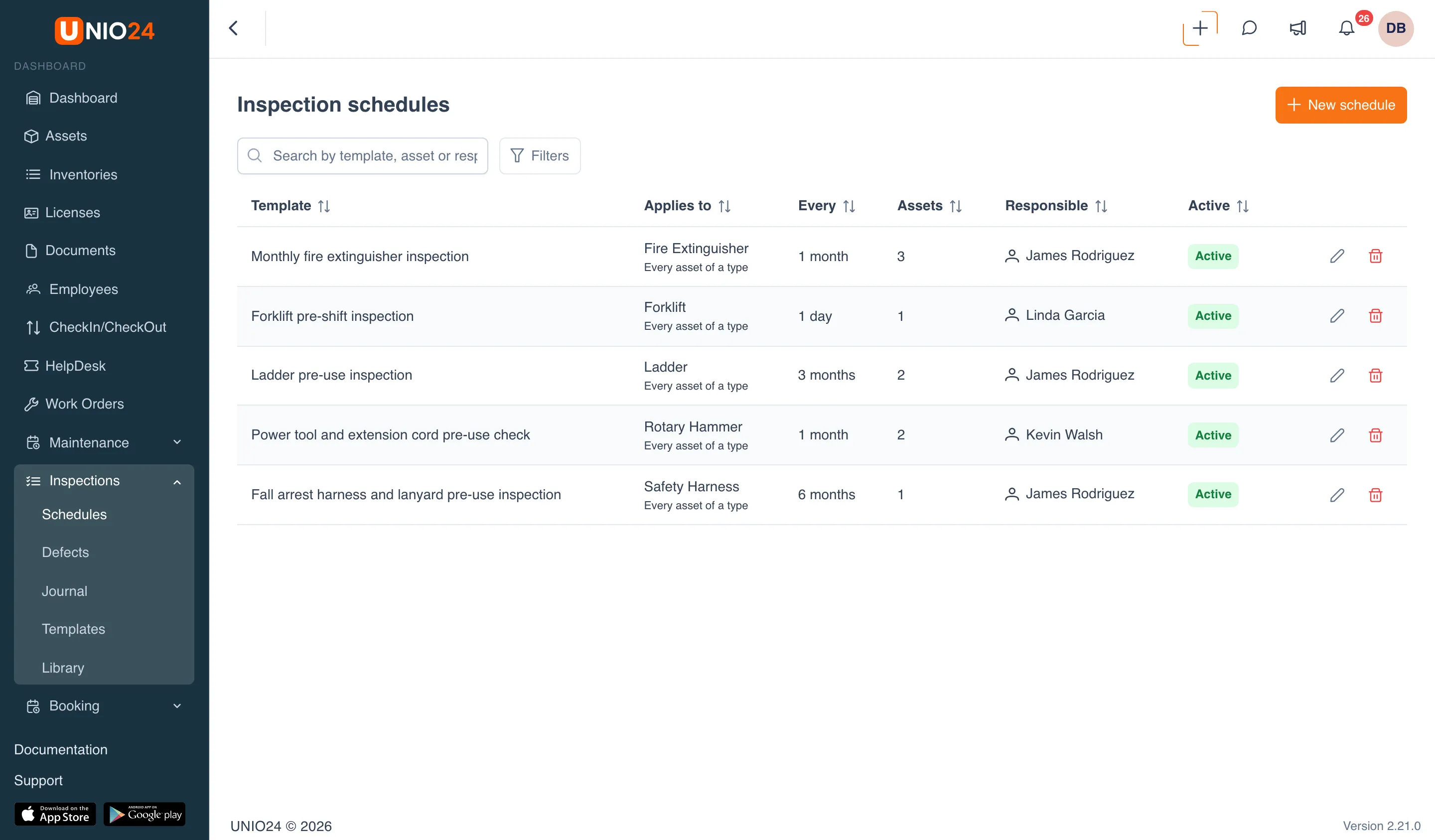
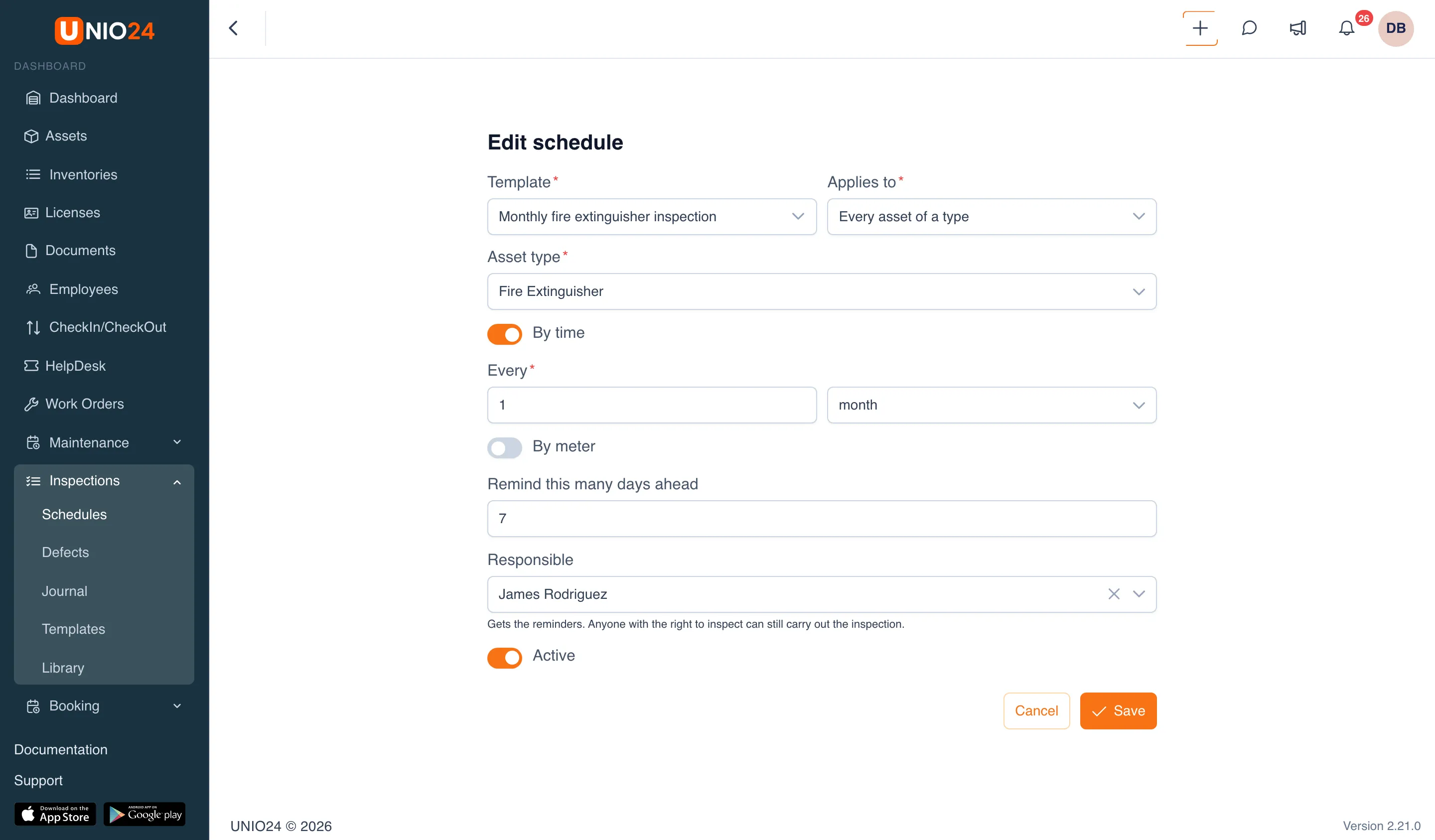
Each asset’s due date is counted from its last inspection with this template. If the asset hasn’t been inspected yet, it is counted from the date the asset came under the schedule. Deleting a schedule doesn’t delete inspections already carried out.
What a defect opens
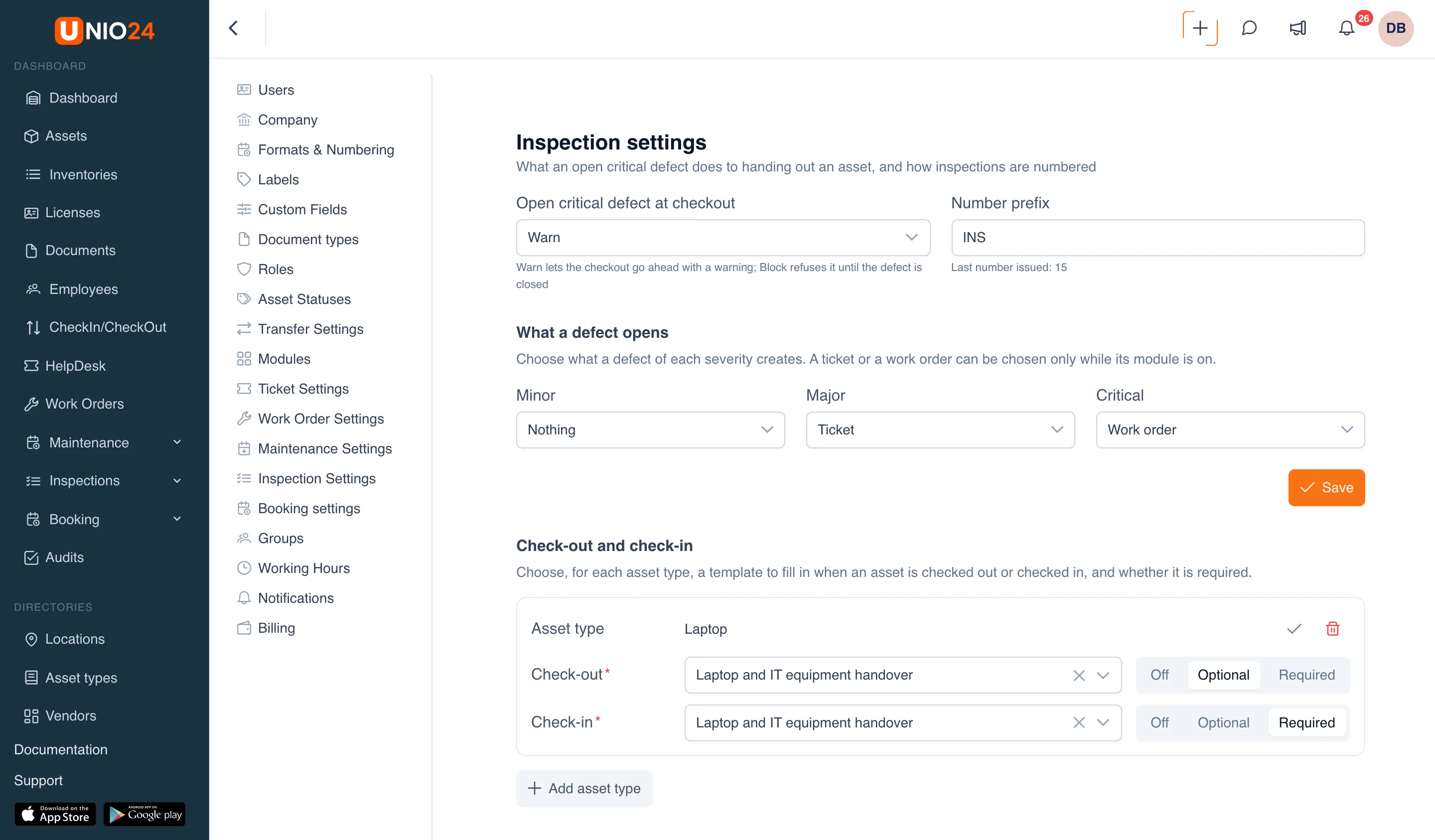
Section titled “What a defect opens”- Open Settings → Inspection Settings.
- In the What a defect opens block, for each severity (Minor, Major, Critical) choose:
- Nothing: the defect is only recorded;
- Ticket: a ticket is created for the defect when the inspection is submitted;
- Work order: a work order is created for the defect when the inspection is submitted.
- Click Save.
You can choose a ticket or a work order only while the matching module is on. A ticket opened for a defect goes through the usual ticket routing rules, and the employee who performed the inspection is its requester.
Blocking check-out on a critical defect, and numbering
Section titled “Blocking check-out on a critical defect, and numbering”On the same Inspection settings page:
- In the Open critical defect at checkout field, choose Warn (the asset can be checked out with a warning) or Block (check-out and transfers are refused until the defect is closed).
- In the Number prefix field, enter the prefix for inspection numbers: up to 10 characters,
INSby default. If you leave it empty, numbers are plain digits. The last number issued is shown under the field. - Click Save.
Inspections at check-out and check-in
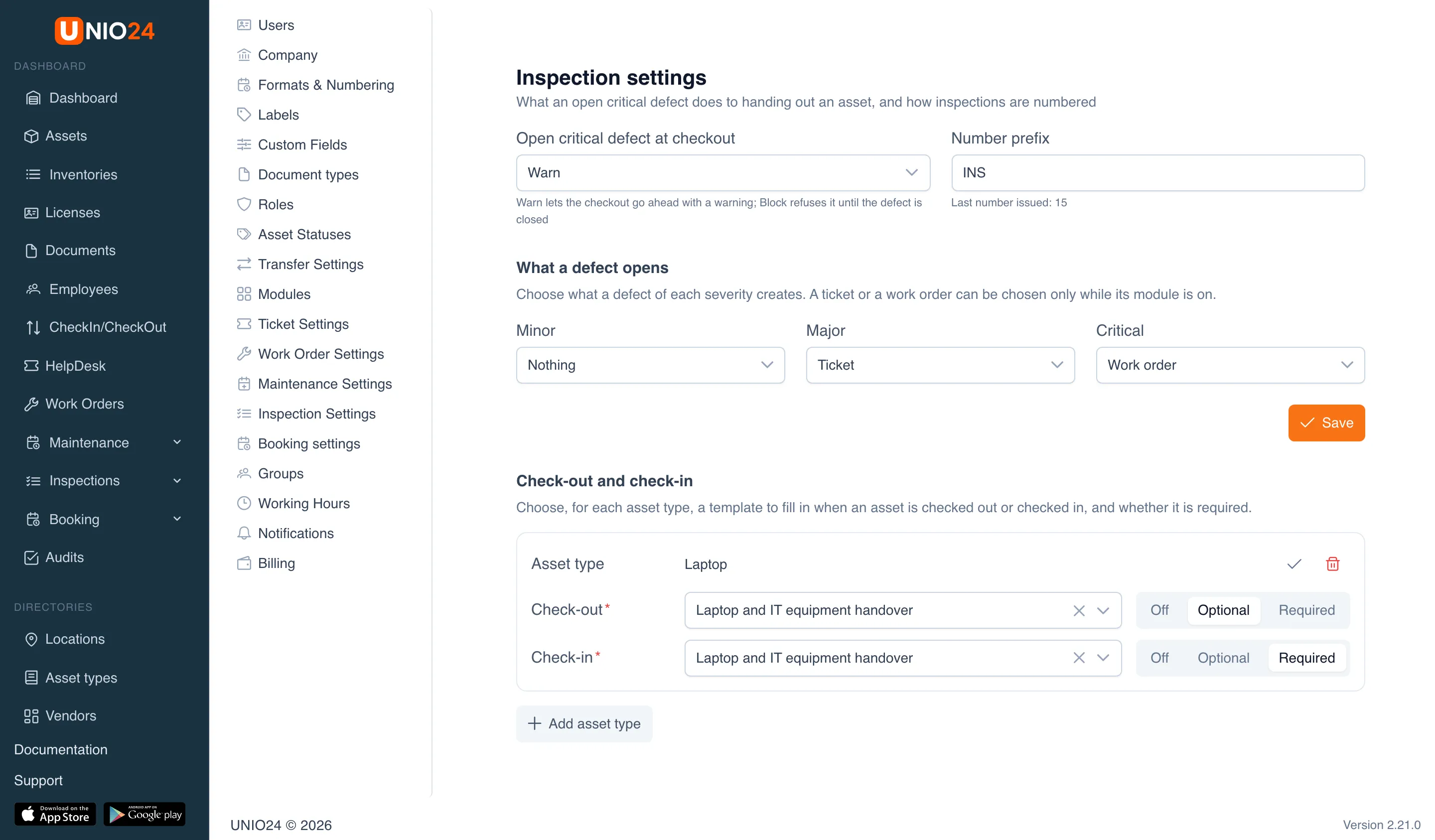
Section titled “Inspections at check-out and check-in”A rule sets which template is filled in when an asset is checked out to an employee and when it is checked back in.
- Open Settings → Inspection Settings and scroll down to the Check-out and check-in block.
- Click Add asset type.
- In the Asset type field, choose the type. If you leave it empty, the rule applies to all asset types that don’t have a rule of their own.
- In the Check-out row, choose a template and a mode:
- Off: no inspection is asked for at check-out;
- Optional: the check-out form offers an inspection, but the check-out can be saved without it;
- Required: the check-out can’t be saved without a completed inspection.
- Set up the Check-in row the same way.
- Click the check mark (save) in the top right corner of the rule card. The trash icon next to it deletes the rule.
The rule applies in the check-out and check-in forms under CheckIn/CheckOut, in the check-out and check-in windows on the asset card, and in self-service. It doesn’t affect transfers between locations or sending an asset for repair. A rule for a specific type takes priority over the rule for all types, even if its mode is Off.
Inspections in a work order
Section titled “Inspections in a work order”Inspections are added to a work order when you create or edit it.
- Open the work order form: Work Orders → New Work Order, or open a work order and edit it.
- In the Inspections before the work field, choose the templates to check the asset with before work starts.
- In the Inspections after the work field, choose the templates to check it with after the work.
- Save the work order.
Each stage can have up to 20 templates. Inspections before the work can be changed until the work order is taken into work, and inspections after the work until it is done. Inspections can’t be added to an external work order carried out by a service center. How to run work order inspections is described in Run work order inspections.
Useful links
Section titled “Useful links”- Inspections: how templates, inspection results, and defects work
- Inspections reference: item types, settings, and permissions