

Audits
An audit confirms that your assets are where they are supposed to be and records their condition. In the menu this section is called Audits, and the button that starts a new one is Create audit. Every audit gets a number, such as AUD-2.
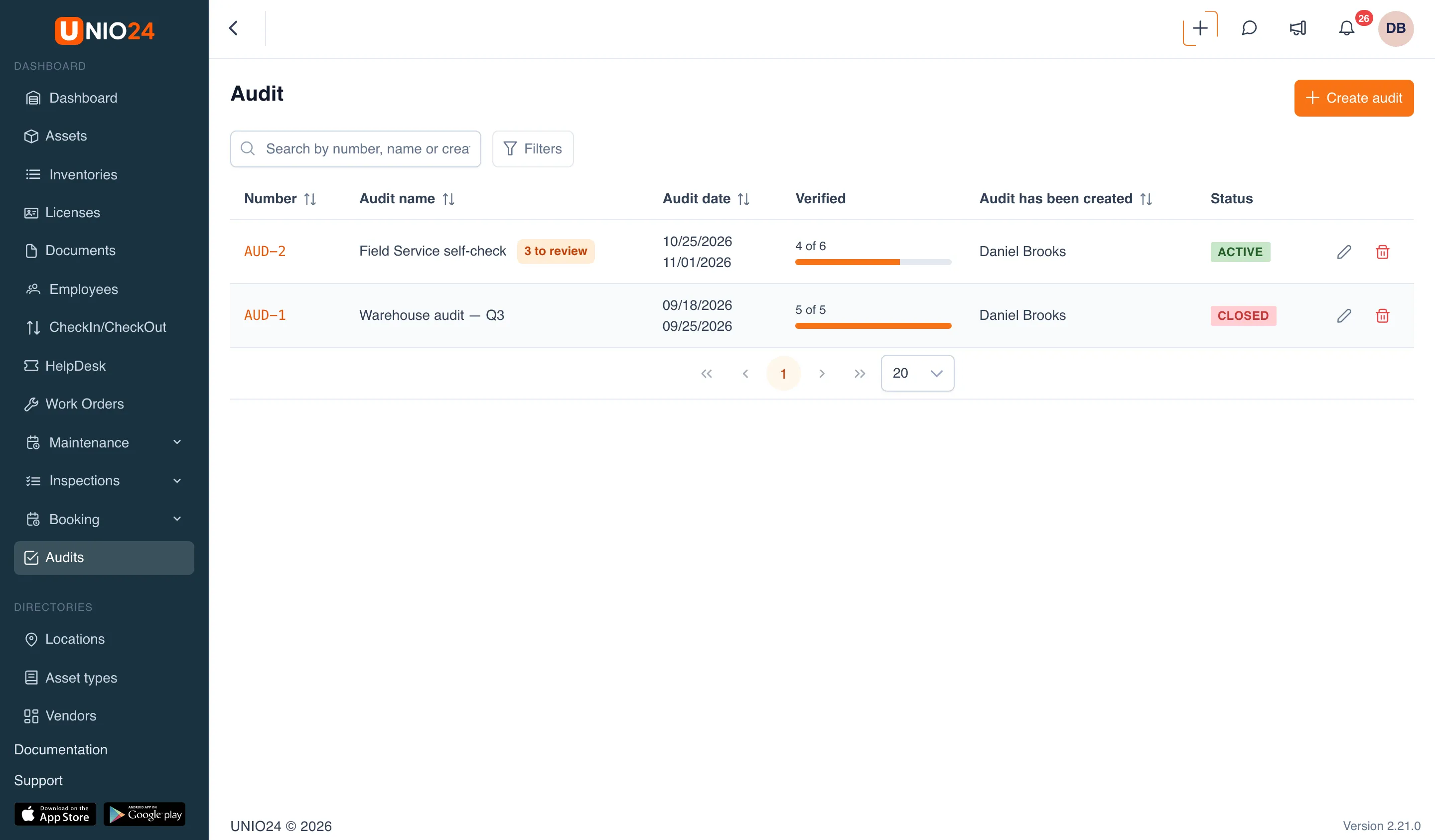
Audits are a module that is turned on for every company by default. You can turn it off on Settings → Modules. When you do, the menu item and the tab on the asset page disappear, and self-service audit links that were already emailed to employees stop working.
Audits vs. inventories
Section titled “Audits vs. inventories”Don’t confuse Audits with the Inventories menu item. An audit checks your registered assets one by one: you confirm that each asset is actually there. Inventories is a separate section that tracks consumables by quantity, not item by item.
Audit scope
Section titled “Audit scope”When you create an audit, you choose its source, which decides which assets go into the check:
- All — every asset in the organization.
- By location — assets at the selected locations.
- By subdivision — assets of the selected departments.
- By employee — assets assigned to the selected employees.
The source is set once, when the audit is created, and can’t be changed after you save it. UNIO24 builds the list of assets to check from the scope you picked.
Condition assessment
Section titled “Condition assessment”If condition assessment is turned on for an audit, the person checking marks each asset as present and also records its condition. The list of conditions is managed in the Asset Conditions settings. It includes built-in values (New, Good, Satisfactory, Poor, Damaged, Non-functional), and you can add your own. When condition assessment is required, an asset can’t be marked as present until a condition is selected.
Photos
Section titled “Photos”While checking an asset in an audit, you can attach photos to it, for example to show its condition or where it actually sits. These photos land in the asset’s own gallery, labeled with where they came from. See Files and photos for details.
Self-service audits
Section titled “Self-service audits”Usually an audit is run by a storekeeper or another person in charge: they open the asset list and mark what’s there. But when assets are spread out among employees (laptops, tools, and instruments with field crews), visiting everyone is hard. In that case, make the audit self-service: each employee gets an email with a personal link and confirms their own assets, without a UNIO24 account.
From the link, the employee:
- marks each of their assets as Present or Absent;
- selects the asset’s condition, if the organizer turned on condition assessment;
- adds a note to an asset, or a general note for the whole audit;
- reports company items they have that aren’t assigned to them, in the I have it, but it is not on the list block: name, serial number, manufacturer, model, photos, and where the item is kept.
You can protect the link with an OTP code: to get in, the employee enters a one-time code sent to their email. The organizer follows progress on the Participants tab: who was emailed, who opened the link, and how many assets they confirmed.
The employee’s answers are recorded in the audit, but they don’t change the asset record. A self-service audit is not the same as self-service, where employees check assets out and back in themselves.
Step-by-step instructions are in Self-service audit.
Unrecorded items: found beyond the list
Section titled “Unrecorded items: found beyond the list”Sometimes an employee has a company item that isn’t on their list: equipment left over from a job, handed out without paperwork, or bought for a site and never registered. The employee reports it, and an administrator or manager decides what to do with it.
These reports are collected on the audit’s Found beyond the list tab, and the audits list shows how many are waiting for a decision next to the audit name (“3 to review”). If the serial number or asset ID in a report matches an asset already in the register, UNIO24 points it out: “It looks like RF-29 — currently held by Austin Calibration Lab”. Each report gets exactly one decision:
- Create asset — register the item. A new asset form opens, prefilled with the data from the report; the asset is assigned to the employee, and the photos move to its gallery.
- Move to the employee — the item is already in the register, but on record it sits at a location or with another employee. The asset is checked out to the employee.
- Reject — the item is not registered, for example because it’s the employee’s personal property.
On their report the employee sees the status Under review, Accepted, or Rejected. Reports can be handled even after the audit is closed.
Where audits are run
Section titled “Where audits are run”You can run audits in the web app or in the UNIO24 Mobile app, where assets are checked by scanning QR codes and NFC tags. See Audits in the mobile app.
Useful links
Section titled “Useful links”- Run an audit — step-by-step instructions
- Self-service audit — employees confirm assets from a link; unrecorded items get registered
- Audit reference — the full list of fields, columns, and values