

Configure preventive maintenance
These tasks are done by an administrator or by someone with the Manage plans right.
Turn on the module
Section titled “Turn on the module”- In the main menu on the left, open Settings.
- Choose the Modules page.
- Find the Preventive Maintenance card and turn on its switch.
The menu then gets a Maintenance group with the Calibrations, Schedules, Plans, Job Plans, and Analytics items, and the settings get a Maintenance Settings page.
For plans to create work orders, the Work Orders module has to be on too. If you turn work orders off, UNIO24 warns you how many open work orders and plans this affects: open work orders from plans stay as they are, but their schedules are detached from them, and plans that create work orders only keep the log. Once work orders are back on, the plans start creating work orders again.
Setup order
Section titled “Setup order”- Create a job plan: what to do during the service.
- Create a maintenance plan: for which assets and how often.
- If the plan counts by usage, make sure the assets have meters; see Track asset meters.
- Check the resulting schedules under Maintenance → Schedules.
Create a job plan
Section titled “Create a job plan”- Open Maintenance → Job Plans.
- Click New Job Plan.
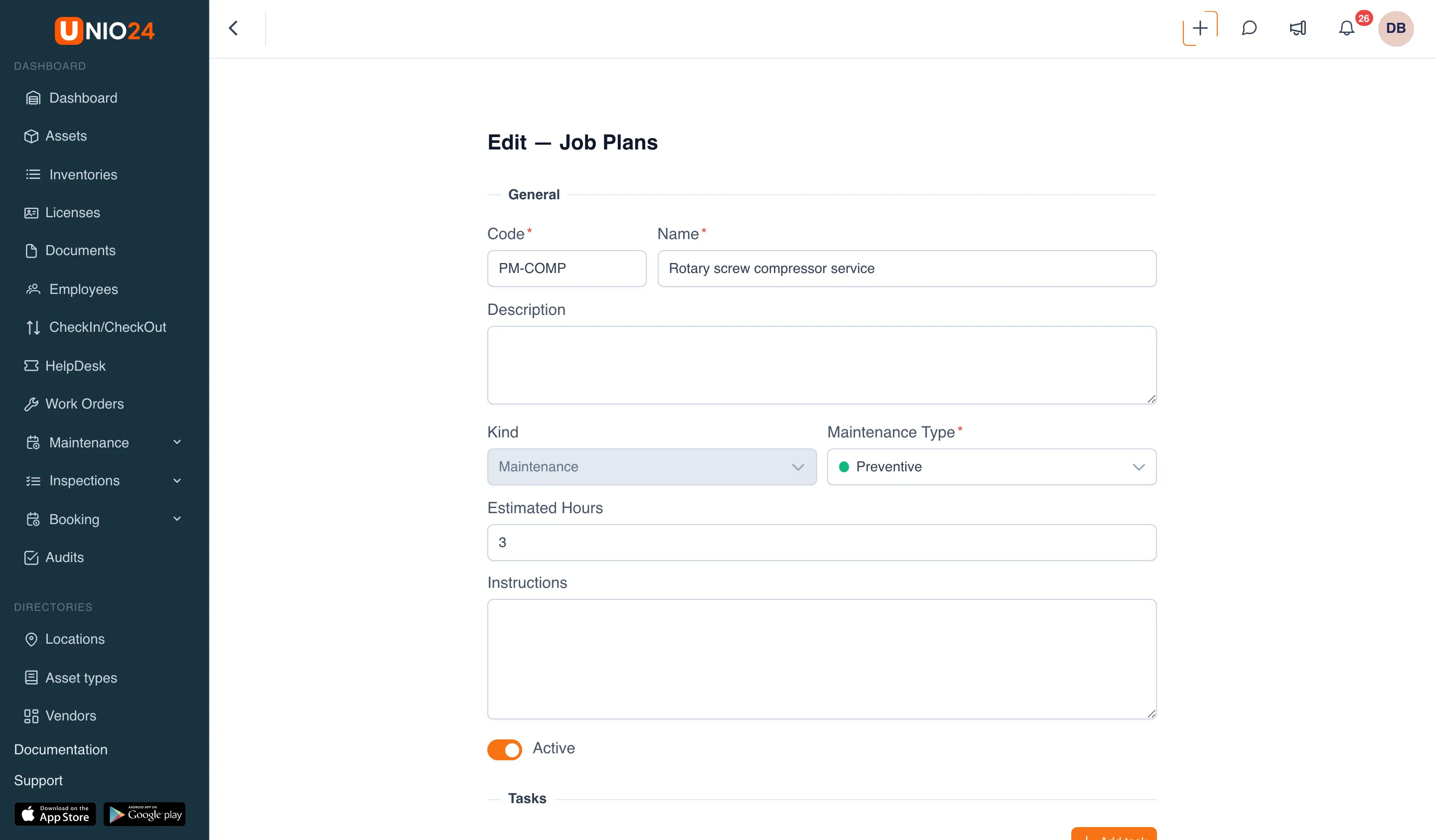
- In the General block, fill in:
- Code: a short code for the job plan, for example
PM-COMP. Required; - Name: for example, “Rotary screw compressor service”. Required;
- Description: if needed;
- Kind: Maintenance or Calibration. The calibration job plan is covered in Calibration;
- Maintenance Type: the type the work orders get. Required;
- Estimated Hours: how long the job takes;
- Instructions: general directions for the technician.
- Code: a short code for the job plan, for example
- Leave the Active switch on. An inactive job plan can’t be chosen in a new plan.
- In the Tasks block, click Add task and enter the task title. Select Mandatory for tasks without which the work order can’t be completed. Remove an extra task with the delete button in its row.
- In the Materials block, click Add material, choose a Material from your inventory, and enter the quantity.
- Click Save.
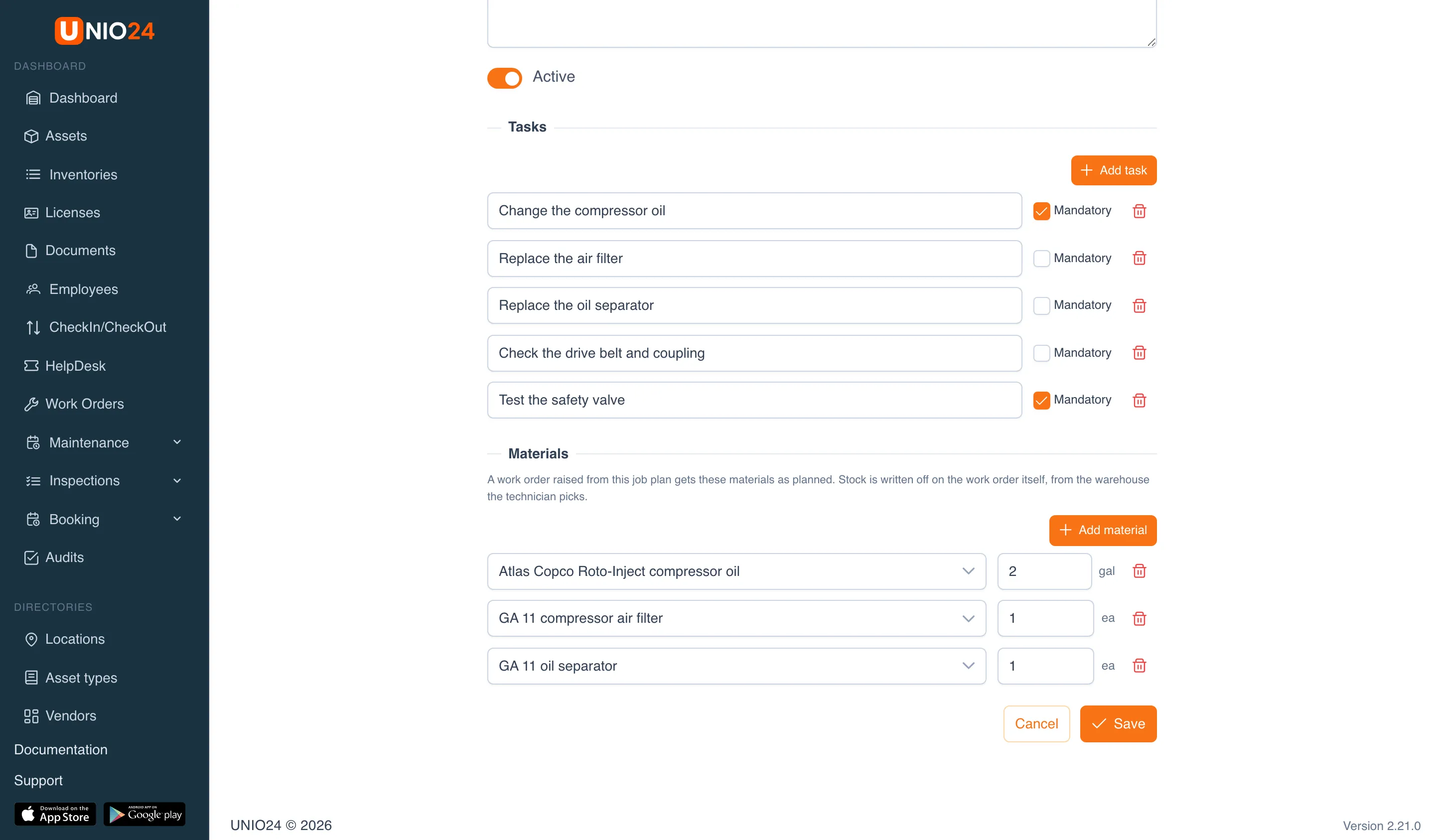
The job plan’s materials go into the work order as planned materials: they come off stock only when the technician issues them in the work order. To change a job plan’s materials, you need the right to view inventory.
In the list of job plans, the three-dot menu in a row lets you Edit, Duplicate (create a copy marked “(copy)”), and Delete a job plan. A job plan that’s used in a plan can’t be deleted; the item shows as In use.
Create a maintenance plan
Section titled “Create a maintenance plan”- Open Maintenance → Plans.
- Click New Plan.
- In the General block, fill in:
- Name: for example, “Air compressor service”. Required;
- Job Plan: what to do. Required;
- Description: if needed.
- Under Scope, choose:
- Asset type: the plan covers every asset of the chosen Asset Type. You can also choose a Location, and the plan then covers only the assets at that location and the locations inside it;
- Asset: the plan covers one specific asset.
- Set the Triggers; see Frequency.
- Choose the Anchor and the Count start; see Anchor and count start.
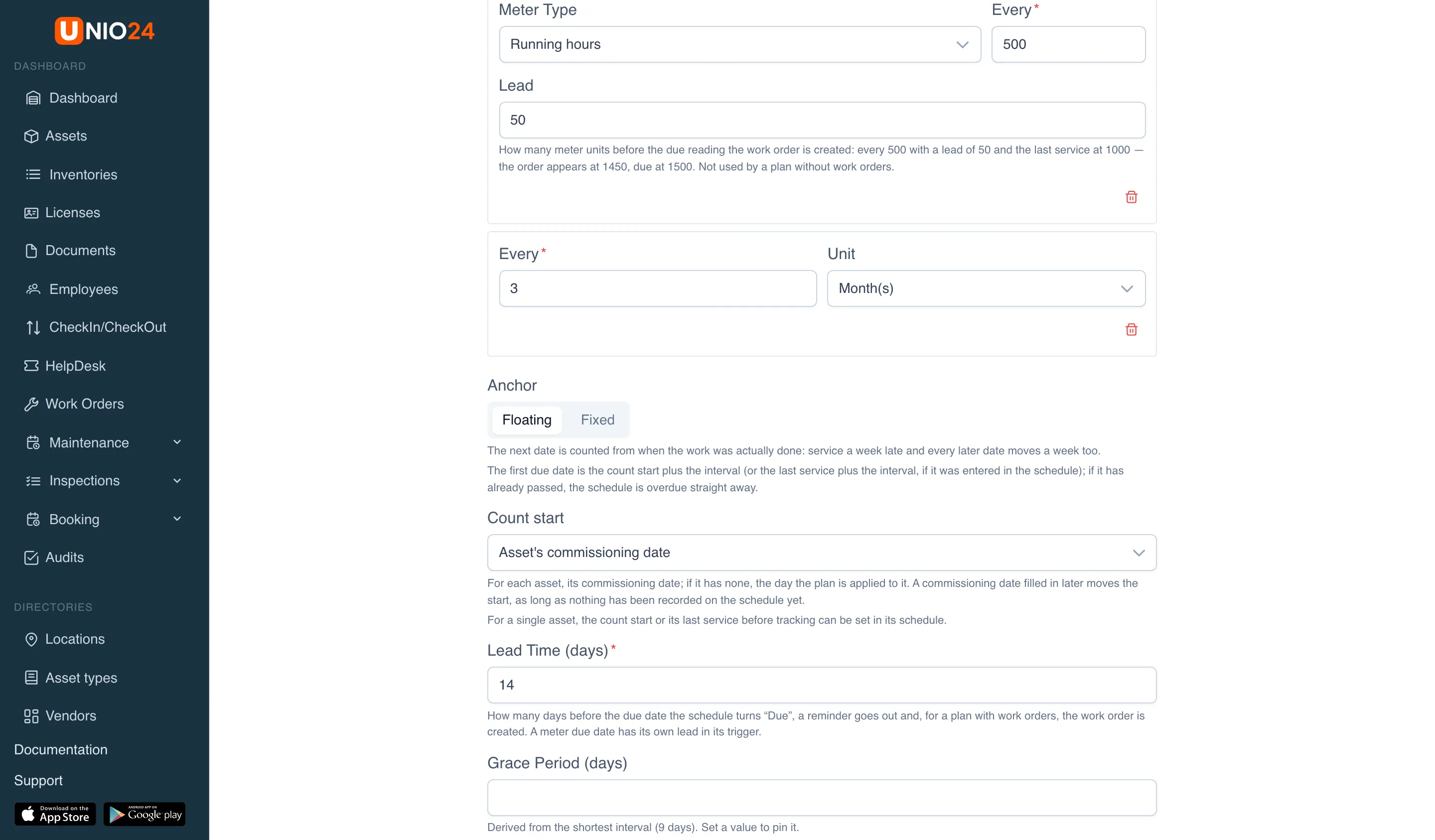
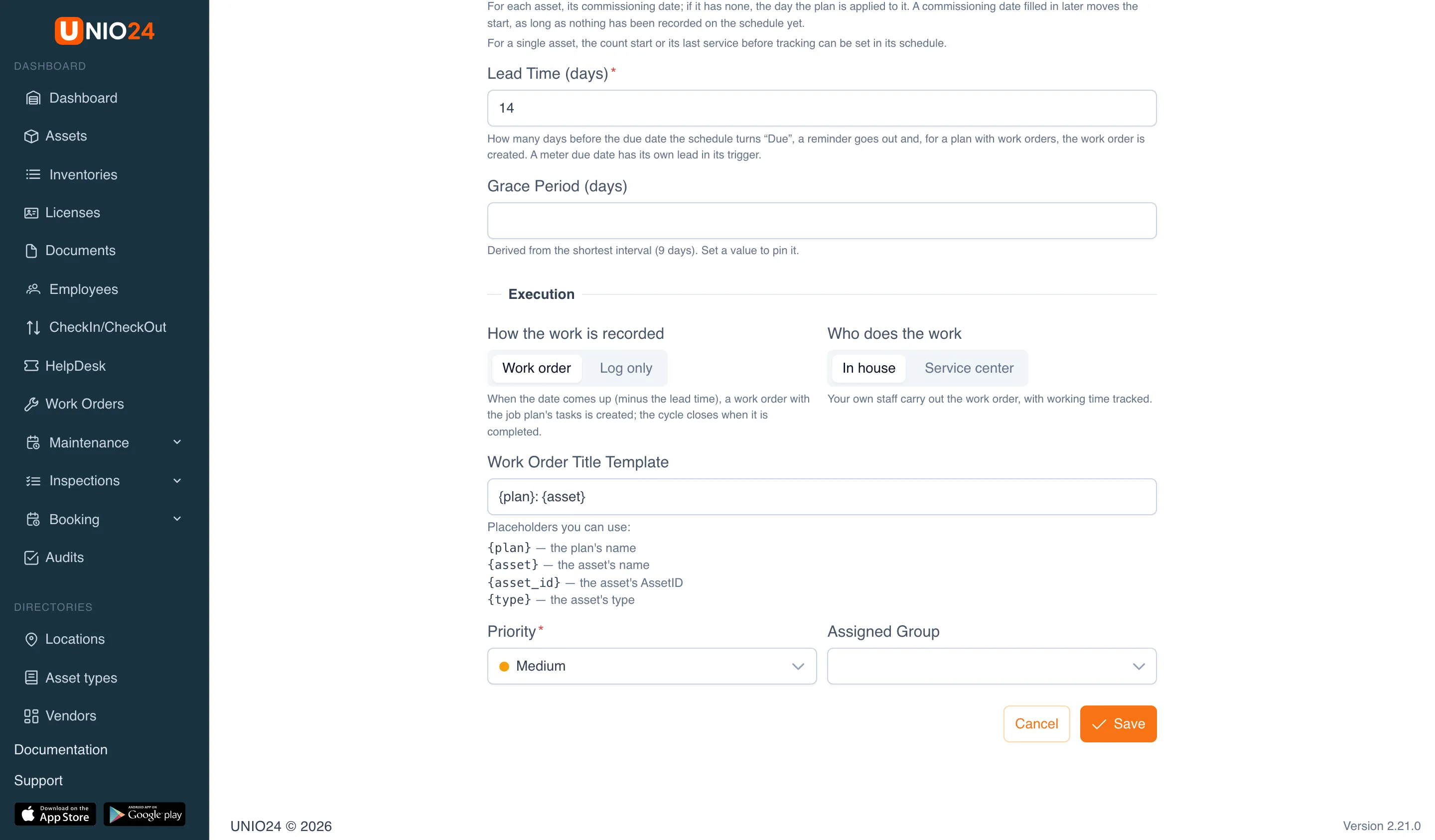
- In Lead Time (days), enter how many days before the due date the schedule turns “Due”, the reminder goes out, and, for a plan with work orders, the work order is created. The default is 7 days.
- If needed, enter the Grace Period (days): how many days after the due date the work still counts as on time. If you leave it empty, the grace period is 10% of the shortest interval, but at least one day.
- Set up the Execution; see Execution.
- Click Save.
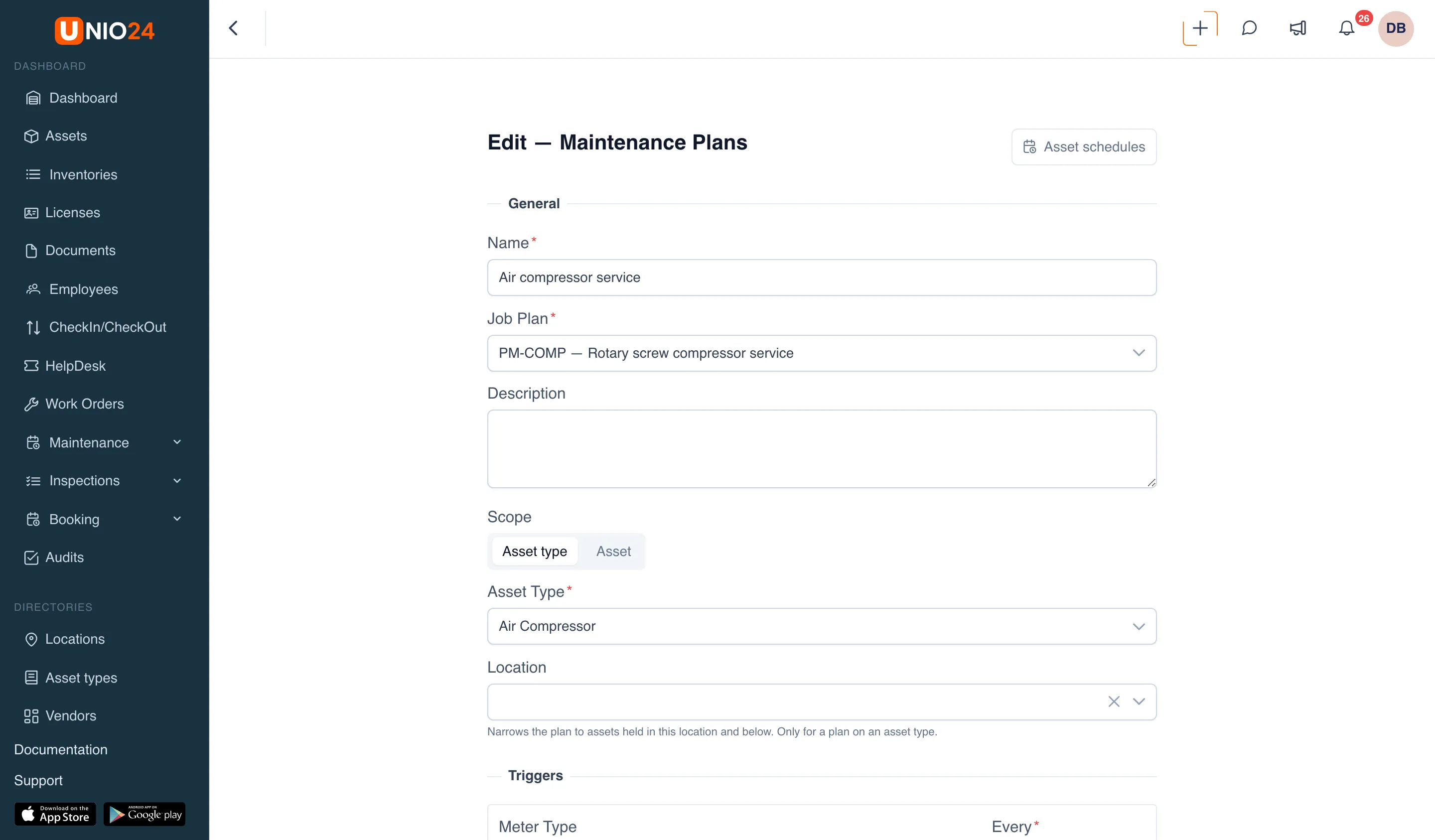
After you save, UNIO24 creates schedules for every matching asset. You can open them with the Asset schedules button on the plan form or with the number in the Schedules column of the plan list.
Frequency
Section titled “Frequency”In the Triggers block, add one trigger or both:
- Add time trigger: enter Every and the Unit: day(s), week(s), month(s), or year(s);
- Add meter trigger: choose the Meter Type (running hours, mileage, cycles, or custom), enter Every, and enter the Lead: how many meter units before the due reading the work order is created. For example, every 500 running hours with a lead of 50: with the last service at 1,000, the work order appears at 1,450 and the due reading is 1,500.
If you add both triggers, the service comes due on whichever happens first. If some assets don’t have a meter of the required type, the form warns you: for them, the meter-based date will never come up.
Anchor and count start
Section titled “Anchor and count start”Anchor:
- Floating: the next date is counted from when the work was actually done. Service a week late, and the later dates move a week;
- Fixed: dates follow a calendar grid from the count start, and being late doesn’t shift it. With a fixed anchor, also choose the First service: On the count start or One interval after the start.
Count start is what the first due date is counted from while there has been no service yet:
- Asset’s commissioning date: each asset’s own commissioning date; if it’s missing, the day the plan was applied to the asset;
- Date the plan is applied to the asset: the day the asset came under the plan;
- Set date: one date for every asset of the plan, entered in the Start date field.
For a single asset, you can set the count start, or the date of the last service before tracking, in that asset’s schedule; see Change the count start for an asset.
Execution
Section titled “Execution”- Under How the work is recorded, choose:
- Work order: when the date comes up, a work order with the job plan’s tasks is created; the cycle closes when the work order is completed;
- Log only: no work orders are created; the work is marked as done by hand in the schedule.
- Under Who does the work, choose In house or Service center, and pick the Service center if needed. A service center work order is coordinated rather than carried out: when it’s put into work, the asset is sent to service.
- For a plan with work orders, fill in:
- Work Order Title Template:
{plan}: {asset}by default. You can use{plan}for the plan’s name,{asset}for the asset’s name,{asset_id}for the asset’s AssetID, and{type}for the asset’s type; - Priority: the priority of the work orders. Required;
- Assigned Group: who gets the work orders and the reminders.
- Work Order Title Template:
Pause, edit, or delete a plan
Section titled “Pause, edit, or delete a plan”- Open Maintenance → Plans.
- In the plan’s row:
- Asset schedules opens the schedules of this plan;
- Pause stops the plan for a while: no reminders and no work orders, but the due dates are kept. A paused plan is brought back with Resume;
- the three-dot menu has Edit and Delete.
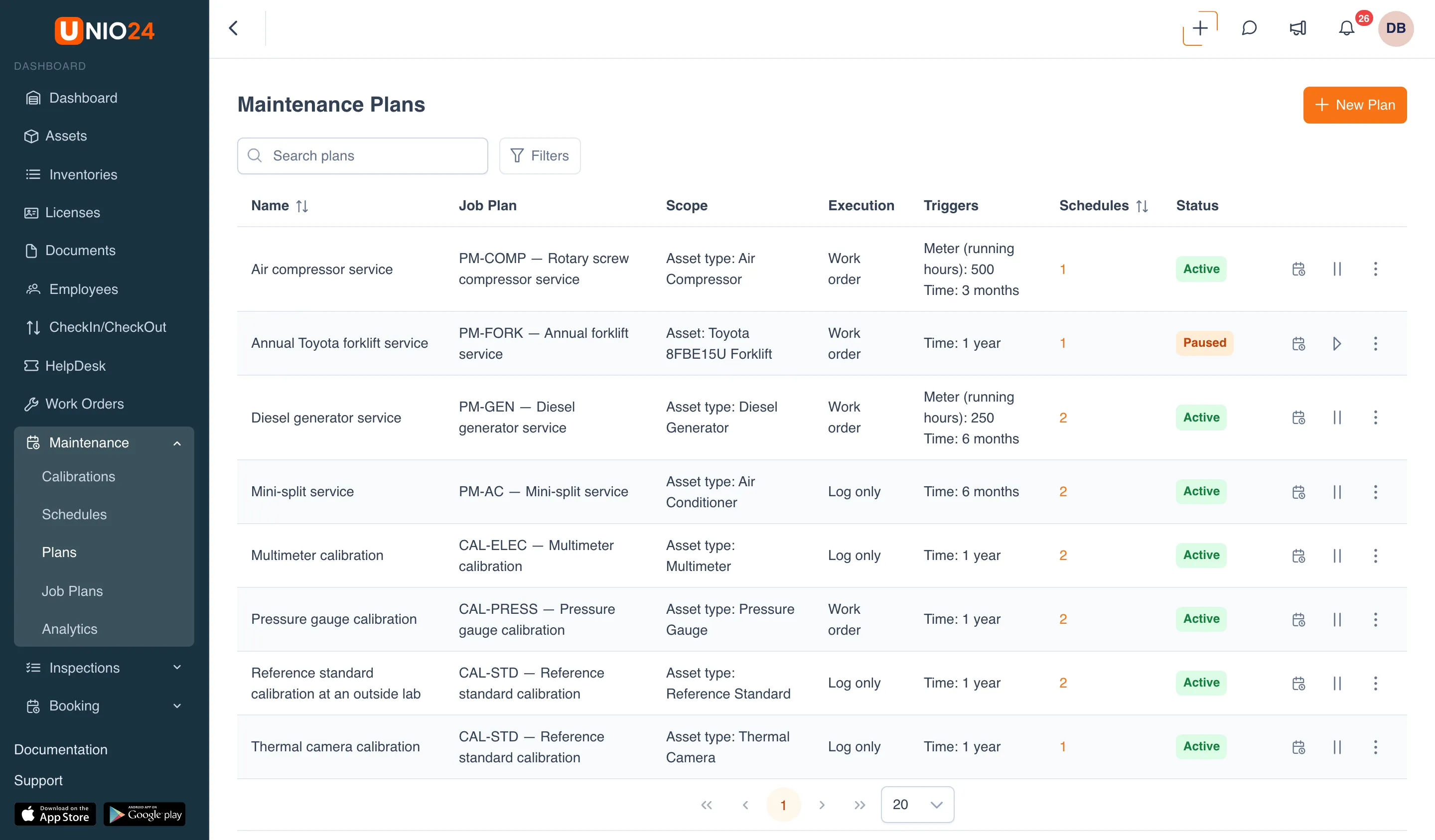
When you delete a plan, its open work orders aren’t deleted; they become ordinary work orders. The completion history stays on the asset cards.
Maintenance settings
Section titled “Maintenance settings”- Open Settings → Maintenance Settings.
- This is where the calibration and signature rules live: Calibration Enforcement, Warn before calibration is due (days), and Require electronic signatures. They’re described in Calibration records and signatures.
- Click Save.
Useful links
Section titled “Useful links”- Preventive maintenance: how due dates are worked out and what a plan does
- Maintenance reference: all fields and values