

Modules
UNIO24’s functionality is split into modules. Some of them always work, while a few are optional — the company itself decides which of them to use. As a result, the interface can look different for two companies: some menu sections are visible, others are not.
Why modules exist
Section titled “Why modules exist”Not every organization needs all of the system’s capabilities at once. Modules let you keep in the interface only what is used. When an optional module is disabled, its menu items and settings pages are hidden, and employees do not see features they do not use. When the module is enabled, those items appear.
This is exactly why a menu item can be present for one company and absent for another: the visibility of a section depends on whether the corresponding module is enabled (and also on the user’s access rights).
Core modules
Section titled “Core modules”These capabilities are always available and cannot be disabled:
- Assets — accounting of the assets themselves.
- Employees — a directory of people to whom assets are assigned.
- Locations — locations and storage places.
- CheckIn/CheckOut — operations for checking out, returning, and moving assets.
- Inventories — accounting of consumables.
- Audit — checks of asset presence (see Asset audit).
The visibility of these sections depends only on the user’s access rights, not on module settings.
Optional modules
Section titled “Optional modules”Optional modules are enabled and disabled in the settings. There are three at the moment:
- Licenses — managing software licenses, subscriptions, and permits (see Licenses).
- Tickets — managing service requests, incidents, and tickets (see Tickets).
- Work Orders — planning and tracking maintenance work orders, tasks, and materials (see Work Orders).
When an optional module is disabled, its menu item is not shown, and an attempt to open its page directly is unavailable.
How to enable or disable a module
Section titled “How to enable or disable a module”- Open Settings in the left menu.
- Go to the Modules section. At the top of the page it reads: “Enable or disable feature modules for your company”.
- Find the module you need in the list. Next to the name there is a status icon: Enabled, Disabled, or Deprecated.
- Toggle the switch next to the module to enable or disable it.
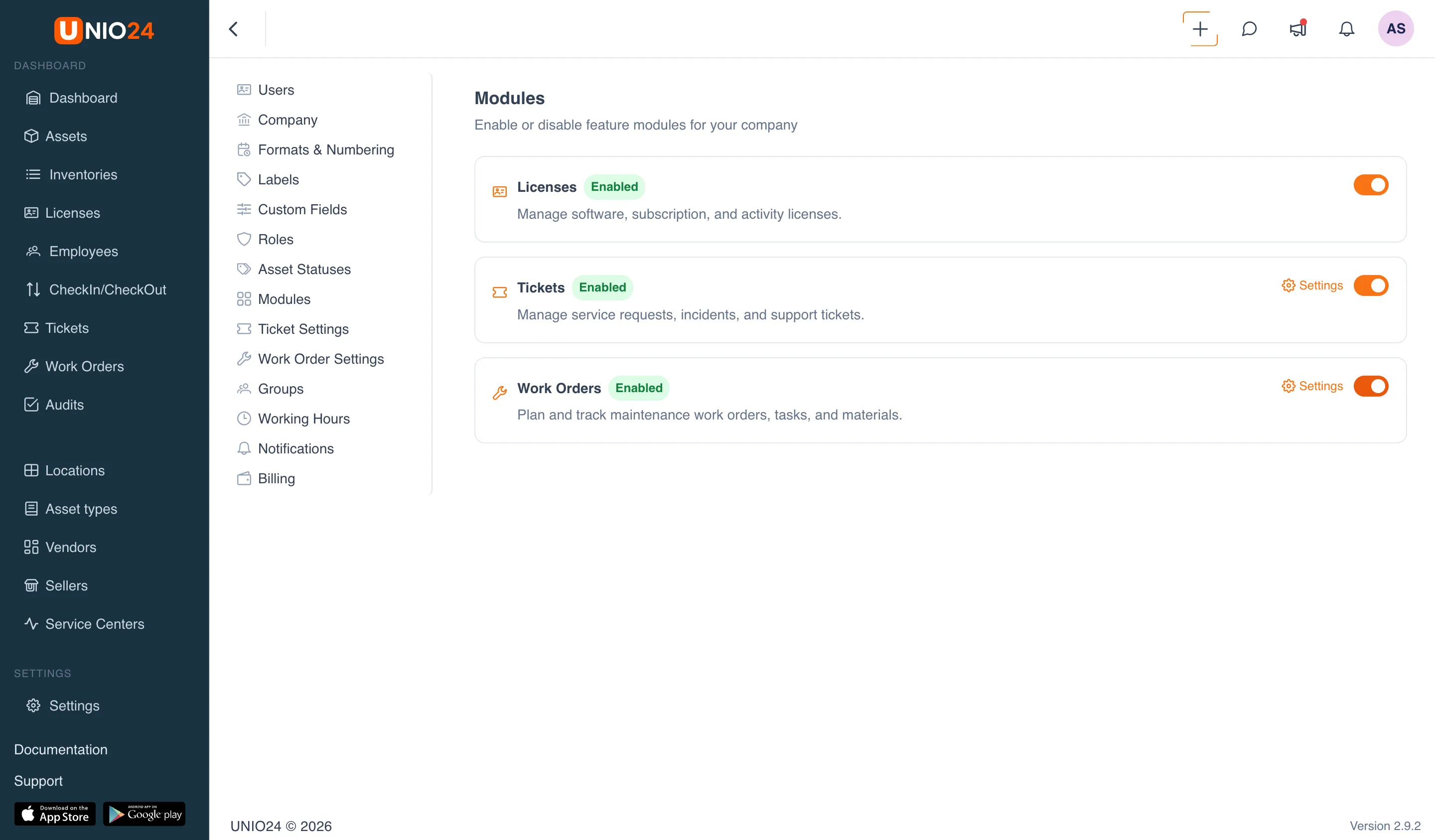
After it is enabled, the module gets menu items and, if any exist, settings pages. For some modules a Settings link is shown next to them, leading to their parameters, along with a Setup instructions hint.
If a module is marked Deprecated, the switch for it is unavailable.
The initial set of modules is offered for selection during your first login to the system, and you can change that choice here at any time.