

Importing data
If you need step-by-step instructions, see How to import data. For the full list of fields, strategies, and skip reasons, see the Import reference.
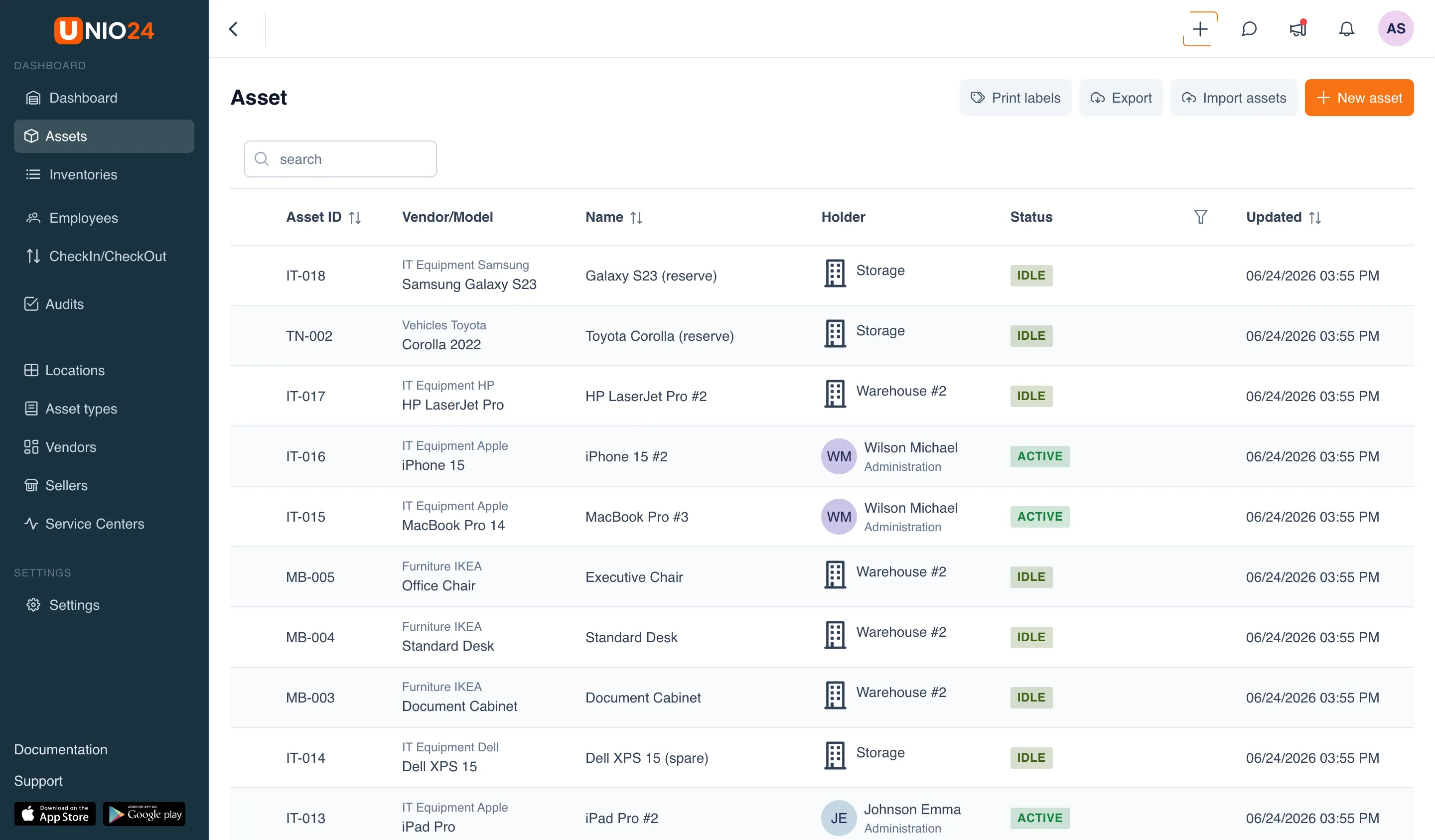
Import is the bulk addition of records from a table instead of creating them one by one by hand. You upload an Excel or CSV file, map its columns to system fields, and start processing. Import is launched right from the assets and employees pages; the import buttons are visible if you have the right to create the corresponding records.
What you can import
Section titled “What you can import”Two types of records are imported, each from its own list:
- Assets — from the Assets page with the “Import assets” button.
- Employees — from the Employees page with the “Import employees” button.
These are two separate wizards. Assets and employees cannot be loaded with a single file — they have different templates and different fields.
Keys for identifying duplicates
Section titled “Keys for identifying duplicates”During import, the system checks whether a record already exists. The comparison is done by a single key:
- for assets — by inventory number (the “Inventory number” field);
- for employees — by employee ID (the “Employee ID” field).
What to do with a found duplicate is something you choose before the run: skip it or update the existing record. For more, see Duplicate-handling strategies.
General import flow
Section titled “General import flow”Both wizards go through the same four steps: Upload file, Map fields, Parameters, and Result.
- You download the template, fill it with data, and upload the file. The system reads the rows and shows how many were found.
- You map each column of the file to a system field. Columns you do not need stay set to “Do not import”.
- You choose how to handle duplicates and start the import.
- The system shows the outcome: how many records were imported, updated, and skipped, and how many errors there were, along with a protocol breaking down each problem row.
The template, required fields, and file limits are described in the Import reference. Walking through the wizard step by step is covered in How to import data.
Column mapping
Section titled “Column mapping”The template already contains the correct headers, so when you upload a file made from the template, the system fills in the column mapping itself. If you use your own file, the headers may not match — then the mapping needs to be checked and corrected manually on the Map fields step.
Some fields are required: until they are mapped, you cannot move to the next step. The list of required fields for assets and employees is in the Import reference.