

Assets
The asset is the core object in UNIO24. Everything else is built around it: transfers, checking items out to employees, service, audits, and tickets. Each asset has its own card, and at any given moment it has exactly one holder — a location or an employee.
What an asset is
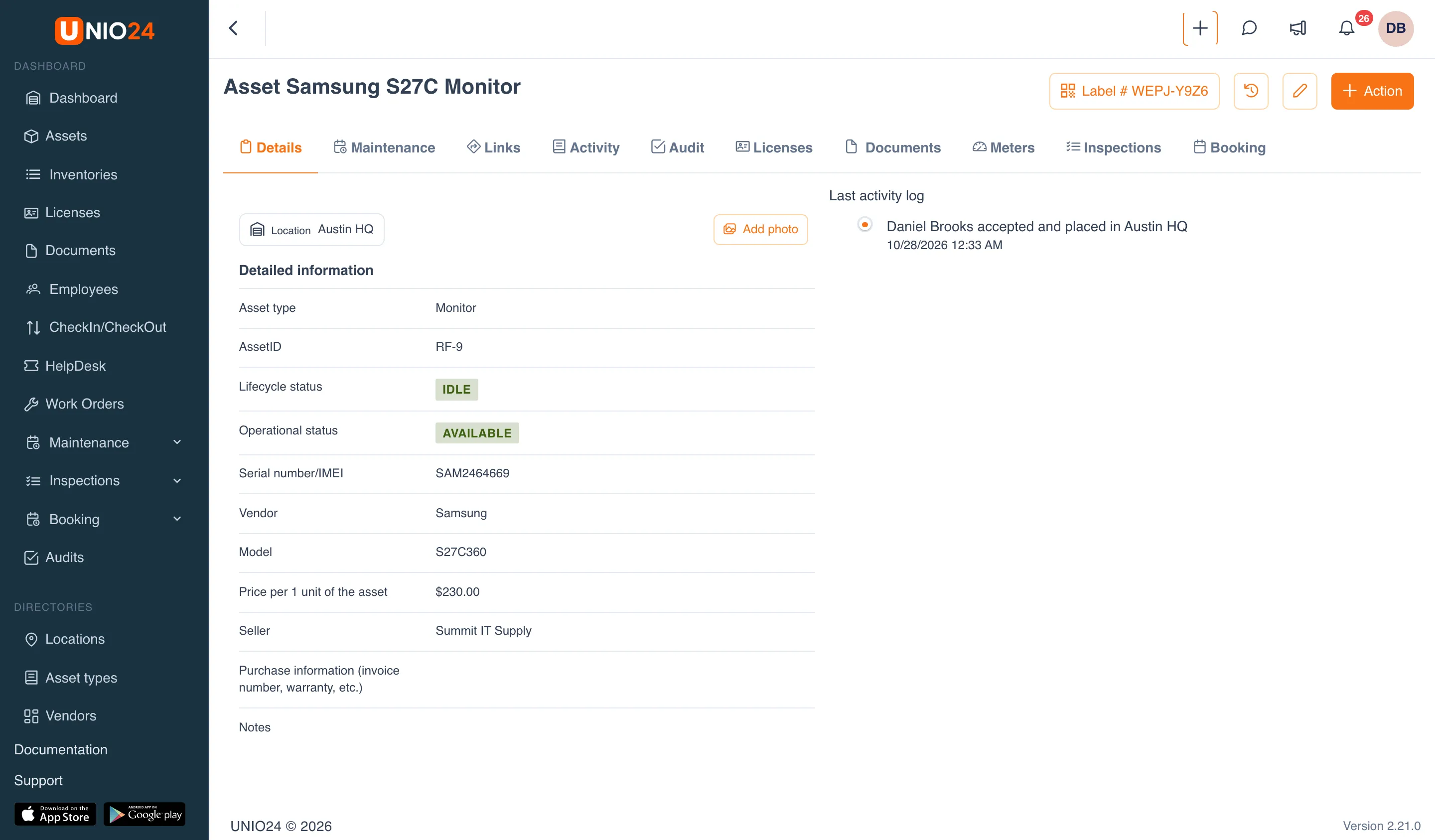
Section titled “What an asset is”An asset is a single tracked item: equipment, a vehicle, furniture, a tool, and so on. Every asset has an AssetID, a type, and a current holder. To open the asset list, click Assets in the left menu.
Which fields an asset has depends on its asset type. The type decides what appears on the form and the card — for example, serial number, vendor, model, dates, and price. Asset types and their fields are set up in Settings; see Asset types.
How the card is organized
Section titled “How the card is organized”The asset card has a header with actions and a set of tabs:
- Details — the main information: type, AssetID, statuses, condition, the fields of the asset type, custom fields, the current holder, and the latest activity.
- Service — records of sending the asset for service and returning it, including warranty and out-of-warranty repairs.
- Links — the parent asset and linked (child) assets.
- Activity — operations performed on the asset.
- Audit — audits the asset took part in (visible if you have permission to view audits).
- Licenses — related licenses (visible if the Licenses module is enabled).
- Documents — files attached to the asset, such as contracts, warranty cards, invoices, and manuals (the Attachments view of this tab). See Files and photos.
The asset page also has a photo gallery: pictures of the asset itself plus photos taken in related work orders and audits.
For what each tab contains, see the Assets reference.
Statuses and condition
Section titled “Statuses and condition”Three properties describe where an asset stands right now:
- Lifecycle status — the stage of the asset’s life (for example, Active, In Maintenance, Pending Disposal).
- Operational status — a more detailed state within the lifecycle stage.
- Condition — the physical condition of the asset (for example, New, Good, Damaged). It is recorded when the asset is checked in and during audits.
Administrators set up the lists of statuses and conditions; see Asset statuses and conditions. The lifecycle status also controls which actions are available: for example, an asset in Pending Disposal has no actions in its menu.
Holder: a location or an employee
Section titled “Holder: a location or an employee”An asset is always either in a location or with an employee. You set the holder when you create the asset, and after that it changes through check-out, check-in, and transfer operations. The current holder is shown on the card and in the asset list. For more on these operations, see Asset transactions.
Hierarchy: parent and linked assets
Section titled “Hierarchy: parent and linked assets”Assets can be linked into a parent–child hierarchy. For example, a monitor and a keyboard can be linked to a desktop computer. Links appear on the Links tab, and in the asset list you can expand a parent to see the assets linked to it.
Nesting depth is limited: you can add linked assets down to a certain level, after which UNIO24 tells you the maximum nesting depth has been reached. Linked assets move together with their parent. If they are somewhere else when you link them, UNIO24 warns you that they will be moved to the parent’s holder.
Change history
Section titled “Change history”UNIO24 keeps a history of changes to the asset’s fields: who changed what, when, and to which value. Open it with the History of changes button on the card. This is different from the Activity tab, which shows operations (check-outs, transfers, service) rather than field edits.
Useful links
Section titled “Useful links”- Working with assets — step-by-step instructions
- Assets reference — the full list of fields, tabs, and conditions