

Notifications
UNIO24 tells you about important events. Notifications are collected in the bell in the header, and some events also arrive by email (see Delivery channels).
The notification bell
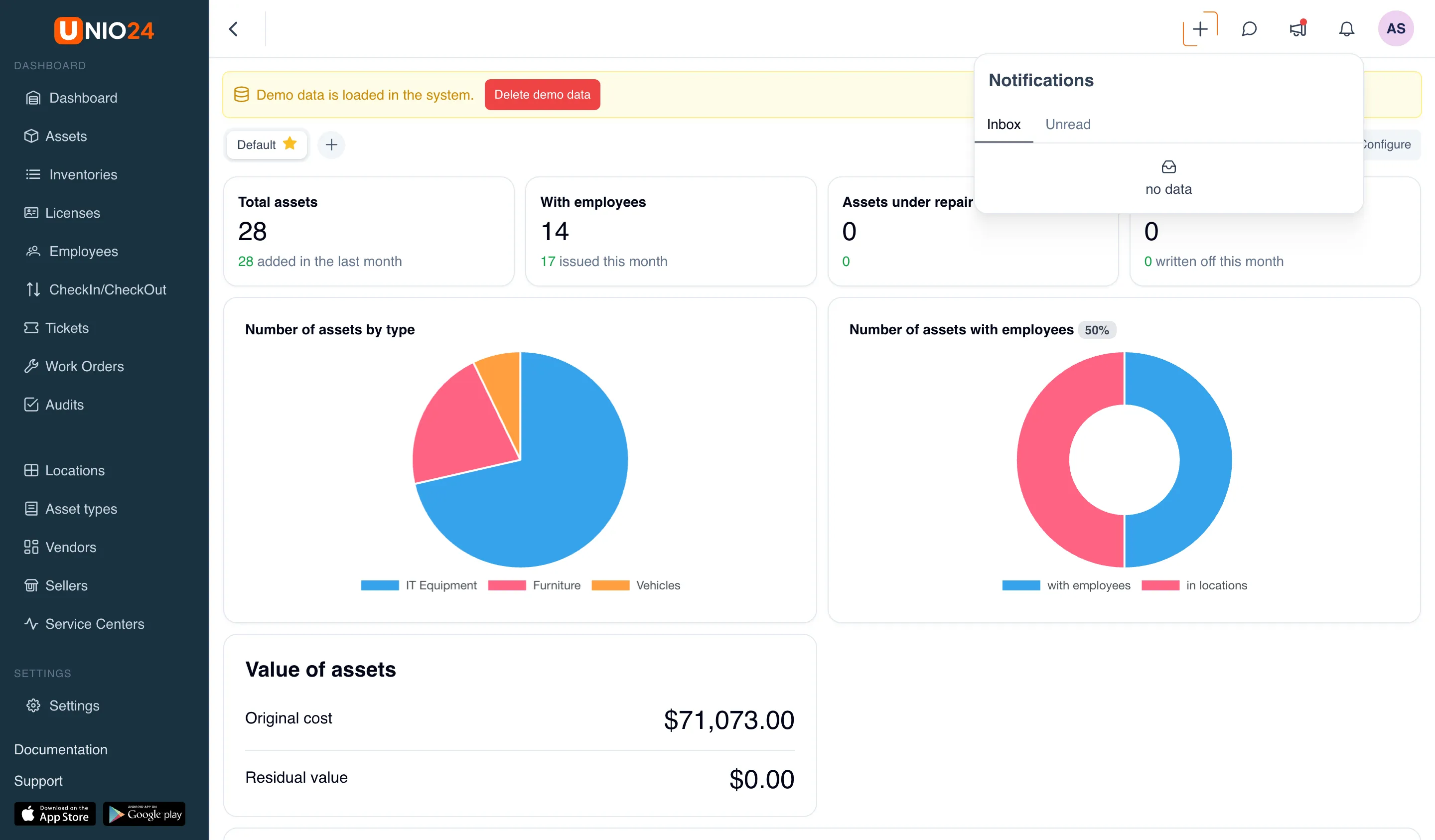
Section titled “The notification bell”The bell icon in the top header opens the notifications panel titled Notifications. When there are unread notifications, a counter of their number is shown on the bell.
The panel is split into two tabs:
- Inbox — all notifications. Unread ones are marked with an indicator.
- Unread — unread notifications only.
The Mark all as read button clears the mark from all notifications, and Load more loads older ones. The list refreshes automatically: the app periodically polls the server and updates the unread counter. If there are no notifications, the panel shows an empty state.
What creates a notification
Section titled “What creates a notification”Notifications are created for events that concern you or require attention. Among them:
- Tickets — a ticket is created, assigned to you, has a status change, gets a new comment, plus an SLA deadline approaching warning, an SLA breach, and automatic closing. For more on statuses and SLA, see the Tickets page.
- Work Orders — a work order is created, assigned to you, has a status change, is put on hold, gets a comment, is rejected, plus an SLA warning and breach. For more, see the Work Orders page.
- Assets — a checkout is overdue for return, a repair at a service center is delayed, a warranty is approaching its end. For more on asset operations, see the Assets page.
- Data export — the export you requested is ready to download.
Which notifications you receive depends on your role and involvement (for example, tickets and work orders assigned to you) and on which modules are enabled: ticket, work order, and license events appear only when the corresponding modules are enabled.
Delivery channels
Section titled “Delivery channels”Notifications have several channels: In-app (the bell), Email, and Mobile. Key events arrive by email — a ticket or work order assignment, an SLA warning and breach, an overdue asset return, a delayed repair, an approaching warranty end, and a data export ready. Which emails are sent depends on the notification settings.
Configuring notifications
Section titled “Configuring notifications”Which events to deliver and through which channels can be configured:
- Personal preferences — in your profile on the Notifications tab, you choose what arrives and where.
- Company settings — an administrator sets delivery rules on the Settings → Notifications page.
Separate from the notifications panel are short pop-up messages (toasts). They confirm one-off actions, for example a record saved successfully, and do not land in the Inbox and Unread tabs.