

Your profile
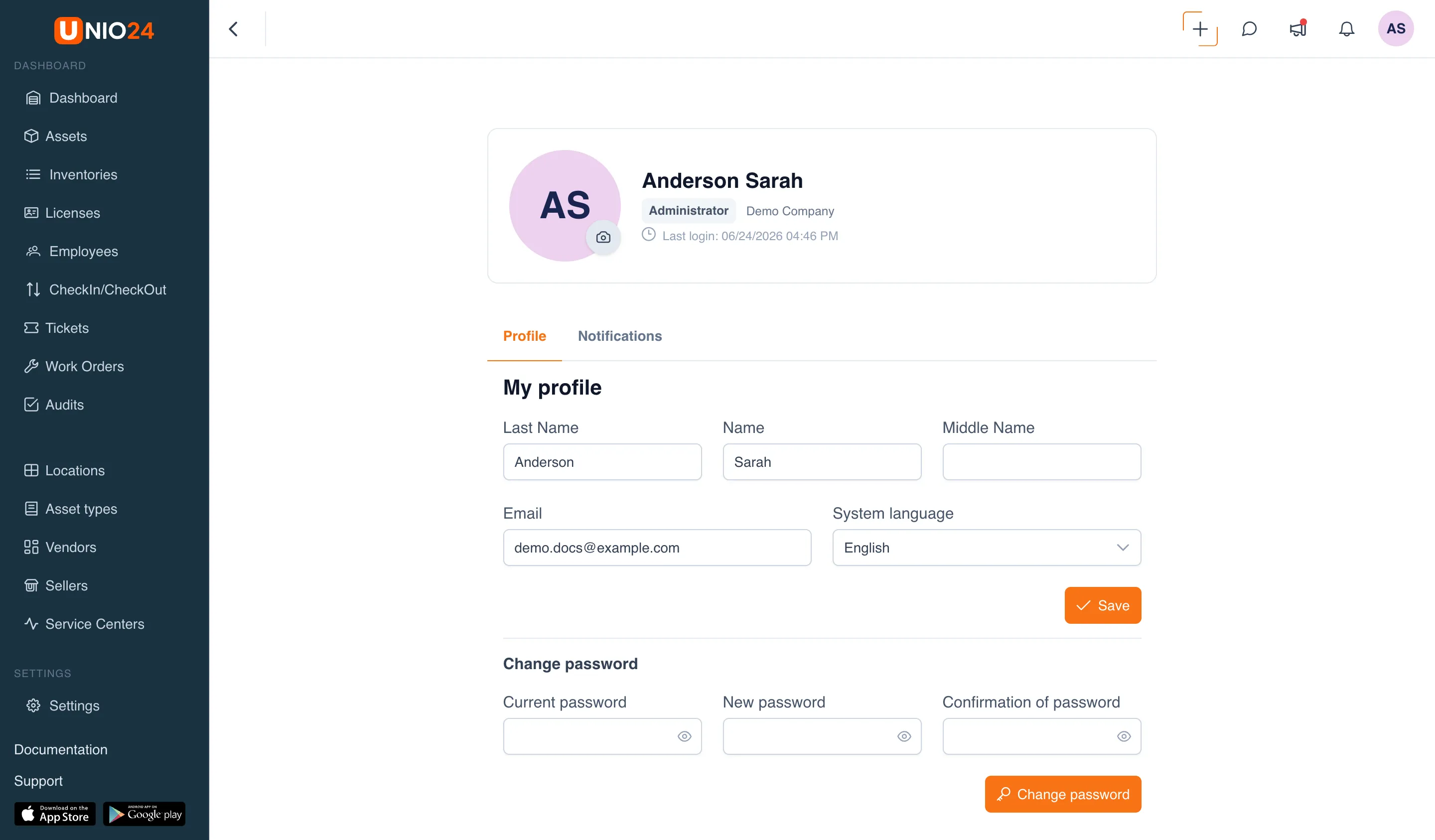
Your profile holds your personal settings: name, email, interface language, and password. This data relates only to your account.
Open your profile
Section titled “Open your profile”- Click the avatar in the top-right corner — the user menu opens.
- Choose Profile.
A page opens with two tabs — Profile and Notifications. The Profile tab has two parts: My profile (personal data) and Change password (changing the password). The Notifications tab is the personal settings for notification delivery (see Notifications).
Update name, email, and language
Section titled “Update name, email, and language”- In the My profile section, change the Last Name, First Name, and Middle Name fields if needed.
- Change the Email if needed.
- In the System language field, choose the interface language.
- Click Save.
The changes apply immediately. If you changed the language, the interface switches after saving.
Upload an avatar
Section titled “Upload an avatar”In the profile card you can set your own photo instead of initials.
- Hover over the avatar and click the camera-icon button.
- Choose Upload a photo… and pick an image.
To remove the photo, choose Remove photo in the same menu. For more on images and limits, see Files and photos.
Change your password
Section titled “Change your password”Each user changes their own password. To change it, you need to know the current password.
- Go to the Change password section further down the profile page.
- Enter the Current password.
- Enter the New password.
- Repeat it in the Confirmation of password field.
- Click Change password.
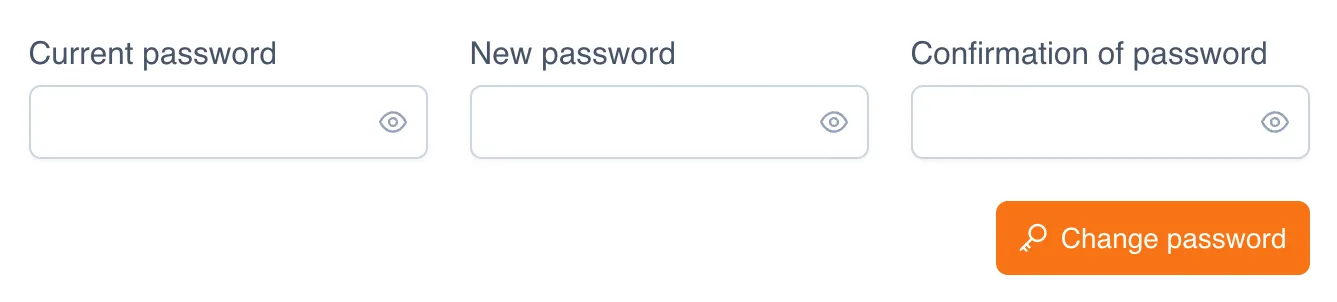
If the new password and the confirmation do not match, the system shows a Passwords do not match error and the password is not changed.
Administrators cannot set or reset your password for you — they only invite you to the system, after which you set the password yourself.