

Asset Operations
If you need step-by-step instructions, see Performing asset operations. For the full list of operation types, fields, and permissions, see the Asset operations reference.
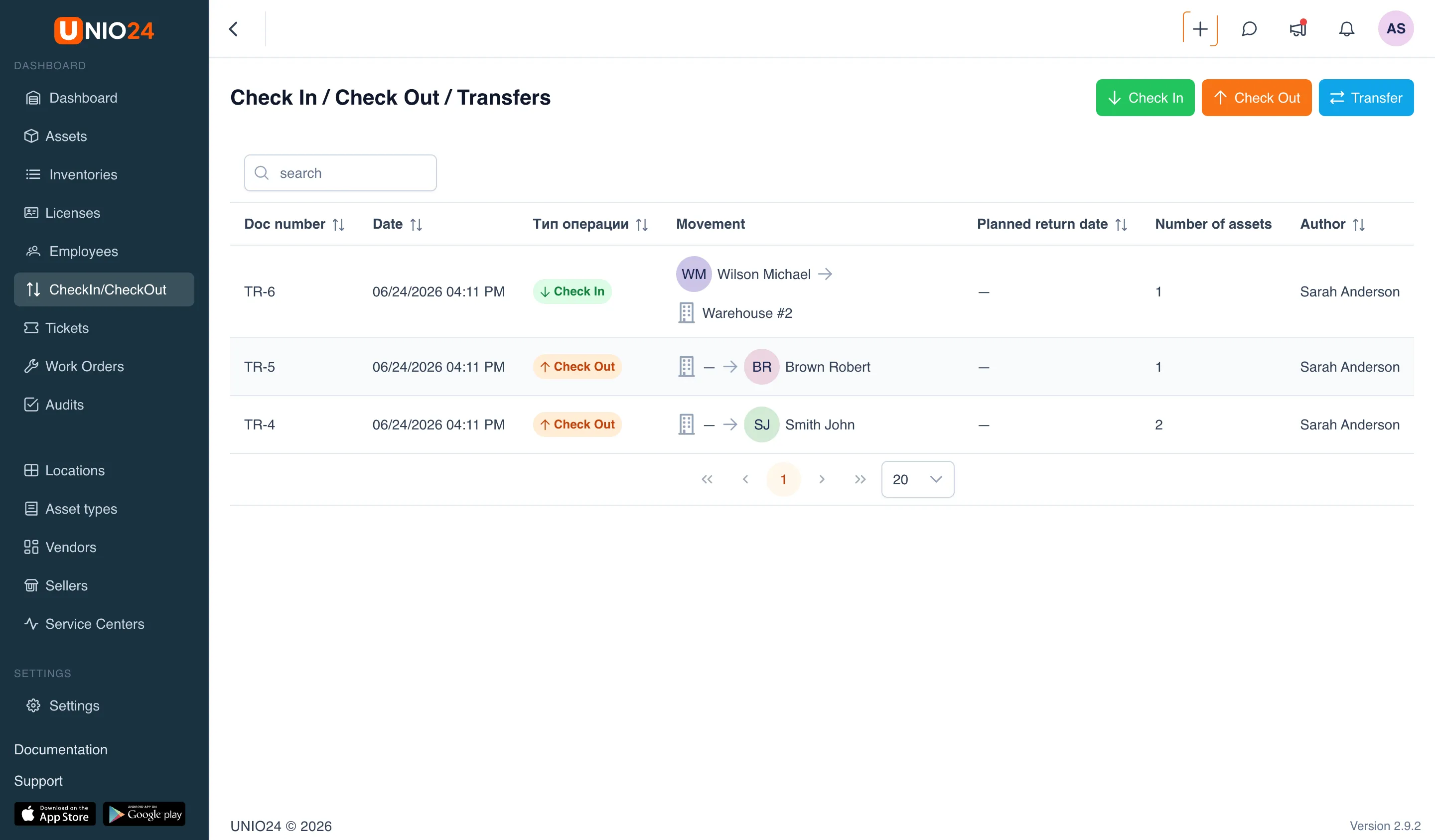
An asset operation records that an asset changed its holder or was sent for service. Each operation is saved as a document in the CheckIn/CheckOut section, so for any asset you can always see who did what with it and when. Each transfer document has its own number; the document numbering format is configured in Company settings.
Asset location: employee or location
Section titled “Asset location: employee or location”At any moment an asset has only one holder. It is either an employee or a location. An asset cannot be assigned to both an employee and a location at the same time — an operation always moves it from one state to the other.
The available operations depend on the current holder. If an asset is with an employee, it can be checked in or sent to service. If an asset is at a location, it can be checked out to an employee, transferred to another location, or sent to service. That is why the action menu on the asset card shows only the operations that fit the asset’s current state.
Operation types
Section titled “Operation types”UNIO24 has five operation types.
- Check Out — issue an asset from a location to an employee. After check-out the holder becomes the employee.
- Check In — return an asset from an employee back to a location. After check-in the holder becomes the location.
- Transfer — move an asset from one location to another. The holder stays a location, only the location itself changes; no responsible employee is involved.
- Send to service — send an asset to a service center.
- Return from service — receive an asset back from a service center.
Check-out, check-in, and transfer can be done either from the CheckIn/CheckOut section or directly from the asset card. Send to service and return from service are done only from the asset card — the CheckIn/CheckOut section has no buttons for them.
The same check-out, check-in, and transfer operations apply not only to assets but also to license seats: a seat can be checked out to an employee or an asset, checked in, and transferred. For more, see Licenses.
Condition during an operation
Section titled “Condition during an operation”When checking in an asset and when transferring it between locations, you can record the asset’s Condition — for example, “Good” or “Damaged”. This is its actual physical condition, separate from the lifecycle status. The current condition is shown on the asset card. The set of conditions is configured in Asset statuses and conditions; condition assessment is also used in audits.
Service in the lifecycle
Section titled “Service in the lifecycle”When an asset is sent for repair or maintenance, this is recorded with the Send to service and Return from service operations (on the asset card the corresponding actions are Send to service and Return from service). When sending to service, one of two modes is chosen in the Service Options block.
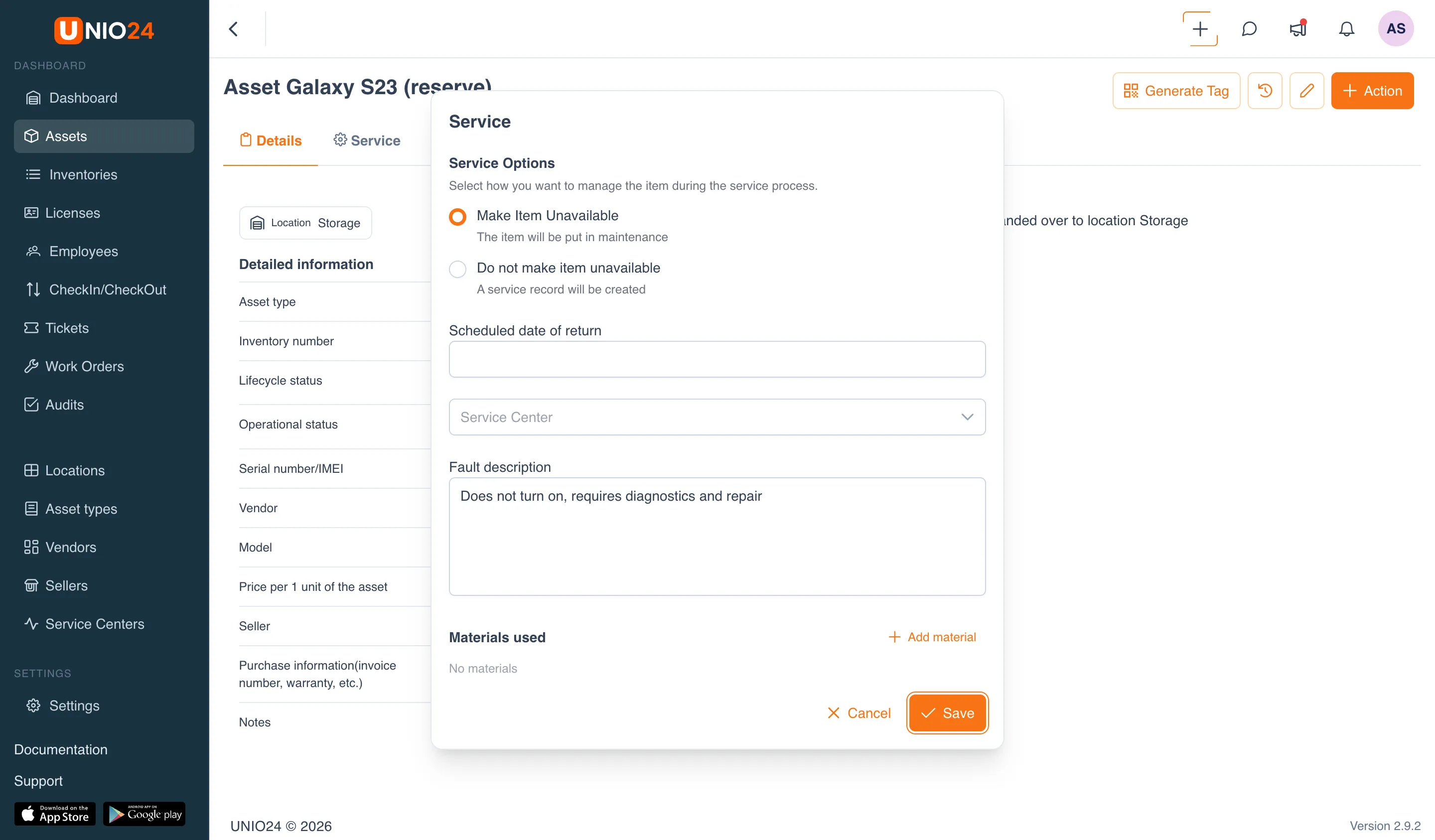
Make Item Unavailable. The asset is moved to the “In Maintenance” lifecycle status and becomes unavailable for other operations. A Scheduled date of return is specified. While the asset is in this status, the card offers the Return from service action instead of Send to service: the return closes out the service and makes the asset available again. This mode fits a repair that takes the asset out of work.
Do not make item unavailable. The asset’s status does not change, the asset stays available, and only a service record is created. The transfer and return dates (Date of transfer to service, Date of return from the service) are specified right away, so a separate return operation is not needed. This mode fits recording a repair already done, or maintenance that did not take the asset out of work.
In both modes you can add a Service Center (from the Service centers directory), a Fault description, a Repair cost, a Description of the problem from the service, and write off the consumables used.
All service records are collected on the Service tab of the asset card — with dates, repair cost, descriptions, and the status of each repair. That way the whole repair history is visible for the asset.
Writing off
Section titled “Writing off”At the end of its lifecycle an asset is written off. Writing off is not a separate button but a transfer of the asset to a write-off location. After that the asset’s lifecycle status becomes “Pending Disposal”, and operations are no longer offered on the card for such an asset.