

Licenses
For step-by-step instructions, see Working with licenses. For the full list of fields, states, and statuses, see the Licenses reference.
Licenses track software licenses and subscriptions: how many licenses were bought, for what period, and to whom they are issued.
A license and a seat
Section titled “A license and a seat”The system distinguishes two things: a license and its seats.
A license is a record of a purchased product: name, category, validity period, price. A license has a Quantity — how many individual licenses (seats) it contains.
A seat is one unit out of that quantity, which can be issued to a specific recipient. If you bought a license for 10 workstations, the system will have one license with a quantity of 10 and ten seats. Seats can be issued and returned individually, so you can see which of the ten are occupied and which are free.
Each seat can have its own Key (a serial number or an activation key). Keys are entered when creating the license — one per seat.
Seat lifecycle: “Free” and “Issued”
Section titled “Seat lifecycle: “Free” and “Issued””Each seat is in one of two states:
- Free — the seat is not assigned to anyone and sits in a storage location. It can be issued.
- Issued — the seat is assigned to an employee or an asset.
Assigning and returning a seat go through movement operations (as for assets): on issue, the seat “goes” to the recipient; on return, it comes back to the chosen storage location and becomes free again. So each seat has a history showing to whom and when it was issued.
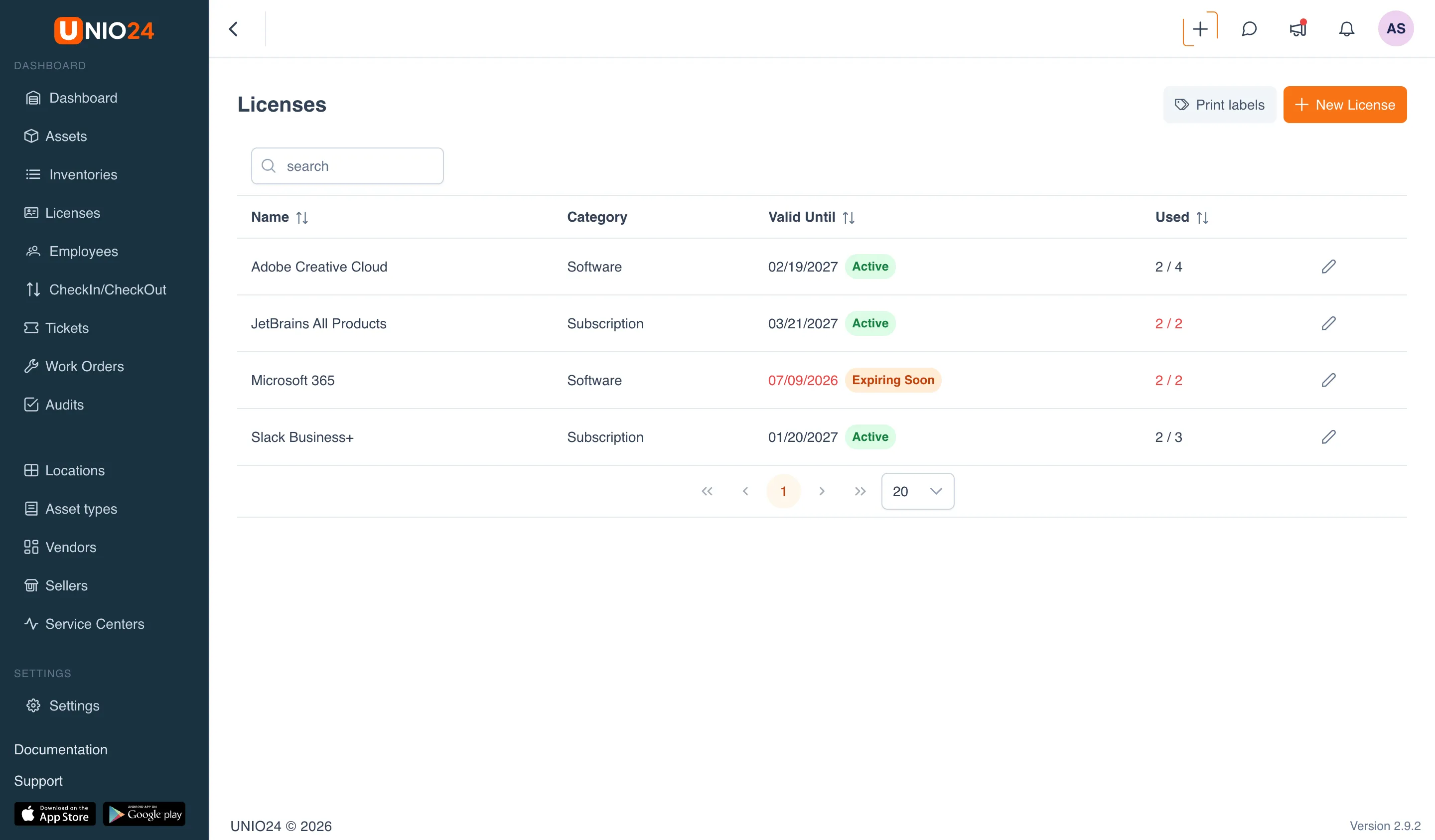
The Used counter on a license shows how many seats are issued out of the total (for example, 7 / 10). When all seats are issued, the counter turns red.
How assignment works
Section titled “How assignment works”Only a free seat can be assigned. The recipient can be:
- an Employee — from the employees directory;
- an Asset — from the assets directory (for example, a license is tied to a specific computer).
A seat can be assigned to an employee or an asset in three ways: from the license itself (on the seat list tab), when creating the license (the Assign block), or from the employee or asset card. All three ways are described in Working with licenses.
License statuses
Section titled “License statuses”A license has a status that is computed automatically from the Expires At field:
- Active — the period has not expired yet;
- Expiring Soon — little time remains until expiration (the date and badge are shown in red);
- Expired — the period has passed (shown in red);
- Perpetual — the Expires At field is empty, the license has no period.
The status is shown as a badge in the license list, on the license card, and next to assigned licenses. The exact values are in the reference.
Where assigned licenses are visible
Section titled “Where assigned licenses are visible”Assigned seats are visible both on the license itself and on the recipient’s side:
This tab appears only when the “Licenses” module is enabled. It lists the licenses issued to that employee or asset, with their category, status, and seat key.
In addition, the Analytics section has an Expiring Licenses widget — it lists licenses with an approaching or past validity date so you don’t miss a renewal.