

Roles and permissions
For step-by-step actions with roles, see Managing roles. For the list of role types, permission groups, and fields, see the Roles reference.
A role is a set of permissions that determines which sections, actions, and buttons are available to a user. Each user is assigned exactly one role. Roles are managed in the Settings → Roles section.
Permission matrix
Section titled “Permission matrix”The roles page is laid out as a table-matrix. Permission groups run vertically, and roles run horizontally (the left column is called Section), with a checkbox at their intersection: selected means the permission is granted, cleared means it is not.
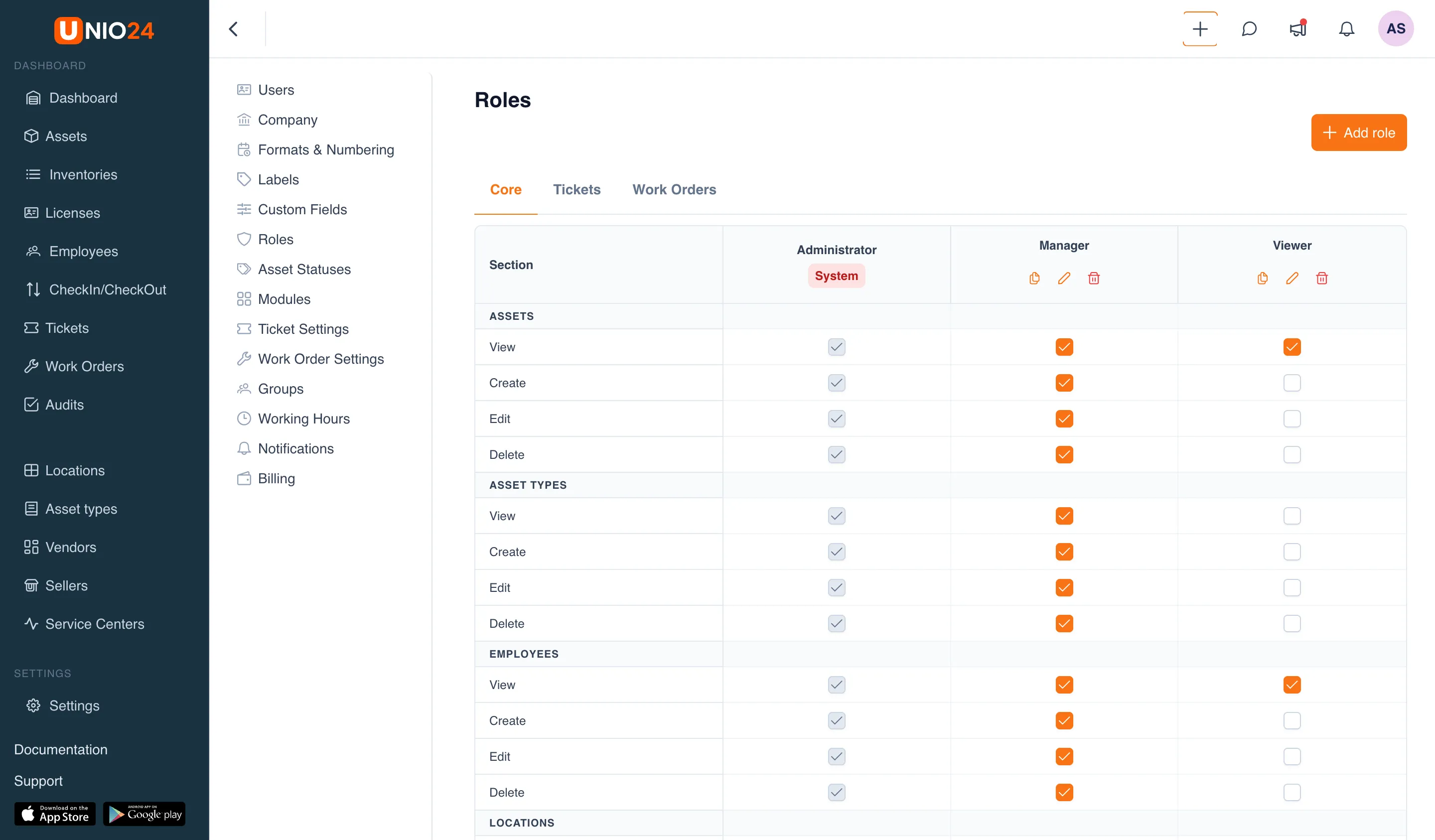
Permissions are gathered into groups by system area: Assets, Employees, Locations, Check in / Check out, Audits, Users, Settings, and others. Within each group, permissions follow a single action template — View, Create, Edit, Delete — and some groups add Assign, Analytics, or Settings. For the full list, see the Roles reference.
Permissions are split across tabs. The Core tab is always there. The Tickets and Work Orders tabs appear only when the corresponding modules are enabled.
Role types
Section titled “Role types”In UNIO24, roles differ by whether their permissions can be changed.
- System roles have the System badge. These are built-in roles, and their permissions are read-only — you cannot change the checkboxes in the matrix.
- Full-access roles have the Full access badge and automatically have all permissions. Their individual checkboxes are also unavailable, because everything is already granted.
- Custom roles are the ones you create yourself. Their permissions can be changed freely in the matrix.
For more on badges and behavior, see the Roles reference.
How a role determines what a user sees
Section titled “How a role determines what a user sees”A role works as an interface filter. If a role does not grant the View permission for some area, the user does not see the corresponding section in the menu. If only View is granted but not Create or Edit, the user sees the data but cannot change it — the corresponding buttons are unavailable to them.
This way the same system looks different to different people: an administrator sees all sections and settings, while an employee with a limited role sees only what they are allowed.
How roles relate to users
Section titled “How roles relate to users”A role is chosen at the moment you invite a user, and it can be changed later when editing the user. In the user list, each person’s role is shown in the Role column; for system roles and full-access roles, the name is marked with a badge.
Service groups and roles are different
Section titled “Service groups and roles are different”Don’t confuse roles with service groups. Groups are configured separately, in the Settings → Groups section (the Service Groups page), and combine users into teams.
Groups are used for assigning work in Tickets and Work Orders — for example, to route a ticket to a group whose members can pick it up. Groups do not grant permissions: what a user can do in the system is determined only by their role.