

Tickets
If you need step-by-step instructions, see Creating and handling tickets and Configuring tickets. For the full list of fields and statuses, see the Tickets reference.
Tickets are the support service inside UNIO24. A ticket records a request or incident, moves through a chain of statuses, and is closed once the issue is resolved.
Why you need tickets
Section titled “Why you need tickets”Tickets are a single intake point for everything related to equipment operation and maintenance: breakdowns, incidents, repair or setup requests, and questions from staff. Every request becomes a ticket with a number, an assignee, and a deadline, so nothing gets lost and the stage of the resolution is always visible.
Together with asset tracking, tickets turn UNIO24 into a computerized maintenance management system (CMMS): a request is linked to a specific asset, and its card shows the full history of problems. When a request needs physical work — a repair, replacement, or planned maintenance — a work order is created from it. This separates the request (what happened) from the work on it (what to do), while the ticket remains the channel through which problems reach maintenance.
Requester, assignee, and assets
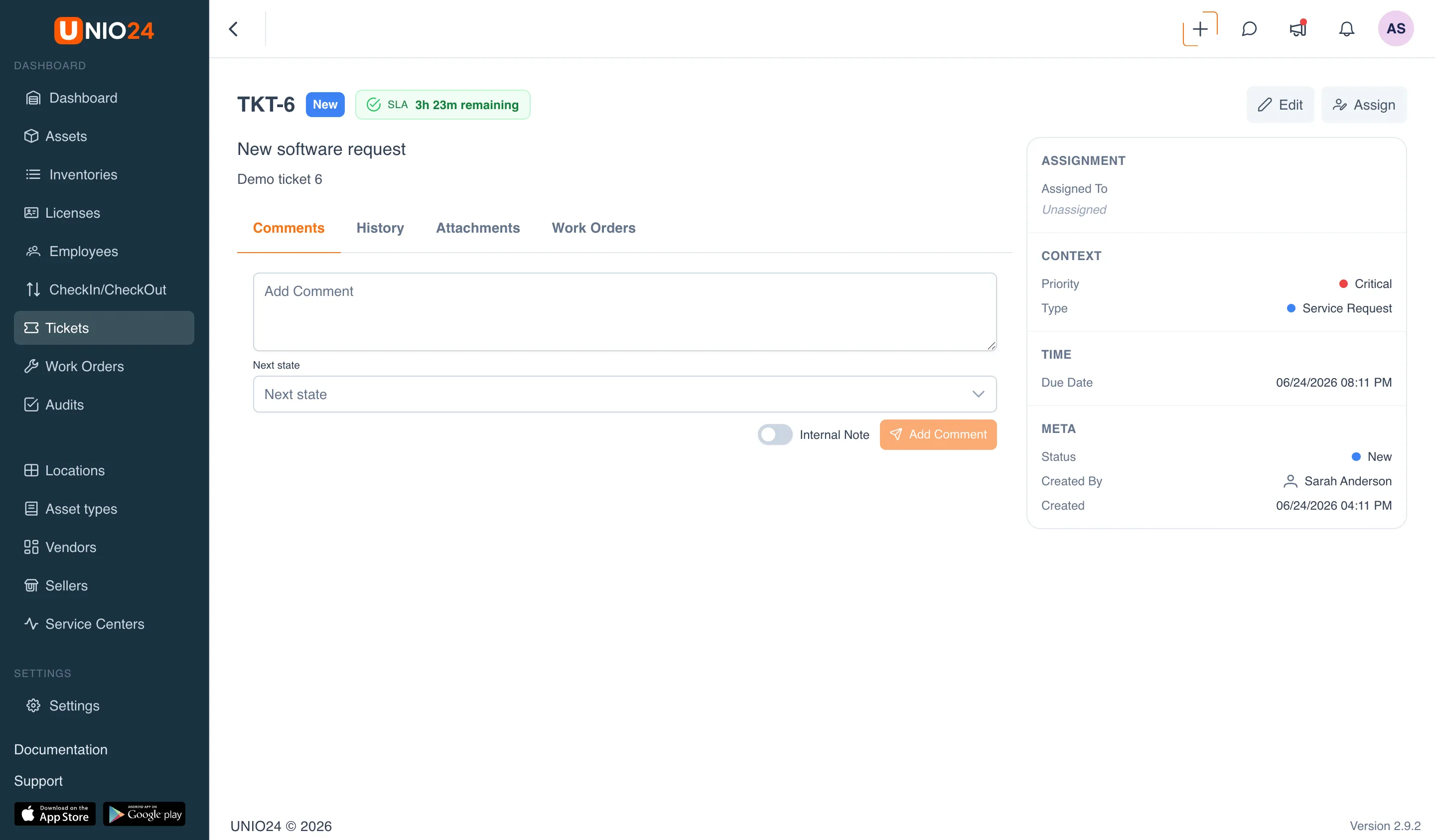
Section titled “Requester, assignee, and assets”A ticket has two sides. The Requester is the person the request came from: an employee from the directory or an outside person. The Assignee is the system user who handles the ticket. You can link one or more Assets that the ticket concerns, so the request history is also visible on the asset card.
Status workflow
Section titled “Status workflow”A ticket moves through statuses not arbitrarily but along a configured workflow. From the current status, only certain transitions are allowed — that is why the status change menu shows a limited list rather than every status at once.
By default the system has seven statuses:
- New — the ticket has just arrived and has not yet been picked up.
- Open — the ticket has been accepted, but work on it has not yet started.
- In Progress — the assignee is working on the ticket.
- On Hold — work is paused: for example, waiting for a reply from the requester, a part, or a decision from a third party.
- Resolved — the issue is solved and awaits confirmation or closure.
- Closed — the ticket is complete. A terminal status.
- Cancelled — the ticket was cancelled or rejected and will not be worked on. A terminal status.
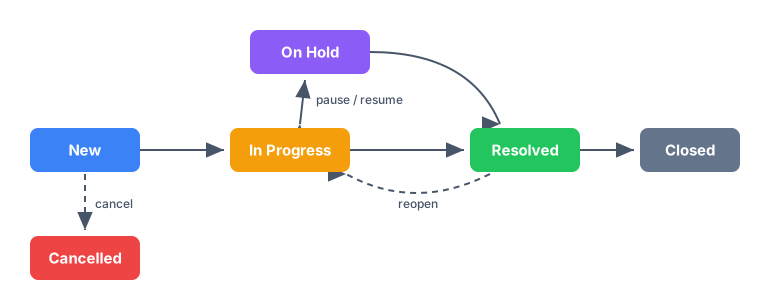
The logic of the standard workflow is as follows:
- from New or Open, a ticket is taken In Progress, put on pause (On Hold), marked Resolved right away, or Cancelled;
- In Progress and On Hold switch back and forth while work is underway;
- a Resolved ticket is either Closed (the end) or returned to In Progress if the issue comes back;
- Closed and Cancelled are terminal statuses with no transitions out of them.
Some transitions require a reason and a comment. For example, when putting a ticket on hold or rejecting it, the system asks why. The reason and comment go into the ticket history, so later it is clear what changed and why.
An SLA is an agreed-upon response time. UNIO24 has two: the time to first response and the time to resolution. The targets are set per priority and are counted by the company’s business hours, not by calendar days.
While a ticket is open, an SLA badge is shown on it. It indicates how much time is left, warns as the deadline approaches, and changes to «SLA Breached» if the deadline passes. This makes it clear which tickets need attention first.
How to configure it for your company
Section titled “How to configure it for your company”SLA targets are set by an administrator on the Configuring tickets page, on the SLA tab — one policy per priority.
- Open Settings → Ticket Settings and go to the SLA tab.
- Click Add SLA Policy.
- Select the Priority you are setting targets for.
- Set the time to First Response (min) and to Resolution (min).
- Enable Business hours only so the deadline is counted by the company’s business hours rather than around the clock.
- Save. Repeat for each priority that needs targets.
The business hours and days off used to count the SLA are set separately: the hours of the working day under Settings → Working Hours, and non-working days on the Holidays page. The full setup is described in Configuring tickets.
Routing
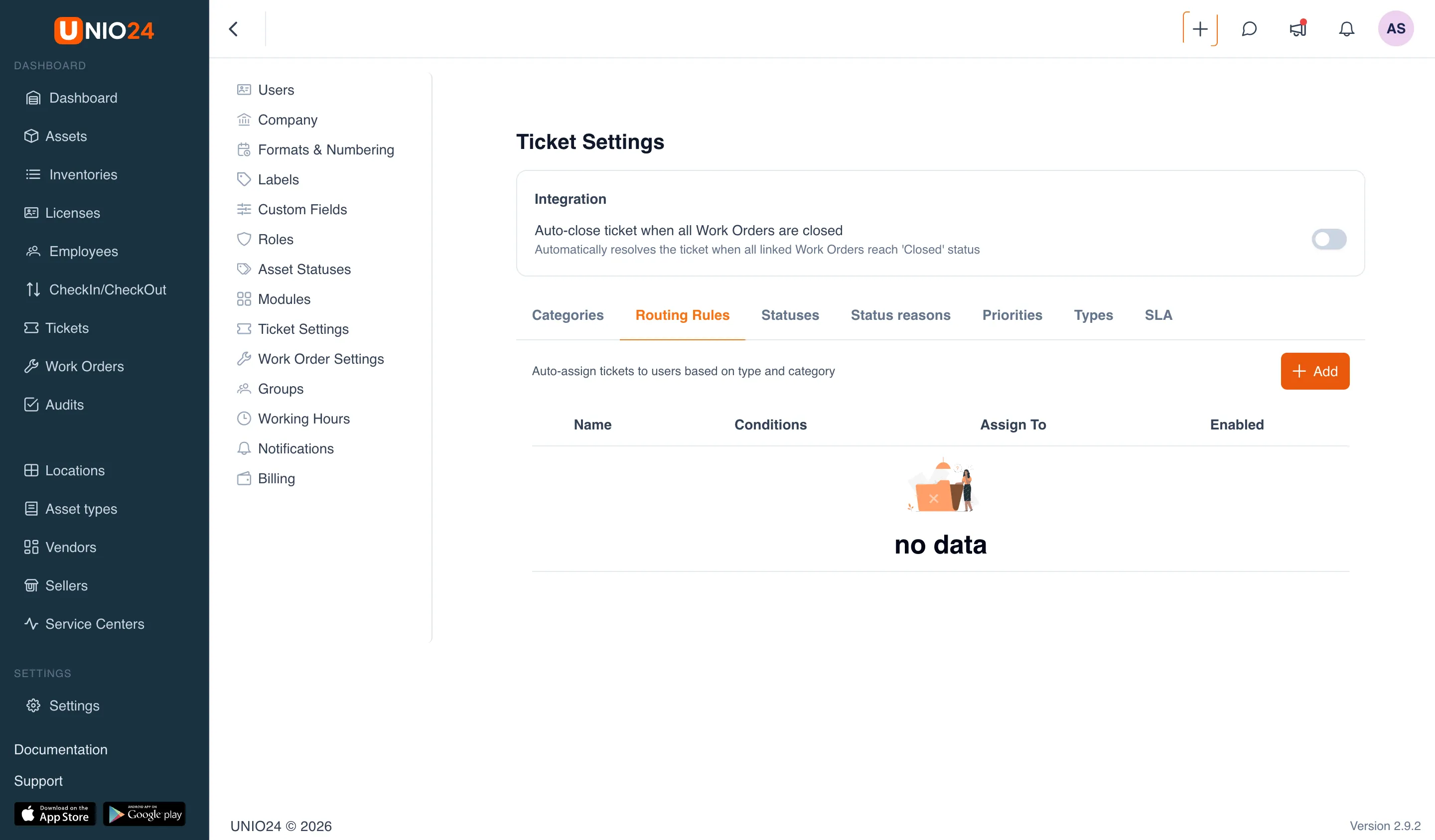
Section titled “Routing”So that new tickets do not have to be distributed by hand, routing is used — routing rules assign a ticket automatically as soon as it is created.
Each rule has two parts:
- Conditions — the criteria the rule matches on: Type, Priority, and Category. A ticket must match all the conditions set; an empty condition means “any”.
- Assignment — who the matching ticket goes to: a group, a specific user, or a group together with a user.
Rules are checked in order, and the first matching enabled rule fires. If none matches, the ticket stays without an assignee — it is visible in the Unassigned view. Rules are configured on the Configuring tickets page.
Link to groups
Section titled “Link to groups”Most often, routing assigns a ticket to a group — a service group, that is, a queue team of several users. Groups are created separately, under Settings → Groups, where each one has a name and a list of members.
A ticket assigned to a group lands in that team’s shared queue, and a specific assignee is chosen later — from the group’s members (only they are shown in the selection list). You can specify a user right away too, but this is optional: the point of a group is for the ticket to reach the right team even if the responsible person is not yet decided.
How a ticket differs from a work order
Section titled “How a ticket differs from a work order”A ticket and a work order are easy to confuse, but they are different things: a ticket is a request, while a work order is the work on it.
| Ticket | Work order | |
|---|---|---|
| What it is | A request, incident, or query | Maintenance or repair work |
| Answers the question | What happened or what is needed | What to do and how |
| Who is involved | Requester and assignee | Assignee or work group |
| What it tracks | Statuses, first-response and resolution SLA, routing | Tasks, materials, actual time, due date |
Not every work order comes from a ticket: planned maintenance is created directly as a work order. And conversely, a ticket can be closed without a work order if no work is needed. When a request does require physical work, a work order is created from the ticket, and the link between them is kept.
Link to work orders
Section titled “Link to work orders”If a ticket requires work, a work order is created from it — the data is carried over automatically, and the link is visible on both sides. This separates the request (the ticket) from the work itself (the work order) but does not lose the connection between them.