

Employee offboarding
If you need step-by-step instructions, see How to offboard an employee. For a full list of statuses, process sections, and rights, see the Offboarding reference.
Offboarding is a controlled process of removing an employee from work: return the property assigned to them, free their licenses, hand their tickets and locations over to others, and close their system access. Without such a process, a departed person would keep being listed as the owner of assets and stay in the selection lists when checking out assets and assigning tickets.
Why the offboarding process exists
Section titled “Why the offboarding process exists”While an employee works, things accumulate behind them that cannot simply be wiped out together with the record:
- assets in their possession — they need to be physically accepted back into the company or marked as lost;
- licenses — they need to be freed so they can be reused;
- tickets and work orders in progress — they need to be handed over to another assignee;
- responsible locations — someone else must be responsible for them;
- system access — the linked user account needs to be blocked.
The offboarding process gathers all of this in one place and sees it through step by step, not letting property be “lost” behind a departed person.
Employee lifecycle
Section titled “Employee lifecycle”An employee has an employment status that changes during offboarding:
- Active — the normal state: the employee works, you can check out assets and assign tickets to them.
- Offboarding in progress — offboarding is scheduled, but the date has not arrived. The employee keeps working but is marked with a Will be terminated as of DD.MM.YYYY badge. When you try to check out an asset to them, the system warns that the employee is in the offboarding process.
- Terminated — the process is complete. System access is blocked, the employee is removed from all selection lists. In the employee list they move to the Terminated tab.
Scheduled offboarding can be cancelled (the employee becomes active again), and a terminated one can be reactivated (re-hire). Reactivation reopens system access, but already accepted assets and freed licenses are not returned.
What happens during offboarding
Section titled “What happens during offboarding”The Employees section is split into two tabs — Active and Terminated. Offboarding is started from an active employee’s card and opens a separate process screen. On it, everything assigned to the employee is handled across tabs (with a count of items in the label):
- Assets — accept back (with storage place and condition specified) or mark as lost.
- Licenses — free the ones issued to the employee.
- Tickets & Work Orders — reassign to another assignee or group.
- Locations — transfer to the responsibility of another employee.
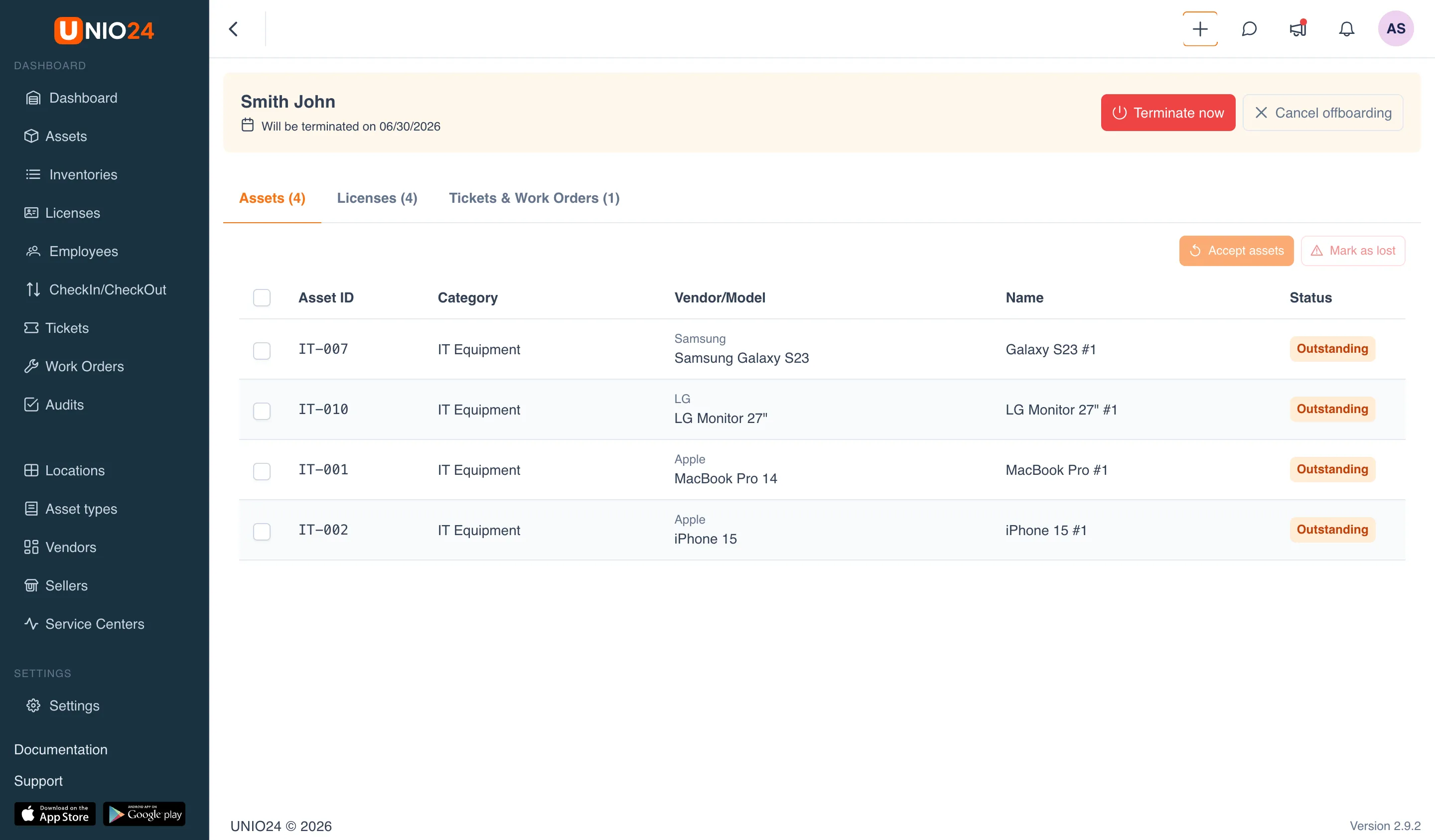
When everything is handled, offboarding completes — manually with the Terminate now button or automatically on the appointed date. It cannot be completed manually while the employee still has active tickets or work orders.
For step-by-step instructions on each action, see How to offboard an employee.
Who can offboard
Section titled “Who can offboard”You cannot offboard an employee whose account is the account owner — company ownership must first be transferred to another user. For more on rights, see the Offboarding reference.