

How to offboard an employee
This page collects the common tasks for offboarding an employee. To learn why the process exists and what statuses an employee has, read Employee offboarding: how it works. For a full list of process sections, actions, and rights, see the Offboarding reference.
All actions below require the employees.delete right.
Start offboarding
Section titled “Start offboarding”- Open the Employees section in the left menu and make sure you are on the Active tab.
- Click the row of the employee you need to open their card.
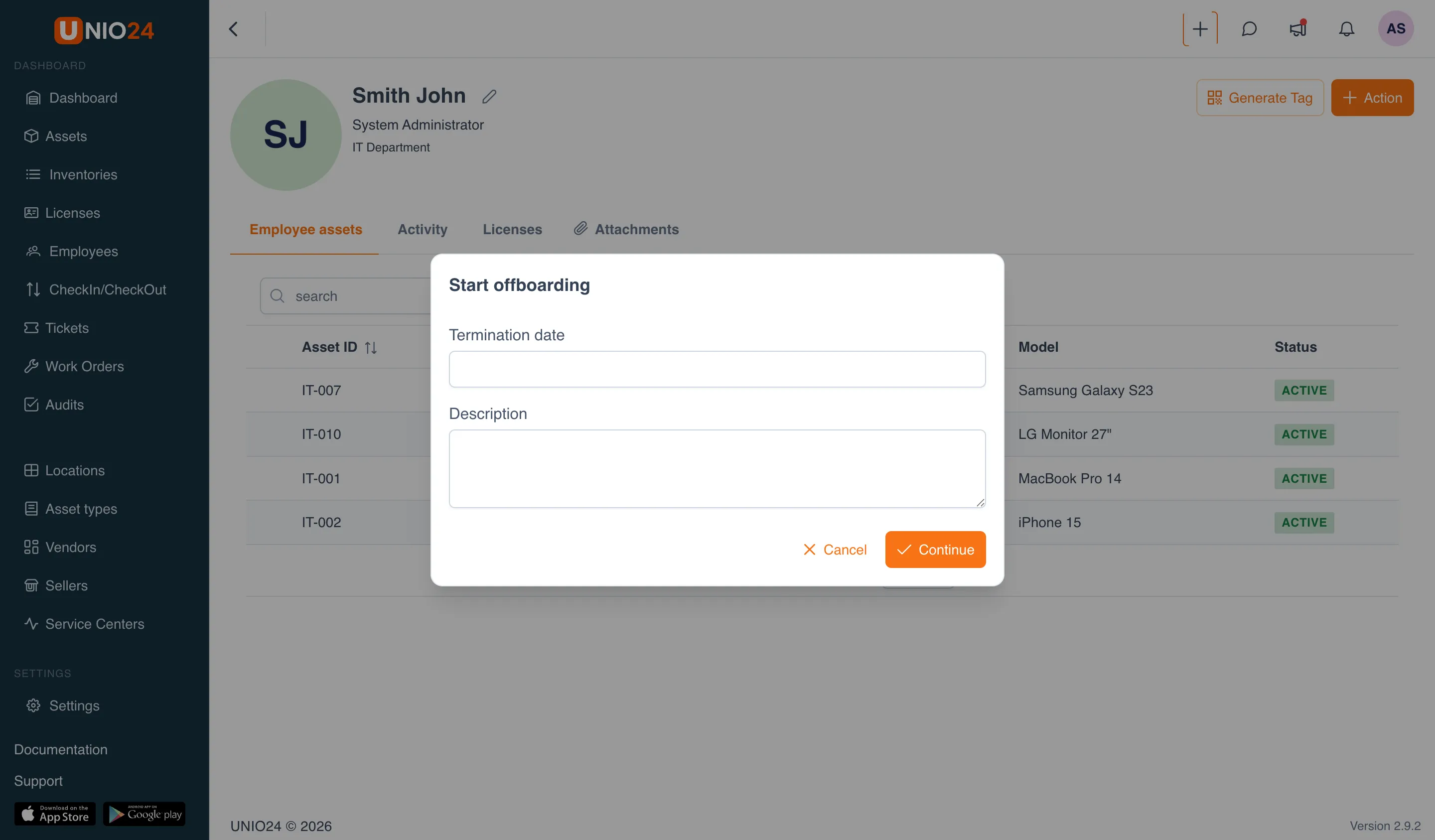
- Click the Action button and choose Start offboarding.
- In the window that opens, fill in:
- Termination date — the day the employee stops working. You can specify a past, today’s, or future date.
- Description — an optional comment with the reason.
- Click Continue.
After this the employee moves to the Offboarding in progress status and is marked with a Will be terminated as of DD.MM.YYYY badge, and you land on the offboarding process screen. Until the date arrives, the employee keeps working.
Open the offboarding process
Section titled “Open the offboarding process”If the process has already started, you can return to it from the employee’s card.
- Open the employee’s card (in the Offboarding in progress or Terminated status).
- Click the Offboarding process button.
The process screen opens: at the top — the employee’s name, the termination date, and the description; below — tabs with what is assigned to the employee. The tab label shows the count of items (for example, Assets (3)), and a tab appears only if it has items. If nothing is left, the message Nothing outstanding — all items have been handled. is shown.
Accept assets back
Section titled “Accept assets back”Acceptance is handled as a return of an asset to the company. Assets can be accepted in parts — as the employee hands them in.
- On the process screen, open the Assets tab.
- Tick the checkboxes of the assets the employee returned.
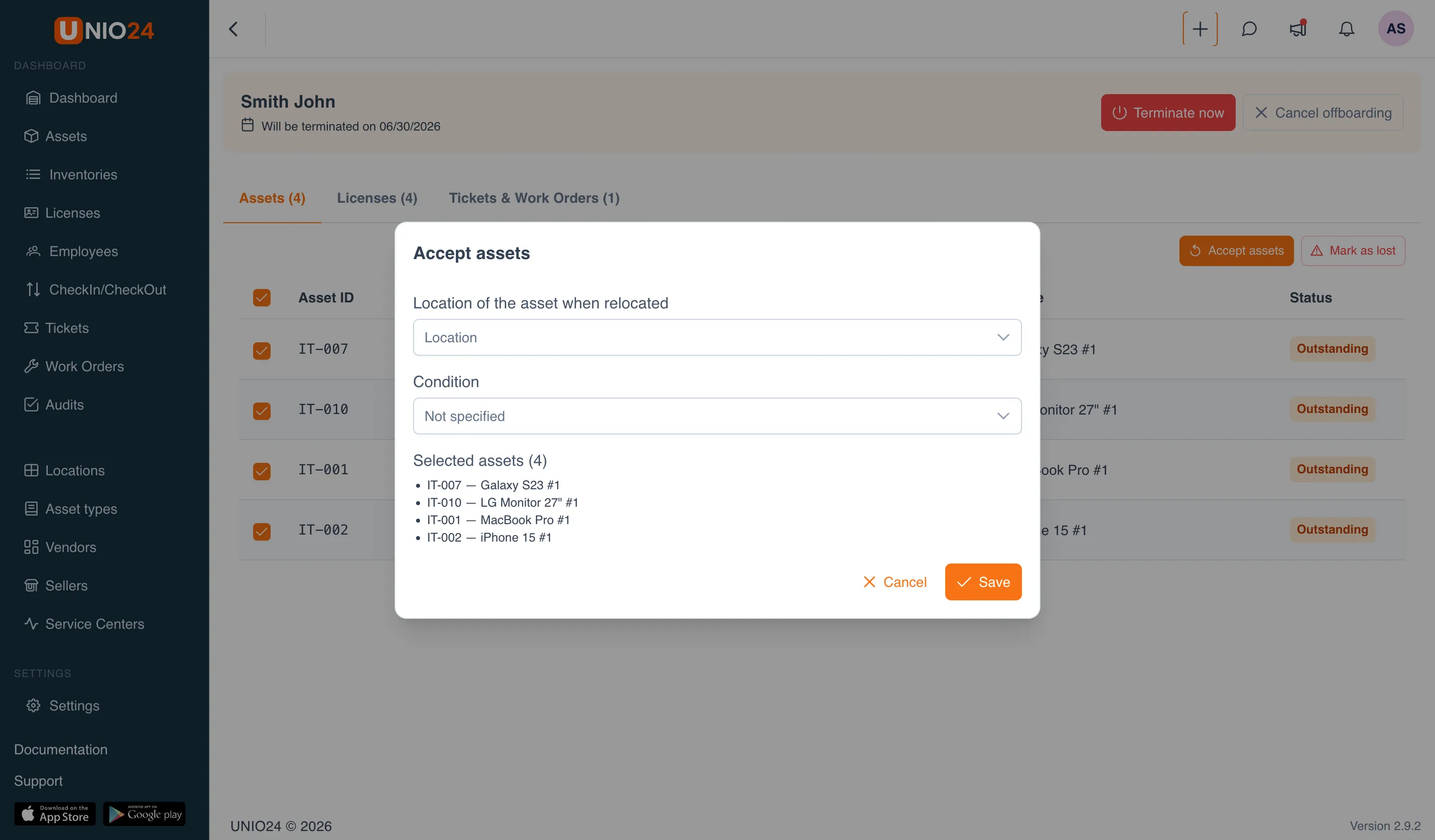
- Click Accept assets.
- In the window, specify:
- the location the assets go to (required);
- the condition of the assets at acceptance.
- Save. Accepted assets leave the list and return to the chosen location.
Mark an asset as lost
Section titled “Mark an asset as lost”If an asset was not returned and cannot be found, mark it as lost — it stays assigned to the employee with a Lost note.
- On the Assets tab, tick the checkboxes of the assets you need.
- Click Mark as lost.
Free licenses
Section titled “Free licenses”- On the process screen, open the Licenses tab.
- Tick the checkboxes of the license seats the employee holds.
- Click Return.
Freed seats return to the license pool and can be issued to others. For more on licenses, see Licenses.
Reassign tickets and work orders
Section titled “Reassign tickets and work orders”The Tickets & Work Orders tab lists only the employee’s active items (in progress, on hold, etc.).
- Open the Tickets & Work Orders tab.
- Tick the checkboxes of the items you need.
- Click Reassign.
- In the window, choose a new assignee or group.
- Save.
Reassign locations
Section titled “Reassign locations”If the employee was responsible for locations, they need to be transferred.
- Open the Locations tab.
- Tick the checkboxes of the locations.
- In the dropdown on the tab, choose the employee who will become responsible.
- Click Reassign (the button is active after an employee is chosen).
Complete offboarding
Section titled “Complete offboarding”When everything is handled, offboarding can be completed manually without waiting for the date.
- On the process screen, click Terminate now.
- If the employee still has active tickets or work orders, the system shows an error with a list — reassign them first.
After completion, the employee’s system access is blocked, the status changes to Terminated, and they disappear from the selection lists. If you did not complete the offboarding manually, the process completes automatically on the appointed day.
After offboarding, the process screen stays workable: you can accept assets the employee returned later or free licenses.
Cancel offboarding
Section titled “Cancel offboarding”While the employee has not been terminated yet, the scheduled offboarding can be cancelled.
- On the process screen, click Cancel offboarding.
The employee becomes Active again and the badge is removed. Already accepted assets and freed licenses are not returned.
Reactivate a terminated employee
Section titled “Reactivate a terminated employee”- Open the terminated employee’s card (the Terminated tab in the Employees section).
- Click Reactivate.
The employee returns to the Active status, and system access through the linked account is unblocked. Previously transferred property and freed licenses are not restored, and assets marked as lost stay lost.