

Work orders
If you need step-by-step instructions, see Creating and handling work orders and Configuring work orders. For the full list of fields, statuses, and settings, see the Work orders reference.
Work orders are about planning and tracking maintenance and repair work inside UNIO24. A work order describes the work to be done, keeps track of the actual time spent, and moves through a chain of statuses until it is closed.
Why work orders are needed
Section titled “Why work orders are needed”A work order is the central maintenance document: it is where you plan and carry out specific work on equipment — preventive maintenance, repair, inspection, or emergency recovery. Each job has an assignee, a deadline, and a time plan, so it is clear what needs to be done, who is responsible, and what stage the work is at.
Work orders are the part of UNIO24 responsible for asset maintenance management (CMMS). A work order is linked to an asset, and its card collects the entire maintenance history: what was repaired, when, and how much time and materials it took. Inside a work order you keep a list of tasks, write off consumables, and track the actual work time. A work order is often created from a ticket, when a request requires real work: the ticket answers the question “what happened,” and the work order answers “what was done and how.”
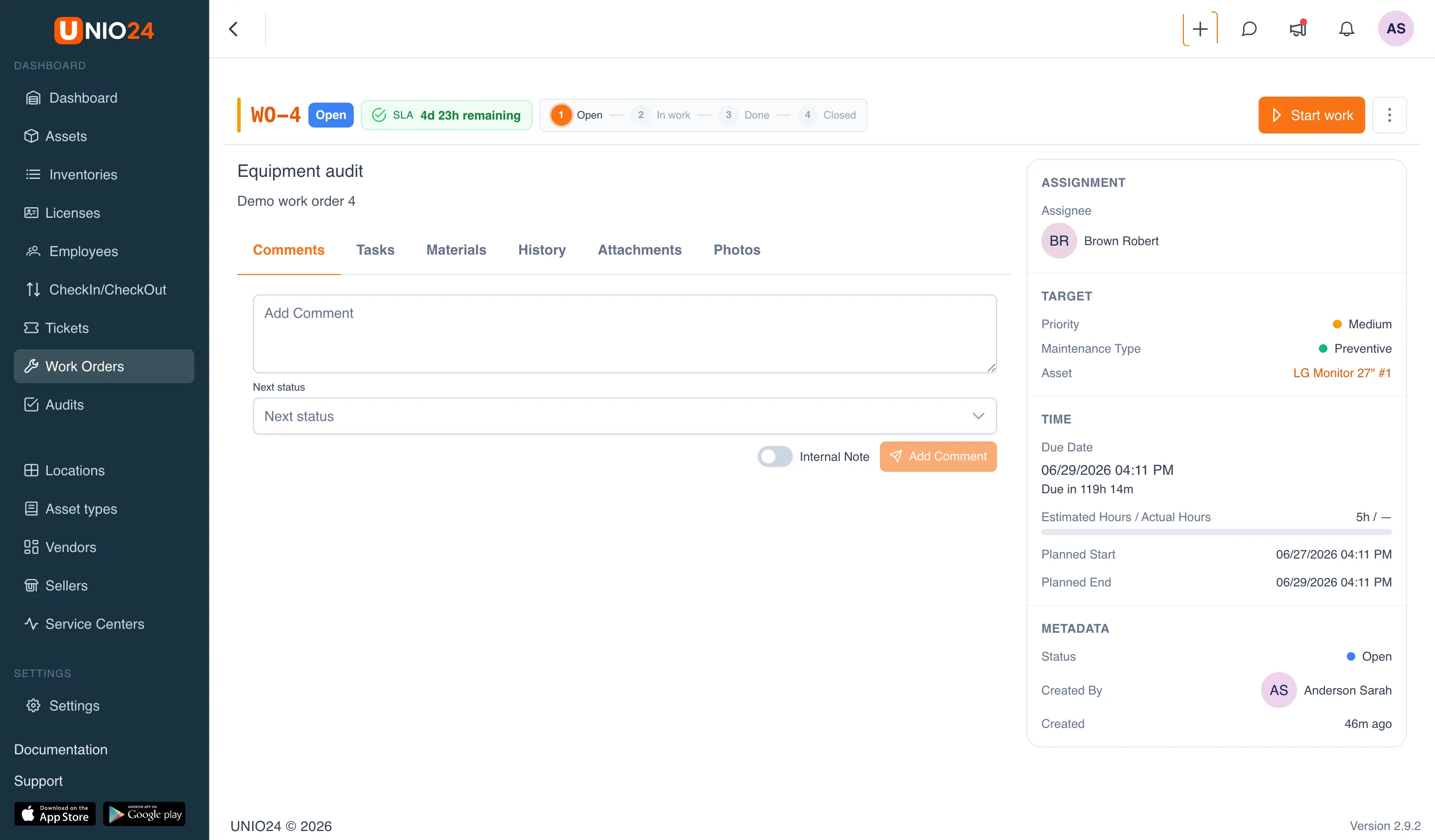
What a work order describes
Section titled “What a work order describes”A work order has a Subject and a description, a Maintenance Type (preventive, corrective, inspection, or emergency), and a Priority. A work order can be linked to a Location and to the Asset the work concerns — then the work history is also visible on the asset’s card.
A work order is assigned to an assignee, to a group, or to a group with a specific user. If a work order is assigned to a group without a specific assignee, any member of the group can take it on.
Lifecycle and status steps
Section titled “Lifecycle and status steps”A work order moves through statuses not arbitrarily, but along the configured workflow. The work order card shows a step indicator: Open → In progress → Completed → Closed. When the work is paused, the work order stays on the In progress step and is marked with a separate Paused badge.
From the current status, only the statuses that a transition is allowed into are available — so in the status change window you see a limited list, not all statuses at once. Some transitions require a reason and a comment; they are saved in the work order’s history.
Quick actions sit on top of the statuses — buttons that change the status with a single tap depending on the current step:
- from the Open status — Start work;
- in the In progress status — Complete or Pause;
- in the Paused status — Resume or Complete;
- in the Completed status — Close.
Work timer
Section titled “Work timer”When a work order is moved into work, a built-in timer starts. It counts the actual work time and, when paused, does not reset but keeps accumulating time when resumed. The work order card shows how much has already been worked (In progress), and after completion — the total (Completed in).
The actual time is compared with the Estimated Hours: the card shows the progress, and if the actual hours exceed the estimate, this is highlighted. The work order’s assignee or an administrator can start the work.
Inside a work order you can keep a list of Tasks — sub-items of the work. Each task is marked done or unmarked, and the work order shows the progress “Completed N of M”. A task has a name and a description, and its statuses (Pending, In progress, Completed, Cancelled) are configured separately.
Materials
Section titled “Materials”The Materials tab records the use of consumables on the work. A material can be Issued (written off from a location to the work order) or Returned (the remainder returned back). The available quantity is taken from warehouse locations, so work order tracking is linked to consumables tracking: whatever is issued to a work order is written off from the stock. The work order shows the total for each material — issued, returned, and net.
An SLA is the agreed completion deadline for a work order. SLA policies are set for a combination of Priority and Maintenance Type: when a work order is created, the system selects the matching policy and sets the Due Date. Until the work order is closed, an SLA badge with a countdown is shown on it, and after the deadline passes it changes to SLA Breached.
Unlike ticket SLAs, a work order has no separate “first response” deadline as a standalone metric on the card — the badge tracks the completion deadline.
The link to tickets
Section titled “The link to tickets”A work order can be created from a ticket — the work order’s fields are filled with data from the ticket, and the link is kept on both sides. In this case the work order shows a Source Ticket link. This separates the request (the ticket) from the work itself (the work order) without losing the link between them. For more on the difference, see How a ticket differs from a work order.