

Inspections
Templates and schedules are set up in the web app, but inspections are easier to run on a phone: right at the asset, with the camera at hand, even where there’s no signal.
What’s due
Section titled “What’s due”Open Menu → Inspections, or tap the Inspections row on the Home screen — it also shows how many inspections are to do and how many are overdue.
On the To do tab, scheduled inspections are grouped as Overdue, Due, and Soon. The All / Mine switch leaves only the ones you’re responsible for. The Journal tab lists completed inspections; it only opens when you’re online.
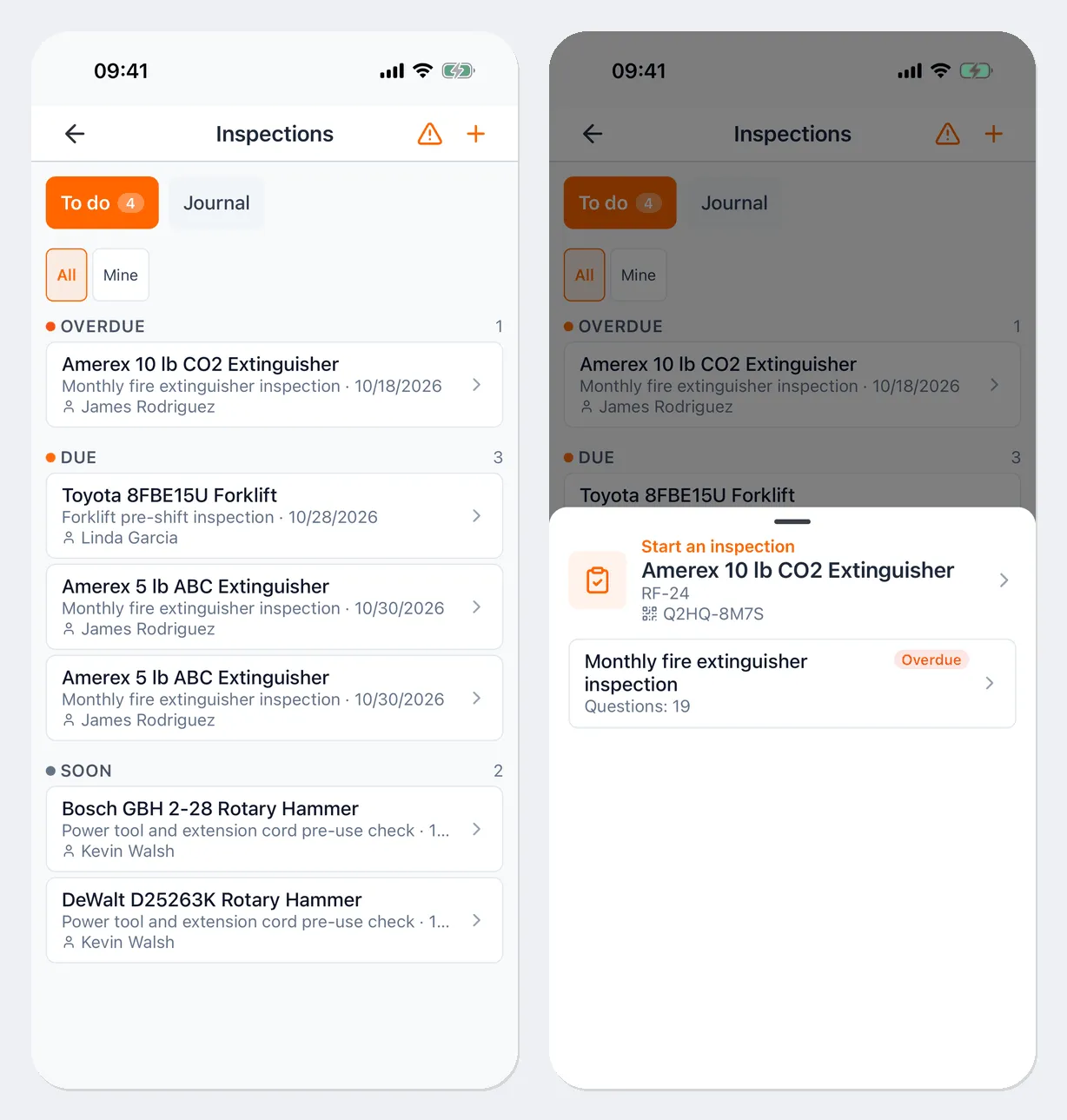
Start an inspection
Section titled “Start an inspection”There are several ways to start an inspection:
- tap a row in the To do list and pick a template;
- scan the asset’s label and pick a template in the Start an inspection block of the sheet that opens;
- on the asset card, tap Perform an inspection;
- on the Inspections screen, tap +, choose a Template, Select asset if needed, and tap Start. Without an asset, the inspection simply follows the template — for example, a room inspection.
If an inspection of this asset with this template has already been started, the app picks up where it left off.
Answer the questions
Section titled “Answer the questions”Questions appear one per screen: at the top you’ll see “Question N of M”, the section, and a progress bar. Answer and tap Next; Back returns to the previous question. Required questions are marked Required.
Answer types:
- Pass / Fail — after you answer, the app moves to the next question on its own;
- a single choice from a list;
- yes or no, a number, text, or a star rating;
- the asset’s meter reading;
- a photo — Take photo or Choose from gallery;
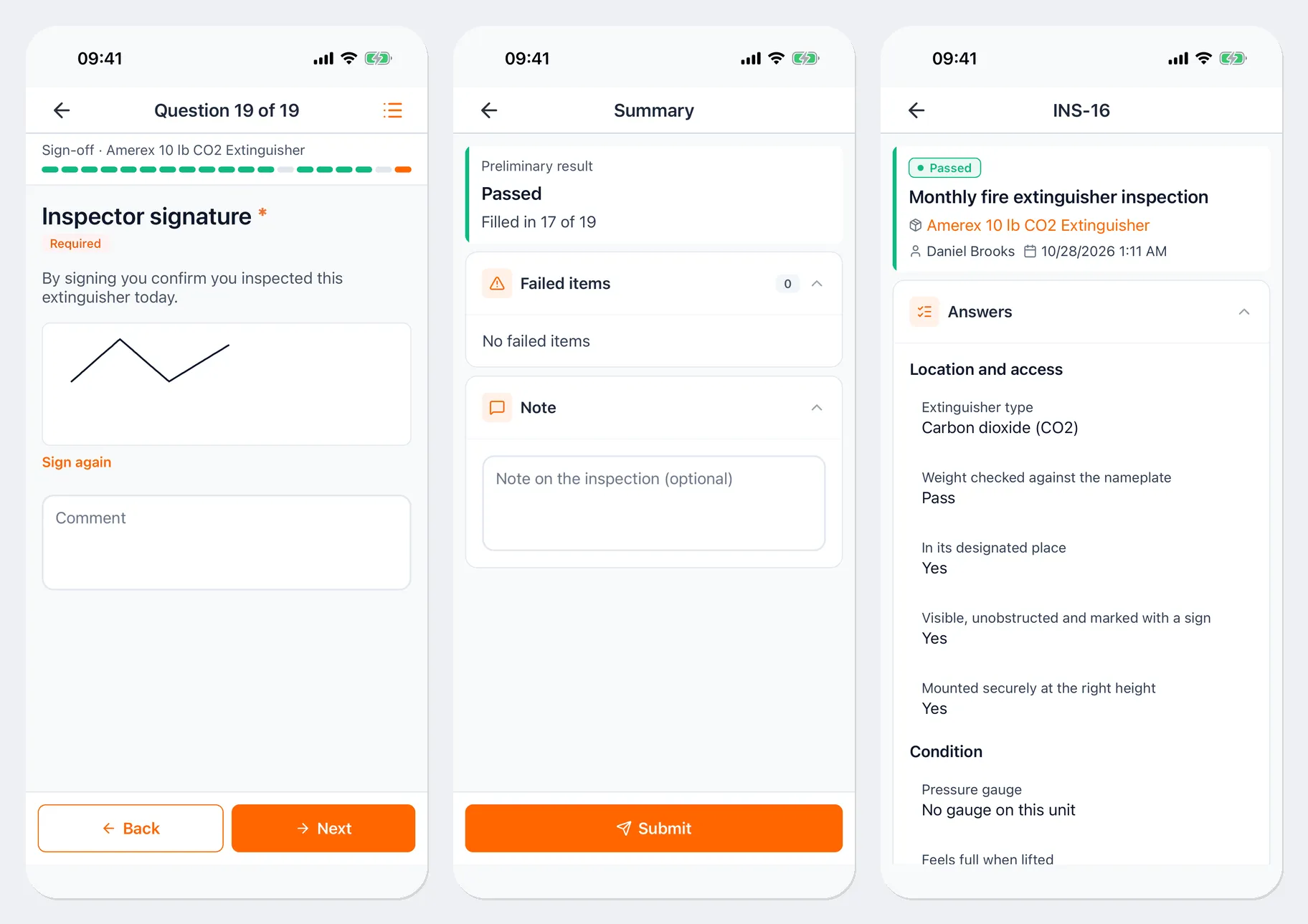
- a signature — sign with your finger inside the frame; Sign again clears it.
You can add a Comment to any question. Some questions only appear for a particular answer to an earlier one, so the number of questions can change as you go.
The list icon in the top-right corner opens the List of all questions, showing which ones are answered. Tap a question to jump to it.
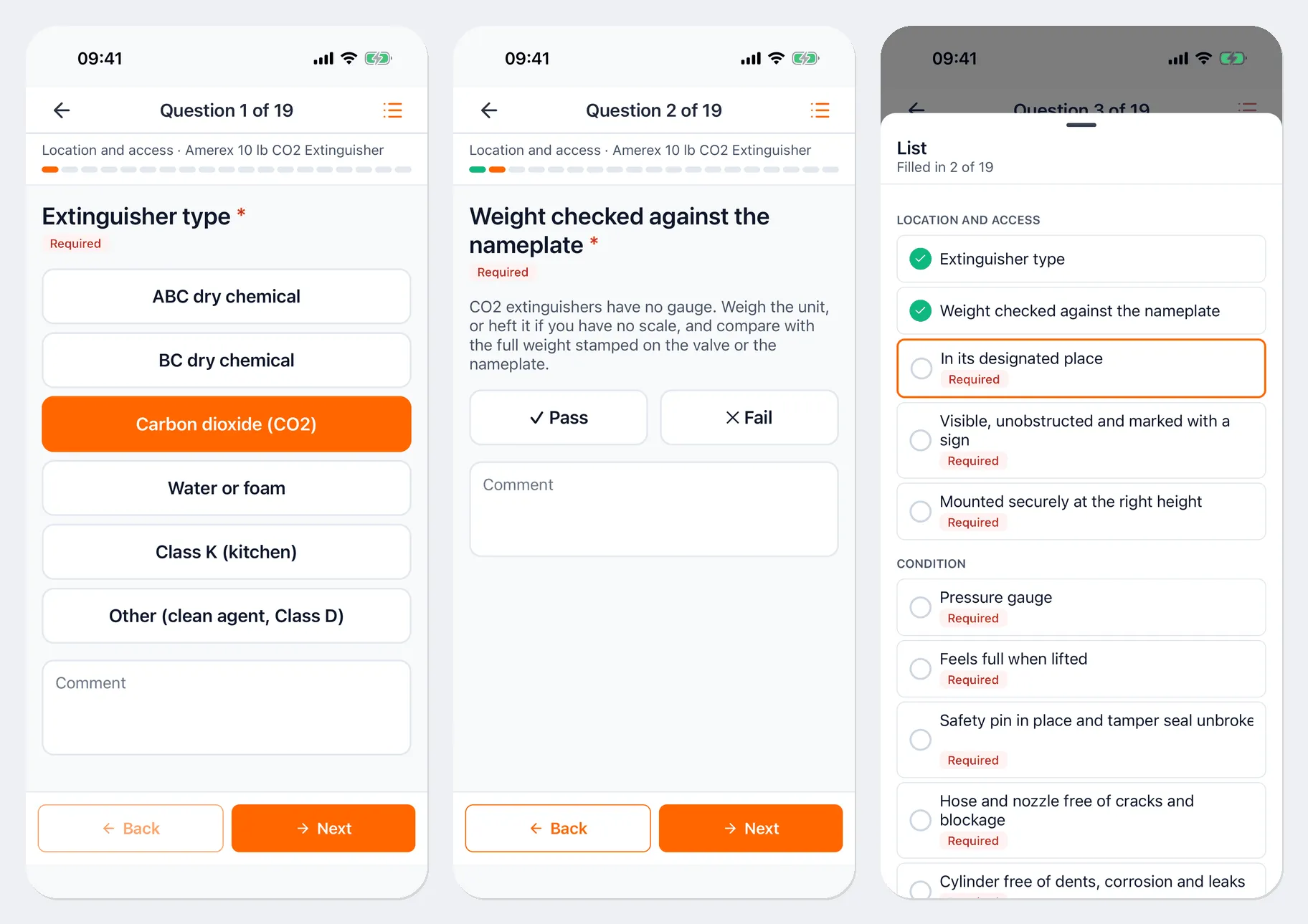
Your answers are saved on the phone as you go. To take a break, tap Save draft — you can continue the inspection later.
Save the inspection in UNIO24
Section titled “Save the inspection in UNIO24”After the last question, the Summary screen opens:
- Preliminary result — “Passed”, “Passed with defects”, or “Failed” — and how many questions are answered;
- Failed items — the items that didn’t pass. Once you submit, they become defects;
- Note — a general note on the inspection.
If any required questions are unanswered, you’ll see Go to first unanswered instead of the submit button. When everything is filled in, tap Submit — the inspection is saved in UNIO24 and gets a number. Its card opens with the result and the answers.
Without internet
Section titled “Without internet”You can run an inspection without a connection if the template is already on the phone (it’s downloaded when you open Inspections while online). After you tap Submit, the inspection is queued and you’ll see the screen “We’ll send it when you’re back online” with the Go to asset and Scan next asset buttons.
Queued inspections appear on the Inspections screen in the Waiting to be sent block: “Queued”, “Sending…”, or “Rejected by the server”. You can Open a rejected inspection, fix it, and Try again. If you sign out, unsent inspections aren’t lost — they’re sent after you sign in again.
Defects
Section titled “Defects”The triangle button in the top-right corner of the Inspections screen opens Defects — items that failed in submitted inspections. To close a defect, open it, tap Close, and choose how it was resolved: Mark fixed or Waive (only an employee with permission to edit inspections can waive a defect). You need to be online for this.
Inspections at check-out, check-in, and in work orders
Section titled “Inspections at check-out, check-in, and in work orders”If an asset requires an inspection at check-out or check-in, the operation form shows Inspection required · Run next to the asset — see Check out, check in, and transfer. If a work order has “before work” or “after work” inspections, you run them from the work order card — see Tickets and work orders.
Useful links
Section titled “Useful links”- Inspections — templates, schedules, defects
- Run an inspection — the same in the web app
- Working offline — the send queue