

Preventive maintenance
Preventive maintenance makes sure equipment gets serviced on time: the air compressor every three months or every 500 running hours, the mini-splits every six months, the forklift once a year. UNIO24 works out the due date for every asset, reminds you about it, and, if you want, creates a work order for the job ahead of time.
How maintenance is set up
Section titled “How maintenance is set up”Maintenance is set up from two pieces.
The job plan answers “what to do”. It lists the tasks (for example, “Change the compressor oil” and “Test the safety valve”), the estimated time, and the stock materials the job uses. One job plan can be used in several plans.
The maintenance plan answers “for what” and “how often”. A plan ties a job plan to assets, either one specific asset or every asset of one type, and sets the frequency: by time, by meter, or by both.
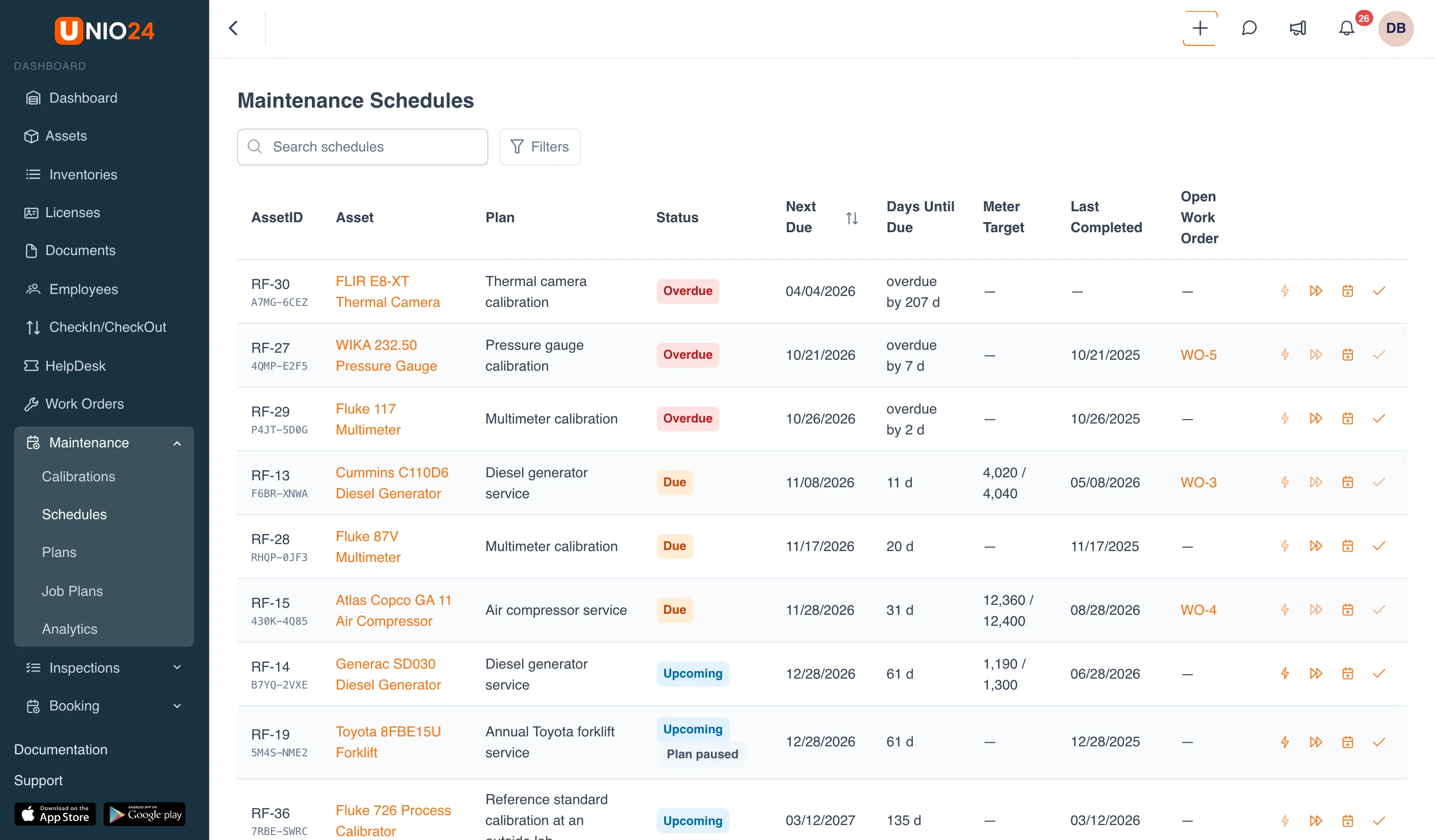
Once a plan is saved, UNIO24 creates a schedule for each matching asset on its own. You never create schedules by hand: if your company gets another compressor, it immediately gets its own schedule under the “Air compressor service” plan.
How the due date is worked out
Section titled “How the due date is worked out”Every schedule has its own next due date.
- By time. The date comes after a set interval, for example 3 months after the last service.
- By meter. The date comes when the asset’s meter reading (running hours, mileage, cycles) reaches a set value, for example the last service at 11,900 running hours plus 500.
- By both. Both count, and the service comes due on whichever happens first.
The count runs from the last completion. If the plan has never been carried out, it runs from the count start: the asset’s commissioning date, the date the plan was applied to the asset, or a date you set. If the asset was serviced before you started tracking it in UNIO24, you can enter the date of that last service in its schedule.
There are two kinds of anchor:
- Floating: the next date is counted from when the work was actually done. Service a week late, and every later date moves a week.
- Fixed: dates follow a calendar grid from the count start. Being late doesn’t shift the grid.
Schedule statuses
Section titled “Schedule statuses”- Upcoming: the date is still a way off.
- Due: the date is close: the lead-time window has started (for example, 14 days before the date) or the meter is nearing its threshold.
- Overdue: the date has passed or the meter has gone beyond its threshold.
If a plan is paused, its schedules are marked Plan paused: no reminders or work orders until the plan is resumed.
Work orders by due date
Section titled “Work orders by due date”A plan can work in one of two ways:
- Work order: when the date comes up (minus the lead time), UNIO24 creates a work order with the job plan’s tasks. The service counts as done when the work order is completed.
- Log only: no work orders are created; the work is marked as done by hand in the schedule.
Work orders are created once a day, in the morning. When the due date depends on a meter, the check runs as soon as a new reading is entered.
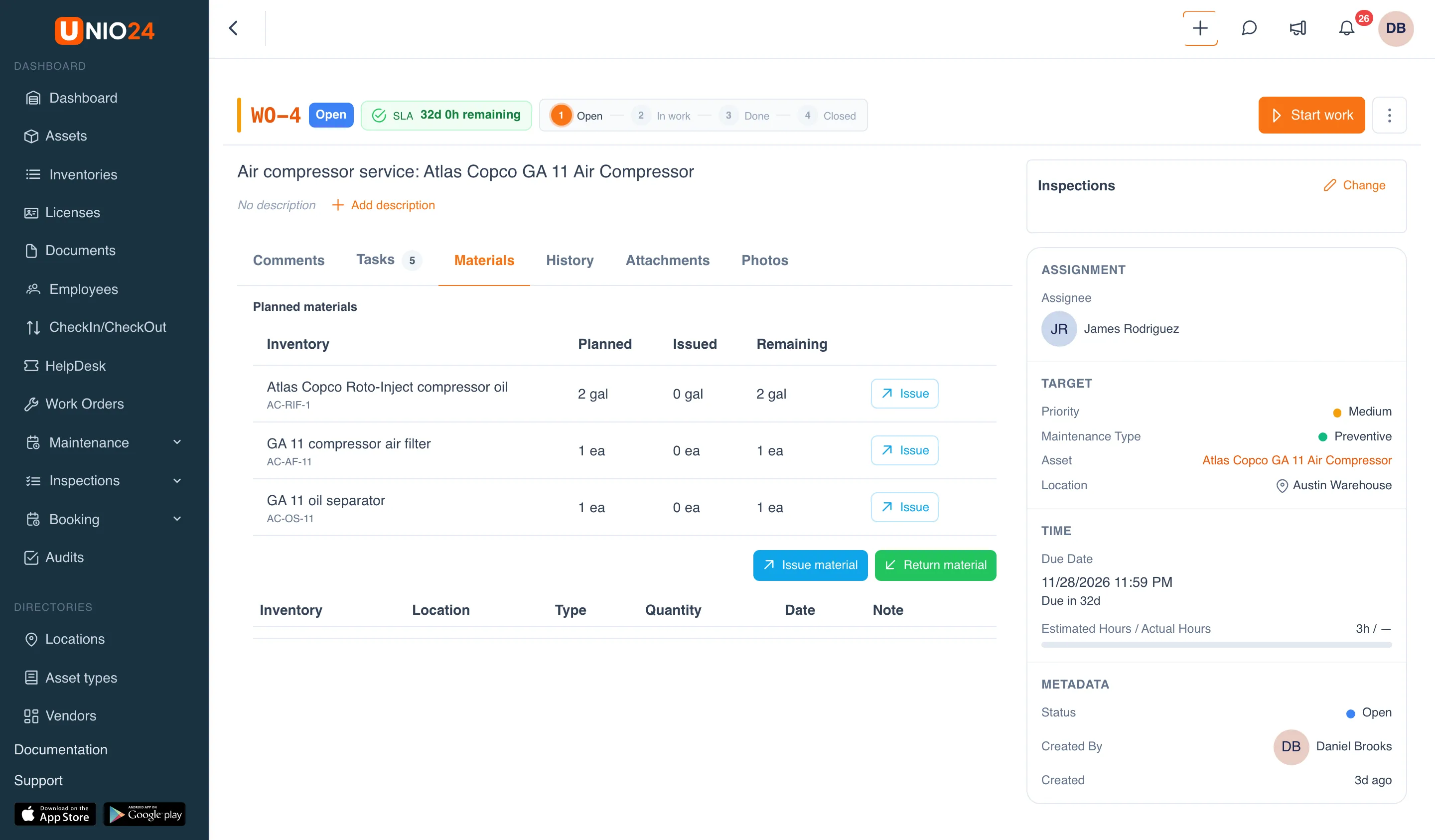
A work order from a plan gets the job plan’s tasks plus the plan’s priority and group. Tasks marked mandatory in the job plan have to be done, or the work order can’t be completed. The job plan’s materials go into the work order as planned materials: the Materials tab shows how much is planned, how much has been issued, and how much is left. A material comes off stock only when the technician issues it.
When the work order is completed or closed, the service goes into the history and UNIO24 works out the next due date. If the work order is cancelled or deleted, the schedule is freed up and a new work order can be created for it.
Service at a service center
Section titled “Service at a service center”Planned work can be handed to a service center. Such a work order isn’t carried out in house but coordinated: the work timer doesn’t run, and when the work order is put into work, the asset is sent to the service center. When the asset comes back from repair, the work order switches to Completed by itself. While the asset is at the service center, the work order can’t be completed, closed, cancelled, or deleted.
History and timeliness
Section titled “History and timeliness”Every completion goes into the asset’s maintenance history: on the asset card, the Maintenance tab → History. For each completion you can see when it was due, when it was done, what it cost, and whether it was on time:
- On time: done no later than the due date, allowing for the plan’s grace period;
- Late by N d: the grace period was exceeded;
- Skipped: the date was skipped on purpose (for example, while the equipment was being upgraded).
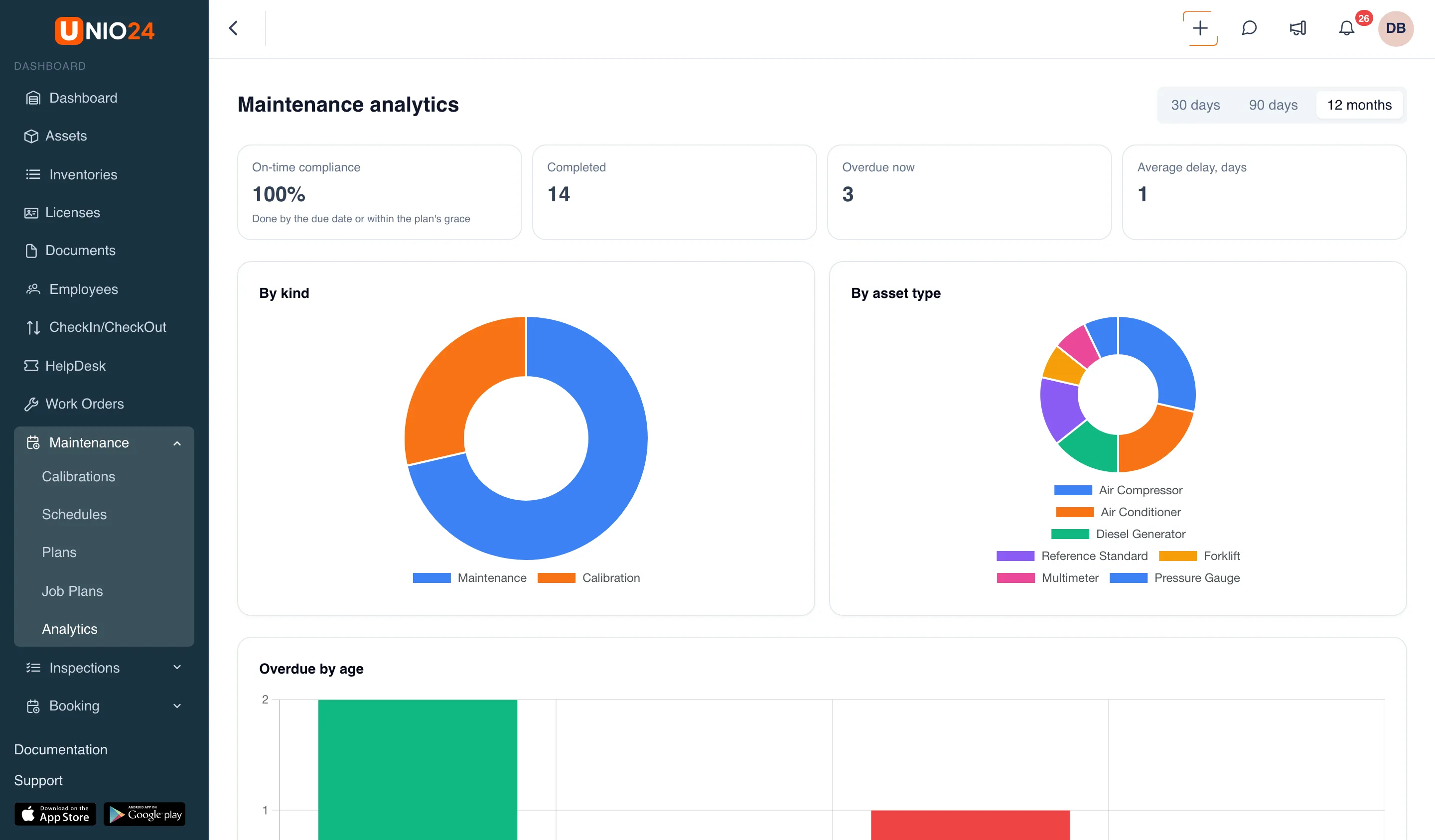
The summary for all plans is on the Maintenance → Analytics page: the share of work done on time, the number of completed and overdue jobs, the average delay, and breakdowns by kind of work and by asset type.
Reminders
Section titled “Reminders”- Maintenance due: for Log only plans, when the lead-time window starts.
- Maintenance overdue: for any plan; repeated no more than once a week.
Reminders go to the plan’s assignee or group. To turn them on or off for yourself, see Notifications.
Useful links
Section titled “Useful links”- Work with maintenance schedules: step-by-step instructions
- Configure preventive maintenance: step-by-step instructions
- Calibration: calibration of measuring instruments, described separately
- Maintenance reference: fields, statuses, and rights