

Tickets and work orders
Tickets and work orders in the app are the same as in the web app. For the person doing the work, the phone is the handy way to keep them up to date: check off tasks on site, take photos, and keep the conversation going with the requester.
Find your tickets and work orders
Section titled “Find your tickets and work orders”On the Home screen, the Tickets and Work orders rows show how many are assigned to you and how many of those are overdue. Tap a row to open the list. The same sections are in the Menu.
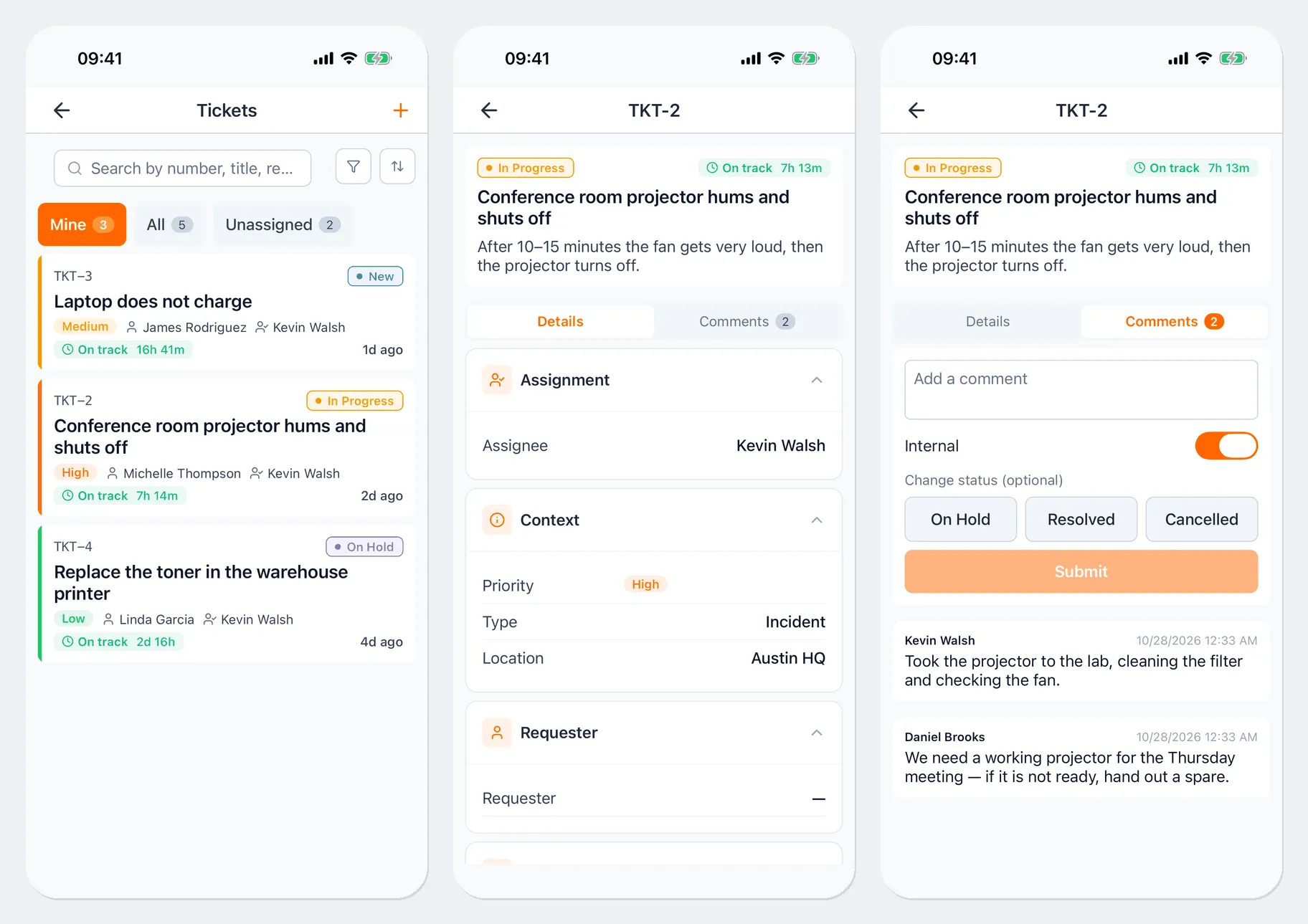
At the top of the list are the Mine, All, Unassigned, Overdue, and Closed tabs with counts, plus search by number and title, a filter, and sorting. Each row shows the number, status, priority, requester or maintenance type, assignee, and time remaining.
Tickets
Section titled “Tickets”Tap a row to open the ticket. The Details tab has the description, assignee, priority, type, requester, deadlines, history, and linked work orders. The Comments tab holds the conversation.
Reply and change the status
Section titled “Reply and change the status”- Open the Comments tab.
- Type in the Add a comment field.
- The Internal switch hides the comment from the requester — only your team will see it. Check which way it’s set.
- If needed, tap a new status under Change status (optional). For some statuses, the app asks for a Status reason.
- Tap Submit.
You can also change the status from the list: press and hold a ticket.
Create a ticket
Section titled “Create a ticket”- In the Tickets list, tap +, or on the asset card tap Actions → Create ticket.
- Describe the problem and set the requester and priority. You can add an asset by scanning it — Scan asset QR.
- Save the ticket.
You need to be online to create a ticket. You can edit its text while its status is “New”.
Work orders
Section titled “Work orders”At the top of the work order card are the status, due date, priority, and time in progress, the Open → In progress → Completed → Closed timeline, and buttons for the next step:
- Start — start work on the order; time tracking begins;
- Pause and Resume;
- Complete — the work is done. If the work order has an asset, the app asks for the Asset condition;
- Close.
Below are the Details, Tasks, Comments, Materials, and History tabs.
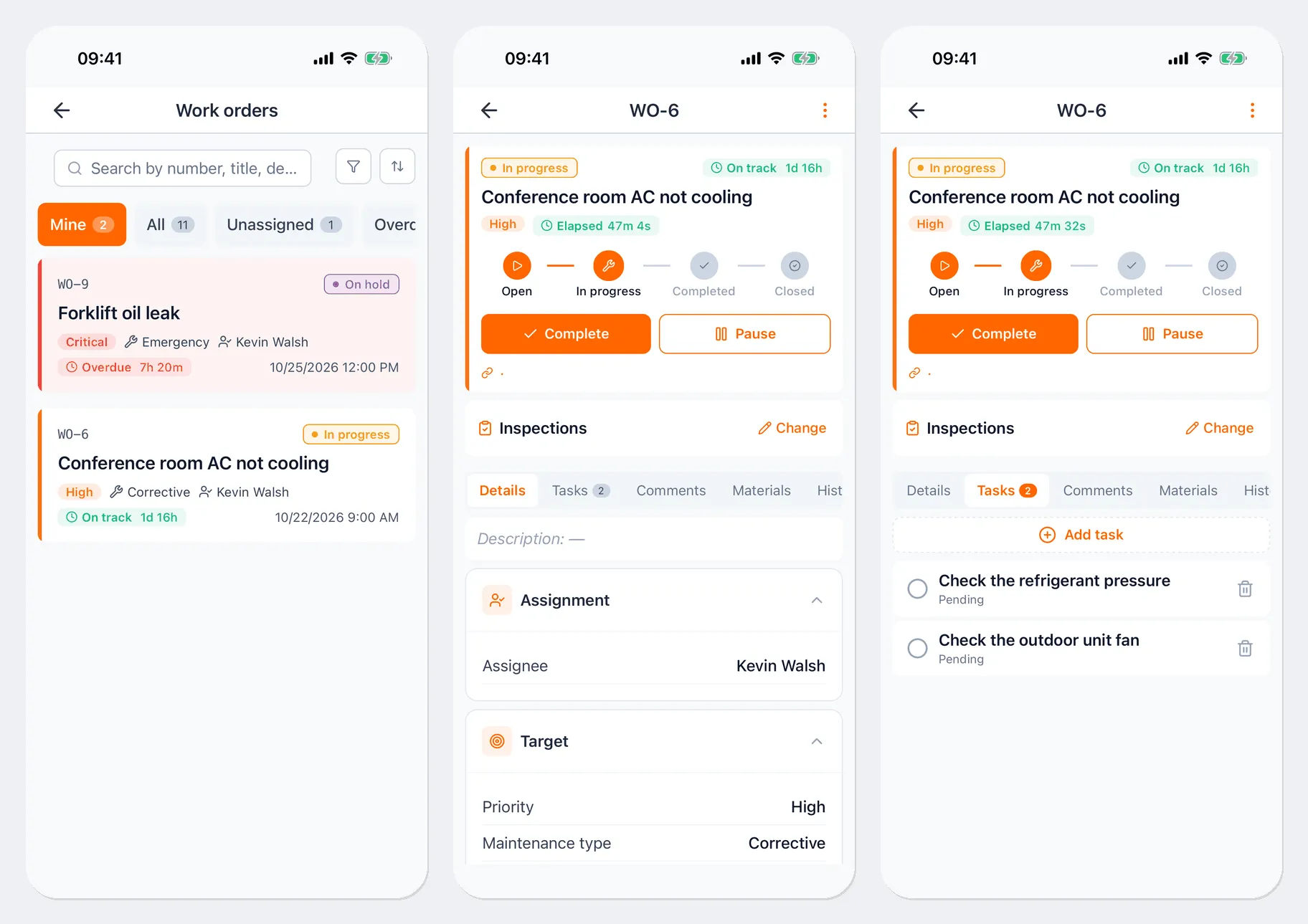
- Tasks — tap the circle when you finish a task; Add task adds a new one.
- Materials — Log materials: choose the item, location, and quantity to record how much inventory was issued to the work order or returned. You can see how much is Available in stock.
- Comments — the conversation about the work order.
- To add photos and files, tap Attach: Camera, Gallery, or File.
If a work order has “before work” inspections, you can start it only after they’re done, and complete it only after the “after work” inspections. You run them from the Inspections block on the work order card — see Inspections.
Create a work order
Section titled “Create a work order”Tap + in the work order list, or on the asset card tap Actions → Create work order. Fill in the title, maintenance type, priority, and assignee, and save. You can pick the asset by scanning it — Scan asset QR.
Without internet
Section titled “Without internet”You can write comments and change the status of tickets and work orders without a connection — the changes are saved on the phone and sent when you’re back online. Until a change is sent, it’s marked “Waiting to sync” or “Waiting to be sent”. If the server rejects a work order status change, the app offers Retry or Cancel transitions. See Working offline for details.
Useful links
Section titled “Useful links”- Tickets — how tickets work
- Work orders — how work orders work
- Inspections — inspections in a work order