

Self-service audit
A self-service audit is a check the employees run themselves. Each of them gets an email with a link, opens it on a phone or computer, and confirms the assets assigned to them: whether they have each one and what shape it’s in. No UNIO24 account is needed.
If an employee has a company item that isn’t on their list, they report it on the same page. An administrator or manager reviews these reports: registers the item, moves an existing asset to the employee, or rejects the report.
When it helps
Section titled “When it helps”- Assets are spread out among employees (laptops, phones, tools, and instruments with field crews), and visiting everyone isn’t realistic.
- You need a quick read on the condition of your equipment without a trip to the warehouse.
- You suspect some items were never registered: handed out without paperwork, bought for a job site, or left over after a project. Employees will report them.
How it works
Section titled “How it works”- An administrator or manager creates an audit with Automated audit with employee participation turned on.
- Every employee who holds assets in the audit scope gets an email with a link.
- The employee opens the link, marks each asset as Present or Absent, selects its condition, and adds a note if needed.
- If they have an unrecorded company item, they add it in the I have it, but it is not on the list block.
- The organizer follows progress on the Participants tab and reviews the unrecorded items on the Found beyond the list tab.
- Once the end date passes or the audit is closed, the link stops accepting answers. Reports of unrecorded items can still be handled after the audit is closed.
Start a self-service audit
Section titled “Start a self-service audit”- Open Audits and click Create audit.
- Fill in Audit name, Start date, and End date. Employees can submit answers until the end date.
- Choose the Audit source, for example By subdivision or By employee. All fields are described in Create an audit.
- Turn on Automated audit with employee participation.
- If the link should only work for someone with access to the employee’s mailbox, turn on OTP code protection.
- If you need the condition of every asset, turn on Requires asset condition assessment. The employee then picks a condition for every item they have.
- Click Save.
The emails go out as soon as you save, to every employee who holds at least one asset in the audit scope. Assets held by a location rather than an employee aren’t part of the self-service check: your storekeeper marks them on the Assets tab. The toggles are set only at creation and can’t be changed later.
If an employee has no email address in their record, no email is sent, and the Participants tab shows No email for them. Click Copy link (the link icon) in their row and pass the link on another way, for example in a chat app.
What the employee receives
Section titled “What the employee receives”The invitation email comes to the address in the employee record, in the company’s language. It contains the audit name, the deadline, and a Go to inventory button.
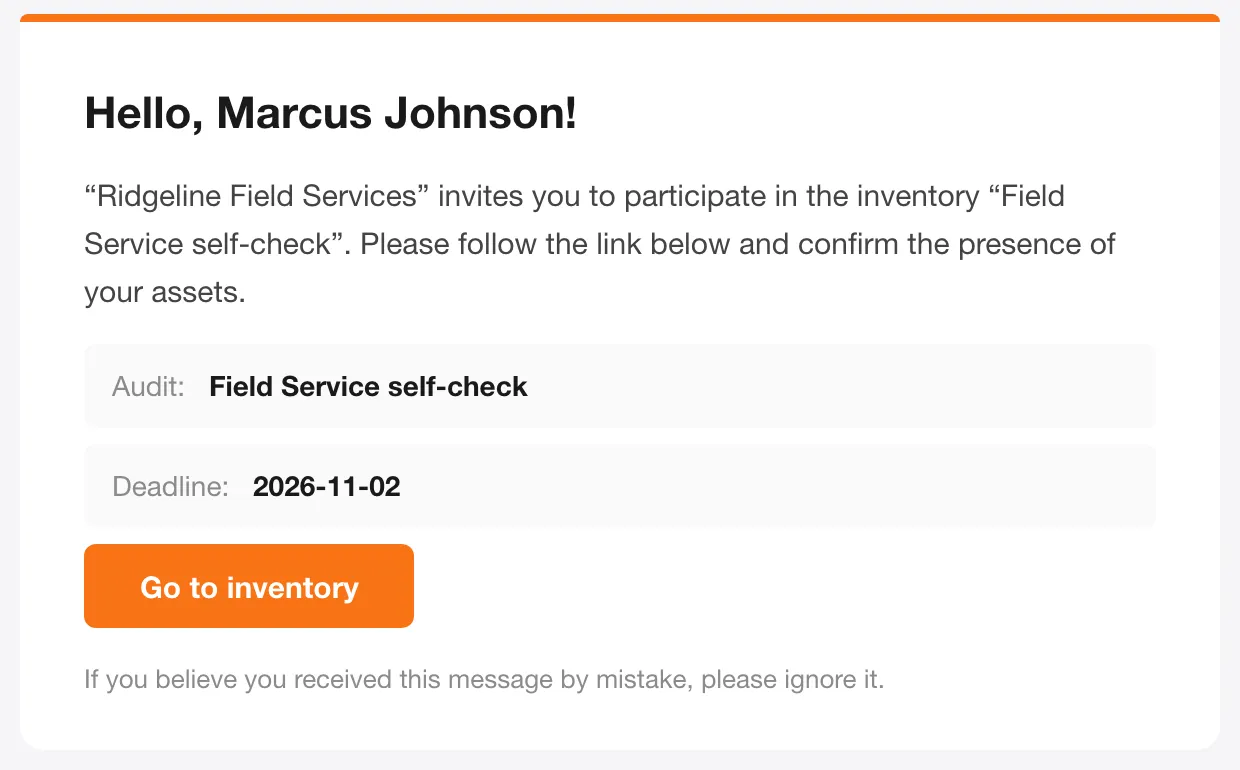
The link is personal: it shows only this employee’s assets. There’s no need to forward it to anyone.
Confirm your assets
Section titled “Confirm your assets”This part is done by the employee. The page opens in any browser and works well on a phone.
- Click Go to inventory in the email.
- If OTP code protection is on, a confirmation code is sent to your email. Enter it and click Verify. The code is valid for 15 minutes; if it didn’t arrive, click Resend code.
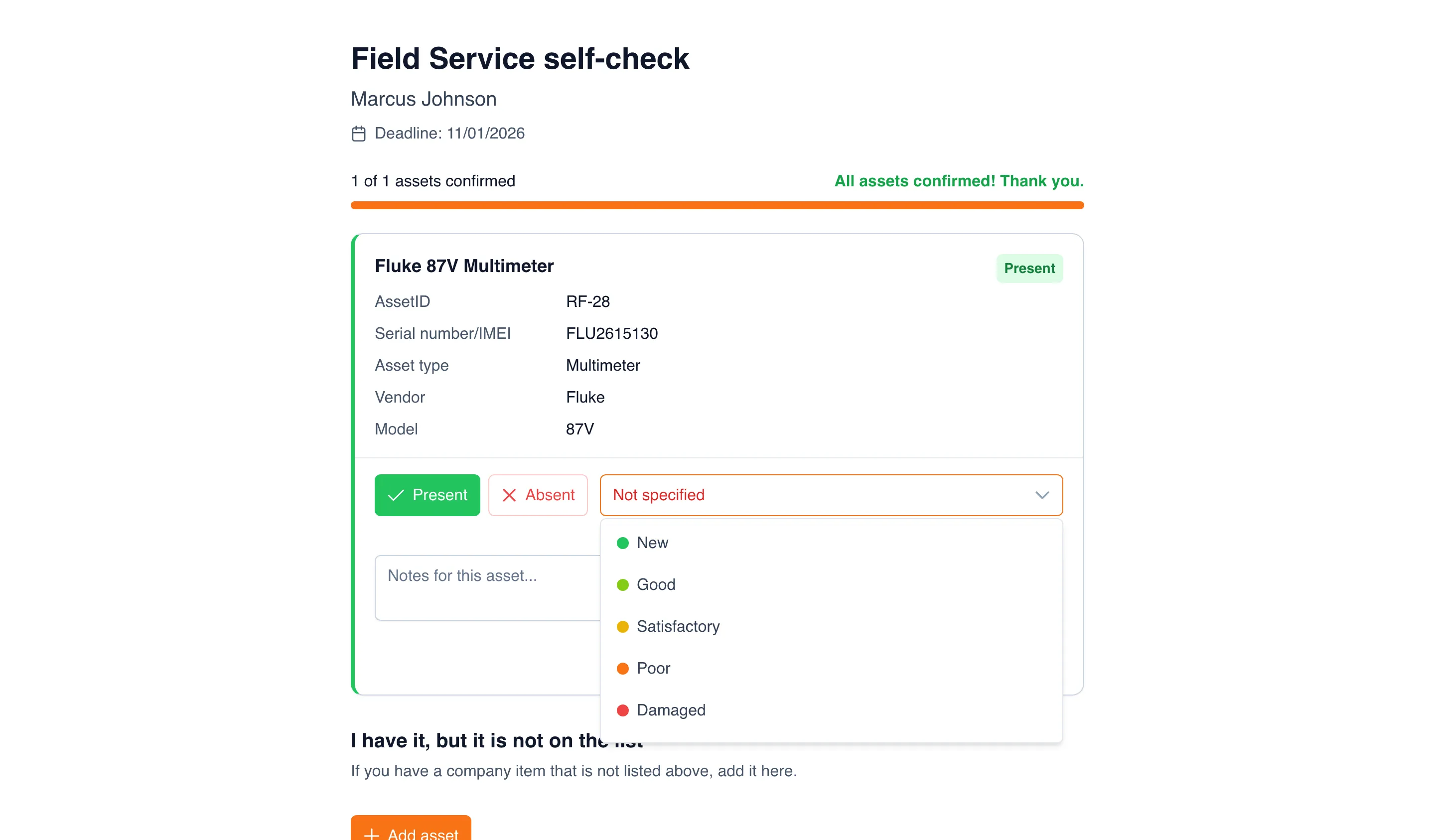
- The top of the page shows the audit name, your name, the deadline, and a counter such as “1 of 2 assets confirmed”.
- For each asset on the list:
- click Present if you have it, or Absent if you don’t;
- if a condition field appears next to the buttons, pick the condition of the item: New, Good, Satisfactory, Poor, Damaged, and so on. The field appears when the organizer turned on condition assessment;
- if needed, write in Notes for this asset… (for example, “Cracked screen” or “Handed it to a coworker”) and click Submit on the asset card.
- Your Present/Absent choice and the condition are saved right away. When every asset is marked, you’ll see “All assets confirmed! Thank you.”
If you typed a note but didn’t click Submit, a “Not sent yet: N” bar with a Send all button appears at the bottom of the page. If you try to close the page, the browser warns you about unsaved changes.
At the bottom of the page there’s a General notes block for a message about the whole audit, for example “Some of the tools are still at the Houston site.”
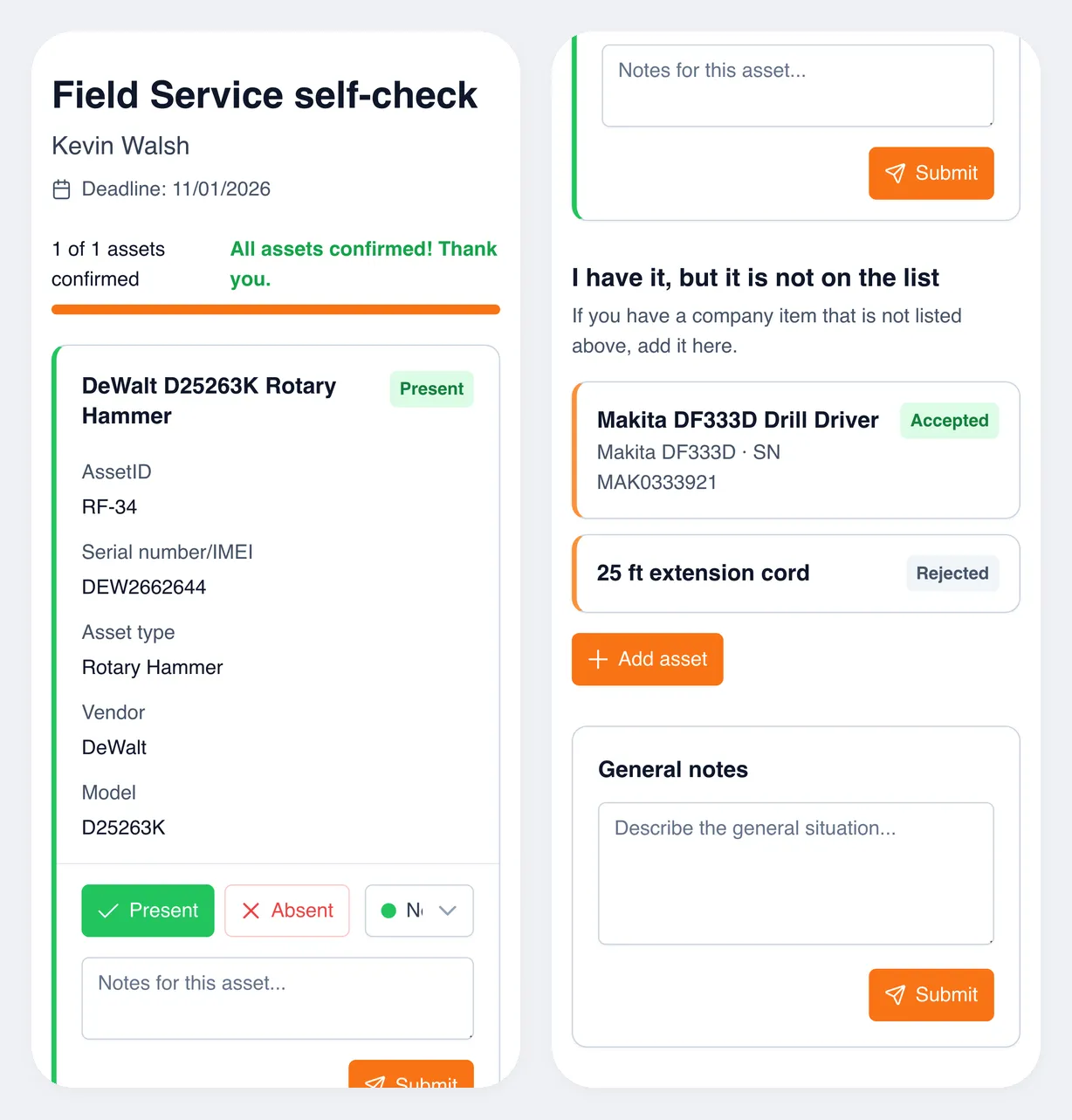
The employee’s answers are recorded in the audit. They don’t change the asset record: the condition on the asset page stays as it was until someone with the right permissions changes it.
Report an unrecorded item
Section titled “Report an unrecorded item”If you have a company item that isn’t on your list, report it so it can be registered.
- Scroll down to the I have it, but it is not on the list block and click Add asset.
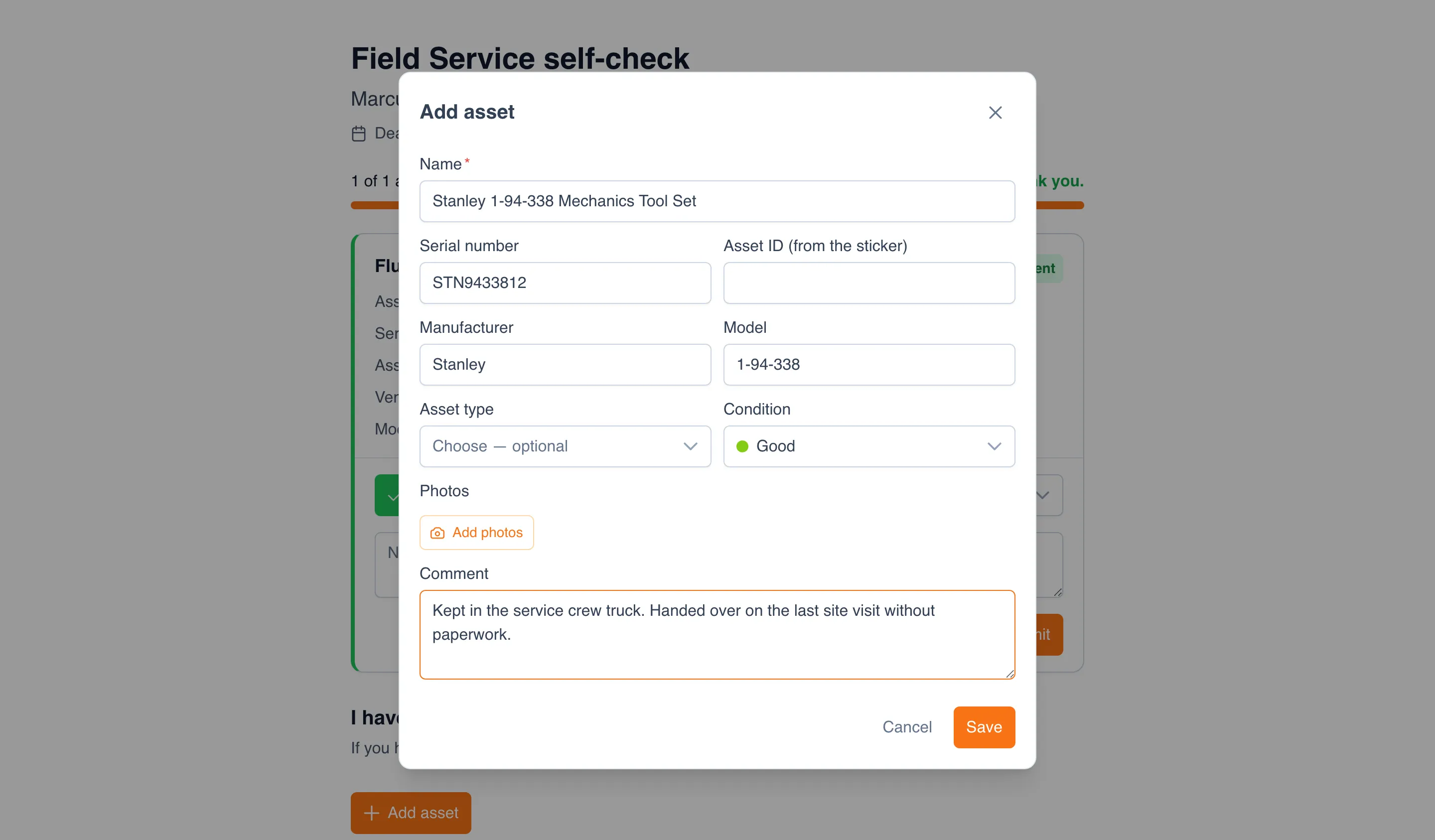
- Fill in Name. It’s the only required field.
- If you can, enter the Serial number (usually on the nameplate or a sticker underneath), Asset ID (from the sticker) if the item has an asset tag, plus Manufacturer, Model, Asset type, and Condition. The more accurate the details, the faster the organizer can tell what the item is.
- Click Add photos and take pictures of the item and of the sticker with its number, up to 5 photos.
- In Comment, write where the item is kept and how you came to have it.
- Click Save.
The item appears in the I have it, but it is not on the list block. Until the organizer reviews it, and while the audit is open, you can edit it (pencil) or delete it (trash can). One employee can report up to 50 items in a single audit.
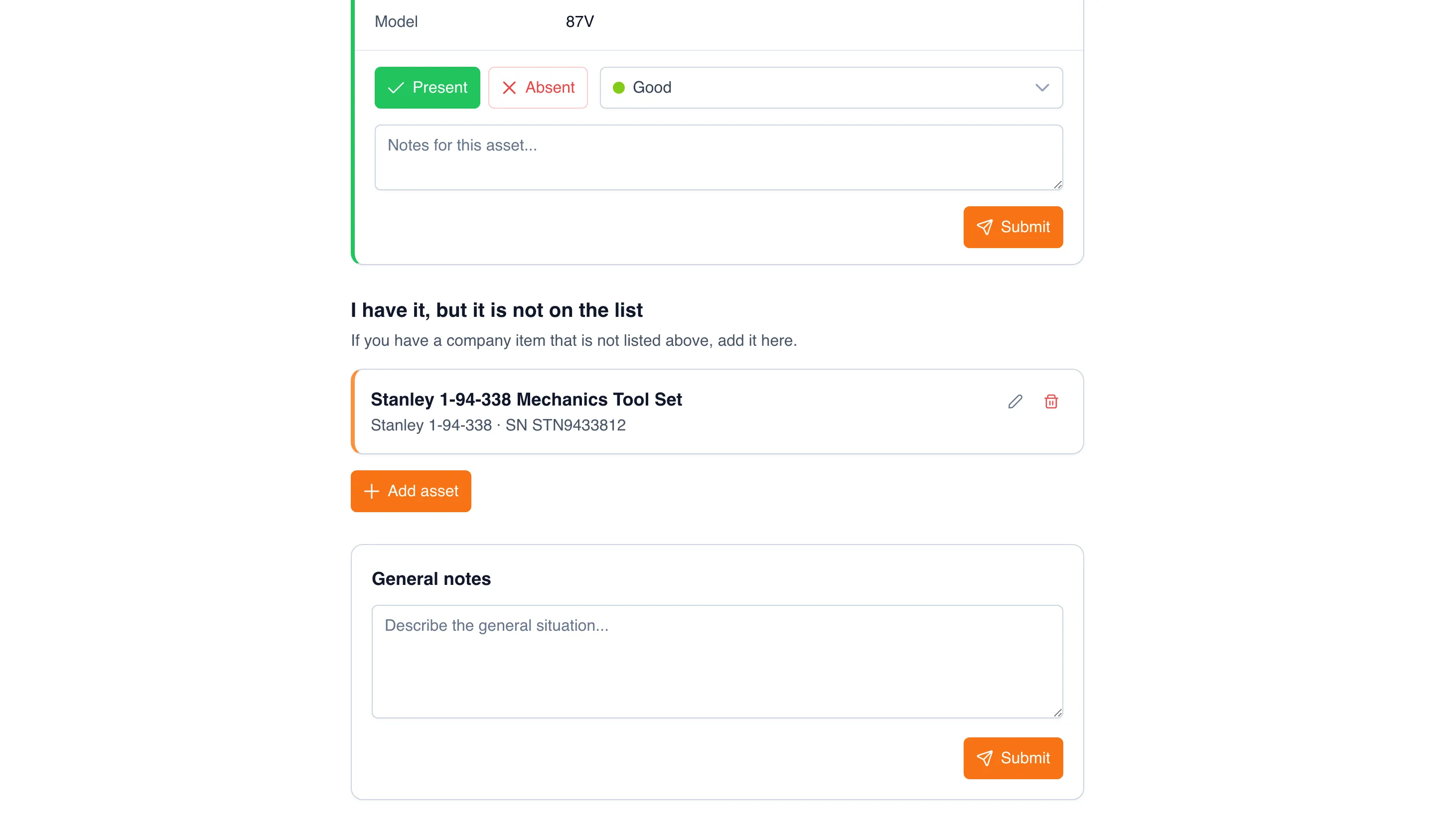
Once the organizer decides, the item gets a status: Accepted means it was registered and is now assigned to you, Rejected means it won’t be registered, for example because it’s a personal item. You can see the status if you open the link again while the audit is still open.
Track participants
Section titled “Track participants”The organizer opens the audit and goes to the Participants tab. For each employee it shows whether the email went out (Sent, Failed, No email), when they last opened the link, and how many assets they confirmed.
- Resend — send the email again, for example if the employee lost it.
- Copy link (the link icon) — copy the employee’s personal link to pass it on another way.
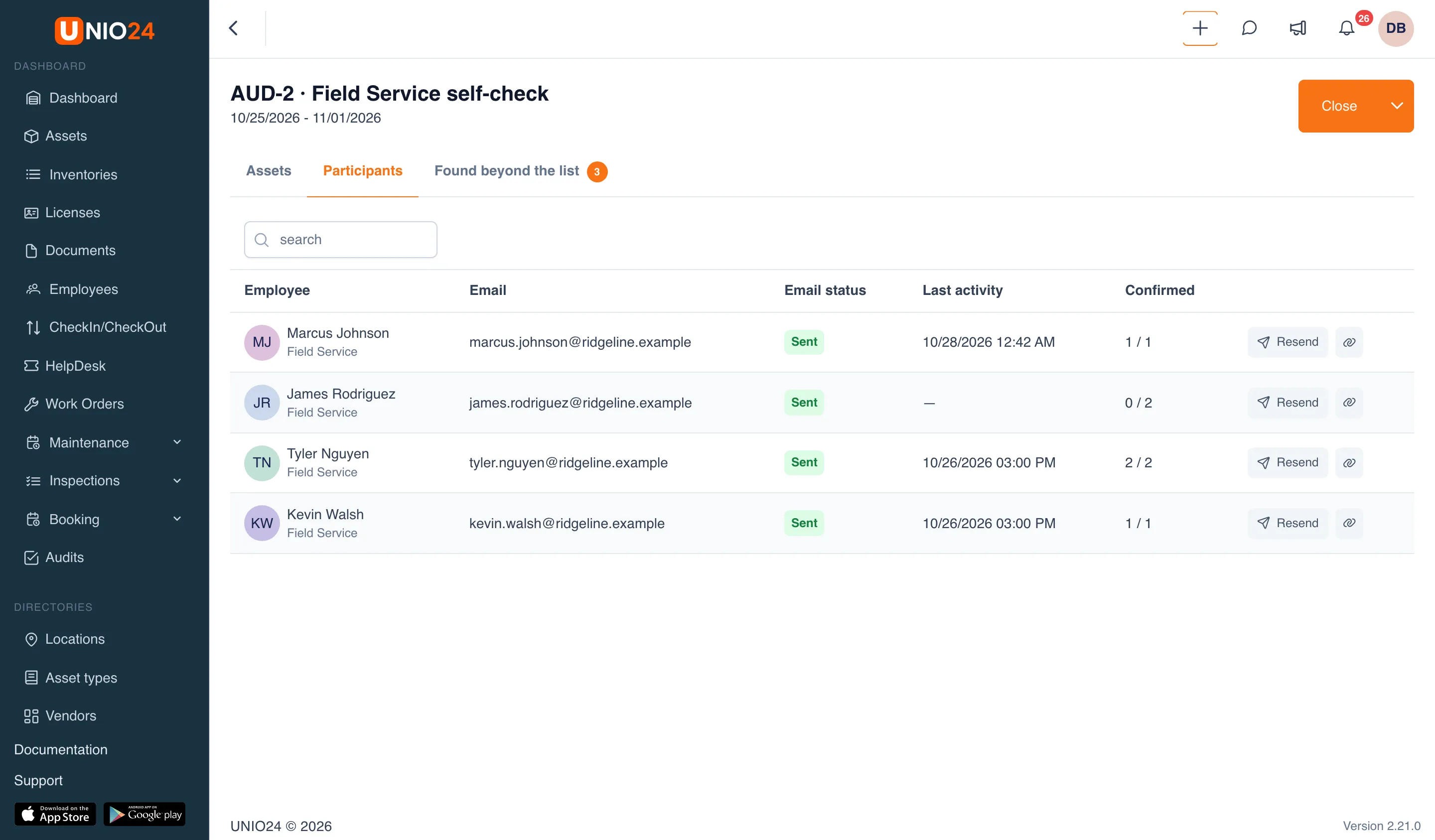
If the audit isn’t finished by its end date, the people responsible get the notification “Audit needs attention”.
Register unrecorded items
Section titled “Register unrecorded items”Employee reports are handled by an administrator or manager, that is, someone with permission to edit audits. Creating an asset also takes permission to create assets, and moving an existing asset takes permission to create transfers. The standard Manager role has all of these.
Find what needs a decision
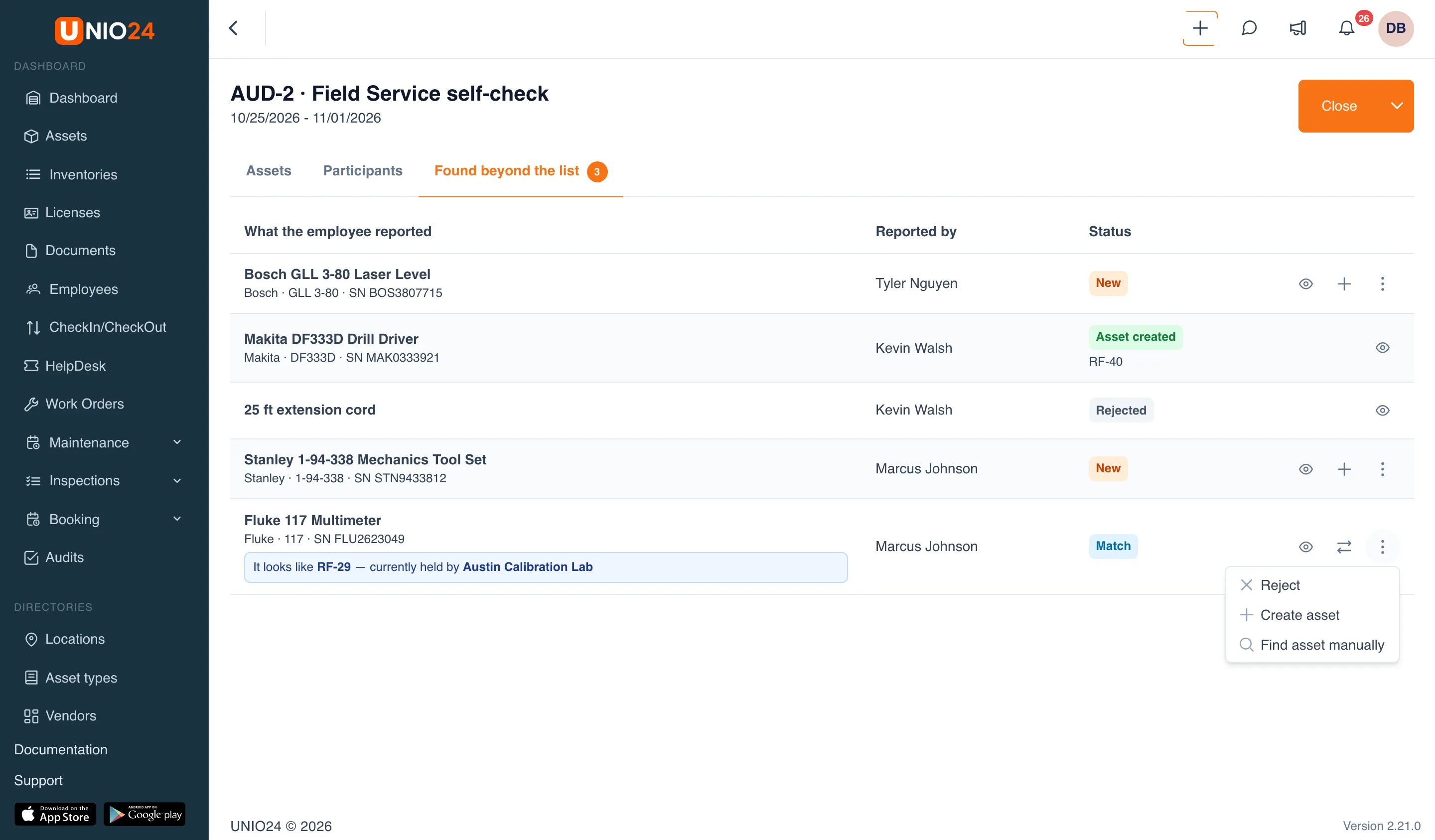
Section titled “Find what needs a decision”In the Audits list, the number of reports waiting for a decision shows next to the audit name, for example “3 to review”. Open the audit and go to the Found beyond the list tab; the number on the tab is the same.
The table shows what the employee entered (name, manufacturer, model, serial number), who reported it, and the status:
- New — waiting for a decision;
- Match — waiting for a decision, and UNIO24 found a similar asset by serial number or asset ID. A hint under the name reads, for example, “It looks like RF-29 — currently held by Austin Calibration Lab”;
- Asset created, Moved, Rejected — a decision has been made. For a created asset, its asset ID shows under the status.
View a report
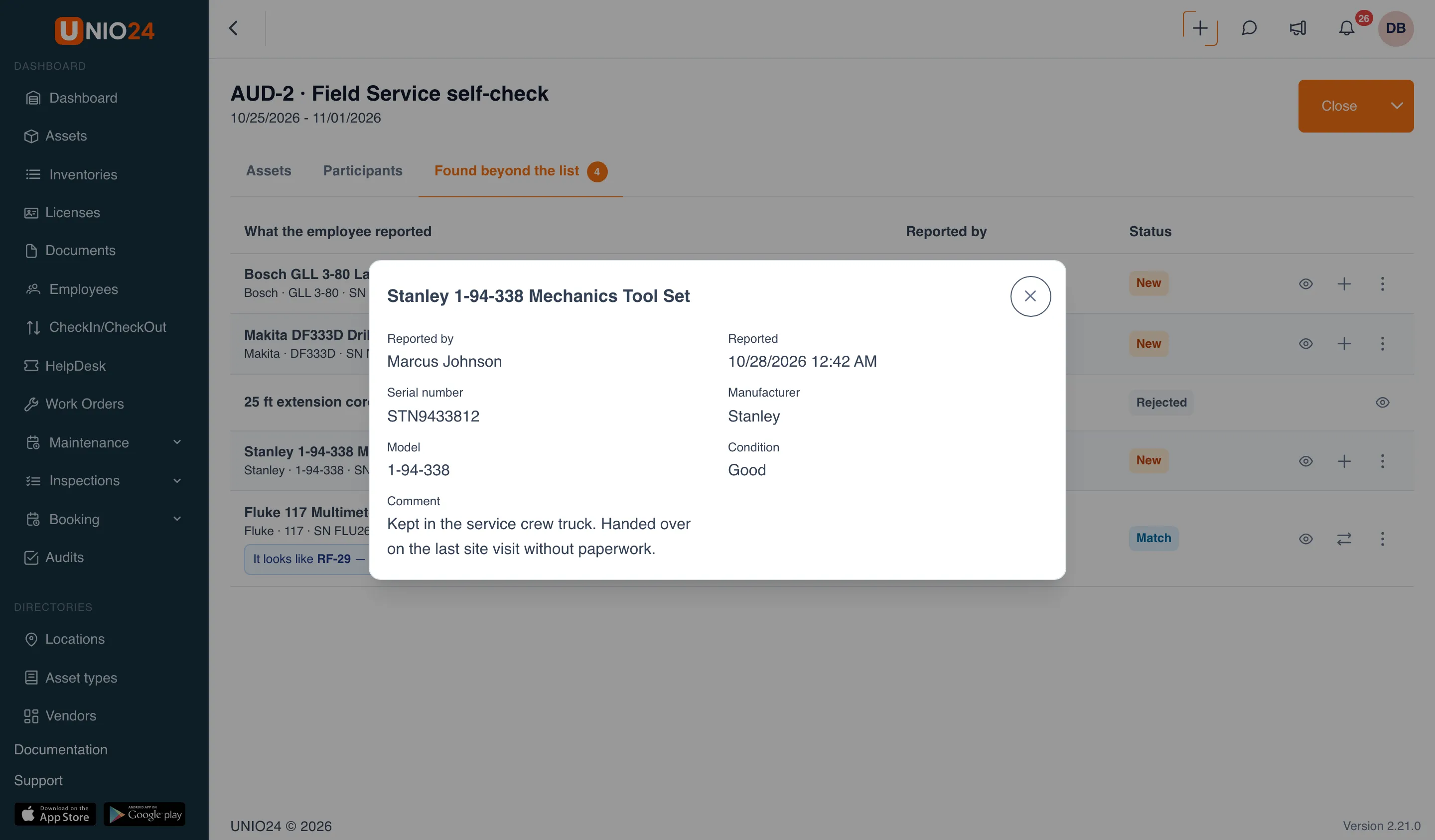
Section titled “View a report”Click View (the eye icon) in the row. The dialog shows who reported the item and when, all the fields they filled in, the photos, and the employee’s comment.
Create an asset
Section titled “Create an asset”Use this to register an item that isn’t in UNIO24 yet.
- Click Create asset (the “+” icon) in the row, or choose it from the three-dot menu.
- The New asset form opens, already filled in with the data from the report: name, serial number, manufacturer, model, and condition. The holder is the employee who reported the item and can’t be changed. The asset ID is set to the next number in sequence.
- Choose the Asset type if the employee didn’t, then check and complete the fields, for example the price and purchase date.
- Click Save.
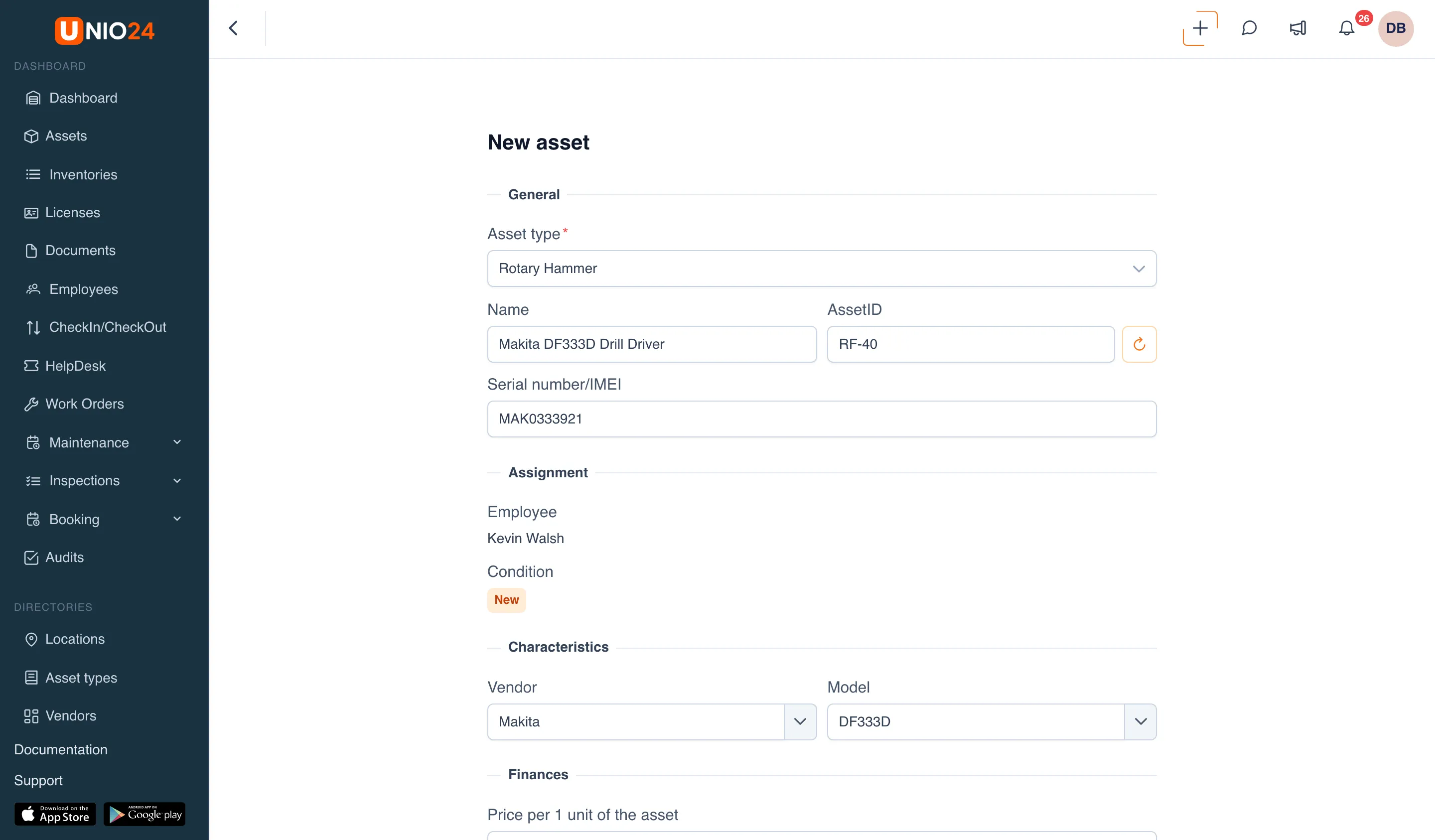
The asset appears in the register, assigned to the employee. The photos from the report move to the asset’s gallery. If the selected asset type doesn’t store a serial number, manufacturer, or model, those details are added to the asset’s note so they aren’t lost. The report gets the status Asset created, and the employee sees Accepted.
Move an existing asset to the employee
Section titled “Move an existing asset to the employee”Use this when the item is already in the register but is recorded with someone else or at a location, so physically it’s with the employee while the records say otherwise.
- If UNIO24 found a similar asset (status Match), click Move to the employee (the two-arrows icon) in the row. If there are several similar assets, the menu has an entry for each one with its asset ID.
- If there’s no match, choose Find asset manually in the three-dot menu, find the asset by number or name, select it, and click Add.
- In the Move the asset to the employee dialog, check the asset and the employee. If needed, set the Planned return date and add Notes.
- If the asset is currently assigned to another employee, choose Take in at location: the location where it’s first checked in from its previous holder.
- Click Save.
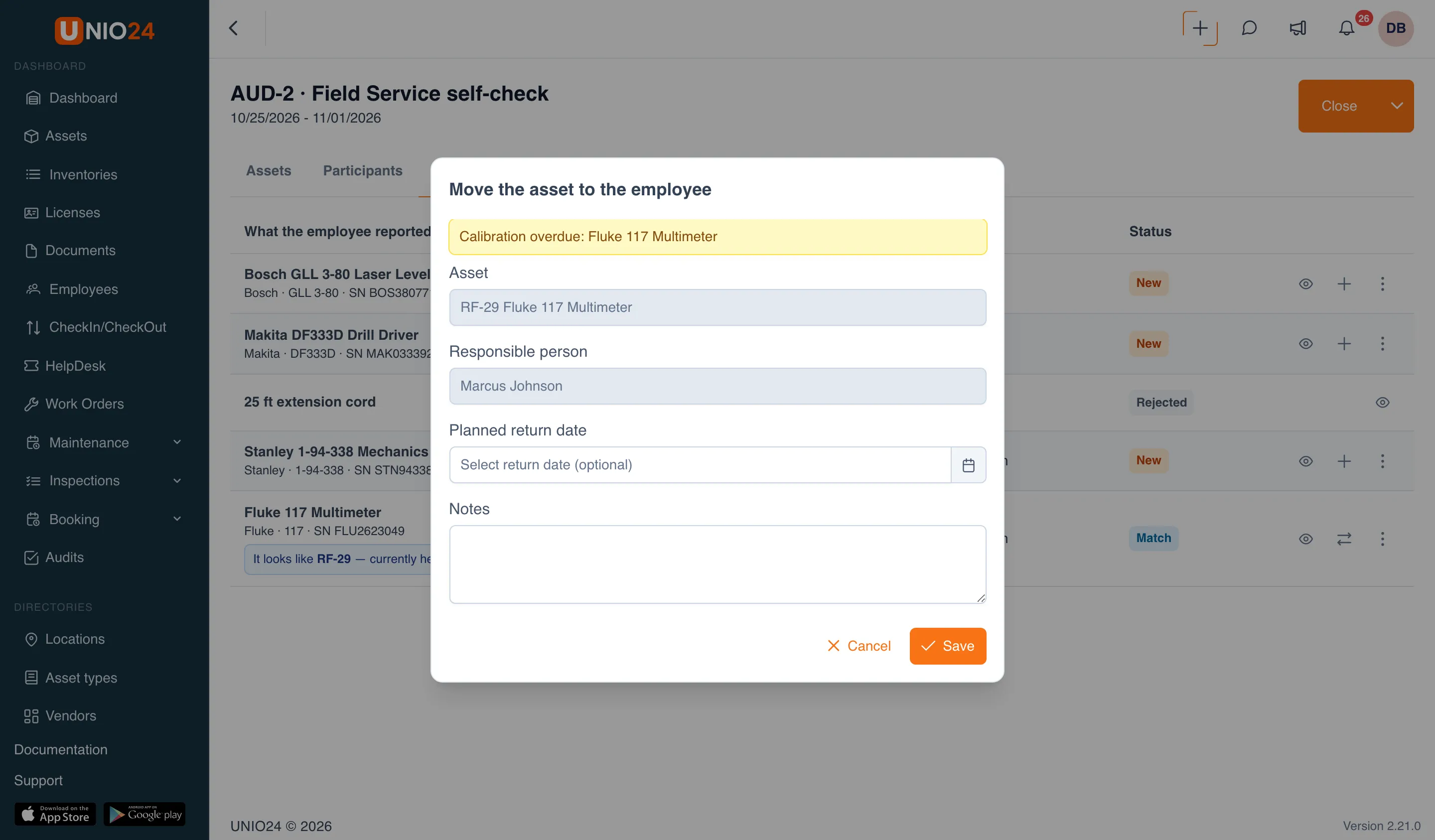
UNIO24 records a checkout of the asset to the employee (and if it was with another employee, first a check-in to the selected location), marked as based on the audit results. The photos from the report move to the asset’s gallery. Any warnings about the asset, such as an overdue calibration, are shown in the dialog. A written-off asset or an asset at a service center can’t be moved.
Reject a report
Section titled “Reject a report”If the item doesn’t belong to the company or shouldn’t be registered, choose Reject in the three-dot menu, enter a Reason (optional) if you like, and click Reject. The employee doesn’t see the reason, only the Rejected status.
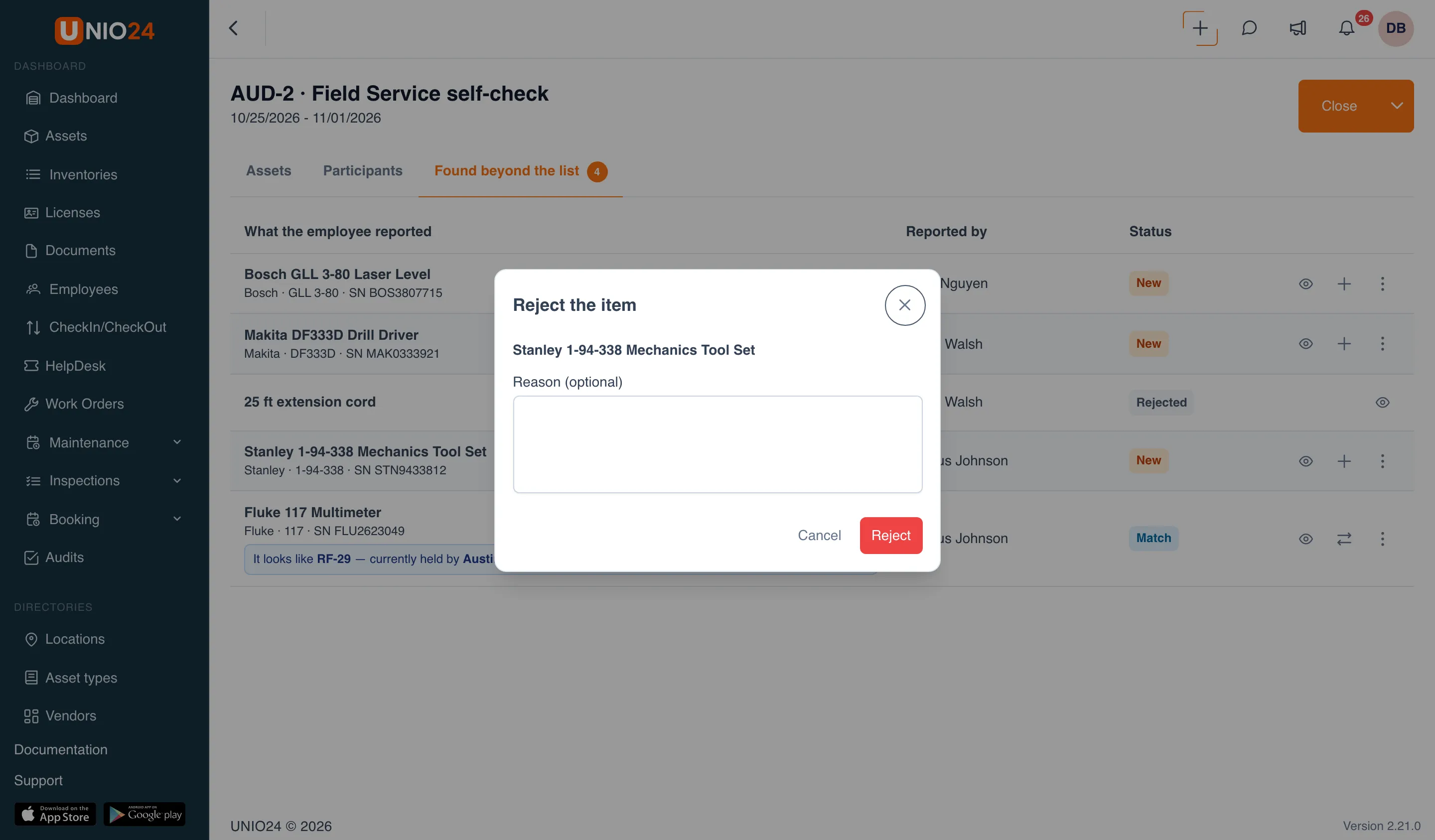
Each report can be decided only once. Reports of unrecorded items are included in the audit export on a separate sheet.
Useful links
Section titled “Useful links”- Run an audit — create an audit and run it with your storekeeper
- Audit reference — fields, statuses, and permissions
- Audits — how audits work