

Documents
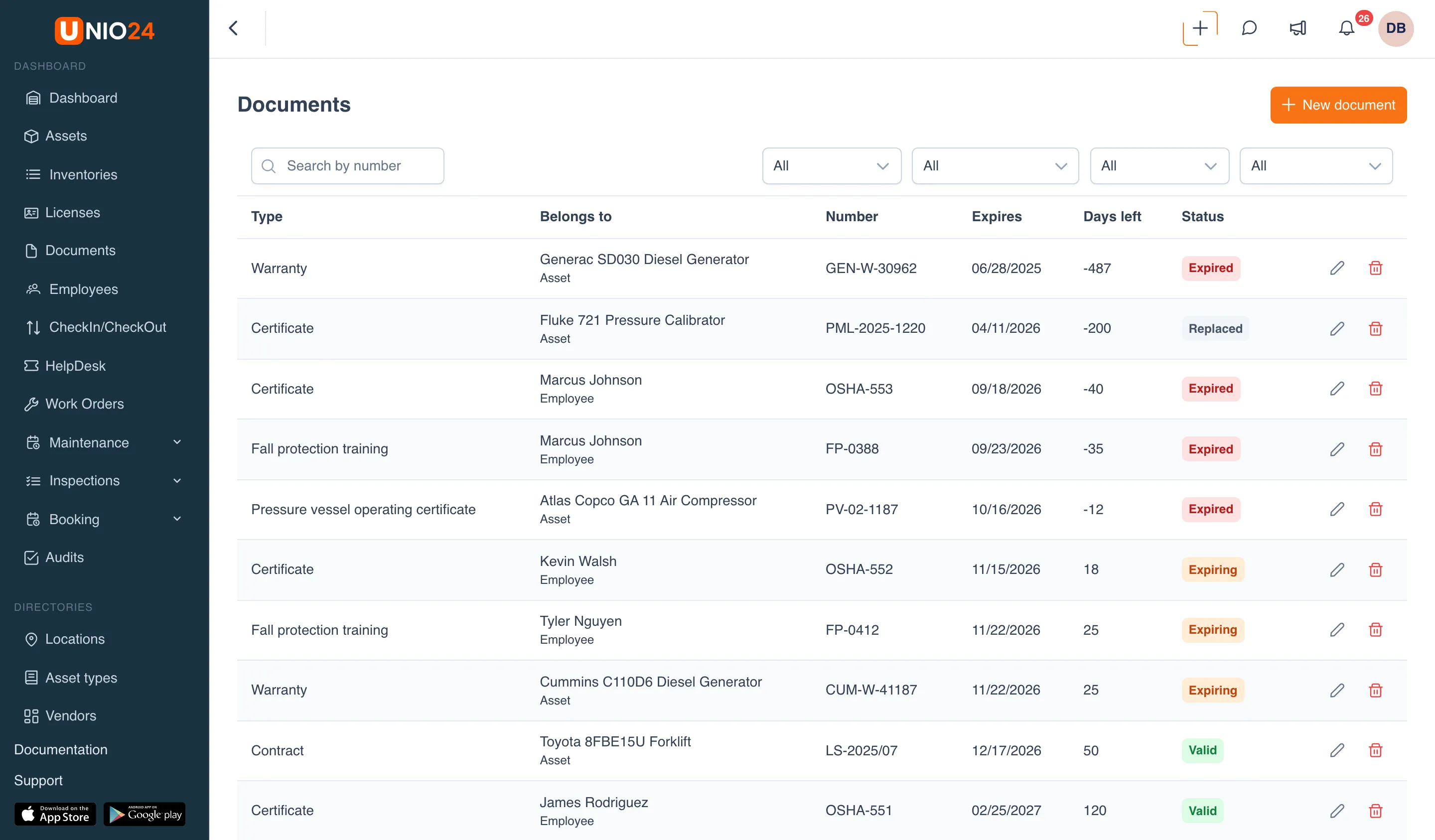
Documents are papers with an expiration date that belong to an asset or an employee: a generator warranty, a pressure vessel operating certificate, an HVAC service contract, a calibration certificate for a reference standard, an employment contract, OSHA safety training, fall protection training. UNIO24 keeps track of the dates, reminds you before a document expires, and warns you if an asset is checked out with an expired document.
This section is available to every company; there is nothing to enable.
Documents and attachments
Section titled “Documents and attachments”Assets and employees have two different places for files:
- Documents: papers with an expiration date. A document has a type, a number, an issue date, and an expiration date, and UNIO24 watches that date.
- Attachments: any files without an expiration date: photos, manuals, packing slips.
On the asset and employee cards they share one Documents tab with a Documents | Attachments switch.
Document type
Section titled “Document type”Every document has a type. For assets: “Warranty”, “Contract”, “Certificate”; for employees: “Employment contract”, “Certificate”, “NDA”. Every company has these six types from the start. An administrator adds the company’s own types, such as “Pressure vessel operating certificate” or “Fall protection training”, under Settings → Document types.
The type sets the rules for all of its documents:
- Remind this many days ahead: for example, 30, 7, and 1 day before expiry;
- Blocks usage: an expired document of this type triggers a warning or a block when the asset is checked out;
- File required: the document can only be saved with a scan or a photo.
Document statuses
Section titled “Document statuses”The status is worked out from the expiration date and the type’s reminder days:
- Valid: the expiration date is still far away;
- Expiring: the first reminder day has come (for example, fewer than 30 days are left);
- Expired: the expiration date has passed;
- Replaced: a newer document of the same type has already been added in its place.
Replacing a document
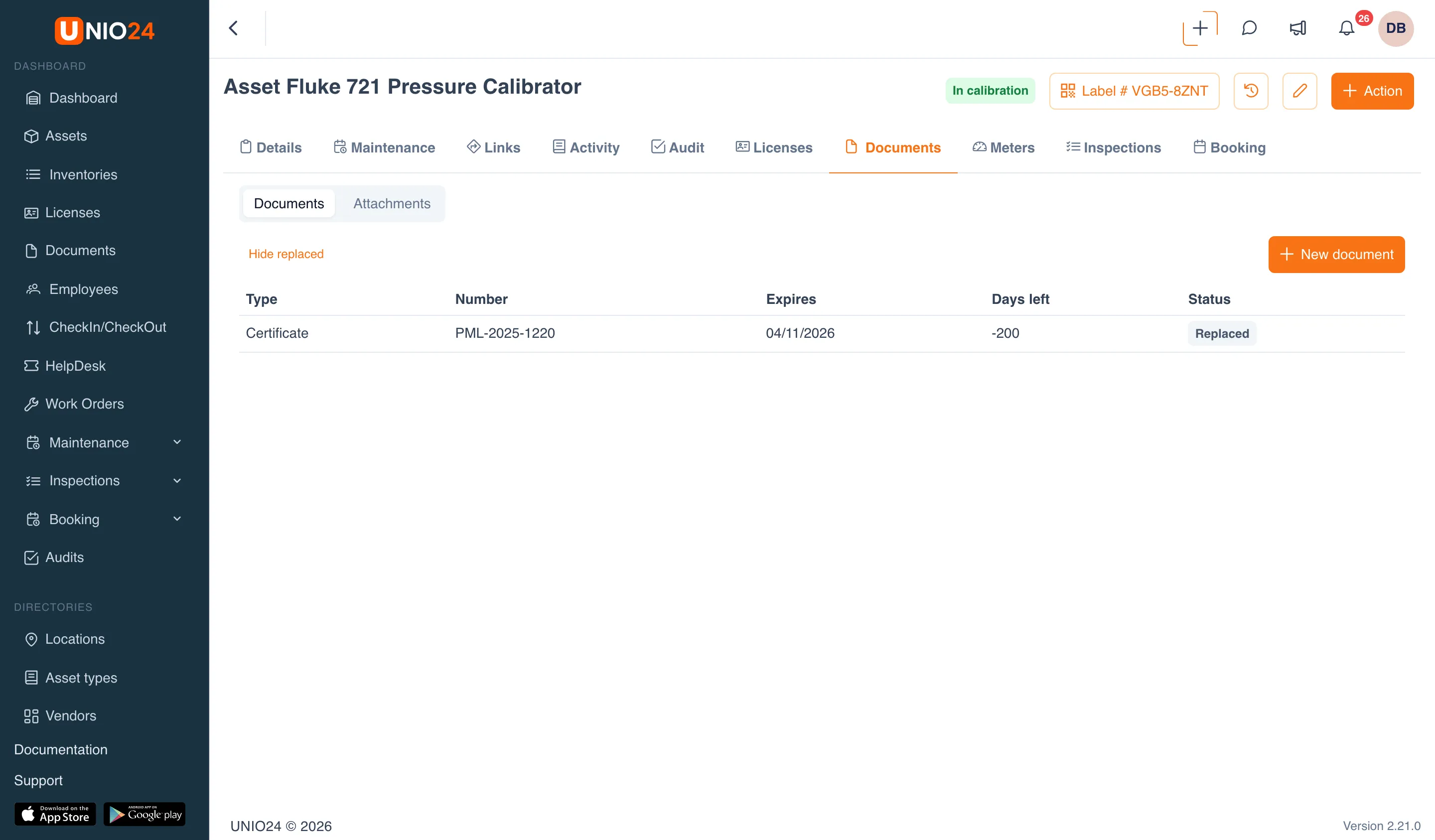
Section titled “Replacing a document”When a document is renewed (a new warranty, a new training certificate), you add a new document of the same type for the same asset or employee in UNIO24. The old document isn’t deleted: it gets the Replaced status and stays in the history. On the card’s Documents tab, replaced documents are hidden; the Show replaced link brings them up.
The type and the owner of an existing document can’t be changed: if you made a mistake, delete the document and add it again.
Reminders
Section titled “Reminders”Before a document expires, UNIO24 sends reminders on exactly the days set in the document type. For example, with days 30, 7, and 1 you get three reminders: 30 days, 7 days, and 1 day before expiry. The day after the document expires, an expired-document reminder is sent; it repeats once a week until the document is replaced or deleted.
In the notification settings these are four events in the Documents category: Document expiring and Document expired for asset documents, and Personal document expiring and Personal document expired for employee documents. By default, only the company owner gets them. To send the reminders to other people or groups (for example, HR for personal documents), add them under Settings → Notifications → Routing. Each person chooses whether they get an email right away or in the daily digest; see Notifications.
Checking out an asset with an expired document
Section titled “Checking out an asset with an expired document”If an asset has an expired document of a type that blocks usage, the form shows a warning when the asset is checked out or moved to another location, for example: “Expired documents on Atlas Copco GA 11 Air Compressor: Pressure vessel operating certificate”. The documents of the employee the asset is checked out to are checked the same way.
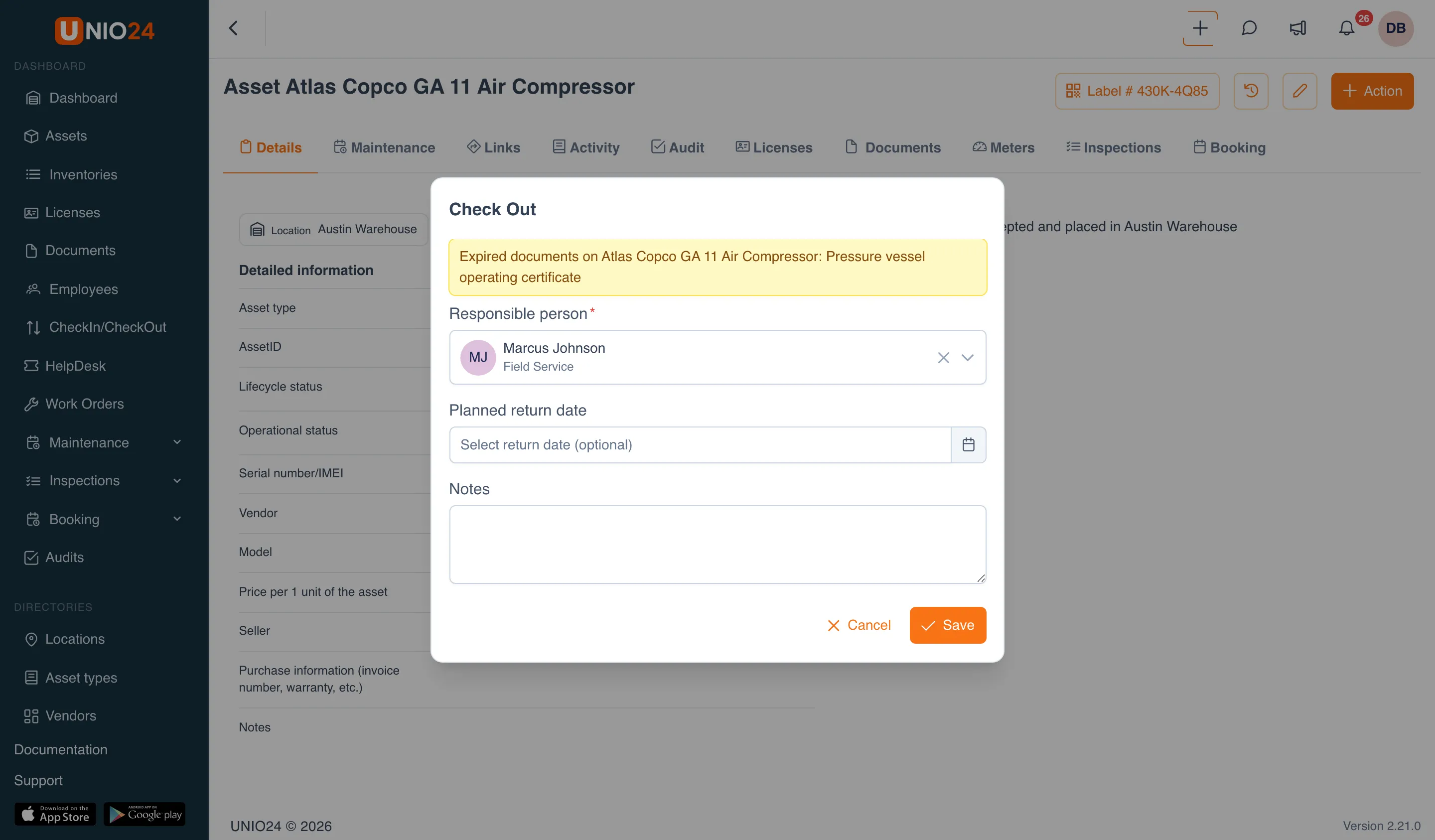
By default this is only a warning: when you save, UNIO24 asks whether to check the asset out anyway (or move it anyway, for a transfer), and the asset can be checked out. A company can also be switched to a blocking mode: then the check-out or transfer isn’t saved until the document is replaced with a new one. There is no field for this mode in the settings interface yet.
Useful links
Section titled “Useful links”- Work with documents: step-by-step instructions
- Documents reference: fields, statuses, and permissions