

Work with documents
This page covers common tasks with documents.
Add a document
Section titled “Add a document”- In the main menu on the left, open Documents.
- Click New document.
- In the Belongs to field, choose Asset or Employee.
- For an asset, click Select asset, find the asset, and confirm your choice. For an employee, pick them from the Select an employee list.
- Choose the document Type. The list only shows types that match the chosen owner: asset types for an asset, employee types for an employee.
- Fill in the Number and Issued by.
- Enter the dates: Issued and Expires. The expiration date is required and can’t be earlier than the issue date.
- If needed, enter the Cost (for example, the price of a contract or an insurance policy) and a Note.
- Under Attachments, click Upload files and choose a scan or a photo of the document. If the type requires a file, the document can’t be saved without one.
- Click Save.
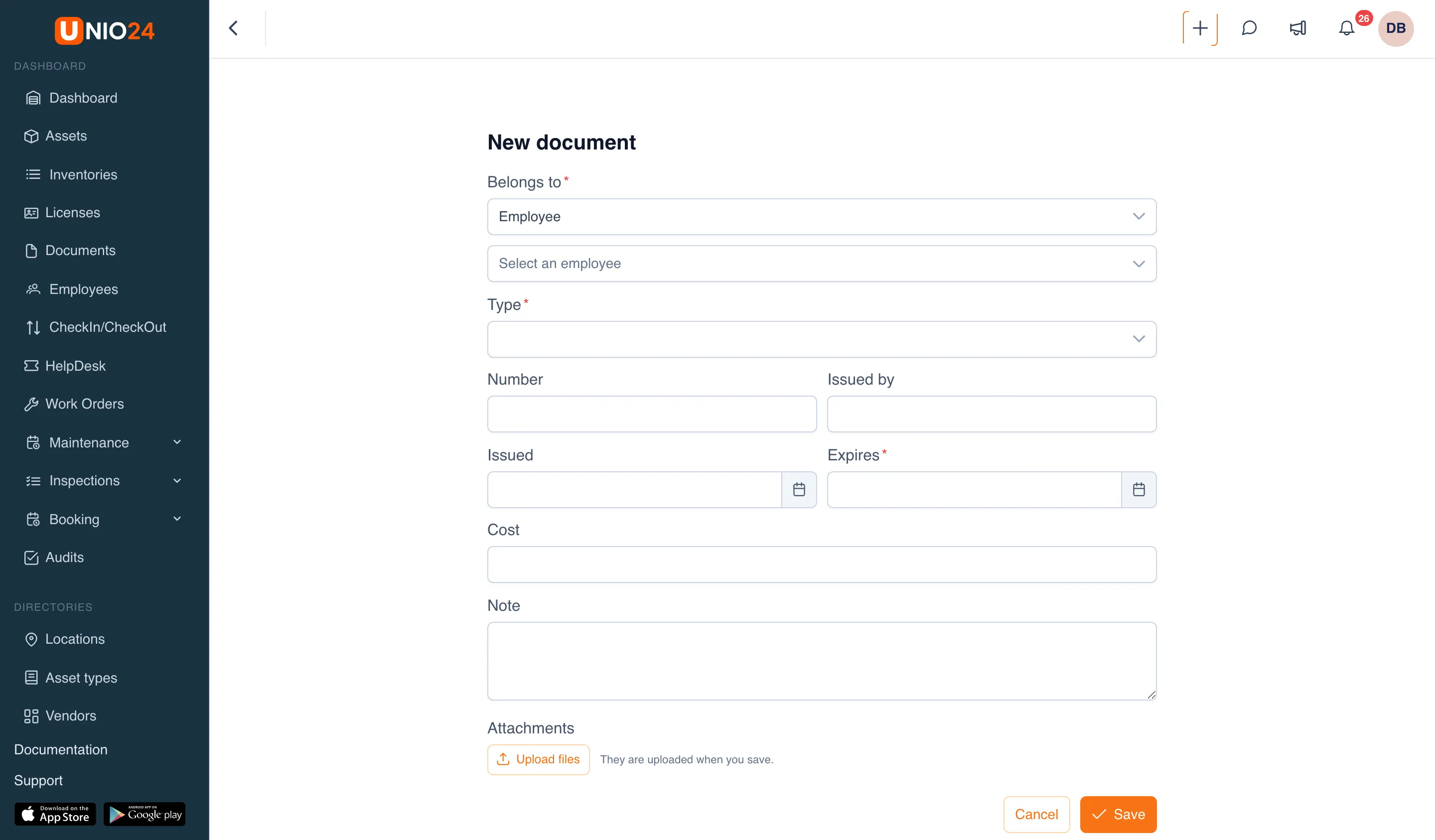
You can also add a document straight from a card: open the asset or employee, go to the Documents tab, and click New document. The owner is filled in for you.
Renew a document
Section titled “Renew a document”A document isn’t renewed by changing its date: you add a new one, so both stay in the history.
- Open the asset or employee card and go to the Documents tab.
- Click New document.
- Choose the same Type as the expiring document and fill in the new document’s details: number, dates, file.
- Click Save.
The new document becomes current, and the previous one gets the Replaced status. To see replaced documents on the tab, click Show replaced.
Find expiring and expired documents
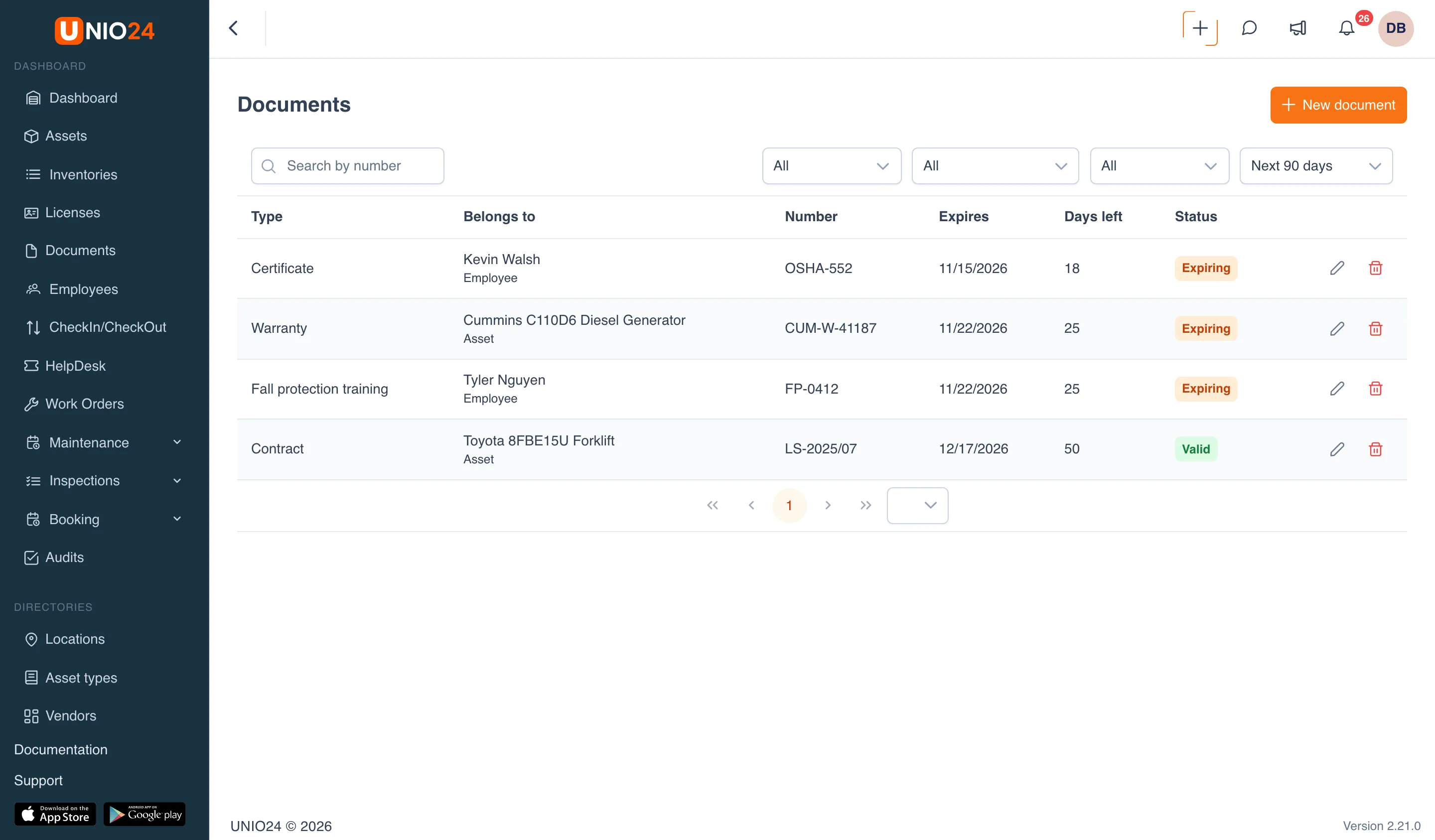
Section titled “Find expiring and expired documents”- Open Documents.
- Use the filters above the table (from left to right):
- status: Valid, Expiring, Expired, Replaced;
- document type;
- owner: Assets or Employees;
- expiry window: Next 7 days, Next 30 days, or Next 90 days. Documents that have already expired aren’t included in these windows; use the Expired status filter to see them.
Documents are always sorted by expiration date, earliest first. The Days left column shows how many days remain until expiry; for expired documents the number is negative.
View the documents of an asset or an employee
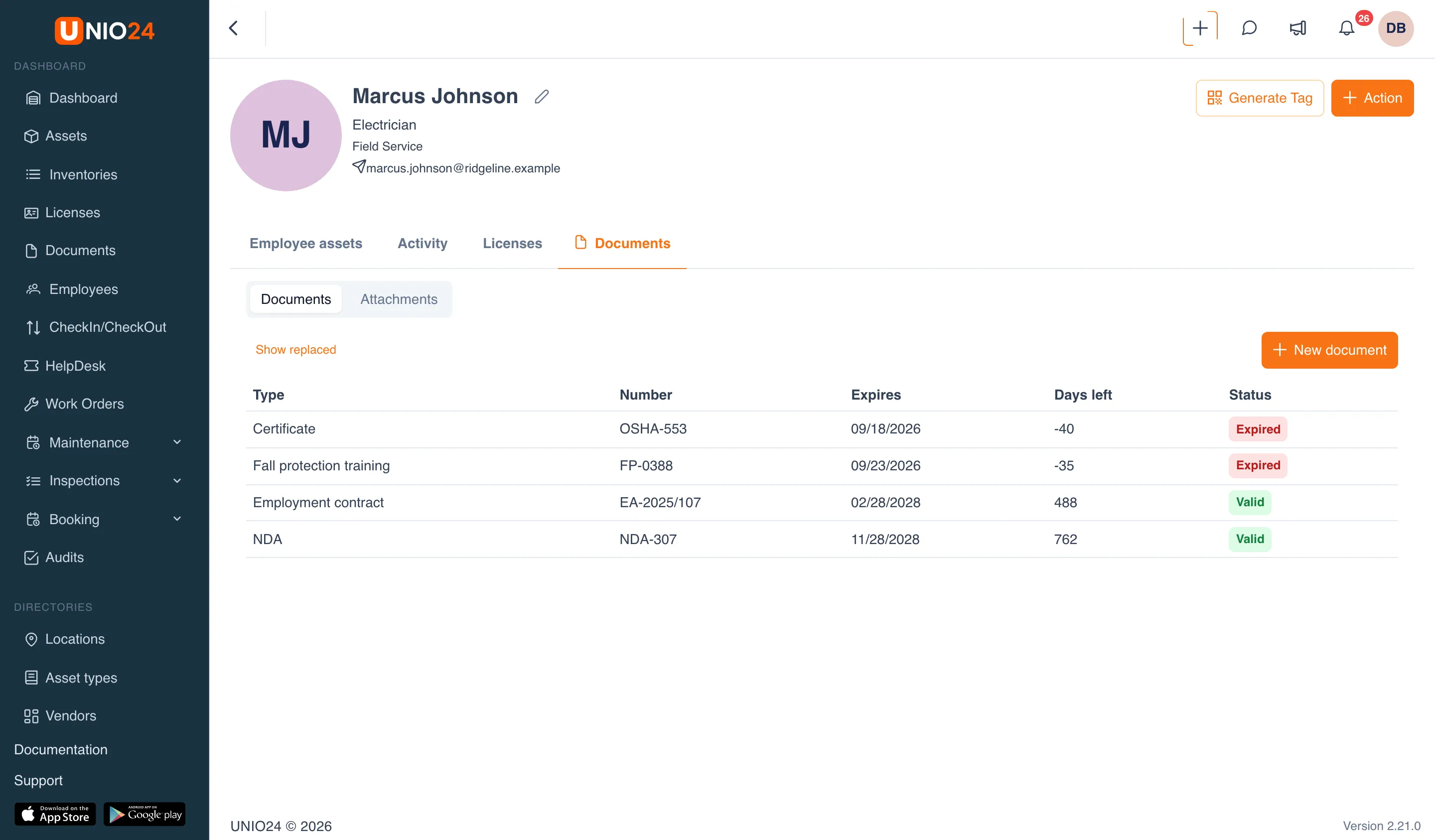
Section titled “View the documents of an asset or an employee”- Open the asset card (Assets → the asset) or the employee card (Employees → the employee).
- Go to the Documents tab.
- Use the switch at the top of the tab: Documents for documents with an expiration date, Attachments for other files.
- To open a document, click its row. The document form opens with all its files.
Edit or delete a document
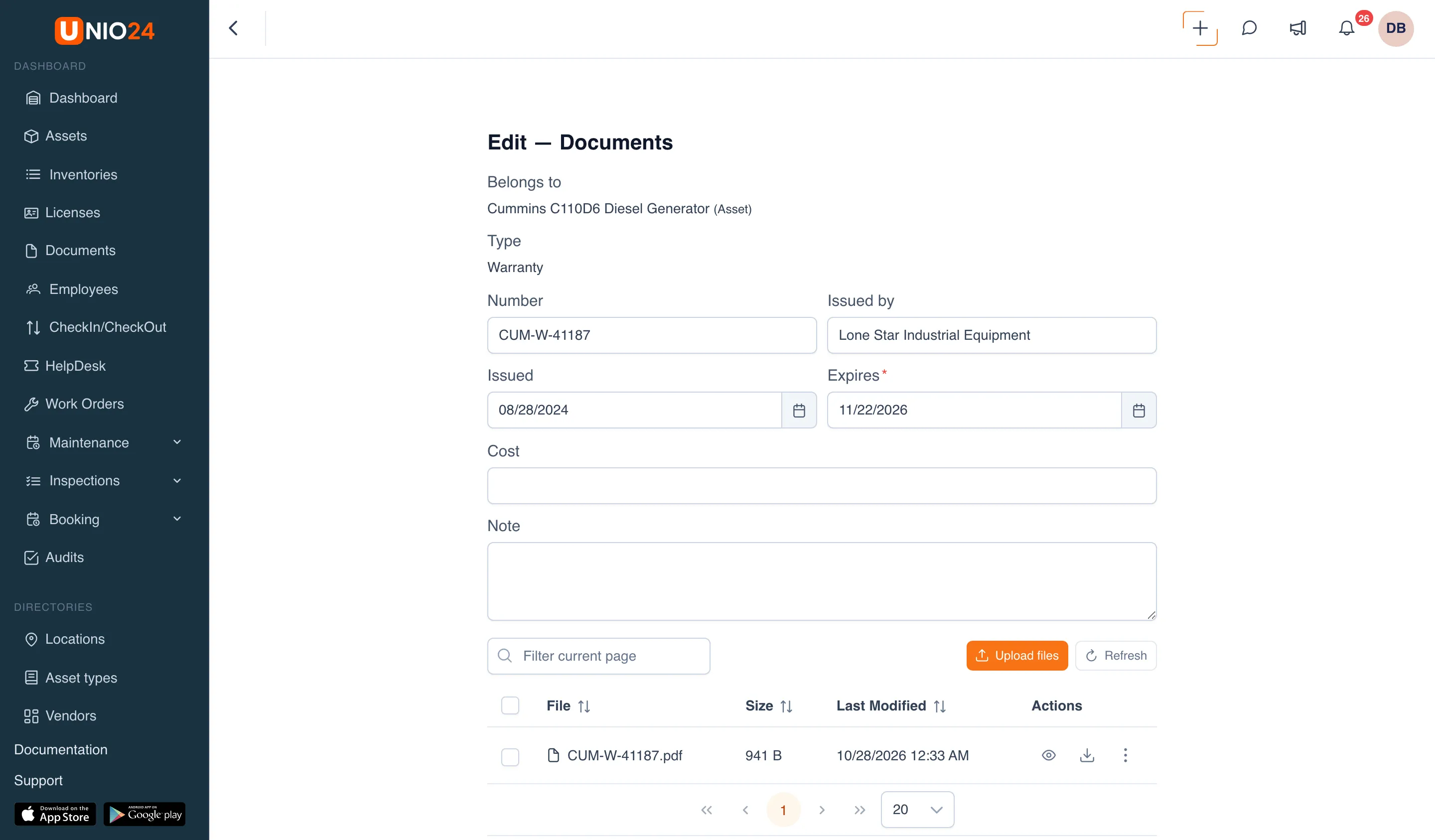
Section titled “Edit or delete a document”- Open Documents.
- In the document’s row, click Edit (the pencil icon) or Delete (the trash icon).
In the edit form you can change the number, issued by, dates, cost, note, and files. Belongs to and Type can’t be changed: if you made a mistake, delete the document and add it again.
Set up document types
Section titled “Set up document types”Document types are set up by an administrator.
- Open Settings → Document types. The All, Assets, and Employees buttons above the table filter types by owner.
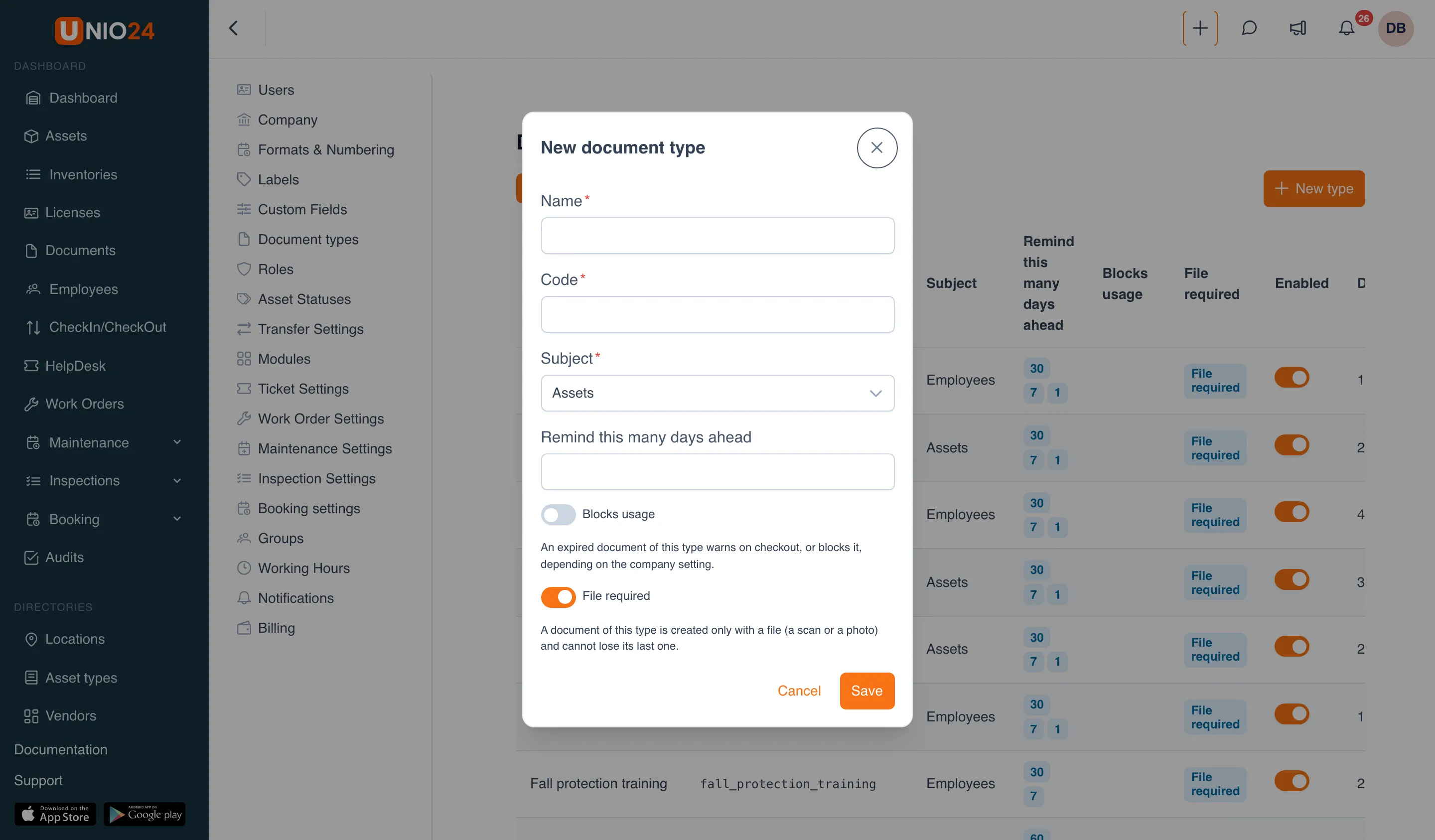
- Click New type.
- Fill in the Name and the Code, a short identifier in Latin letters, for example
fall_protection_training. - In the Subject field, choose what the documents belong to: Assets or Employees.
- In the Remind this many days ahead field, type a number of days and press Enter: the value becomes a separate tag. Add all the days this way, for example 60, 30, and 7. The largest number sets the day from which a document gets the Expiring status.
- Turn on Blocks usage if an expired document of this type should trigger a warning (or a block) when an asset is checked out.
- Leave File required on if a document of this type can’t be saved without a scan or a photo.
- Click Save.
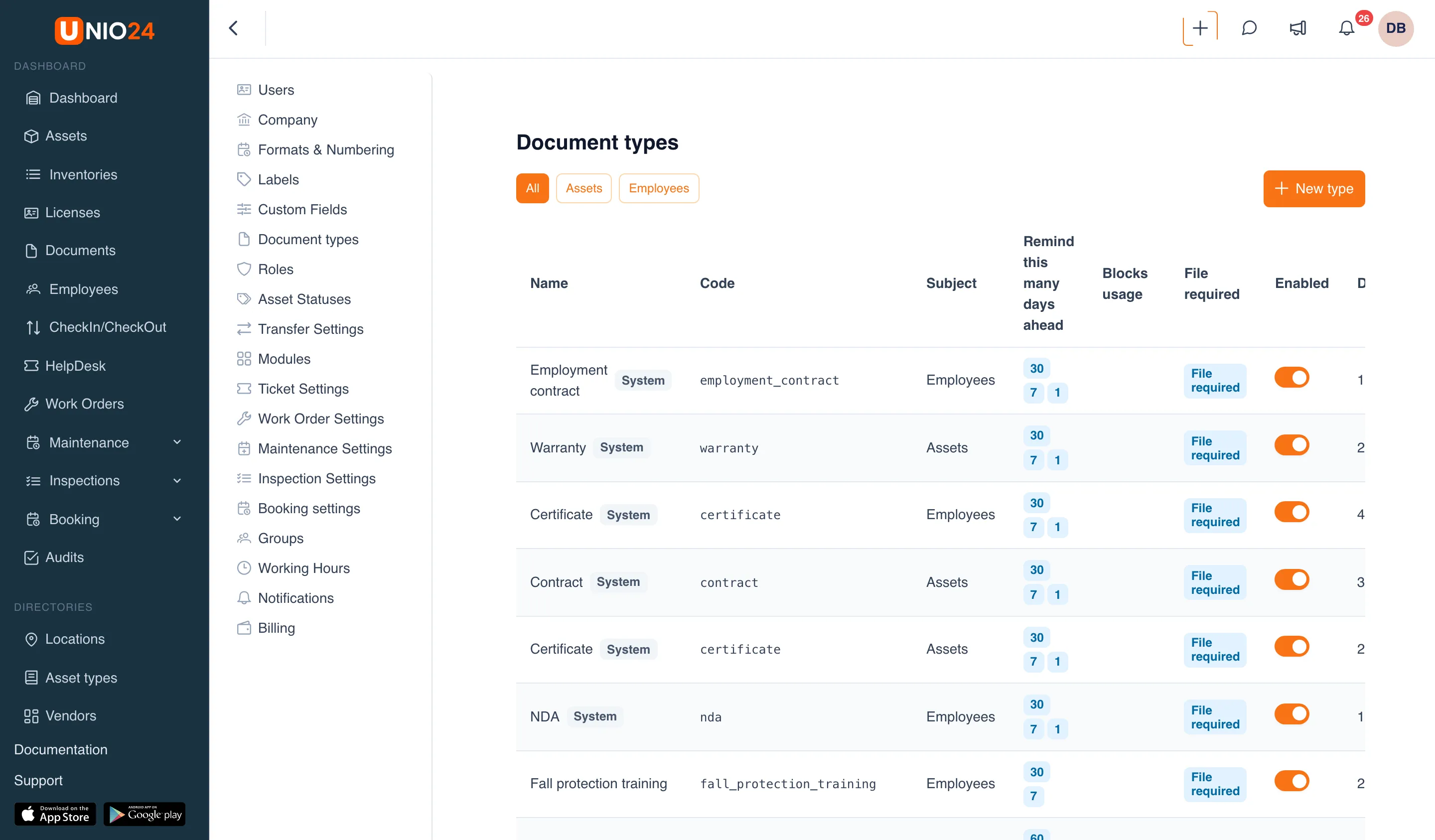
In a type’s row you can:
- Edit: open the type to change it. For built-in types (with the System tag), the Code and Subject can’t be changed; everything else can;
- Delete: only for your own type with no documents yet. The Documents column shows how many documents of this type exist.
Every company has six built-in types, each with reminders 30, 7, and 1 day ahead: “Warranty”, “Contract”, and “Certificate” for assets, and “Employment contract”, “Certificate”, and “NDA” for employees.
Useful links
Section titled “Useful links”- Documents: how types, statuses, and replacement work
- Documents reference: all fields