

Booking
Booking is for assets people take turns using: company vehicles, meeting room projectors, office pool laptops, test instruments. An employee reserves the asset ahead of time, the booking is approved if needed, the asset is checked out at the booked time and checked back in afterward. Two people can never get the same asset for the same time.
What can be booked
Section titled “What can be booked”Booking policies decide which assets can be booked. A policy is set for an asset type (for example, “Company vehicles” for the Company Vehicle type) and sets its rules: whether approval is needed, how long and how far ahead a booking can be, and how much time to leave between bookings.
Besides policies for asset types there is a default policy. When the module is first enabled, it is called “All assets” and allows booking any asset that has a type. If a type has its own policy, that policy applies instead.
A single asset can be taken out of its type’s rule right on its card: for example, laptops assigned to individual employees can be set to Never bookable while the office pool laptops stay bookable. See Change the booking rule for one asset. Written-off assets and assets that are part of another asset can’t be booked.
A booking
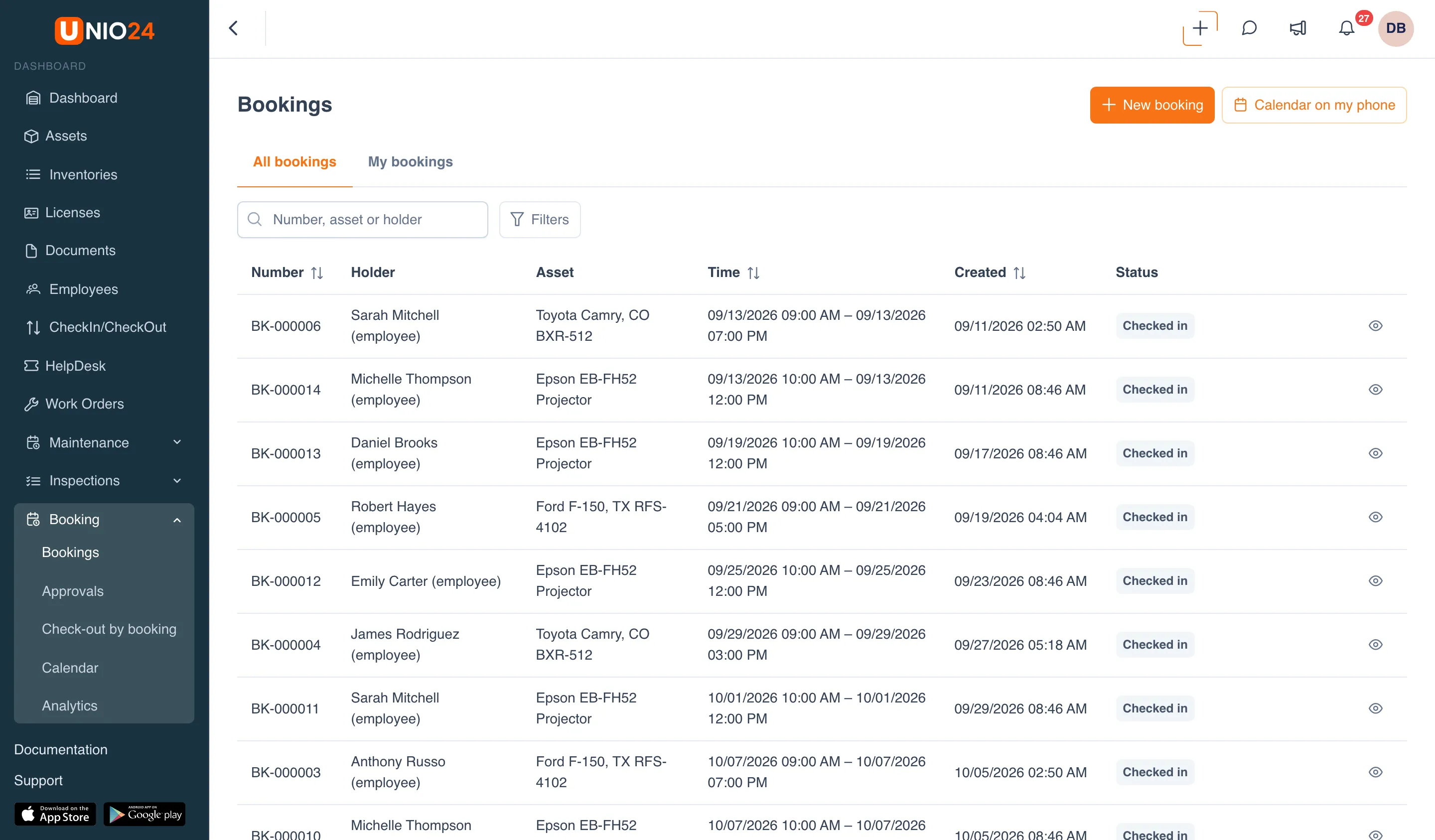
Section titled “A booking”A booking has a number (for example, BK-000022), an asset, a holder (who the booking is for), a start, an end, and a purpose.
- You can book a specific asset (By asset) or any free asset of a type (By asset type), for example “any company vehicle”. For a booking by type, UNIO24 assigns the asset itself when the booking is confirmed.
- The holder can be the author (Me), one of their Groups, or, for booking managers, any Employee or Location.
- A booking can repeat: for example, a projector every Monday from 10:00 to 11:00 AM. Each occurrence becomes a separate booking, and occurrences that fall on a busy time are skipped.
While you fill in the form, UNIO24 immediately shows whether the asset is available: “Free at this time” or “Busy at this time” along with the nearest free window.
Booking statuses
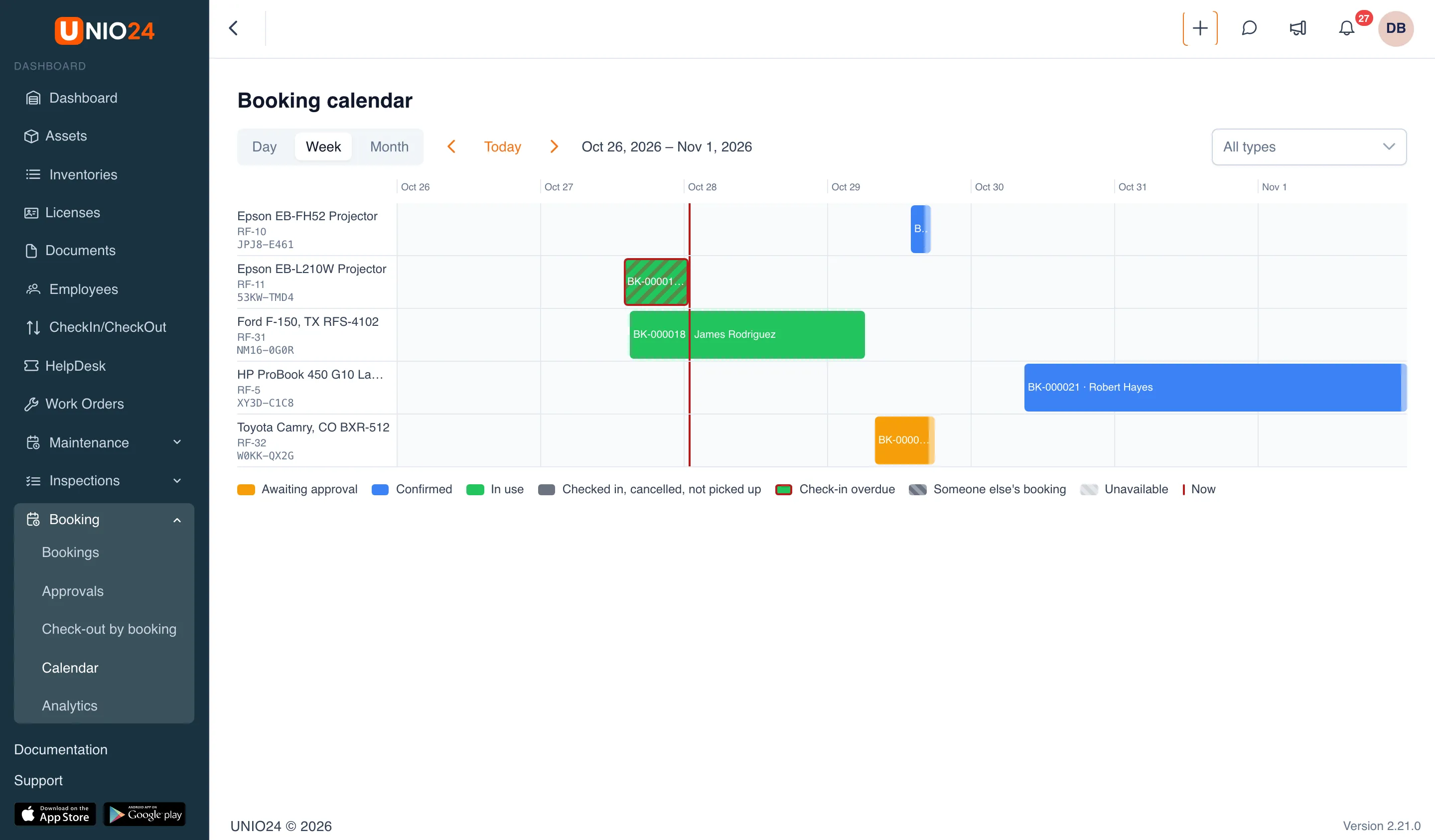
Section titled “Booking statuses”- Awaiting approval: the request has to be approved by an approver.
- Confirmed: the asset is reserved for the booking and waiting to be checked out.
- In use: the asset has been checked out to the holder. If the booking has ended and the asset hasn’t come back, a Check-in overdue tag appears.
- Checked in: the asset was returned and the booking is finished.
- No-show: a confirmed booking wasn’t picked up in time.
- Rejected: the request wasn’t approved.
- Cancelled: the booking was cancelled.
Approvals
Section titled “Approvals”If the policy requires approval, a new booking gets the Awaiting approval status, and the request appears on the Approvals page for those allowed to decide it: members of the policy’s approving group or, if no group is set, everyone with the approve permission. Bookings made by booking managers and by members of auto-approve groups are confirmed right away.
A request that isn’t approved before the booking starts (plus the no-show time) is cancelled automatically.
Check-out and check-in
Section titled “Check-out and check-in”A confirmed booking is checked out within its check-out window: from a few minutes before the start (early check-out) until the booking would count as a no-show. At check-out, the policy can ask for a meter reading (for example, a vehicle’s mileage) and an inspection from a template. If Create transfers is on in the policy, check-out and check-in are recorded as regular asset transfers.
Bookings are checked out and checked in on the Booking → Check-out by booking page, the workstation of a storekeeper or dispatcher. An employee allowed to create bookings can also take an asset on the spot, with no booking made in advance, using Take it now on the asset card or by scanning its QR code.
When an asset is unavailable
Section titled “When an asset is unavailable”An asset automatically becomes unavailable for booking while a work order on it is in progress, while it is away for repair, or while it has an open critical inspection defect. You can also block it by hand, for example while it is at the dealer for scheduled service. Existing bookings aren’t cancelled: the people involved get a “Booking conflict” notification, and a booking manager decides what to do.
Calendar and analytics
Section titled “Calendar and analytics”The Calendar page shows bookings by asset for a day, a week, or a month. The Analytics page shows asset utilization by type, the share of no-shows and late check-ins, asset shortages, and candidates for cutting the fleet.
Notifications
Section titled “Notifications”The people on a booking (the author, the holder, and whoever picks up the asset) are notified when the booking is confirmed or rejected, before it starts, when the asset is checked in, and when the booking is cancelled. Approvers get the requests. Booking managers also hear about no-shows, overdue check-ins, and conflicts. Booking emails go out right away, never in the daily digest.
Useful links
Section titled “Useful links”- Manage bookings: step-by-step instructions
- Configure booking: step-by-step instructions
- Booking reference: fields, statuses, and permissions