

Configure self-service
These tasks are done by an administrator.
Connect an employee
Section titled “Connect an employee”The employee needs a user account linked to their card, with a role that includes the Take for oneself and return own permission. The easiest option is the standard Self-service role.
Invite the employee
Section titled “Invite the employee”- Click Employees in the left menu.
- In the employee’s row, click Invite user.
- In the Invite user to UNIO24 dialog, check the Email.
- In Role, choose Self-service.
- Click Invite user.
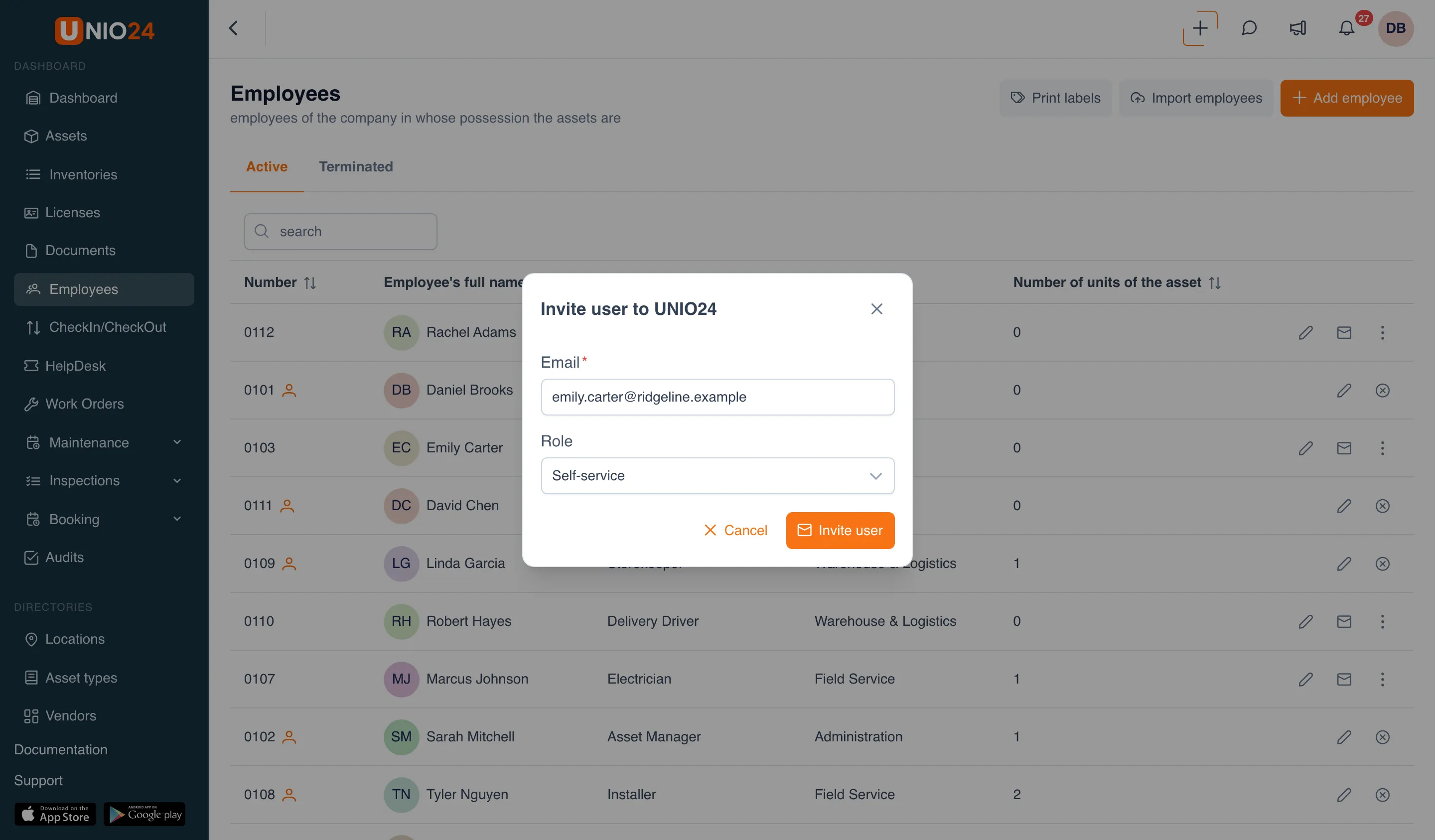
The employee gets an email with a link and, once they set a password, can take and return assets. The account is linked to their card right away. For more about invitations, see Users.
Link an existing user
Section titled “Link an existing user”If the employee already has a user account that isn’t linked to their card:
- Open Employees.
- In the employee’s row, open the three-dot menu and choose Link user.
- In the Link a user to the employee card dialog, choose the User and click Link. The list shows only accounts that aren’t linked to any card yet.
Linking requires permission to edit both employees and users. A user’s role is changed in Settings → Users.
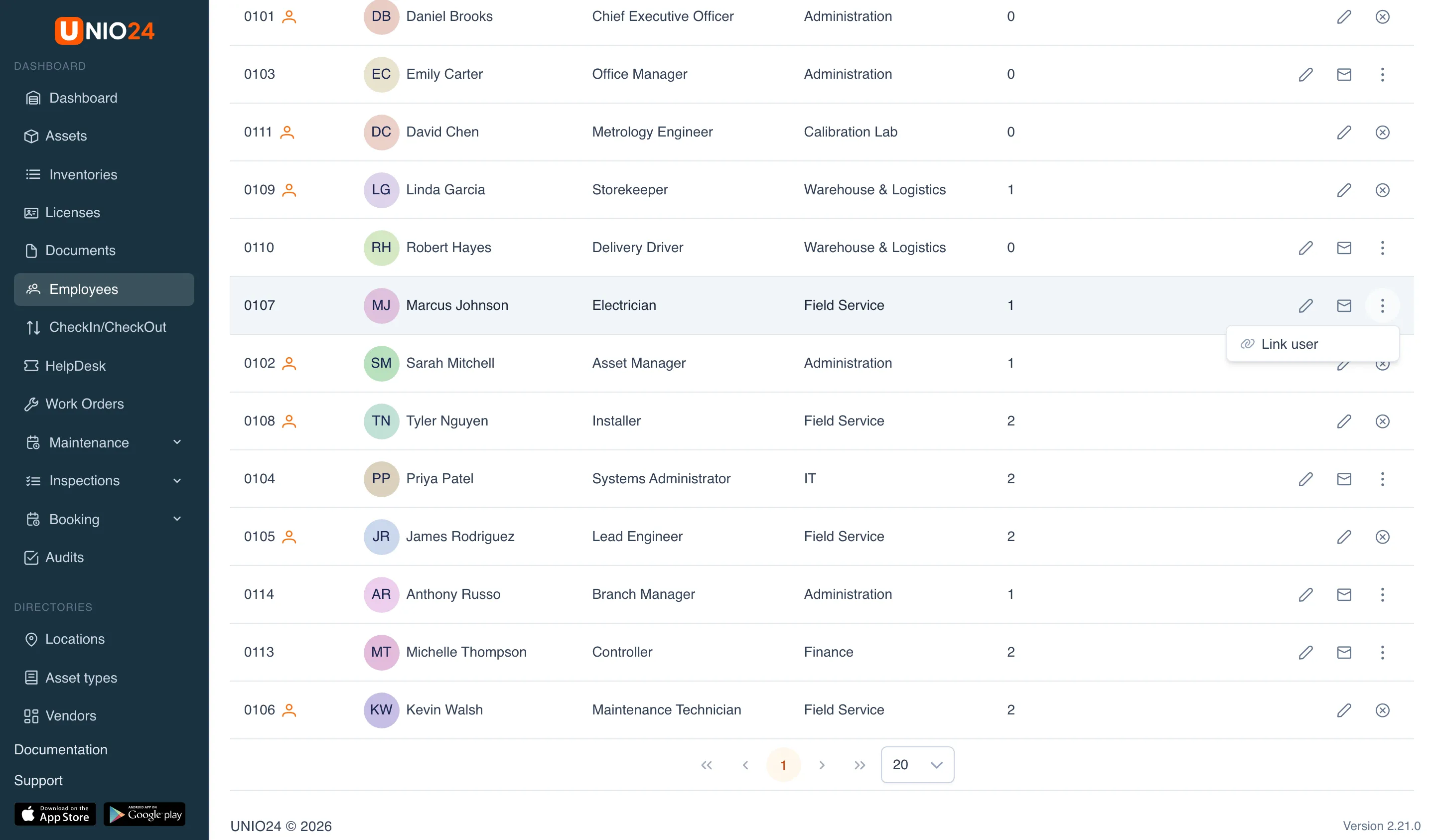
Employees who already have a user account show a user icon next to their number. If you unlink the user from the card, self-service stops working for them.
Asset condition on return
Section titled “Asset condition on return”- Open Settings → Transfer Settings.
- In the Asset condition on a self-service return block, choose:
- Don’t ask — no condition is entered on return;
- Optional — the condition can be entered or left empty;
- Required — an asset can be returned only with its condition. This is the default.
Your choice is saved right away. Next to it, the Asset condition on check-in and transfer block does the same for check-ins and transfers done by a storekeeper.
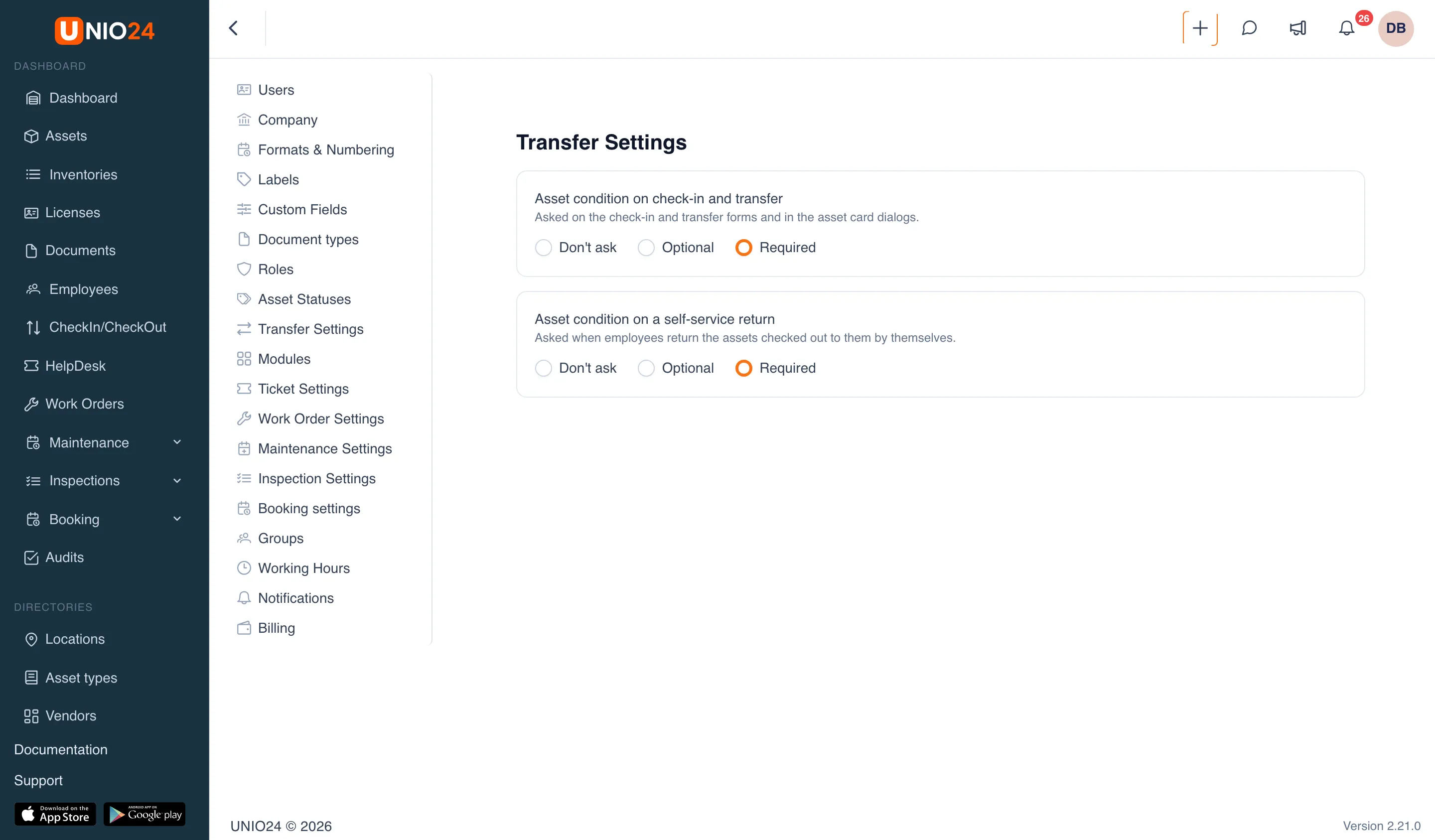
The list of conditions is set in Settings → Asset Statuses → the Asset Conditions tab. If all conditions are turned off, Required works like Optional.
A custom role for self-service
Section titled “A custom role for self-service”If employees need more than self-service — for example, to see all assets — create your own role in Roles and permissions. In the Check in / Check out group, select:
- Take for oneself and return own — the Take for myself and Return pages;
- View own — the CheckIn/CheckOut page with only the employee’s own documents.
The Create and View permissions in the same group are broader: with them, an employee can make any transfer and see all documents.
Useful links
Section titled “Useful links”- Self-service — how self-service works
- Employees and users — how to connect an employee to a user account