

Inspections
An inspection is a check of one asset against a checklist, item by item: a fire extinguisher once a month, a forklift before each shift, a ladder before use, a laptop when it is handed to an employee. Every item that fails becomes a defect that needs to be dealt with, and for serious defects UNIO24 can open a ticket or a work order right away.
Inspection template
Section titled “Inspection template”An inspection always follows a template: a checklist that lists in advance what to check. A template is made up of sections and items. Each item has an answer type: pass/fail, yes/no, a number, a choice from a list, a star rating, text, a photo, a meter reading, or a signature.
Items that can fail have a failure severity: Minor, Major, or Critical. The severity decides the result of the inspection and what happens to the defect it finds.
A template can ask follow-up questions. For example, if the answer to “Oil level” is “Below normal”, the template then asks how much oil was topped up. A section can be repeatable: during the inspection it is filled in several times, for instance once for every fire extinguisher on a floor.
A template can be tied to an asset type, so that only assets of that type are inspected with it. A template without a type works for any asset.
You don’t have to build templates from scratch. The Library has ready-made templates for common checks: vehicle pre-trip, fall arrest harness, first aid kit, forklift, ladder, laptop handover, fire extinguisher, and power tools. You copy a library template to your own templates and adjust it to your rules. The copy stands on its own: later changes to the library don’t affect it.
How an inspection works
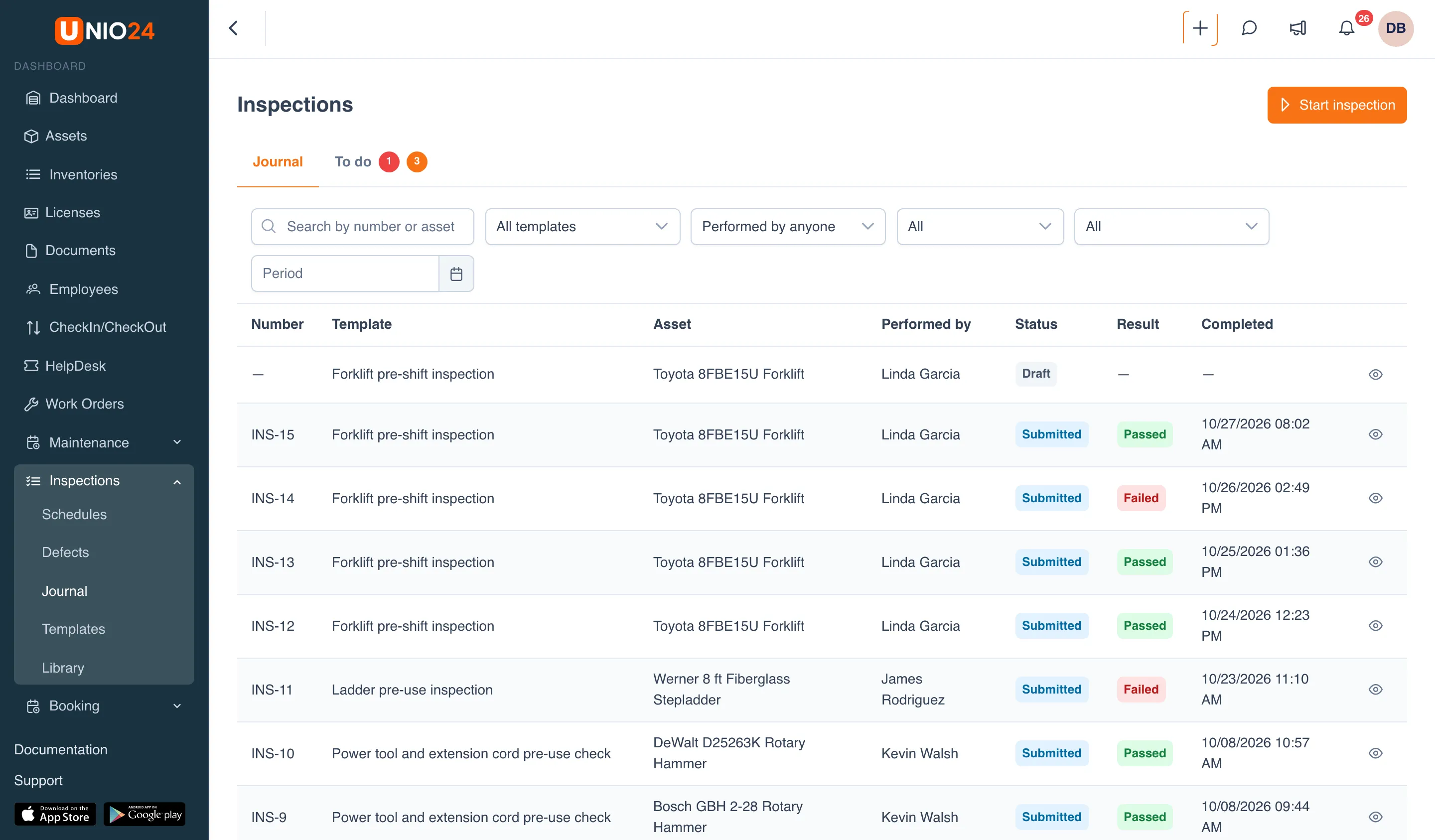
Section titled “How an inspection works”An inspection starts as a Draft. While it is a draft, you can save your answers and come back to them later, even from a different device. There is only one draft per template and asset: if someone has already started inspecting this asset with this template, starting again opens the same draft.
When every required item is answered, you Submit the inspection, and it is saved in UNIO24. At that moment:
- the inspection gets a number, for example
INS-15; - UNIO24 works out the inspection result;
- a defect is recorded for every failed item;
- meter readings are written to the asset’s meters;
- if a schedule covers the asset, its cycle is closed and the next due date is calculated.
An inspection can also be run without an asset, with the template alone. That isn’t possible when the template has an asset type or a “Meter reading” item: such a template is always run on a specific asset.
Inspection result
Section titled “Inspection result”The result is calculated automatically when the inspection is submitted:
- Passed: no item failed;
- Passed with defects: only items with Minor severity failed;
- Failed: at least one item with Major or Critical severity failed.
An item fails when the answer is “Fail” or “No”, when a number falls outside the allowed range, when the selected choice is marked as failing the item, or when a rating is at or below the set threshold. Text, photo, signature, and meter reading items never fail. An empty answer to an optional item doesn’t count as a failure either.
Defects
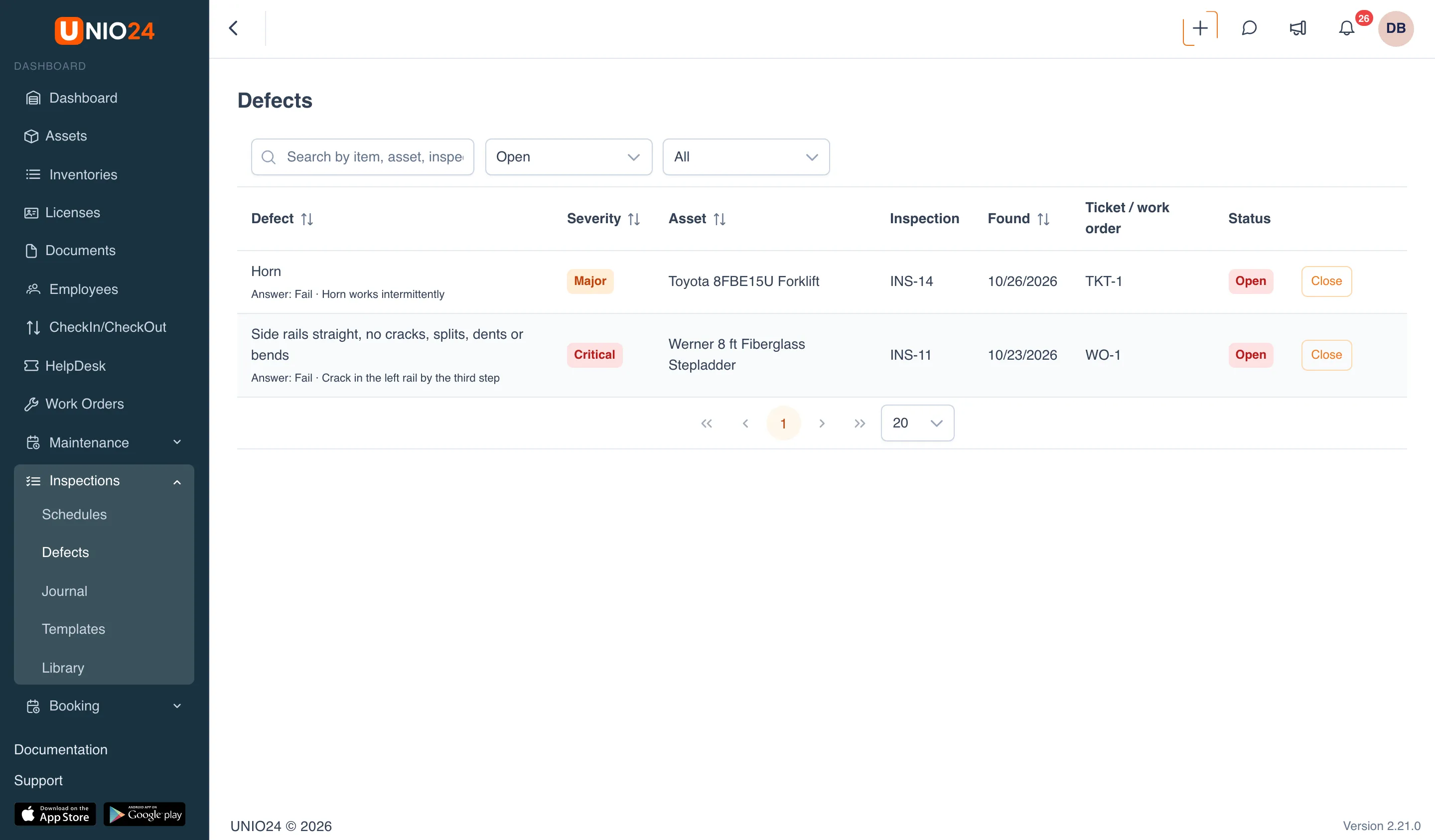
Section titled “Defects”A defect is a failed item that needs follow-up. Defects are collected under Inspections → Defects and are also shown on the inspection card.
If the same item fails again while its defect is still open, no new defect is created: the open defect’s repeat failure count goes up instead.
What a defect of each severity creates is chosen by an administrator in the inspection settings: Nothing, a Ticket, or a Work order. By default, defects create nothing. If a ticket or a work order is chosen, it is created as soon as the inspection is submitted and is linked to the defect:
- when the ticket is done, the defect is closed as fixed; when the ticket is cancelled, the defect is waived;
- when the work order is done or closed, the defect is closed; when the work order is cancelled, the defect is waived.
You can also close a defect by hand, on the Defects page or during the next inspection of the same asset. Closing a defect is final: a closed defect can’t be reopened.
Schedules
Section titled “Schedules”A schedule says how often an inspection is due: for example, every fire extinguisher once a month, or the forklift every day. A schedule can run by time, by meter (for example, every 250 running hours), or by both at once.
For every asset a schedule covers, UNIO24 keeps a separate due date. Its status is:
- Upcoming (shown as Soon on the To do tab): the due date hasn’t come yet;
- Due: it’s time to carry out the inspection;
- Overdue: the due date has passed.
The next due date is counted from the last submitted inspection with this template on this asset, whatever its result. All due dates are collected on the To do tab, and reminders go to the person responsible for the schedule. If no one is responsible, everyone who can perform inspections gets the reminders.
Inspections in work orders
Section titled “Inspections in work orders”You can add inspections before the work and after the work to a work order. Until the inspections before the work are completed, the work order can’t be taken into work; until the inspections after the work are completed, it can’t be finished. Only an inspection started from that work order counts, whatever its result. A work order can always be cancelled.
Work order inspections are run by anyone who can edit the work order; no separate inspection permissions are needed for that.
Inspections at check-out and check-in
Section titled “Inspections at check-out and check-in”For an asset type, you can set a template to fill in when the asset is checked out to an employee and when it is checked back in. Check-out and check-in each get their own mode: Off, Optional, or Required. If the inspection is required, the check-out or check-in can’t be saved until it is done.
An inspection counts if it uses this template on this asset, was submitted no more than 24 hours earlier, and hasn’t been used anywhere else yet.
Open defects at check-out
Section titled “Open defects at check-out”If an asset has open defects, UNIO24 warns about them at check-out and when the asset is moved between locations. If one of them is critical, the outcome depends on the Open critical defect at checkout setting:
- Warn: the asset can be checked out, with a warning;
- Block: check-out and transfers are refused until the critical defect is closed.
Useful links
Section titled “Useful links”- Run inspections: step-by-step instructions
- Configure inspections: step-by-step instructions
- Inspections reference: fields, item types, statuses, and permissions