

Employees and users
UNIO24 keeps two different records about a person: the employee and the system user. Whether they’re linked decides if the person can take and return assets on their own, see My assets, and book assets for themselves.
Employee vs. user: the difference
Section titled “Employee vs. user: the difference”| Employee | System user | |
|---|---|---|
| What it is | A card in the Employees directory | An account for signing in to UNIO24 |
| Where it’s managed | Employees in the left menu | Settings → Users |
| Signs in | No | Yes — with an email and password, on the web and in the mobile app |
| What it determines | Who holds assets, licenses, and bookings | What the person can do — through their role |
The same person can be:
- only an employee — assets are checked out to them, but they don’t sign in. That’s typical for everyone who just uses tools and equipment;
- only a user — they sign in, but no assets are assigned to them. For example, an accountant who looks at reports;
- both — the employee card is linked to the user account. This is what lets the person work with their own assets.
Why link an employee to a user
Section titled “Why link an employee to a user”Until a user account is linked to an employee card, UNIO24 doesn’t know which assets belong to that person. The link is needed for:
- self-service — the Take for myself and Return buttons on the web and in the mobile app. An asset the person takes is recorded against their employee card. Without the link, they’ll see “Your account is not linked to an employee card. Ask an administrator to link it.”;
- the My assets widget on the dashboard and in the app — what’s checked out to the person;
- the My transfers page — documents where they’re the target or the source;
- booking for yourself — the Me holder in the booking form and in quick booking;
- offboarding — when the employee is offboarded, the linked user account is blocked and the person can no longer sign in.
A storekeeper who checks assets out to and in from other people doesn’t need the link: they work with any employee.
Three ways to link
Section titled “Three ways to link”| Way | When it fits |
|---|---|
| Invite an employee from the directory | The employee card exists, the user account doesn’t yet |
| Invite a user with an employee card | Neither exists — you’re setting the person up from scratch in Settings |
| Link an existing user | Both the card and the account exist but aren’t linked |
The link is always one-to-one: a card has one user account, and a user account has one card. The email on the card and the sign-in email can differ: the link is the binding itself, not the email address.
The owner who registered the company gets their own employee card and link automatically.
Add an employee and invite them right away
Section titled “Add an employee and invite them right away”- Open Employees and click Add employee.
- Fill in First Name, Last Name, and the other fields of the card.
- Select Invite as a system user. The Email field becomes required — the invitation goes to that address.
- If you have full access, a role field appears next to the checkbox — choose, for example, Self-service.
- Click Save.
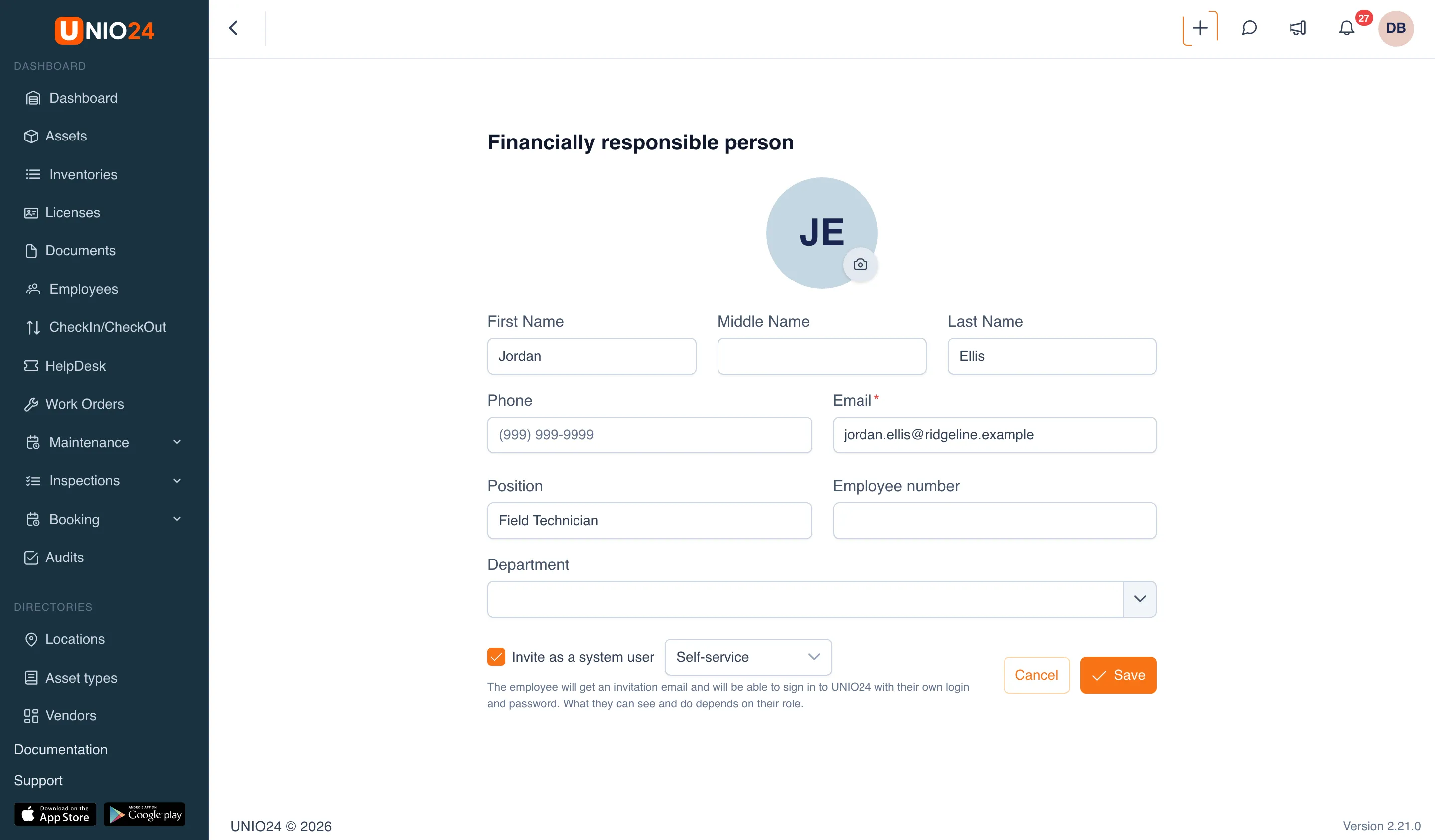
The card is saved and the employee gets an invitation email. The user account is linked to the card right away, even before the person accepts the invitation.
Invite an employee from the directory
Section titled “Invite an employee from the directory”- Open Employees, the Active tab.
- In the employee’s row, click the envelope icon — Invite user. It’s shown only for employees who don’t have a user account yet.
- In the Invite user to UNIO24 dialog, check the Email — it’s taken from the card, and you can change it.
- If you have full access, choose a Role.
- Click Invite user.
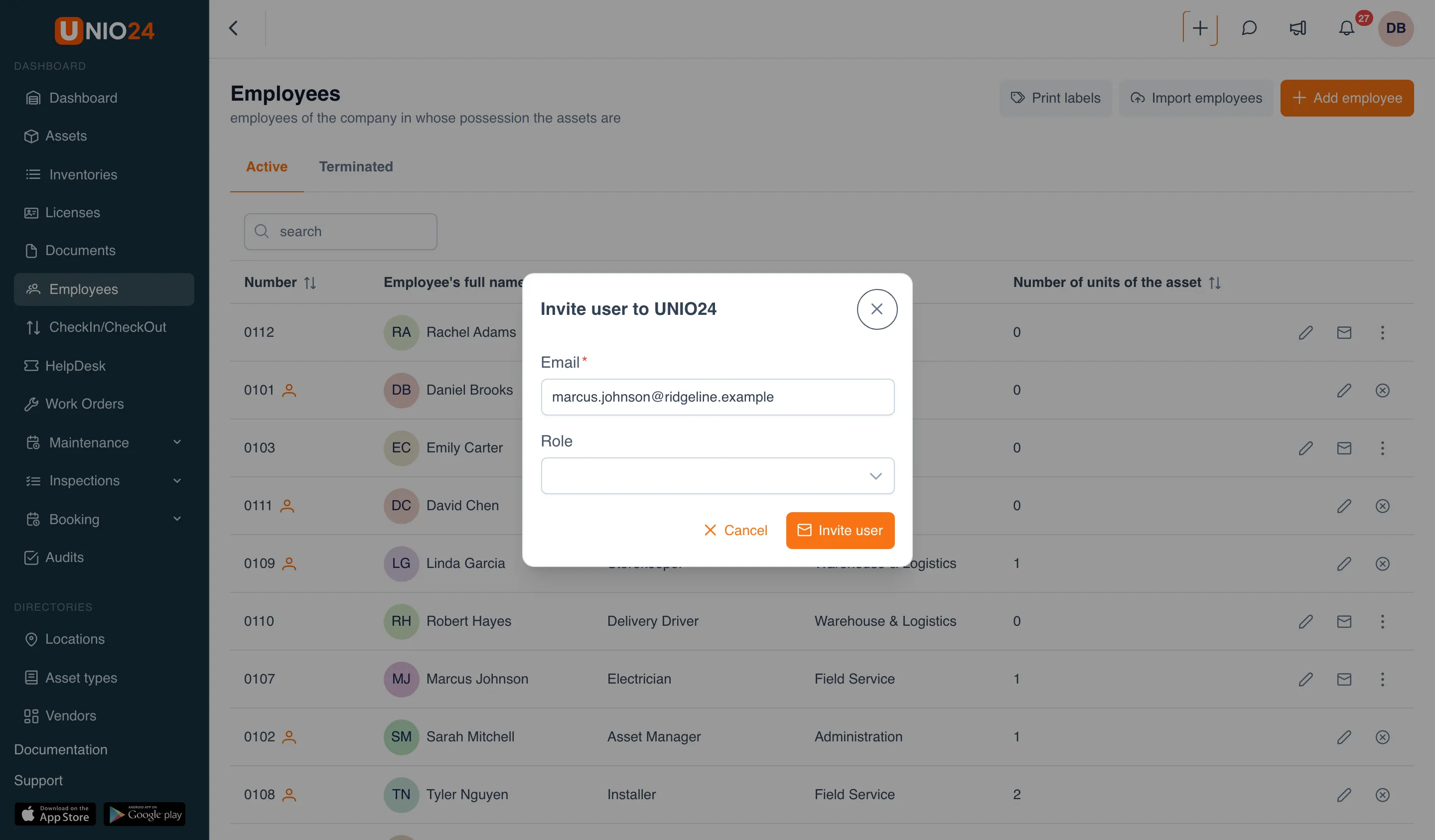
The first, middle, and last names and the phone number carry over from the card to the user account.
Invite a user and create an employee card
Section titled “Invite a user and create an employee card”This is handy when you set a person up from Settings and want to be able to check assets out to them.
- Open Settings → Users and click Invite user.
- Enter the Email and choose a Role.
- Select Create an employee card and fill in the First Name and/or Last Name.
- Click Invite user.
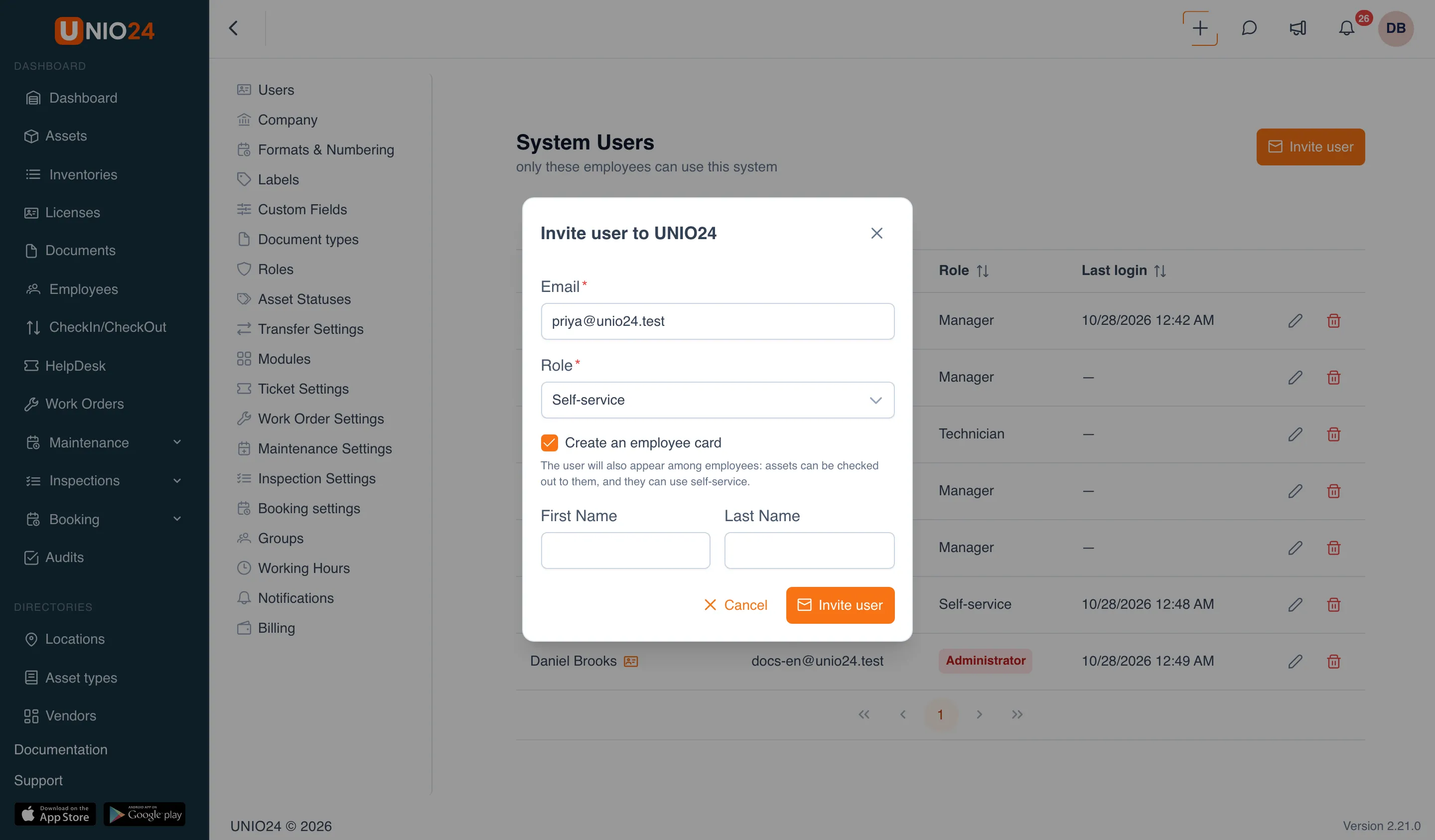
A new card, already linked to the user account, appears in the Employees directory. The checkbox is visible to users who can create and edit employees.
If you leave the checkbox clear, only the user account is created — without an employee card. You can link it to a card later.
Link an existing user
Section titled “Link an existing user”If the person already signs in to UNIO24 and their employee card was created separately (for example, by import), link them.
-
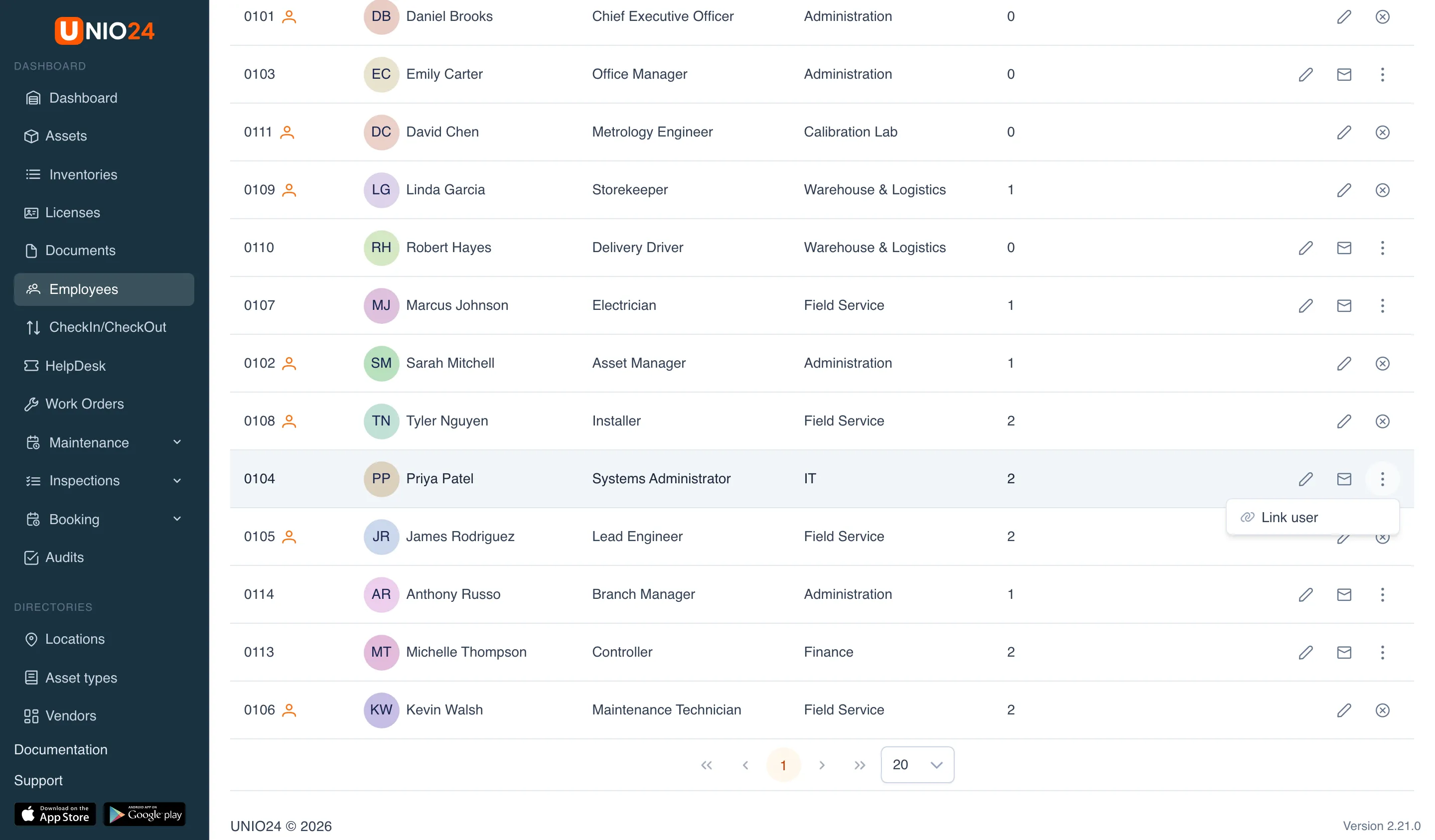
Open Employees, the Active tab.
-
In the employee’s row, open the three-dot menu and choose Link user.
-
In the Link a user to the employee card dialog, choose the User. The list has only accounts that don’t have an employee card yet; you can search by first name, last name, and email.
-
Click Link.
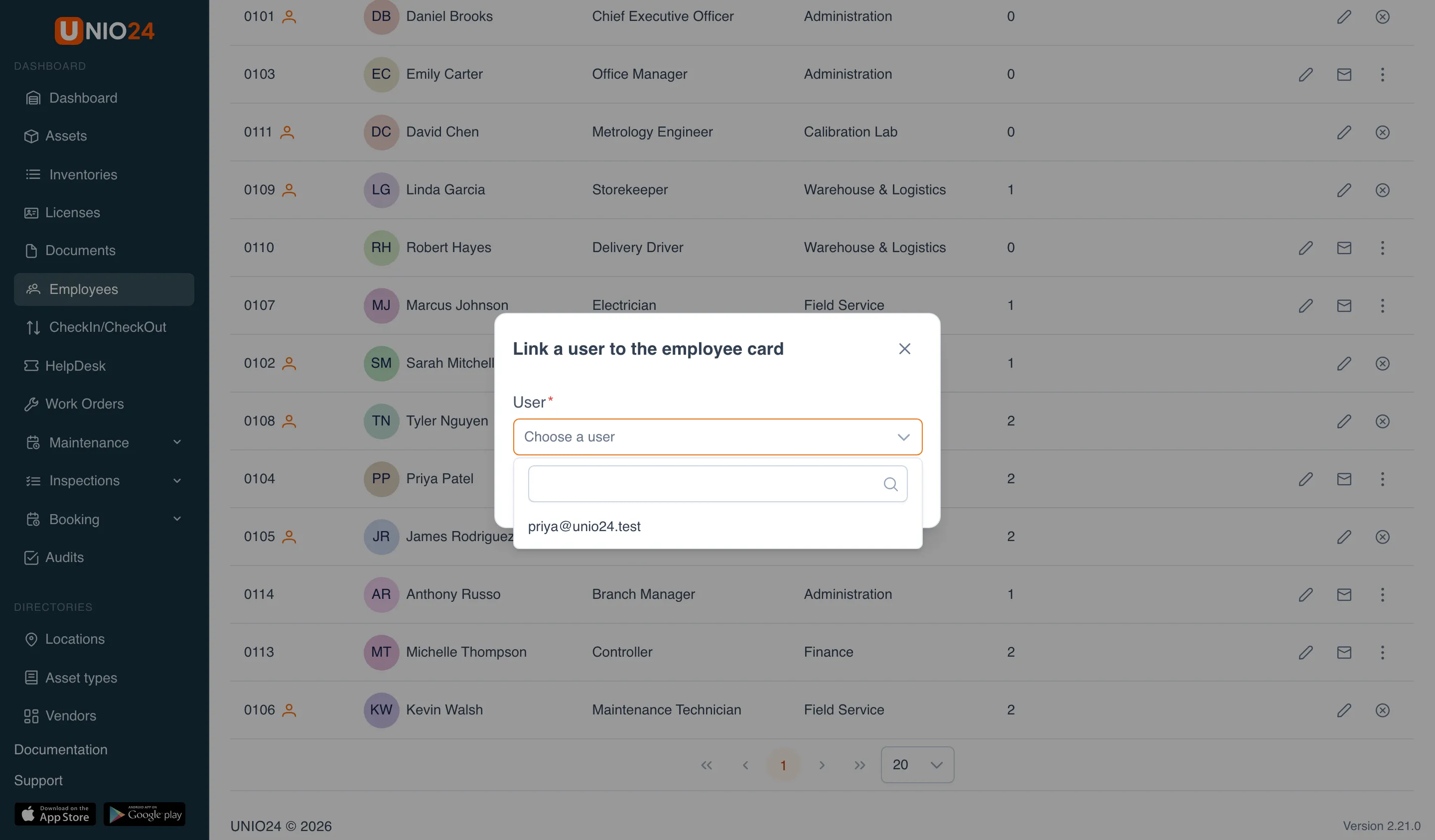
You’ll see “The user is linked to the employee card.” If the list is empty — “No users without an employee card” — all user accounts are already linked: invite the person from the directory as described above.
Linking and unlinking requires permission to edit both employees and users. A terminated employee can’t be linked to a user account.
Unlink a user
Section titled “Unlink a user”If a user account was linked to the wrong card, you can unlink it.
- In the employee’s row, click the circled-cross icon — Unlink user.
- Confirm: “Unlink the user … from the card? The account stays, but self-service will stop working for it.”
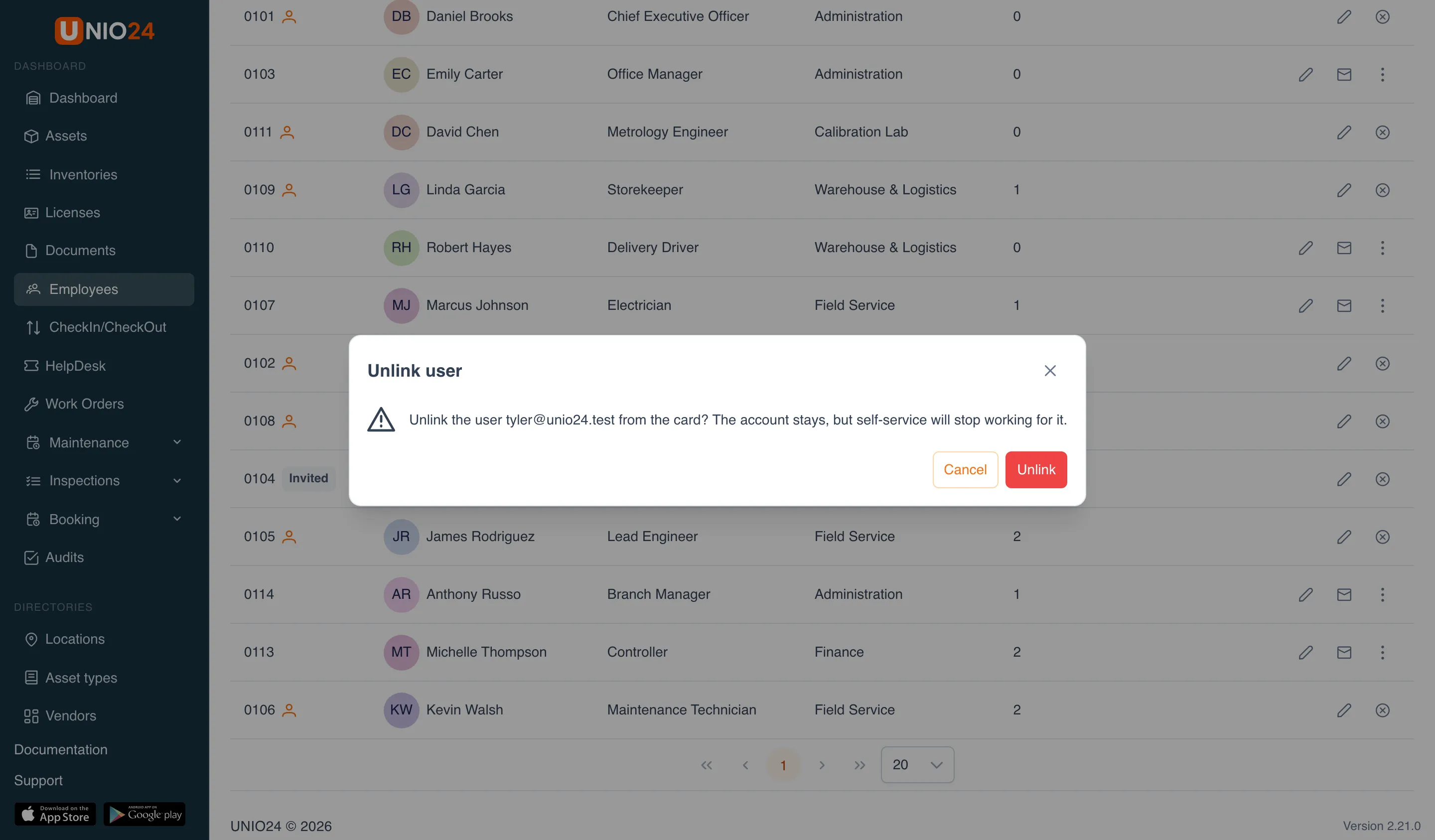
The user account and the card both remain; only the link between them is removed. After that, the account can be linked to another card.
How to tell who’s linked
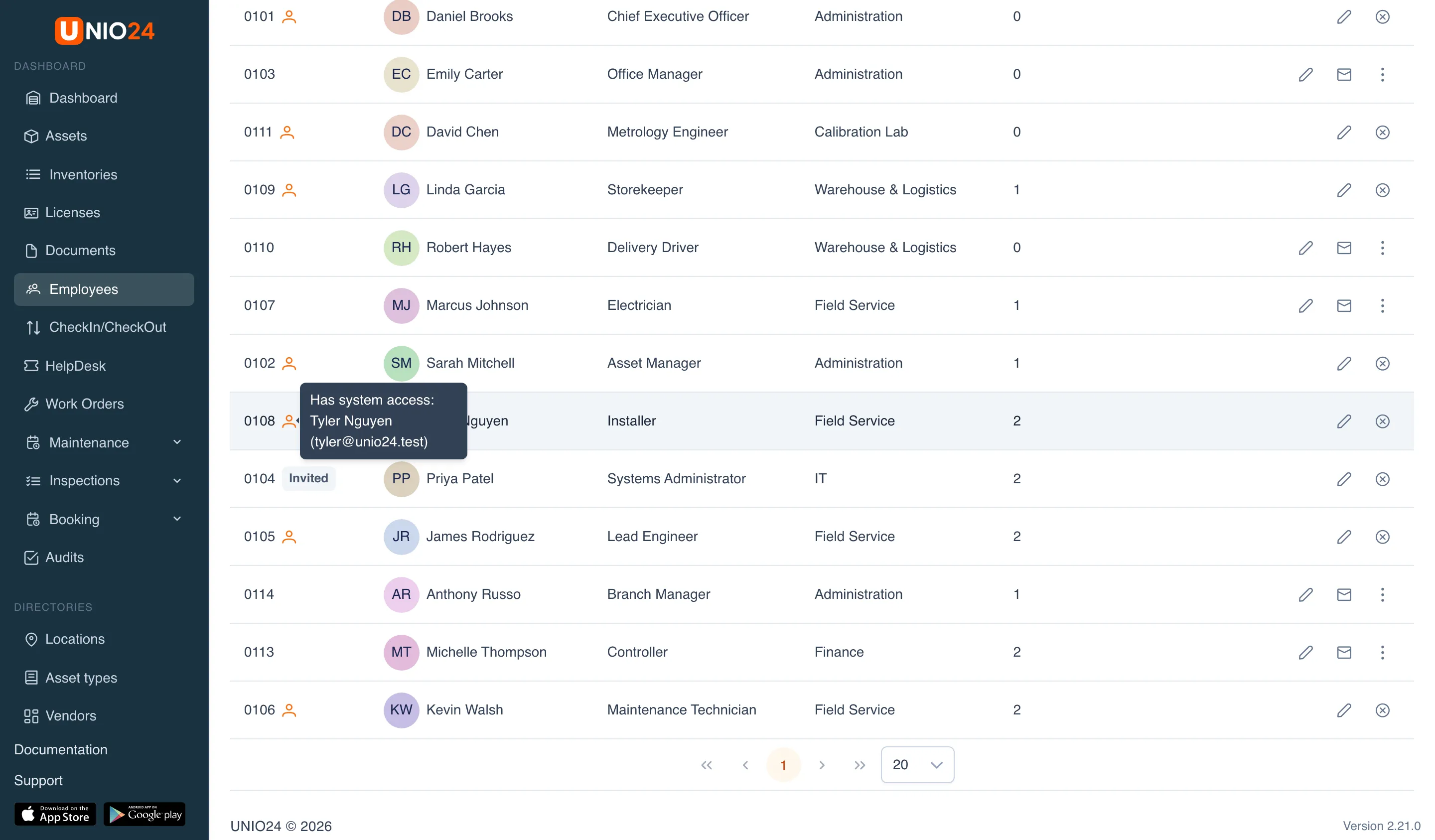
Section titled “How to tell who’s linked”In the employee list, next to the number:
- an Invited tag — the user account exists, but the invitation hasn’t been accepted yet;
- a user icon — the person already signs in. On hover: “Has system access: name (email)”;
- nothing — the employee has no user account.
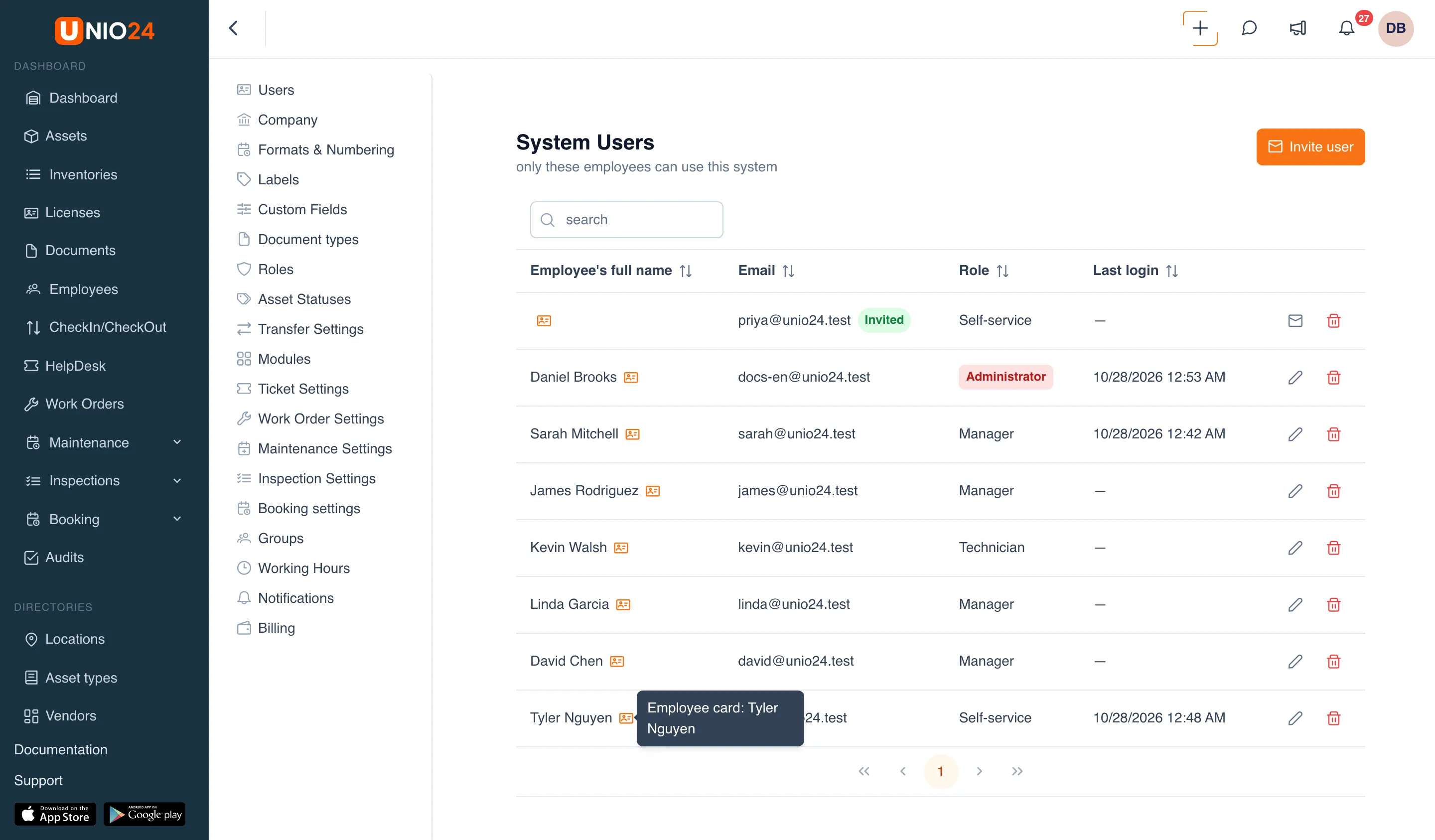
In the user list (Settings → Users), there’s a card icon next to the name. On hover: “Employee card: name”. A user account without the icon has no employee card.
Connect an employee to self-service
Section titled “Connect an employee to self-service”For an employee to take and return assets on their own:
- Make sure their card is linked to a user account — in any of the ways above.
- The user account needs a role with the Take for oneself and return own permission — the easiest is the standard Self-service role. The role is chosen when inviting (the field is visible to an administrator with full access) or changed later in Settings → Users → Edit.
- The employee accepts the invitation, sets a password, and signs in on the web or in the mobile app. Their dashboard then has the Take for myself and Return buttons and the My assets list.
For more about self-service rules, see Configure self-service.
Useful links
Section titled “Useful links”- Employees — the employee directory and card
- System users — invitations, roles, and account states
- Configure self-service — the Self-service role and the condition on return
- Offboarding — what happens to the user account when an employee is offboarded