

Check out, check in, and transfer
Asset operations in the app are the same as in the web app: check out to an employee, check in to a location, and transfer between locations. An employee working in self-service mode can also take an asset for themselves and return it.
You need an internet connection for these operations: they can’t be saved offline.
Check out an asset from its card
Section titled “Check out an asset from its card”This is the quickest way to check out a single asset you have in hand.
- Scan the asset’s label or find it on the Assets tab.
- On the card, tap Actions → Check Out. If the asset is currently with an employee, you’ll see Check In instead.
- In the Employee field, choose who you’re checking it out to. If needed, set a Due date for the return and add a Note.
- Tap Confirm.
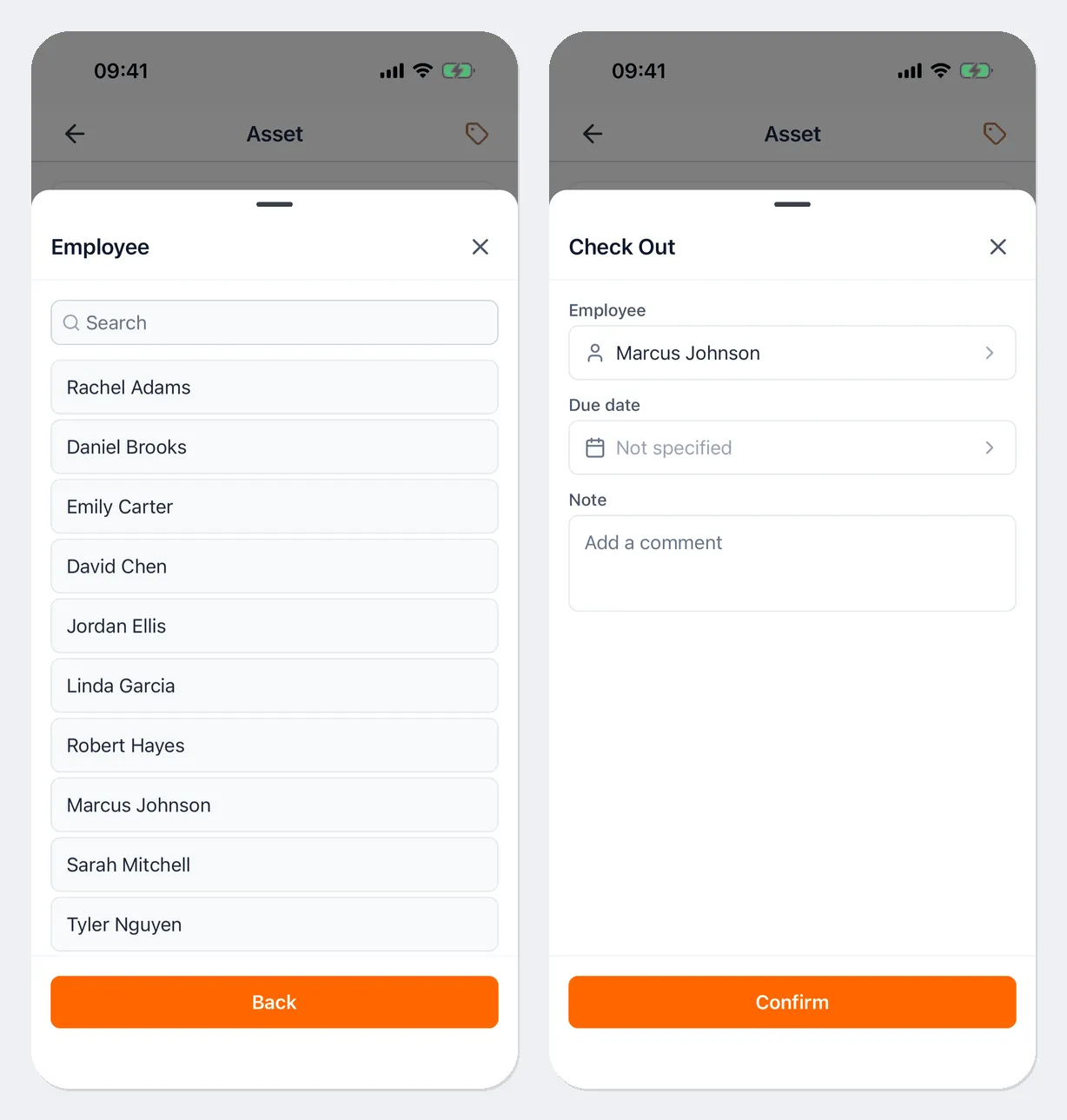
Transfer works the same way from Actions: choose the Target location and confirm.
Check out or transfer several assets
Section titled “Check out or transfer several assets”- On the Home tab, in the CheckIn/CheckOut block, tap Check Out, Check In, or Transfer.
- Choose the recipient:
- for a check-out — the employee in Select Employee and, if needed, a return date (leave it empty for an indefinite check-out);
- for a check-in — the location the asset is going back to;
- for a transfer — the source and target locations.
- Add assets: pick them from the list (the Filter assets… field narrows it down), or tap the scanner button next to the filter and scan the labels. Added assets get a check mark and appear in the list below; the cross removes an asset.
- For a check-in or transfer, you can choose a Condition for each asset. Whether it’s required is up to your administrator.
- Tap Save. You’ll see “Transfer created successfully”.
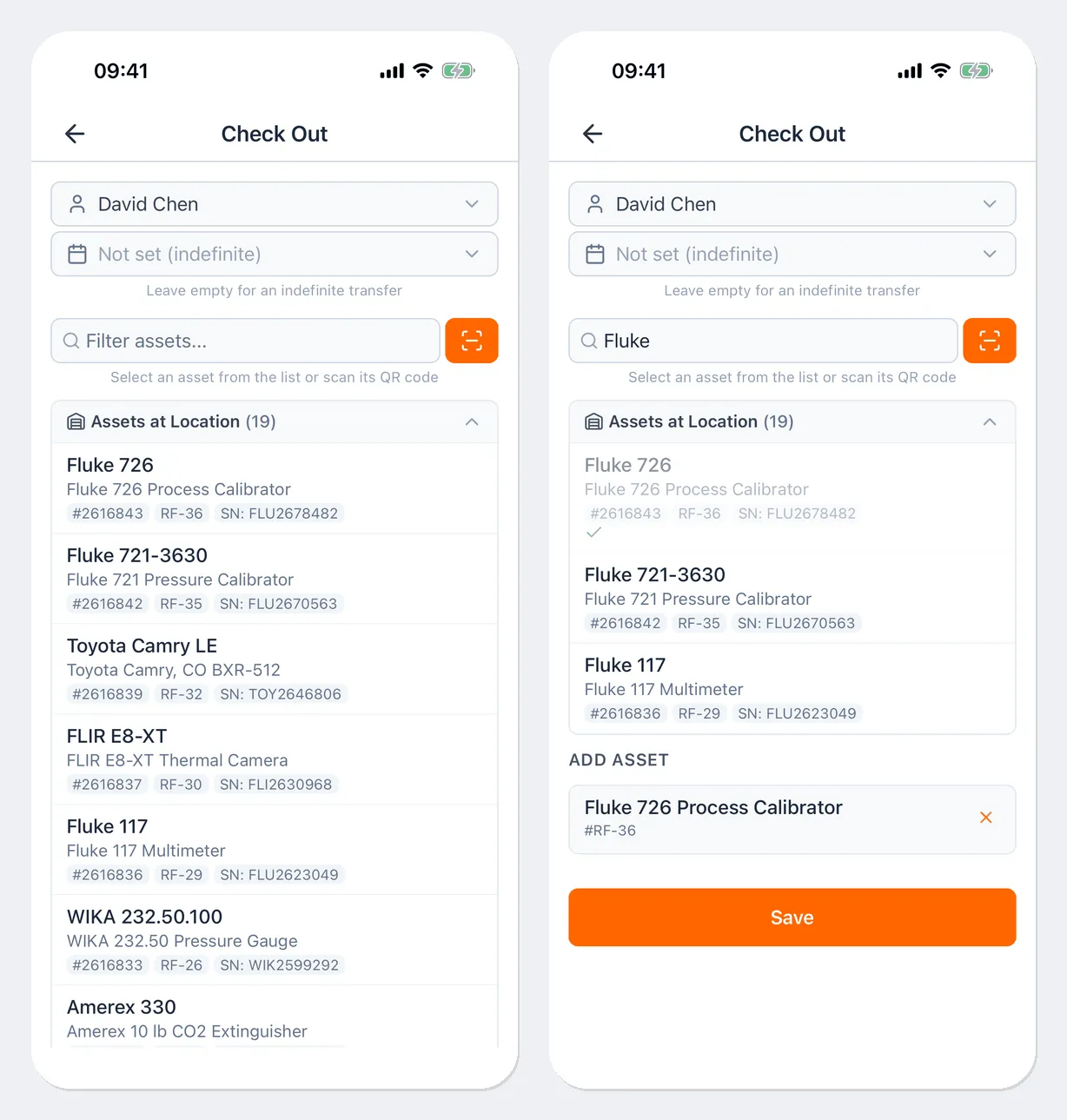
If there are warnings for an asset — for example, its calibration is overdue, an inspection defect is open, or a document has expired — the app shows them and asks whether to go ahead: Check out anyway or Move anyway. If a warning blocks the operation, you can’t save it.
If the asset type requires an inspection at check-out or check-in, you’ll see Inspection required · Run next to the asset. Run the inspection first — see Inspections — and then save the operation.
Take an asset for yourself and return it
Section titled “Take an asset for yourself and return it”These buttons are available to an employee whose administrator has enabled self-service: their user account must be linked to their employee record — see Employees and users.
Take for myself:
- On the Home tab, tap Take for myself. Or scan the asset’s label and tap Take for myself in the sheet that opens.
- Choose the location you’re taking it from (All locations by default), and select assets in the Free to take list or scan them.
- If needed, set a return date and add a note.
- Tap Take. You’ll see “Document № … created”.
Return:
- On the Home tab, tap Return, or tap an asset in the My assets list.
- Select the assets you’re returning and choose a condition for each one.
- In Return to location, choose where you’re returning the asset.
- Tap Return.
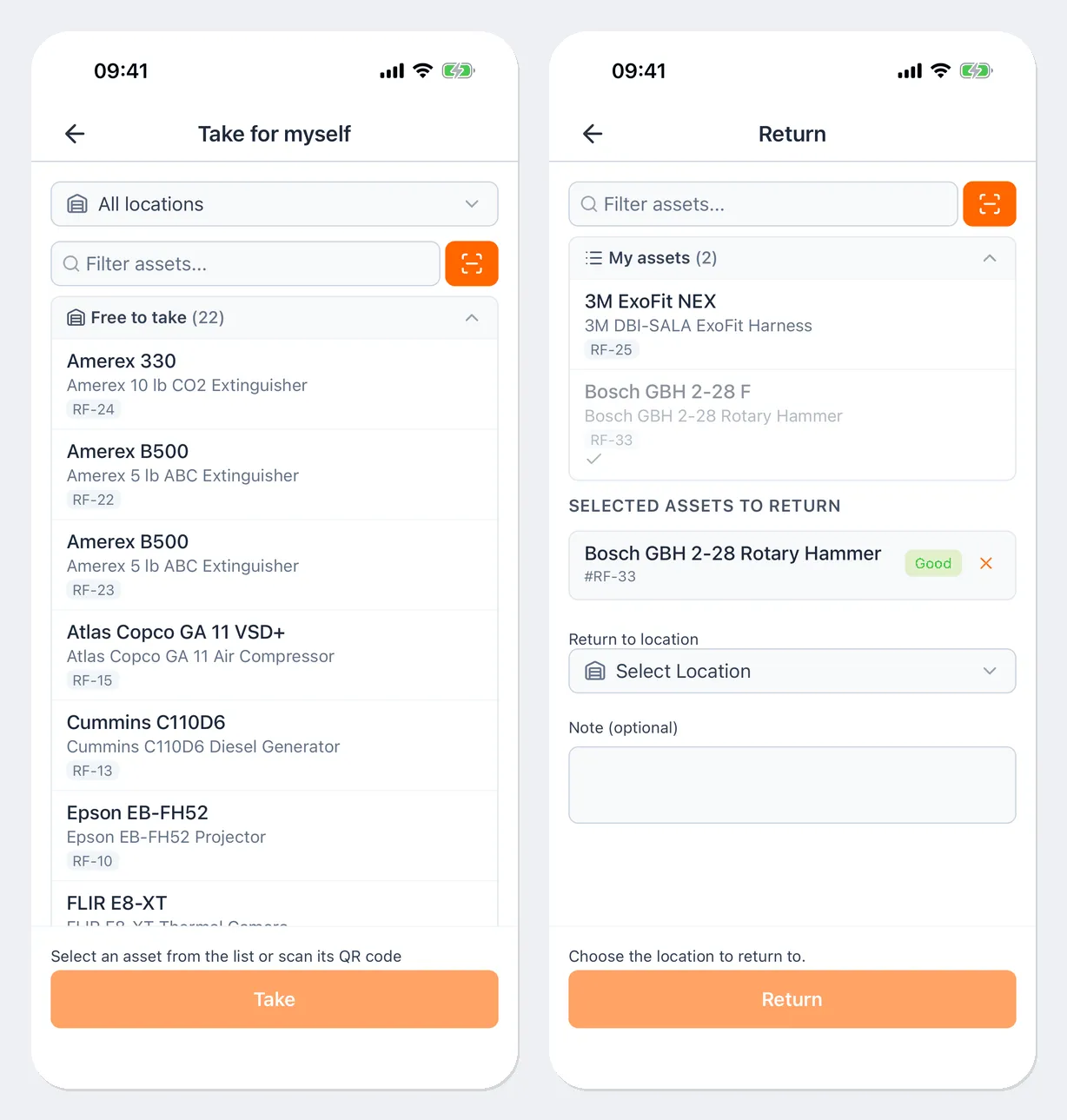
If you can’t take or return an asset, the app explains why — for example, “This asset is already yours. Return it from “Return”.” or “You are leaving the company: you can no longer take assets for yourself. You can still return the ones checked out to you.” The self-service rules are in Self-service reference.
View transfer documents
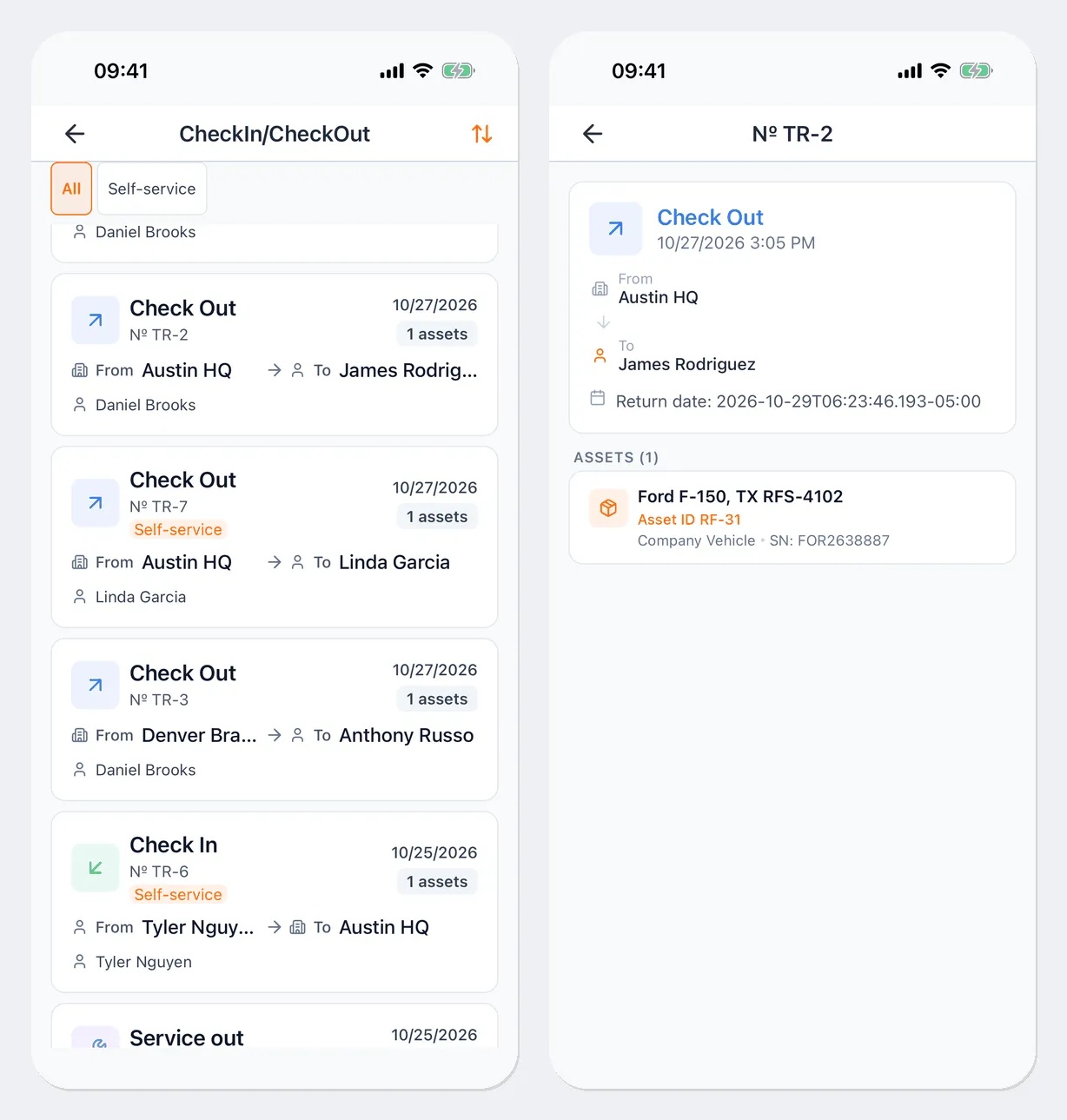
Section titled “View transfer documents”Open Menu → CheckIn/CheckOut. The list shows documents: the type of operation, number, date, from and to, the number of assets, and who created it. The Self-service badge marks documents an employee created themselves; the Self-service filter shows only those. Tap a document to open it.
An employee in self-service mode sees only their own documents here, and the screen is called My transfers.
Useful links
Section titled “Useful links”- Asset operations — what the operations mean
- Self-service — how it works and who sets it up
- Inspections — inspections at check-out and check-in