

Bookings
The app shows your bookings and lets you take a free asset right now. A storekeeper checks assets out and in against bookings, and an approver handles booking requests. Bookings for later dates are made in the web app.
Bookings need an internet connection: offline, the app shows “Bookings need a network connection”.
My bookings
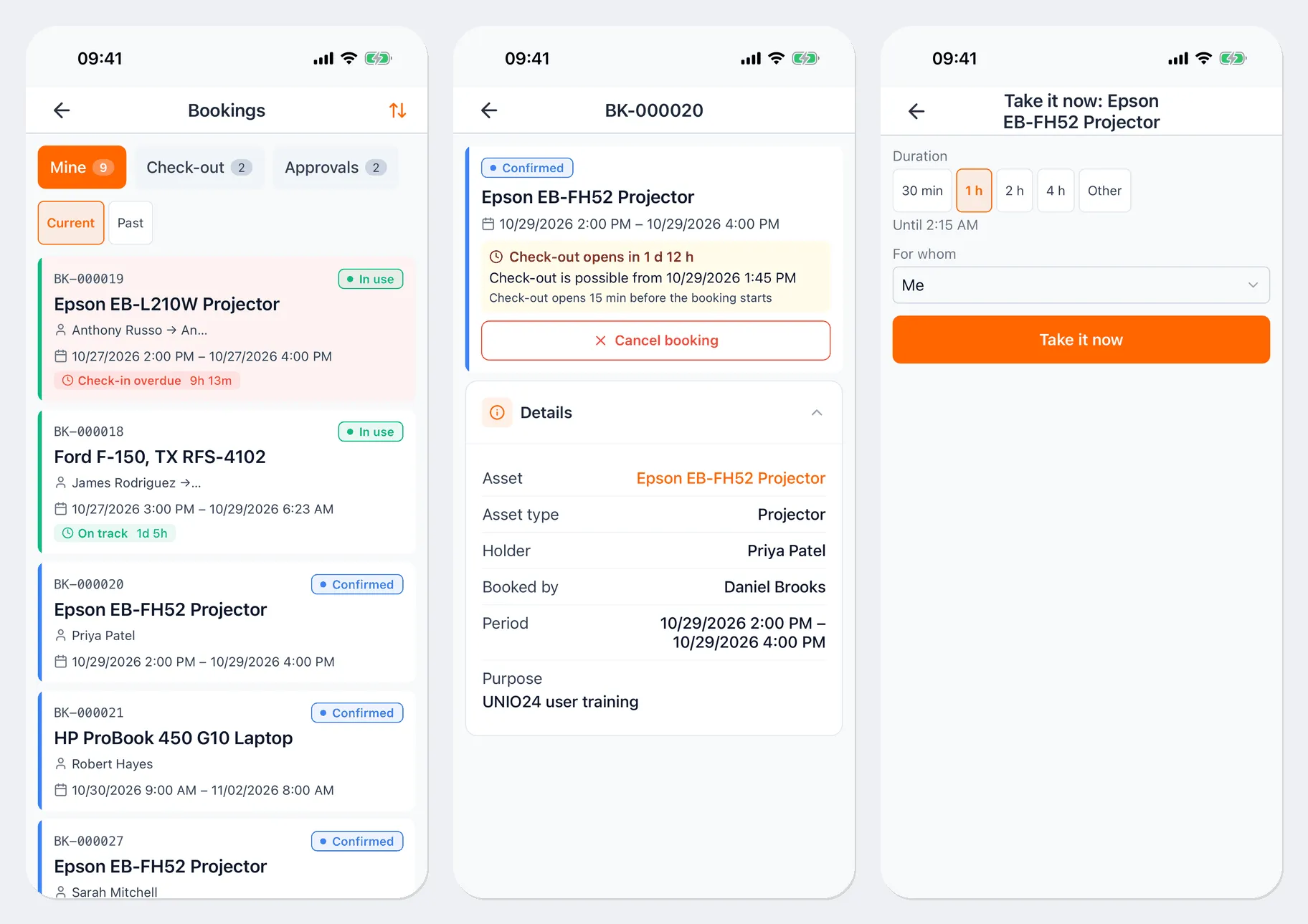
Section titled “My bookings”Tap the Bookings row on the Home screen or open Menu → Bookings. The Mine tab has your bookings, split into Current and Past. Tap a booking to open it: the status, asset, period, holder, who booked it, the purpose, and a hint about when check-out opens.
To cancel your booking, tap Cancel booking on its card.
Take an asset right now
Section titled “Take an asset right now”If an asset is free, you can book it and take it in one step.
- Scan the asset’s label and tap Quick booking. Or on the asset card, tap Actions → Quick booking.
- On the Take it now screen, choose the Duration: 30 min, 1 h, 2 h, 4 h, or Other. Below the buttons, you’ll see when the booking ends.
- In For whom, leave Me or choose another holder if you’re allowed to.
- Tap Take it now. You’ll see “Booked and checked out”.
If bookings of this asset need approval, you can’t take it right away — the app says “This booking needs approval — make it on the web”. Book such an asset in advance in the web app.
Check out and check in against a booking
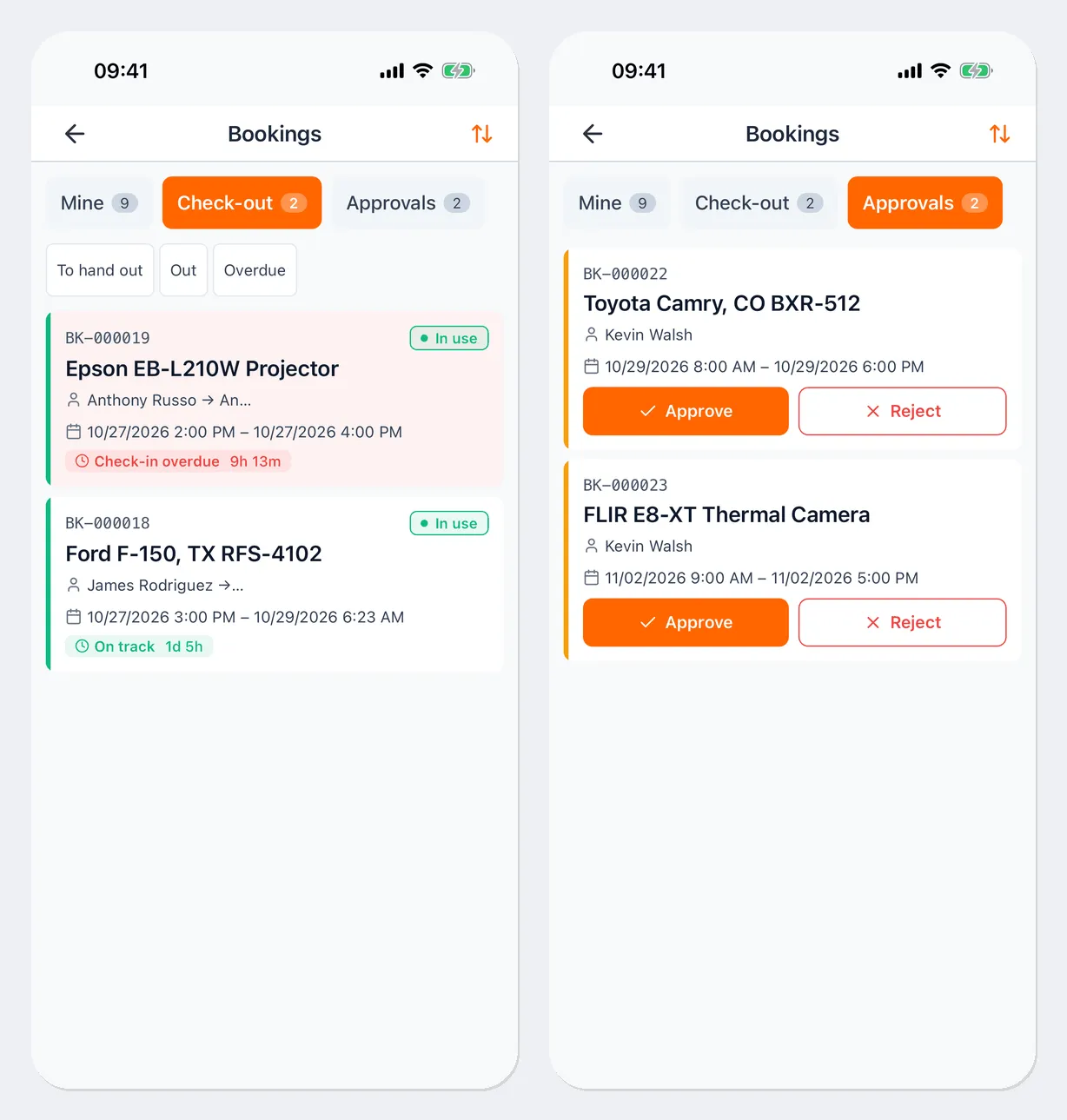
Section titled “Check out and check in against a booking”The Check-out tab is available to storekeepers and to people who manage bookings. It shows bookings that are To hand out, Out, and Overdue.
- Open the booking and tap Check out or Check in.
- When checking out, specify Who is taking it. When checking in, choose the Check-in location.
- If the booking policy requires an inspection, tap Start inspection and run it — see Inspections. If a meter reading is required, enter it in the Meter reading field.
- Tap Check out or Check in to confirm.
Check-out opens shortly before the booking starts — the card shows “Check-out is possible from …”.
Approve a booking
Section titled “Approve a booking”The Approvals tab is available to people who approve bookings. Each row has Approve and Reject buttons. When you reject a booking, the app asks for a reason.
Useful links
Section titled “Useful links”- Booking — how booking works
- Manage bookings — future bookings, calendar
- Inspections — inspections at check-out and check-in