

Self-service
Self-service lets employees take an asset from the stockroom for themselves and return what they hold — without a storekeeper. An installer grabs a rotary hammer before heading out to a job, a sysadmin picks up a laptop from the office pool, and both return them when the work is done. Each of these actions is recorded as a regular transfer document, so the asset’s history stays complete.
What an employee needs
Section titled “What an employee needs”- A user account linked to their employee card. UNIO24 has to know who is taking the asset: the asset is recorded against the employee card, not the user account.
- The “Take for oneself and return own” permission. It’s included in the standard Self-service role, which every company has.
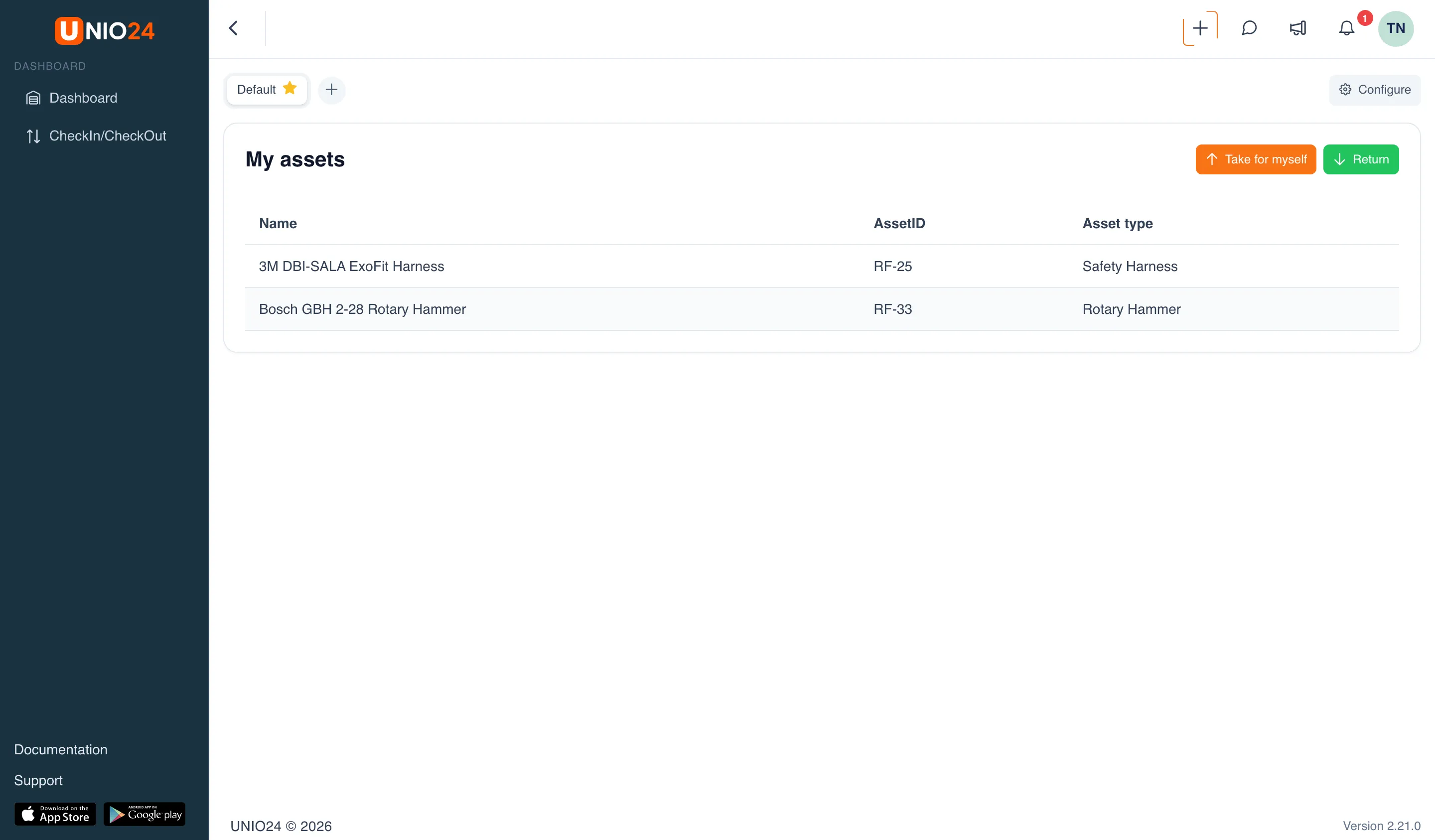
An employee with this role sees only Dashboard and CheckIn/CheckOut in the menu. Their dashboard has the My assets widget — what’s checked out to them — with the Take for myself and Return buttons. Storekeepers and administrators who can create transfers can use self-service too.
Taking assets
Section titled “Taking assets”You can take only an asset that sits in a location — a stockroom, an office, a job site. You can’t take an asset that:
- is already checked out to another employee;
- is at a service center;
- is in a write-off location, written off, or lost.
An asset that’s currently booked for another employee isn’t offered in the list. If an asset is part of another one (for example, a charger in a laptop kit), it goes along with its parent.
When taking an asset, you can set a planned return date — if the asset isn’t returned on time, an overdue reminder is sent.
The same checks apply as for a storekeeper’s check-out: if the asset’s calibration is overdue, a document has expired, or an inspection defect is open, the form shows a warning, and under strict company settings it won’t let you take the asset.
Returning assets
Section titled “Returning assets”You can return only assets checked out to you. On return, you choose the location the asset goes back to and — if your company requires it — the condition of each asset, such as Good or Damaged.
Whether the condition is asked for is up to the administrator in Settings → Transfer Settings: don’t ask, optional, or required. The default is required.
Inspection when taking and returning
Section titled “Inspection when taking and returning”If an inspection at check-out and check-in is set up for the asset type, self-service asks for it just like a storekeeper’s form does: the table gets an Inspection column, and a required inspection must be carried out before you take or return the asset. No separate inspection permissions are needed for this.
Employees being offboarded
Section titled “Employees being offboarded”If an employee has an offboarding scheduled, from the termination date on they can no longer take assets for themselves, but they can still return what they hold. A terminated employee can’t use self-service.
How it shows up in transfers
Section titled “How it shows up in transfers”Self-service documents are regular Check Out and Check In documents with a Self-service tag. The employee is the target of the check-out and the source of the check-in.
- Administrators see all documents on the CheckIn/CheckOut page and can narrow them down with Handling → Self-service.
- An employee with the Self-service role sees only their own documents on that page, which is titled My transfers.
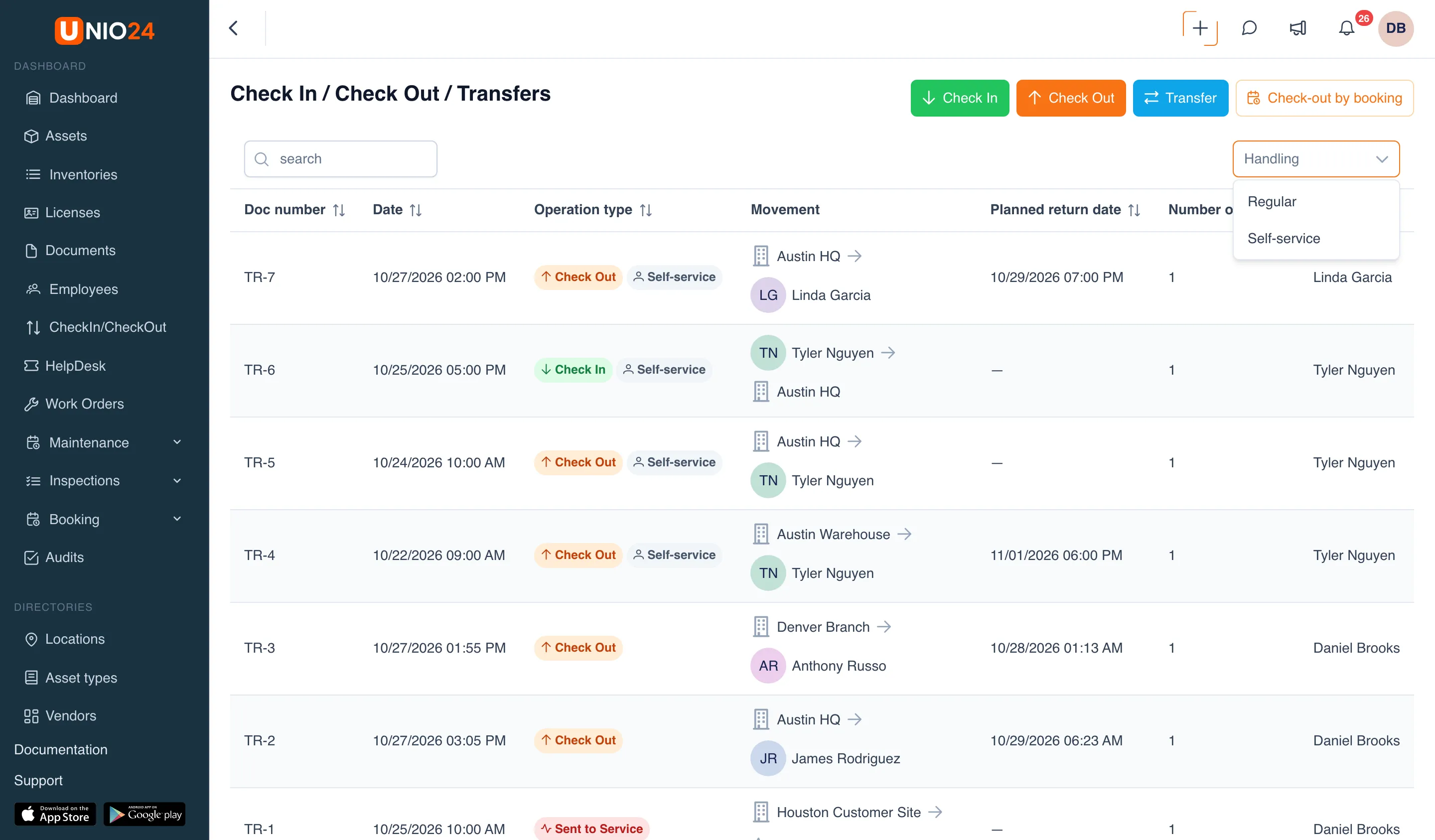
In the asset’s history, these entries are marked as self-service. Transfer notifications go to whoever is set up in the company’s notification settings for the asset transfer event.
Mobile app
Section titled “Mobile app”The same actions — Take for myself, Return, and My assets with QR code scanning — are available in the UNIO24 mobile app; see Check-out, check-in, and transfers in the app.
Useful links
Section titled “Useful links”- Take and return assets — step-by-step instructions for employees
- Configure self-service — how to connect employees and set up returns
- Self-service reference — permissions and messages