

Take and return assets
This page covers what an employee does to take and return assets on their own.
Take an asset
Section titled “Take an asset”- Open Dashboard and click Take for myself in the My assets widget. Or click CheckIn/CheckOut in the left menu and then Take for myself.
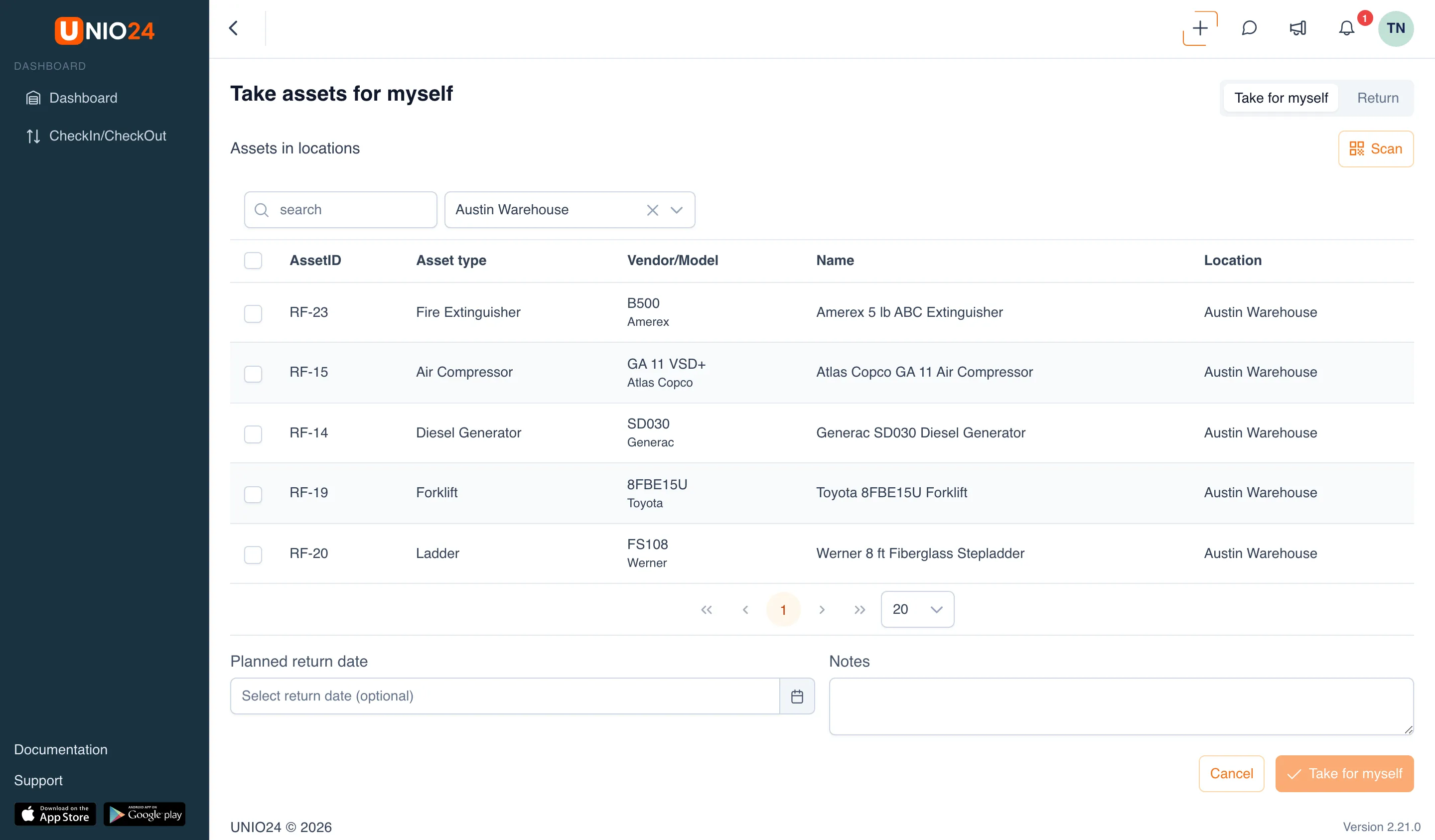
- On the Take assets for myself page, find the asset:
- pick the Location you’re taking it from — the list then shows only that location’s assets;
- and/or type a name, AssetID, serial number, or model in the search box;
- or click Scan and point the camera at the asset’s QR code.
- Select the assets you need. “(Selected: N of M)” appears above the table.
- If the form shows a warning — for example, “Open defects on …” — read it. If the warning forbids taking the asset, the Take for myself button is unavailable.
- If needed, set a Planned return date and add Notes — for example, the job you’re taking it for.
- Click Take for myself.
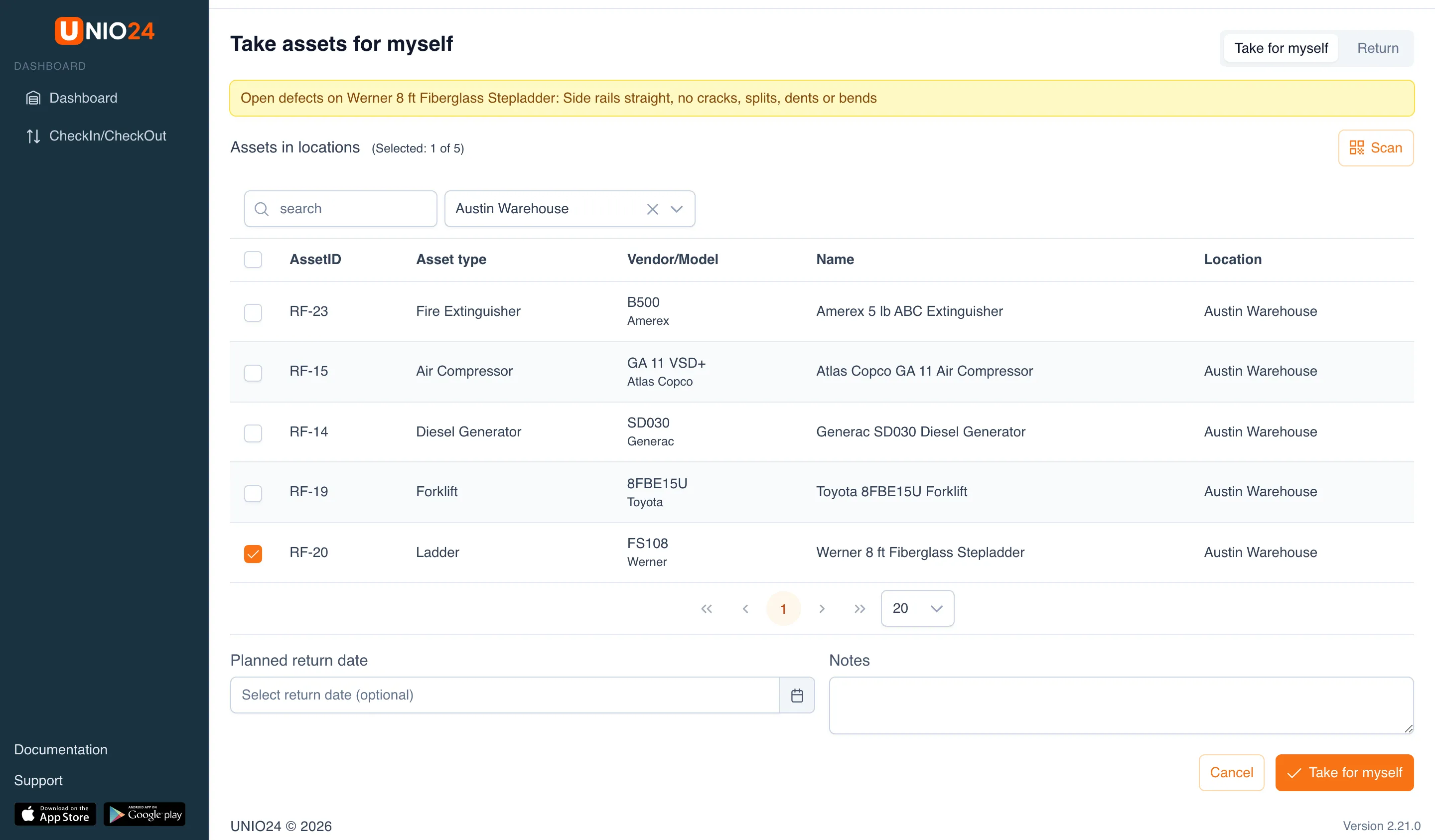
After saving, you’ll see “Document No. … created,” and the asset is now checked out to you — it shows up in the My assets widget.
Return your assets
Section titled “Return your assets”- Open Dashboard and click Return in the My assets widget. Or open CheckIn/CheckOut and click Return.
- On the Return my assets page, select the assets you’re returning. The list has only what’s checked out to you.
- If the table has a Condition column, choose the condition of each selected asset in the Select asset condition field. If the column has an asterisk, the condition is required.
- In Return to location, choose where the asset goes back to.
- Add Notes if needed.
- Click Return.
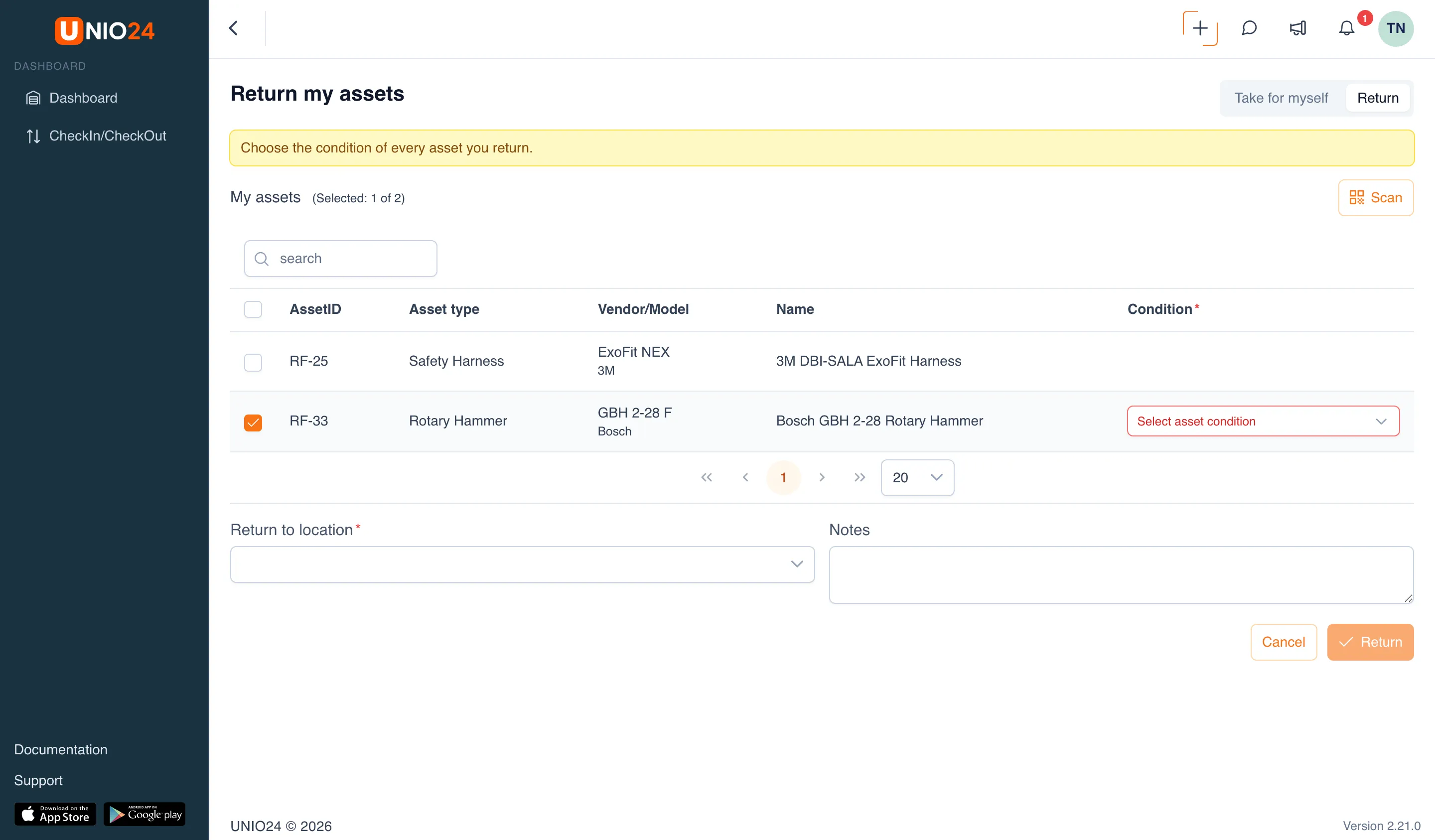
The Return button stays unavailable until a location is chosen and, if required, the condition of each asset.
Find an asset by QR code
Section titled “Find an asset by QR code”Both pages have a Scan button. Point your computer’s or phone’s camera at the asset’s QR code and the asset gets selected in the list. If you can’t take or return it, the scanner tells you why: “This asset is already checked out to you.”, “This asset is not checked out to you.”, “This asset cannot be taken right now.”, or “No asset was found for this code.”
View your transfers
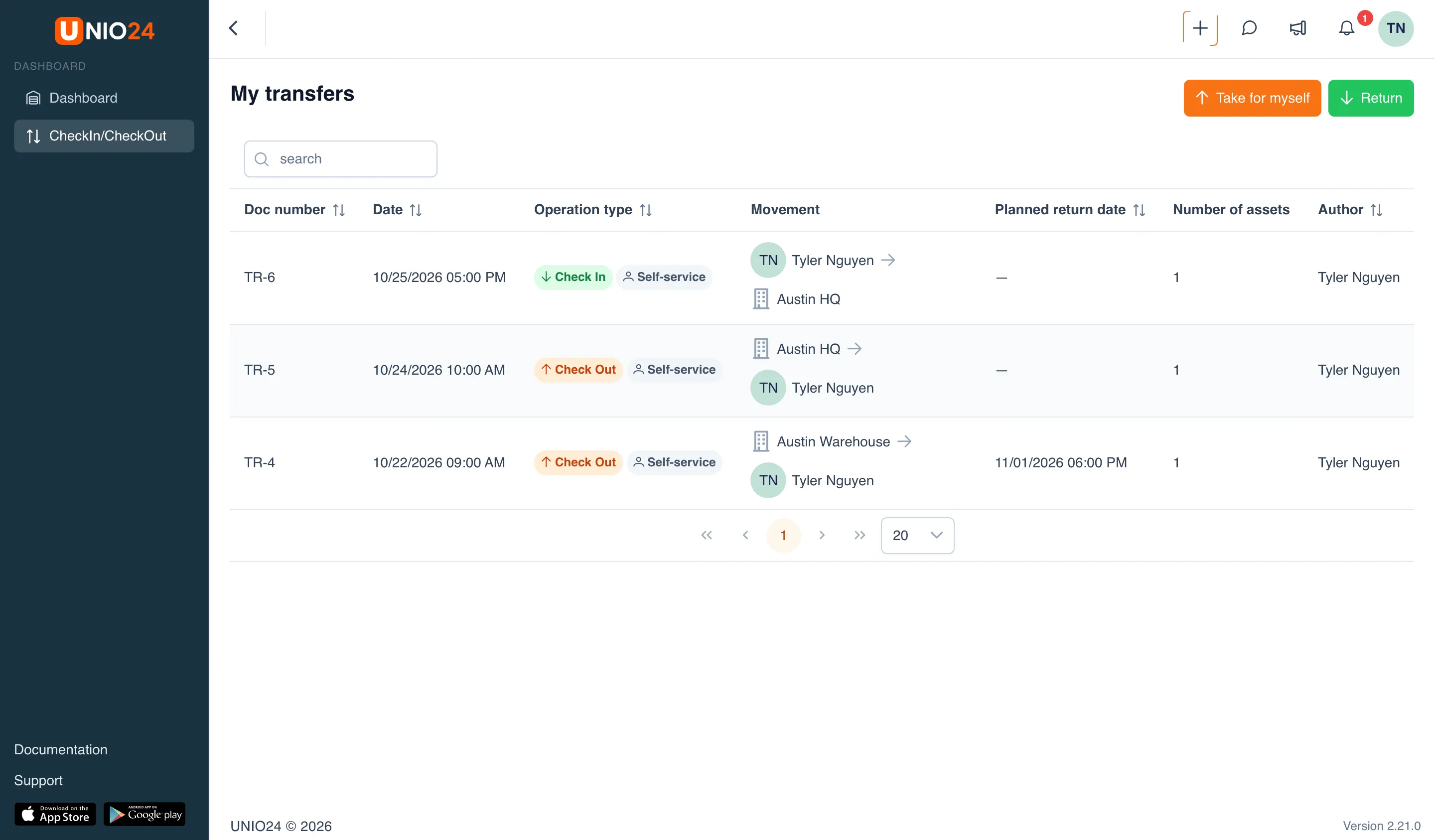
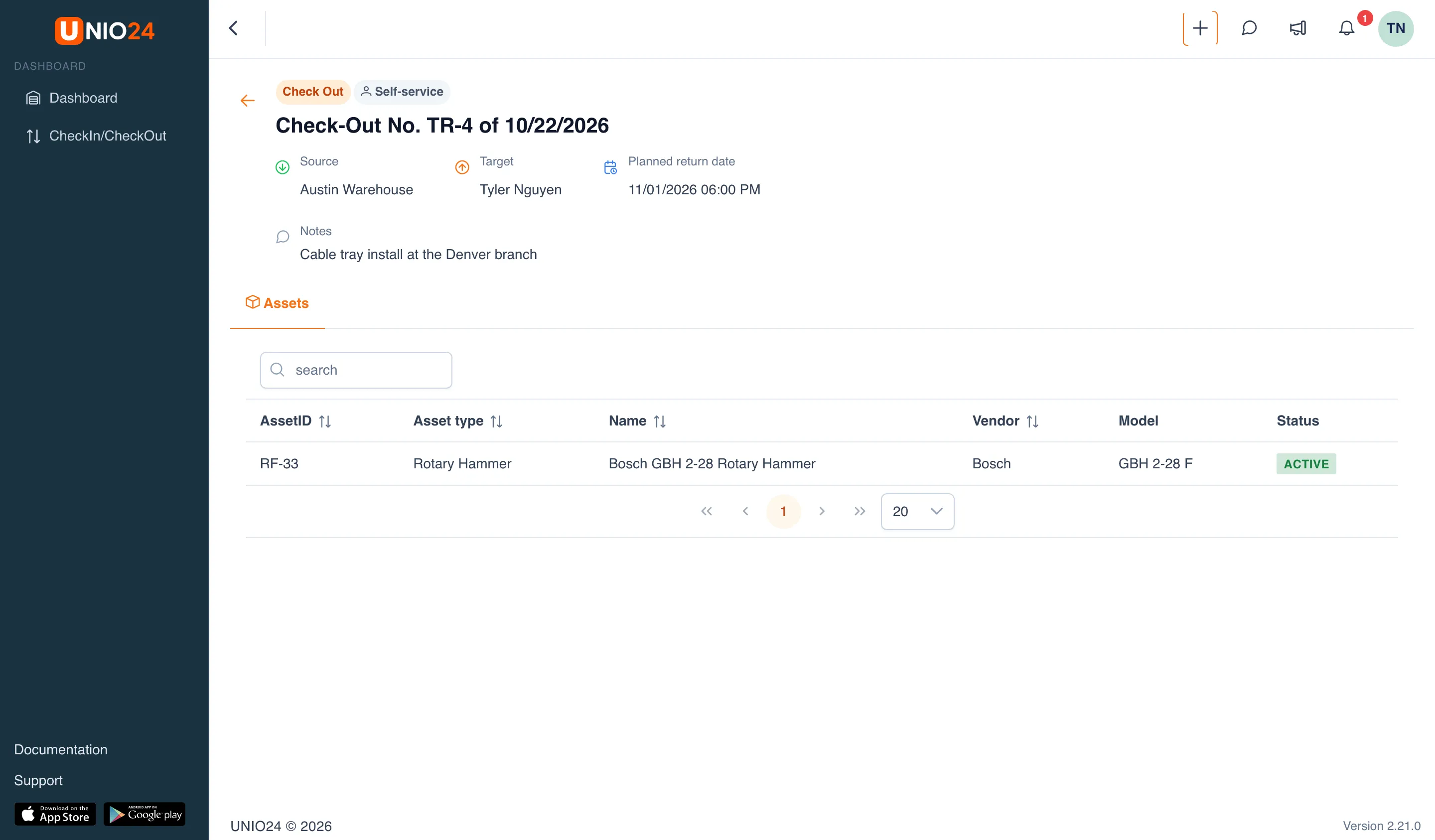
Section titled “View your transfers”- Click CheckIn/CheckOut in the left menu. The page is titled My transfers — it shows only documents where you’re the target or the source.
- Click a row to open the document.
Useful links
Section titled “Useful links”- Self-service — how self-service works and what you can take