

Configure booking
These tasks are done by an administrator or an employee with the Settings permission in the “Booking” group.
Enable the module
Section titled “Enable the module”- Open Settings → Modules.
- Find the Booking card and turn on its switch.
After the first time it is enabled, a default policy called All assets appears: it allows booking any asset that has a type. A Booking group appears in the menu, and a Booking settings page with the General, Booking policies, and Unavailable for booking tabs appears in Settings.
The module uses Inspections when they are enabled: a policy can require an inspection at check-out and check-in.
If you turn the module off and on again, the earlier policies are kept, and UNIO24 offers Go to the rules so you can review them.
Decide what can be booked
Section titled “Decide what can be booked”There are two approaches:
- Book everything: keep Enable booking of all asset types on in the default policy. You can create policies with special rules for individual types, and close the types you don’t need with a disabled policy.
- Book only selected types: turn off Enable booking of all asset types in the default policy and create policies only for the types you need: company vehicles, projectors, and so on.
The default policy also provides the limits and timing for types that don’t have a policy of their own.
Create a policy for an asset type
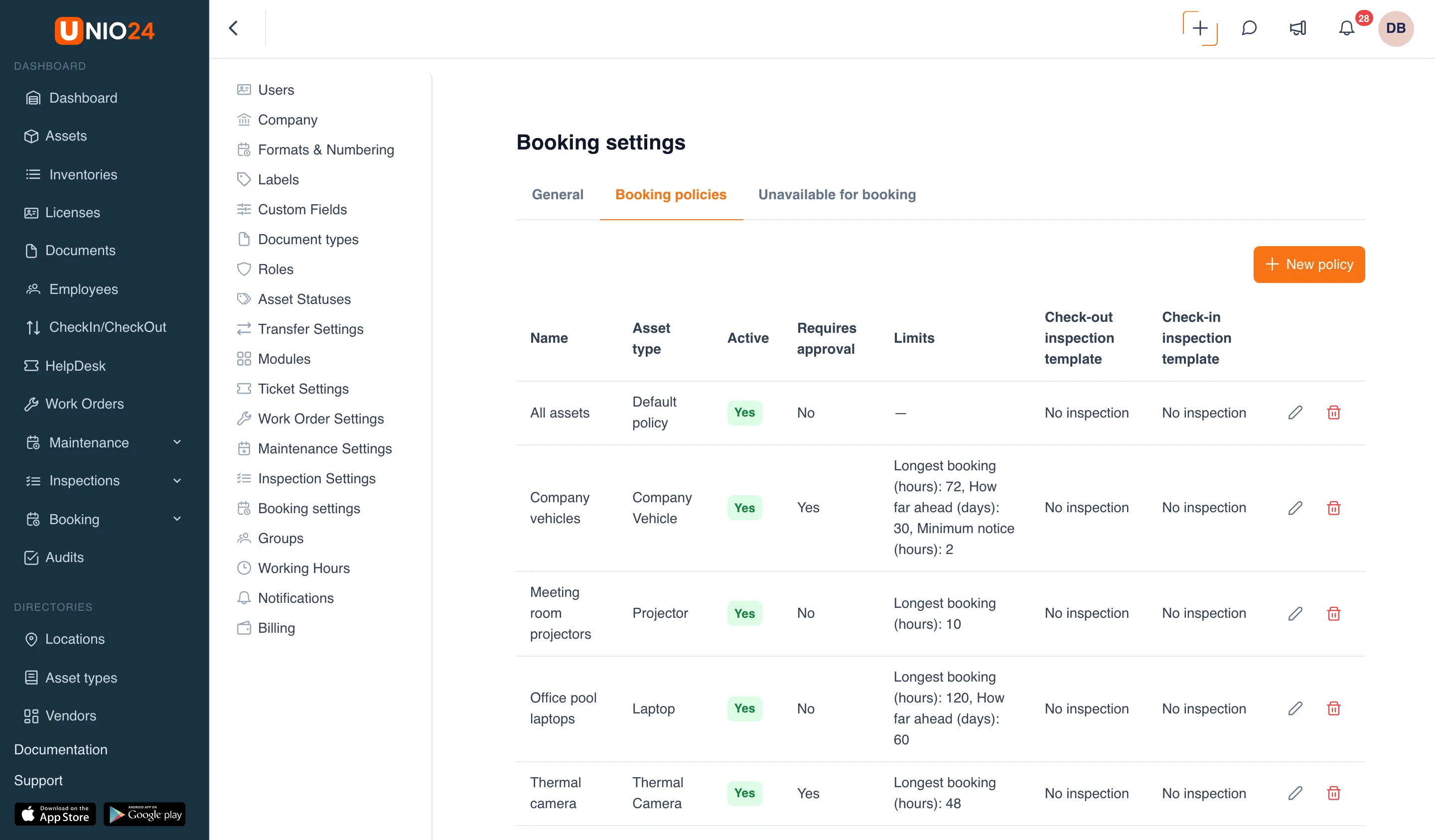
Section titled “Create a policy for an asset type”- Open Settings → Booking settings → the Booking policies tab.
- Click New policy.
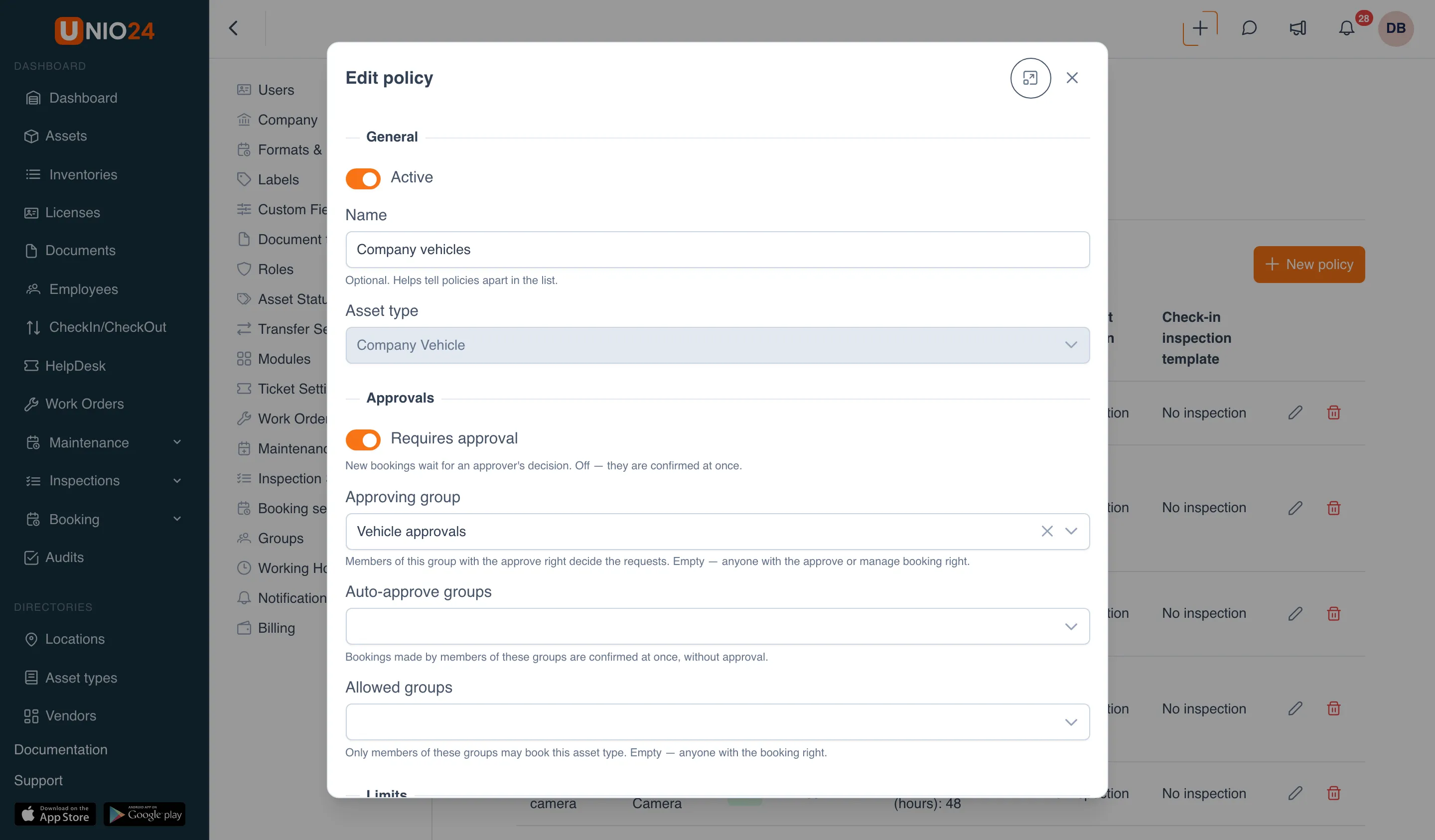
- In the General section:
- leave Active on; a disabled policy closes the type to booking;
- enter a Name if you like, for example “Company vehicles”;
- choose the Asset type. The type can’t be changed after saving.
- In the Approvals section:
- turn on Requires approval if bookings have to be confirmed by an approver;
- in Approving group, choose who decides the requests. If empty, anyone with the approve permission decides;
- in Auto-approve groups, choose groups whose bookings are confirmed without approval;
- in Allowed groups, limit who can book this type at all. Empty means everyone with the booking permission.
- In the Limits section:
- Longest booking (hours): the longest a booking can last;
- How far ahead (days): how many days ahead a booking can be made;
- Minimum notice (hours): the minimum time between making a booking and its start;
- Check-out and check-in within working hours: the booking must start and end within the company’s working hours.
- In the Timing around the booking section:
- No-show after (minutes): how long to wait after the start before the booking becomes a no-show;
- Buffer (minutes): a break after each booking during which the asset can’t be booked again (for example, to charge or clean it);
- Early check-out (minutes): how many minutes before the start the asset can be checked out;
- Reminder before (minutes): when the holder gets a reminder.
- In the Check-out and check-in section:
- Check-out inspection template and Check-in inspection template: if an inspection is needed at check-out or check-in;
- Require meter reading at check-out and Require meter reading at check-in: for example, a vehicle’s mileage;
- Create transfers: record check-out and check-in as asset transfers.
- Click Save.
Booking managers (the Manage all bookings permission) aren’t bound by a policy’s limits.
If you set an inspection at check-out or check-in in a policy, the Inspections module turns on by itself if it was off. While such a policy exists, the Inspections module can’t be turned off.
Edit or delete a policy
Section titled “Edit or delete a policy”On the Booking policies tab, click Edit (the pencil icon) or Delete (the trash icon) in the policy’s row.
A policy that future bookings rely on can’t be deleted or disabled: UNIO24 lists the numbers of those bookings, so cancel or move them first. If you turn off approval in a policy, pending requests are confirmed automatically.
Make a single asset bookable or not
Section titled “Make a single asset bookable or not”A single asset can be taken out of its type’s rule on the asset card.
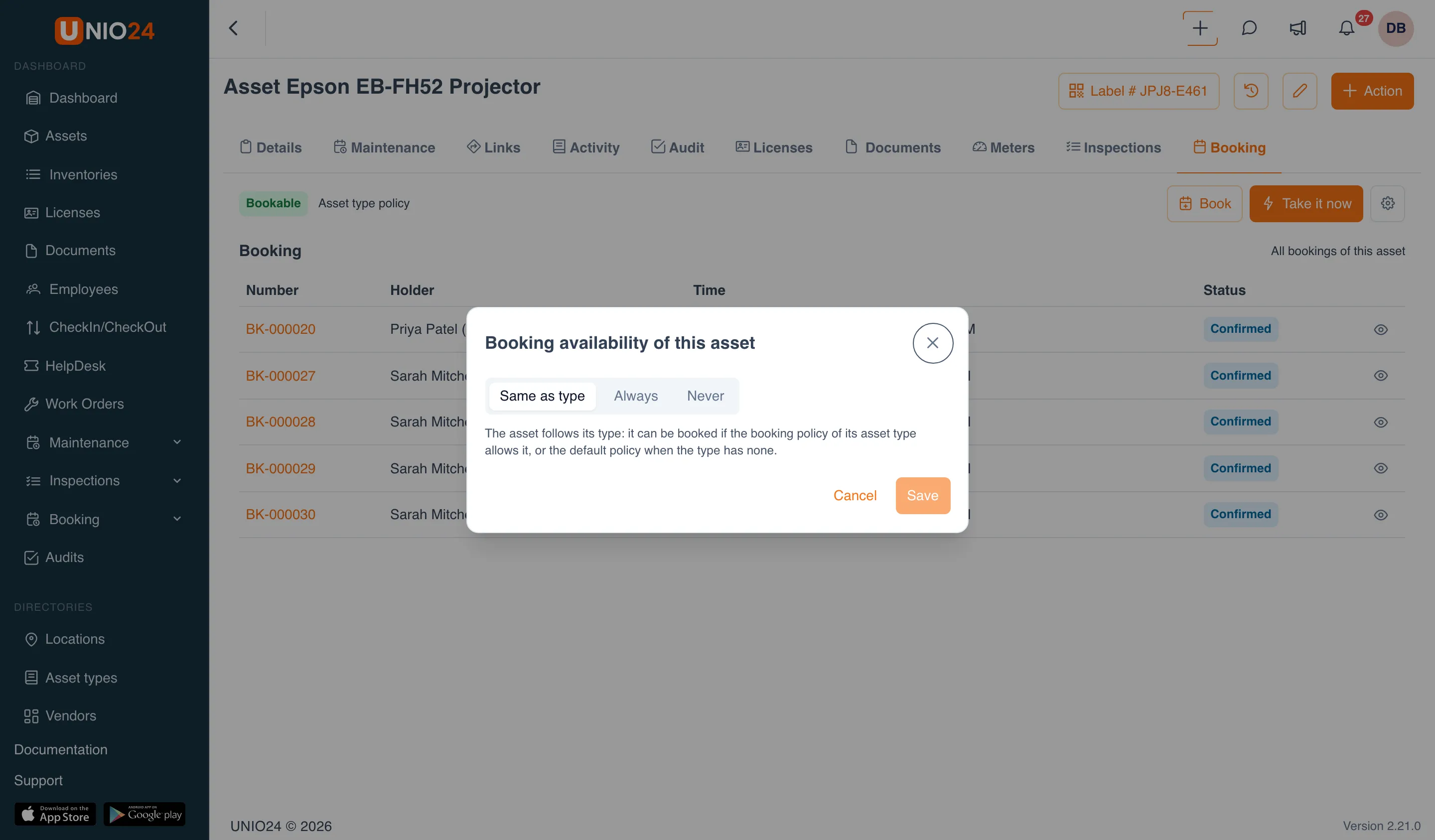
- Open the asset card and go to the Booking tab.
- Click Set up booking for this asset (the gear icon) to the right of the Book and Take it now buttons.
- In the Booking availability of this asset window, choose:
- Same as type: the asset follows its type’s policy;
- Always: the asset can be booked even if its type is closed;
- Never: the asset can’t be booked even if its type is open.
- Click Save.
Exceptions for all assets of a type are also shown in that type’s policy window, in the Per-asset exceptions section. You can’t choose Never for an asset with future bookings until they are cancelled.
Add a blackout period
Section titled “Add a blackout period”When an asset will be unavailable, for example while it is at the dealer for scheduled service:
- Open Settings → Booking settings → the Unavailable for booking tab.
- Click New blackout.
- Choose the Asset and enter From and To. If you leave To empty, the blackout is open-ended.
- Fill in a Note if needed and click Save.
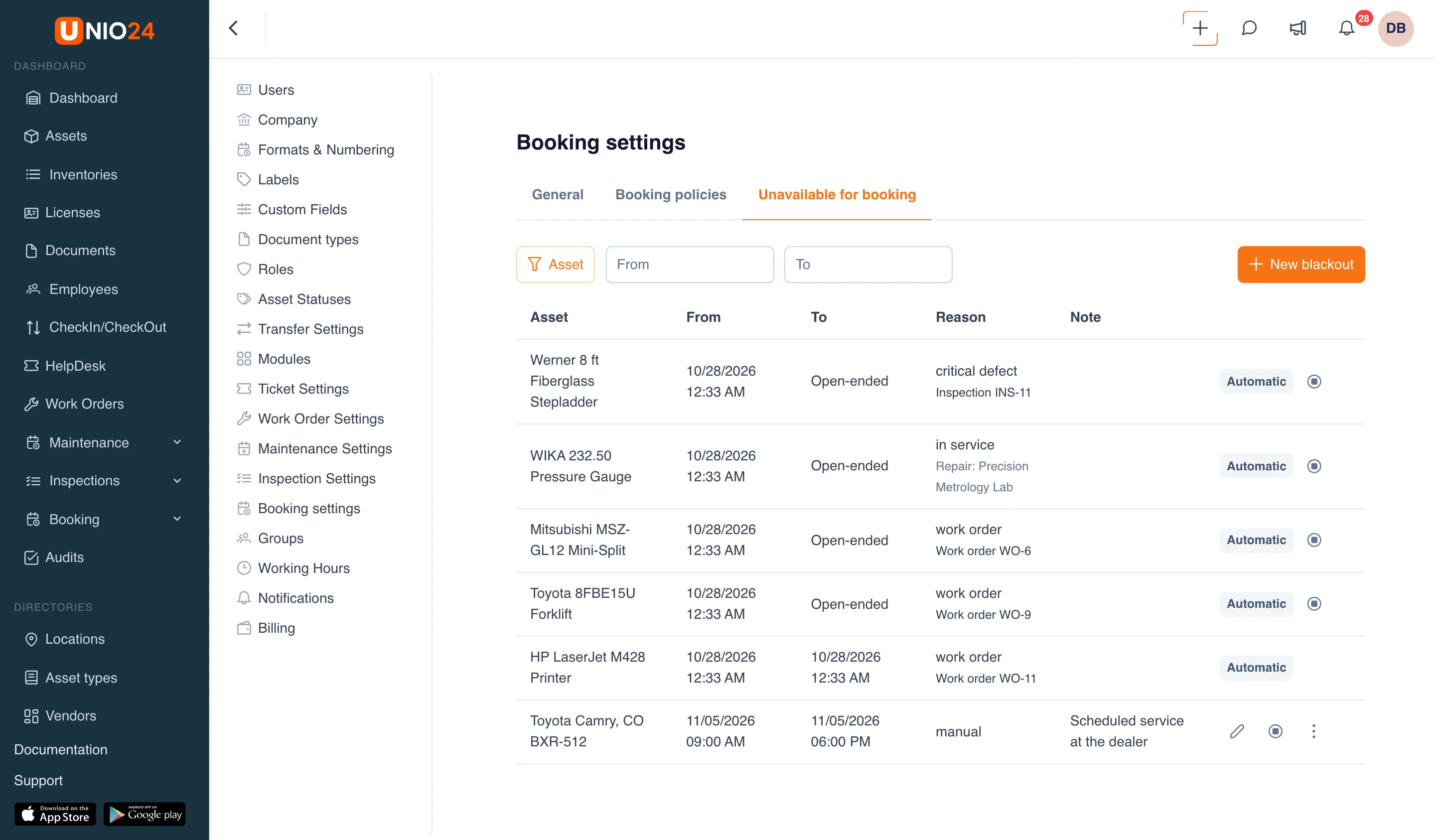
The same tab shows the blackouts UNIO24 added on its own: while a work order on the asset is in progress, while the asset is away for repair, or while it has an open critical inspection defect. They are marked Automatic and end together with their cause. They can’t be edited or deleted, but they can be ended early with Close now and a reason.
A blackout doesn’t cancel bookings that overlap it: the people involved get a “Booking conflict” notification.
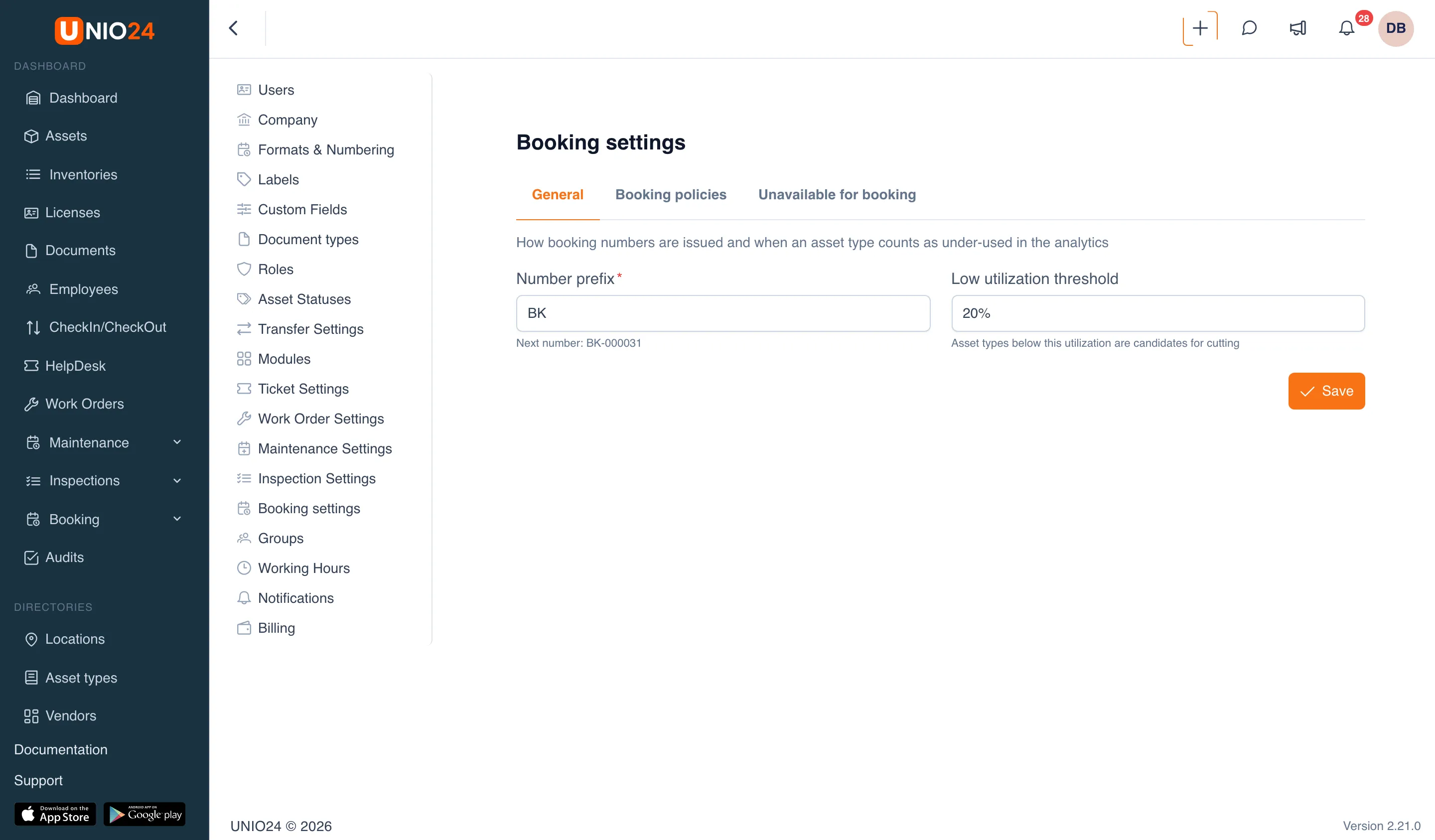
Numbering and the utilization threshold
Section titled “Numbering and the utilization threshold”- Open Settings → Booking settings → the General tab.
- In the Number prefix field, enter the prefix for booking numbers: up to 10 characters,
BKby default. The next number is shown below. - In the Low utilization threshold field, enter a percentage: asset types used less than this are shown in the analytics as candidates for cutting.
- Click Save.
Grant permissions
Section titled “Grant permissions”Booking permissions are granted under Roles and permissions, in the Booking group. Typically:
- employees who book for themselves get Create own bookings;
- approvers get Approve bookings;
- a dispatcher or fleet coordinator gets Manage all bookings;
- the booking administrator gets Settings.
A storekeeper who only checks assets out and in doesn’t need booking permissions: the Check-out by booking page is open to everyone who can create transfers.
Useful links
Section titled “Useful links”- Booking: how policies and statuses work
- Booking reference: all fields