

Manage bookings
This page covers everyday booking tasks.
Book an asset
Section titled “Book an asset”- In the main menu on the left, open Booking → Bookings.
- Click New booking in the top right corner.
- Choose how to book:
- By asset: click Pick an asset, find the asset in the Pick a bookable asset window, select it, and click Add. Only assets that can be booked are listed;
- By asset type: choose the Asset type; any free asset of that type will do.
- Enter the Start and End.
- Check the hint under the dates:
- Free at this time: you can save;
- Busy at this time: the nearest free window is shown below; click Take this window to put it into the form, or Notify me when free (see Find out when an asset frees up).
- In the Holder field, choose who the booking is for: Me, Group, Employee, or Location. Employee and Location are available to booking managers.
- Fill in the Purpose and Notes if needed.
- Click Save.
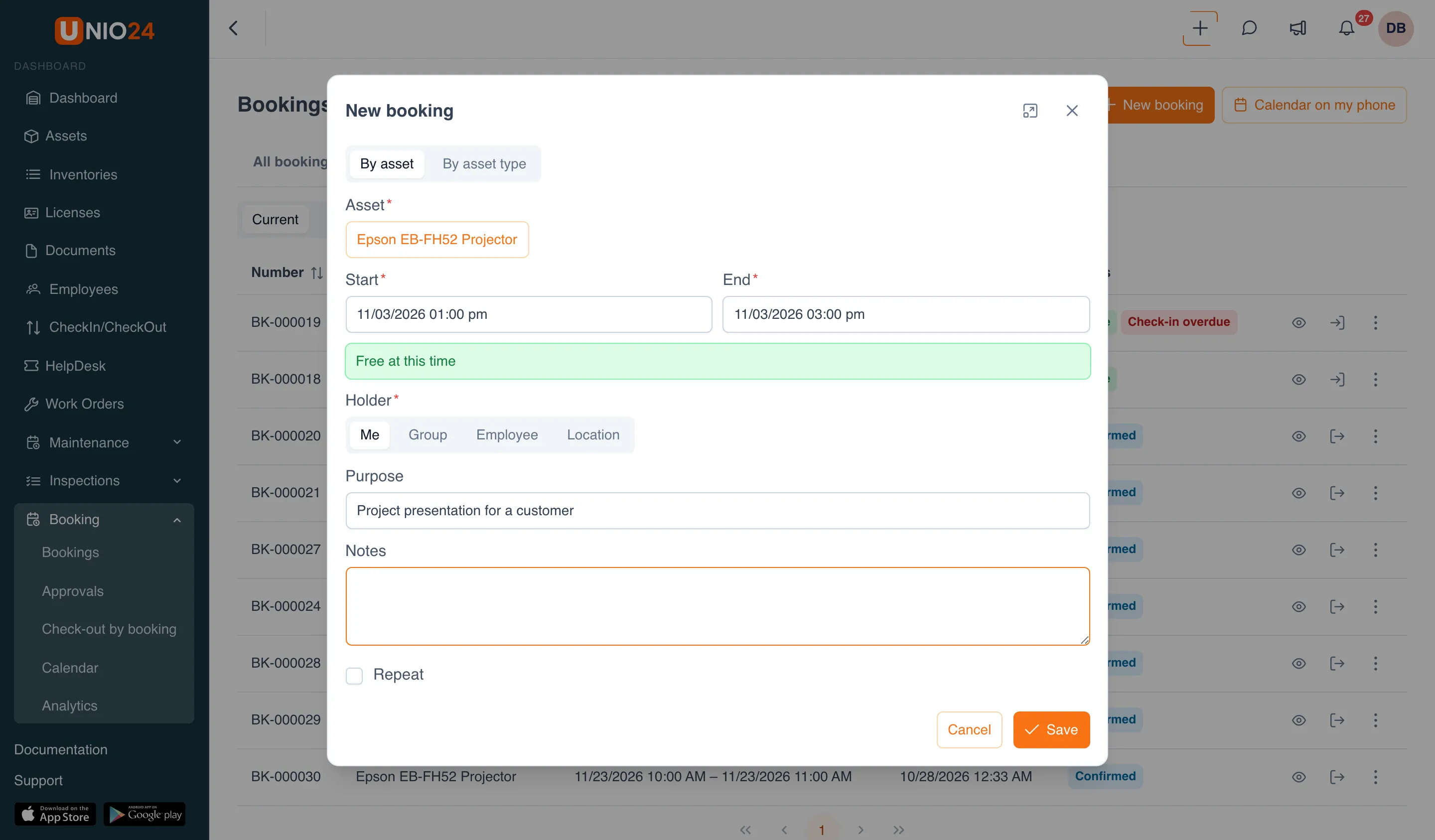
If the type’s policy requires approval, the booking gets the Awaiting approval status; otherwise it is Confirmed right away. If the booking breaks the policy’s rules (too long, too far ahead, overlapping another booking), the form shows the reason and a list of conflicts.
You can also start a booking from the asset card: the Booking tab → Book. The asset is filled in for you.
Recurring booking
Section titled “Recurring booking”- In the booking form, check Repeat.
- Choose the Frequency (Daily, Weekly, or Monthly) and set Every, for example every 1 week.
- For a weekly booking, pick the days under On days.
- Under Ends, choose On date or After occurrences and enter the value.
- Click Save.
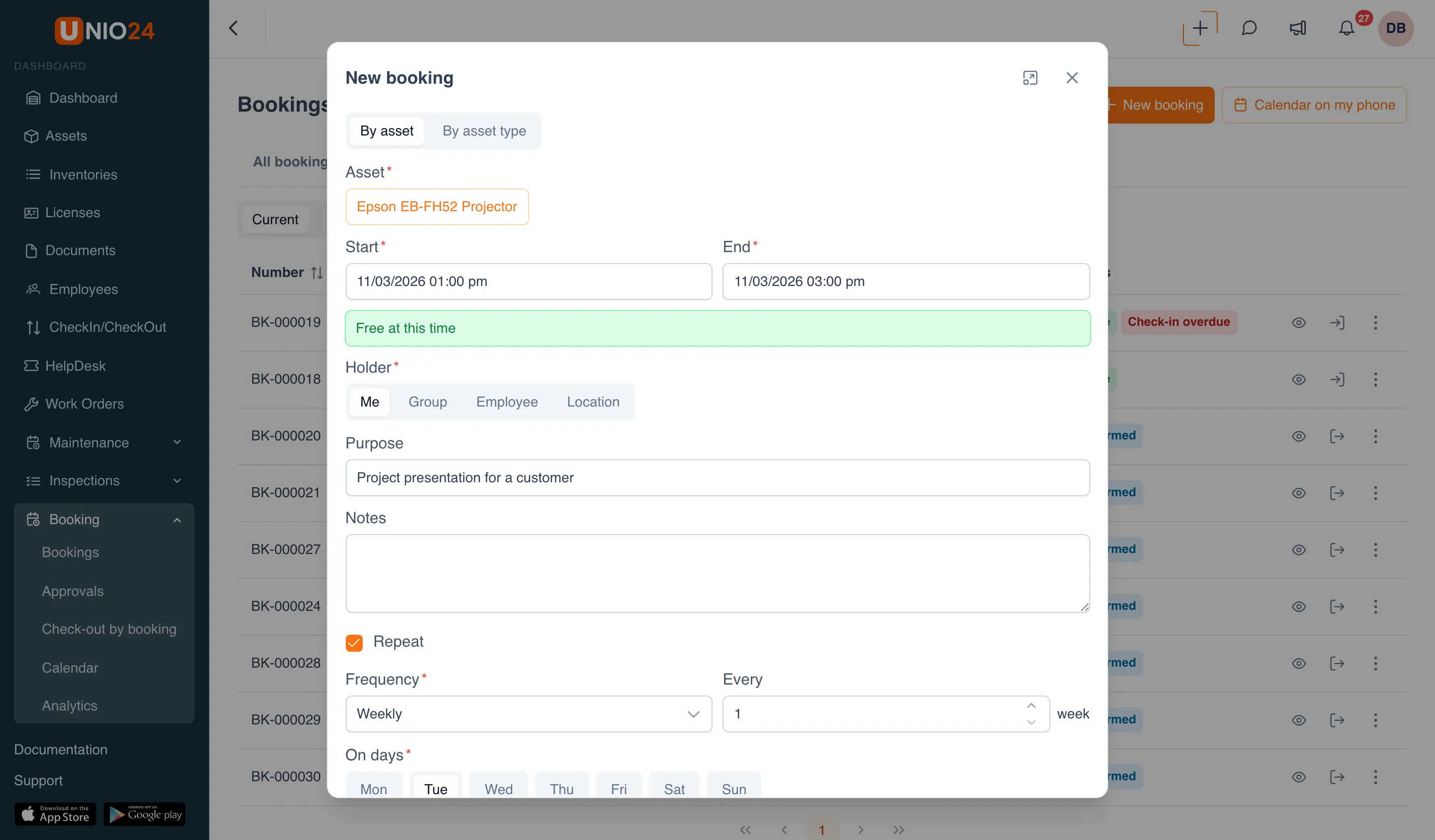
Each occurrence is created as a separate booking. Occurrences that fall on a busy time or break the rules are skipped; the form shows how many bookings were created, how many occurrences were skipped, and why. A whole series can’t be edited or cancelled at once: each booking is changed separately.
Take an asset right now
Section titled “Take an asset right now”If an asset is free right now, you can book it and check it out to yourself in one step.
- Open the asset card and go to the Booking tab.
- Click Take it now.
- Choose the Duration: 30 minutes, 1 hour, 2 hours, 4 hours, or enter your own.
- Choose the Holder.
- If the policy requires it, enter the Meter reading and carry out the inspection.
- Click Take it now.
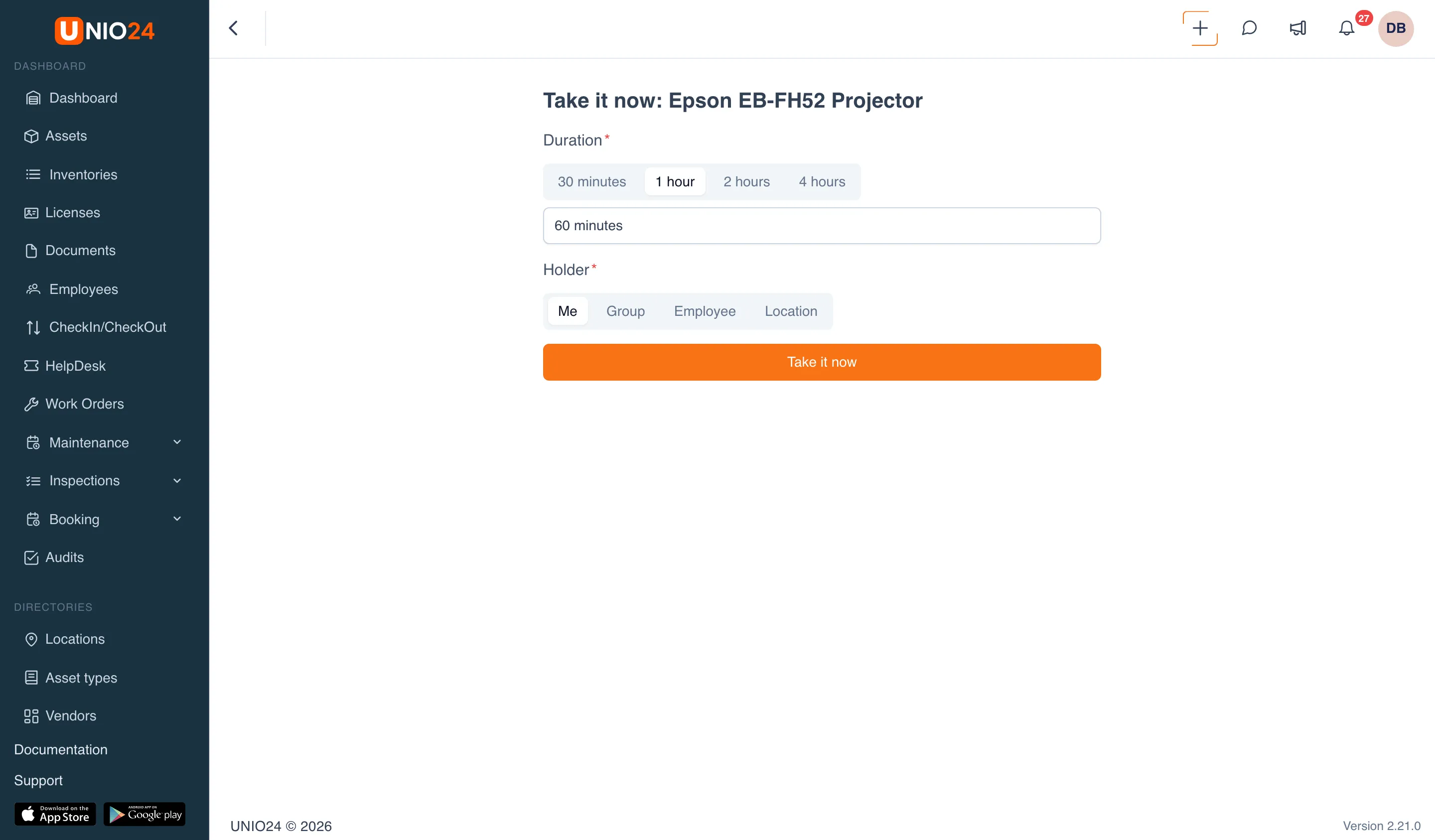
The booking is created and checked out at once. If bookings of this asset need approval, it can’t be taken right away: UNIO24 offers a Book through the form link instead.
The asset’s QR code opens the same page: an employee who can book but has no access to asset cards lands straight on “Take it now” after scanning.
My bookings
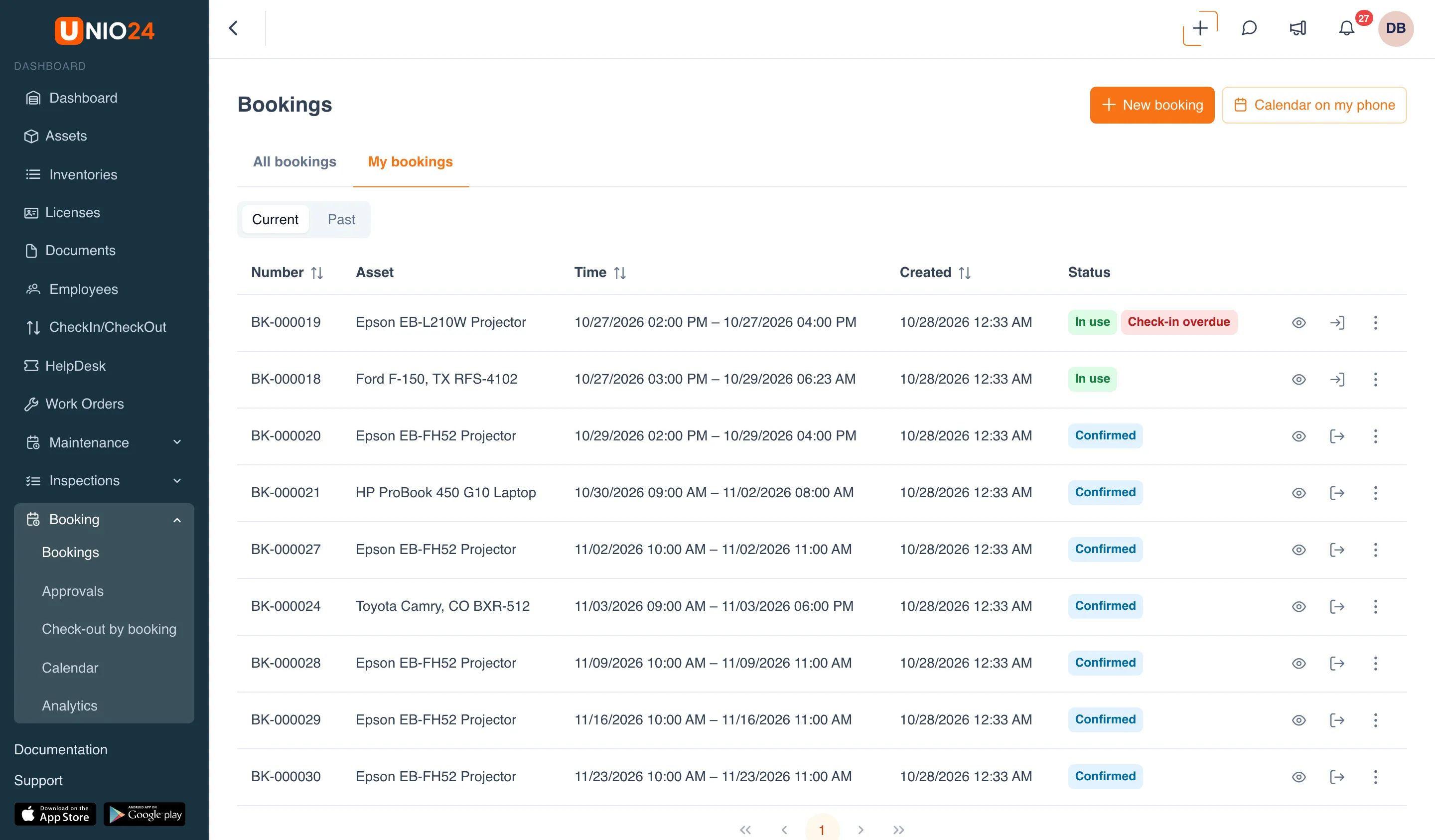
Section titled “My bookings”- Open Booking → Bookings and go to the My bookings tab.
- The Current | Past switch shows upcoming and checked-out bookings, or finished ones.
Below the list is the My watchers block: busy assets and time slots you asked to be notified about when they free up.
Booking actions
Section titled “Booking actions”The first action in a booking’s row is Open (the eye icon): the booking card opens in a window over the list. The other actions depend on the status and your permissions (two are shown in the row, the rest are in the three-dot menu):
- Approve and Reject: for a booking awaiting approval;
- Check out: for a confirmed booking; Check in: for a booking in use;
- Edit: for pending, confirmed, and in-use bookings (for one in use, only the end can change). If you extend an approved booking, it goes back for approval;
- Cancel booking: for pending and confirmed bookings. Once a booking has started, only a booking manager can cancel it;
- Delete: remove the booking from the list.
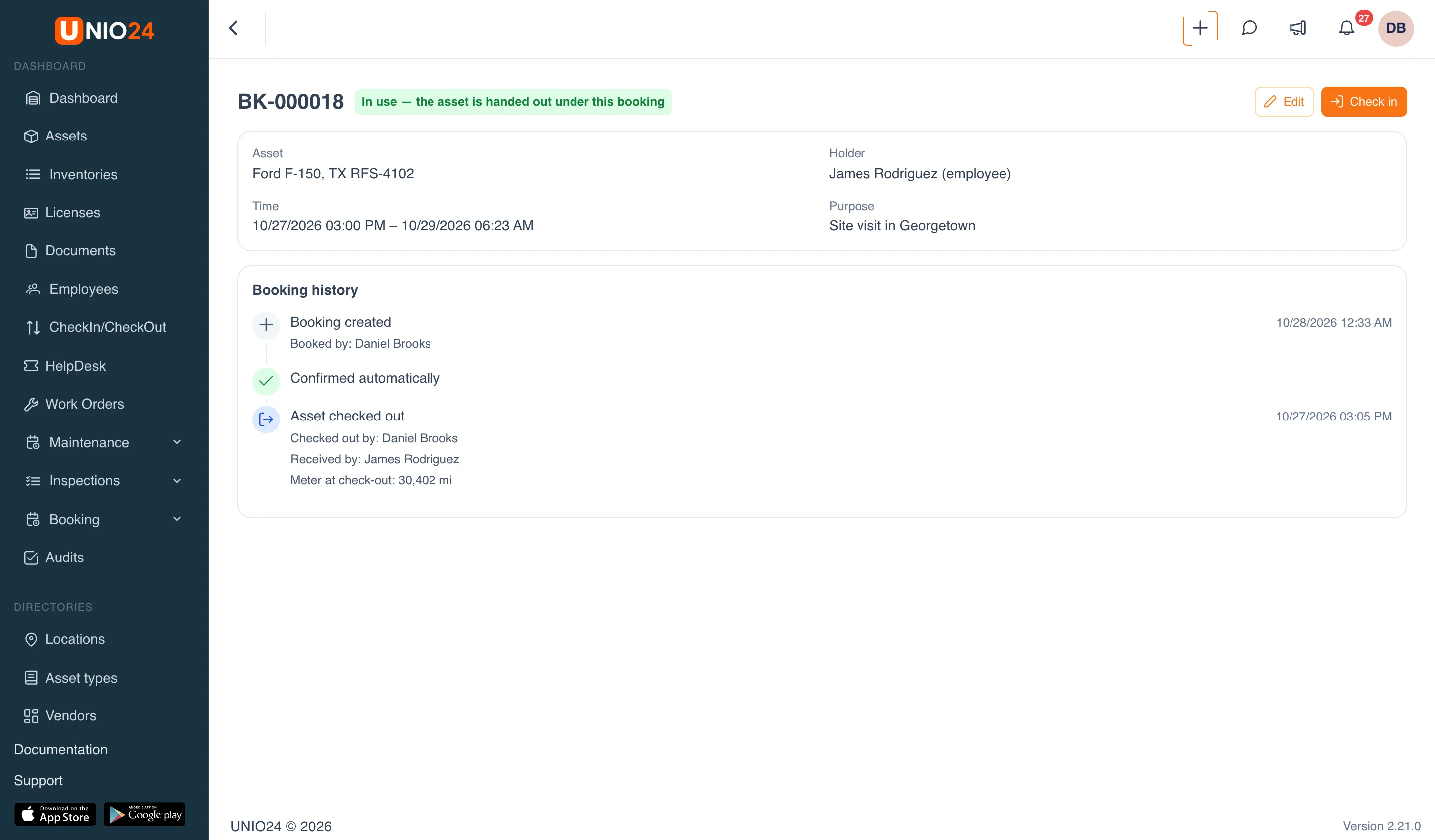
The Booking history block on the booking card shows who created, approved, checked out, and checked in the booking and when, with meter readings and links to inspections.
Filter bookings
Section titled “Filter bookings”On the All bookings tab:
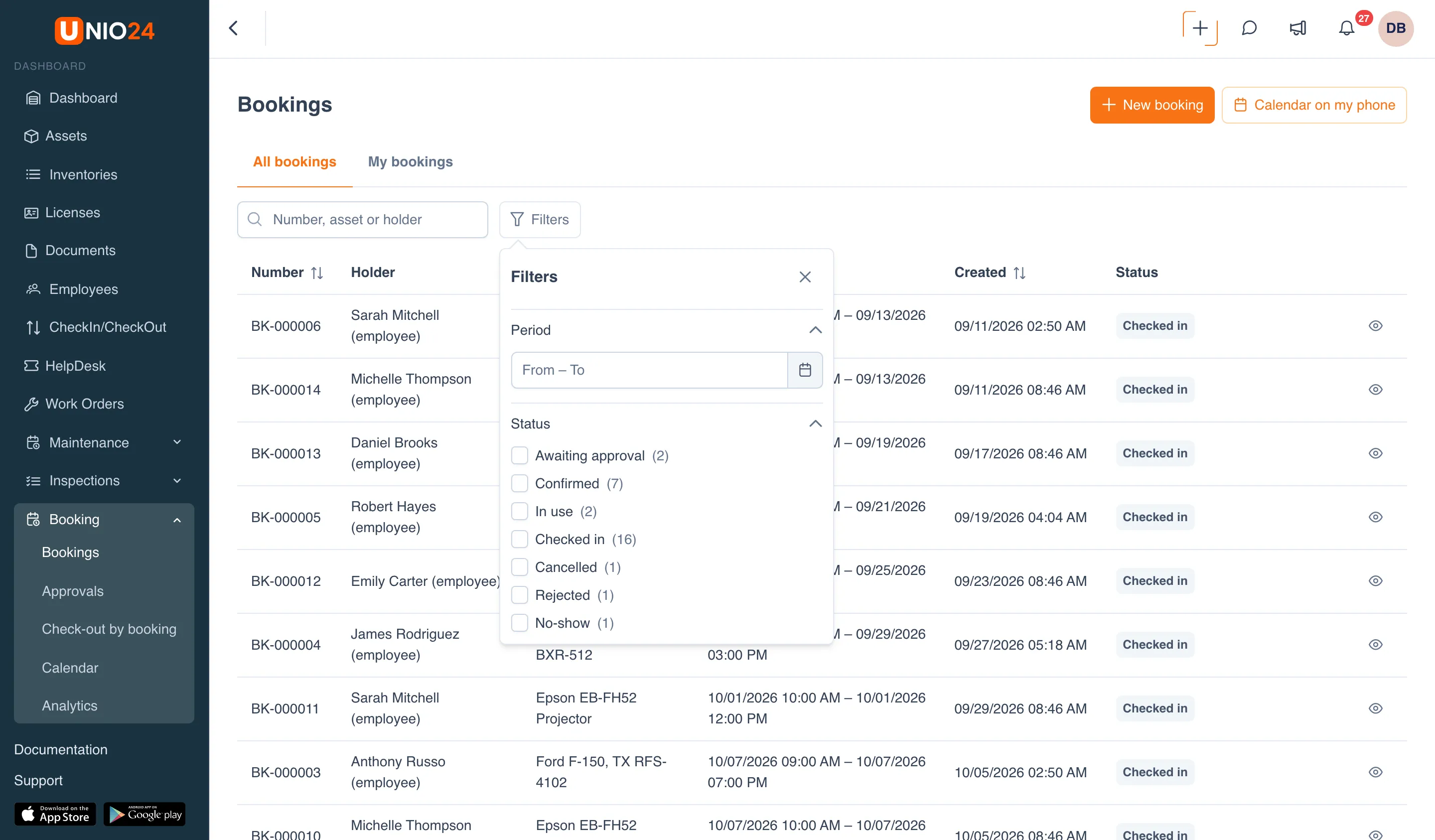
- In the Number, asset or holder box, type a booking number, an asset name, or a person’s name.
- Click Filters. In the panel, set the Period (From – To) and check the Status values you need; each status shows its number of bookings.
- To clear all filters, click Clear all.
Approve or reject a request
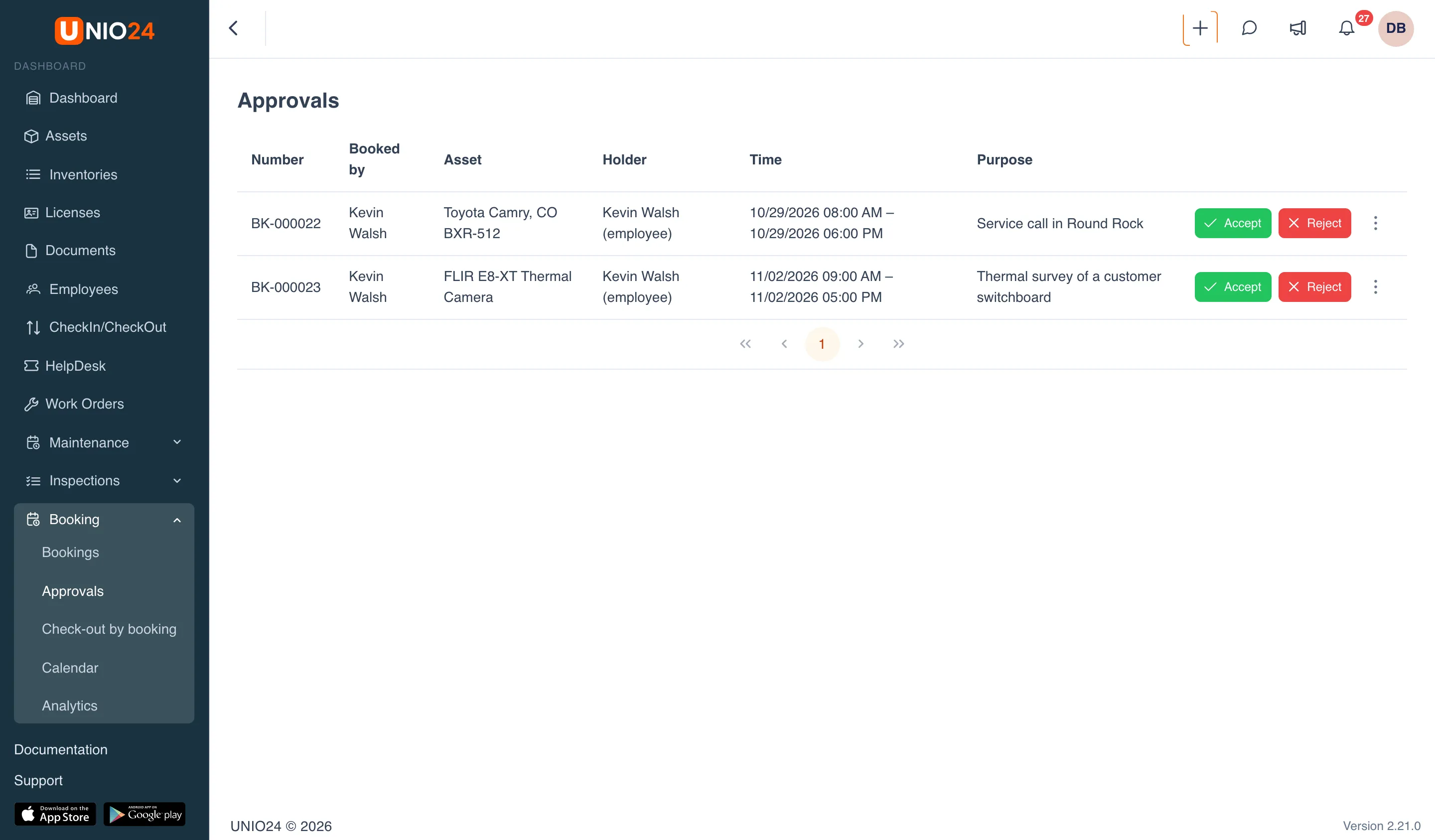
Section titled “Approve or reject a request”- Open Booking → Approvals. Only requests you are allowed to decide are listed here.
- To see a request in detail, click its row.
- Click the green Accept button to approve the request, or the red Reject button to decline it.
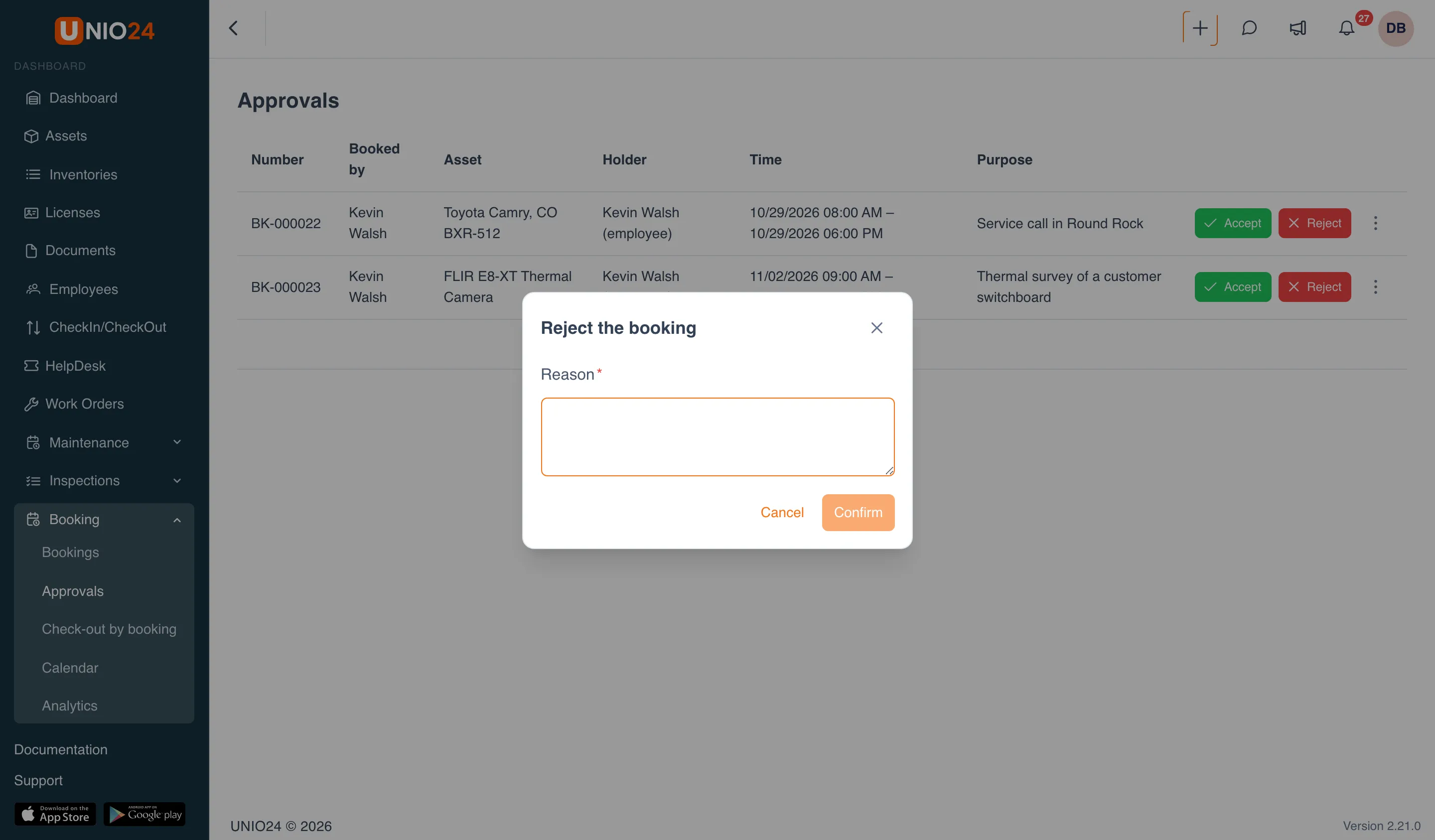
- When rejecting, enter a Reason (required) and click Confirm.
You can’t approve your own request or a request for yourself or your group: another approver or a booking manager has to do it.
Check out an asset by booking
Section titled “Check out an asset by booking”- Open Booking → Check-out by booking. This page lists bookings that can be checked out now and those already checked out. The All | To hand out | Out | Overdue switch narrows the list.
- In the booking’s row, click Check out.
- Check the summary at the top of the window: the asset, AssetID, label code, holder, and time.
- If the booking is for a group, choose Who is taking it.
- If the policy requires an inspection, click Start inspection, fill it in in the window that opens, and submit it. Until then, the check-out button is unavailable.
- If the policy requires a meter reading, choose the meter and enter the Value.
- Click Check out.
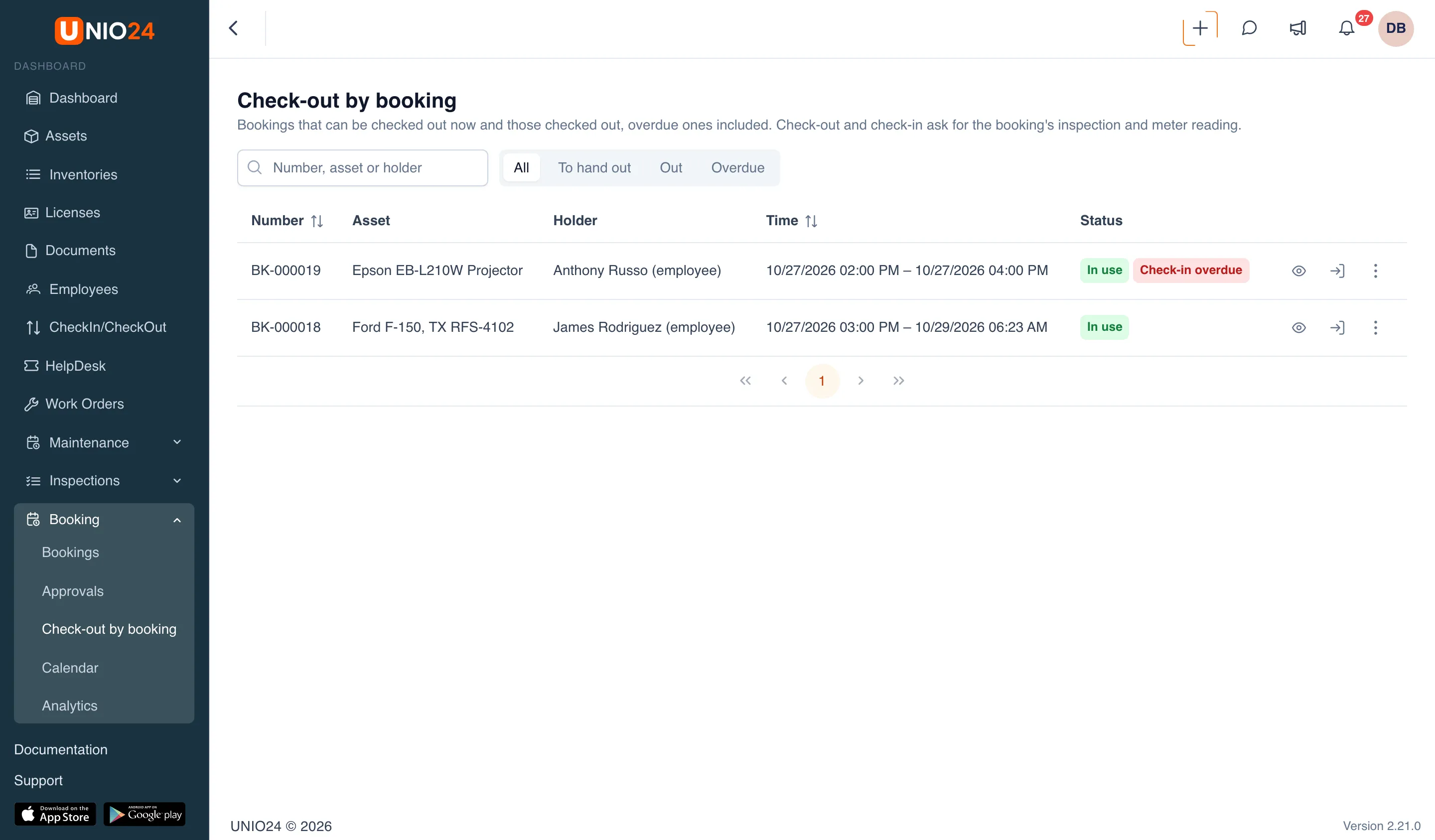
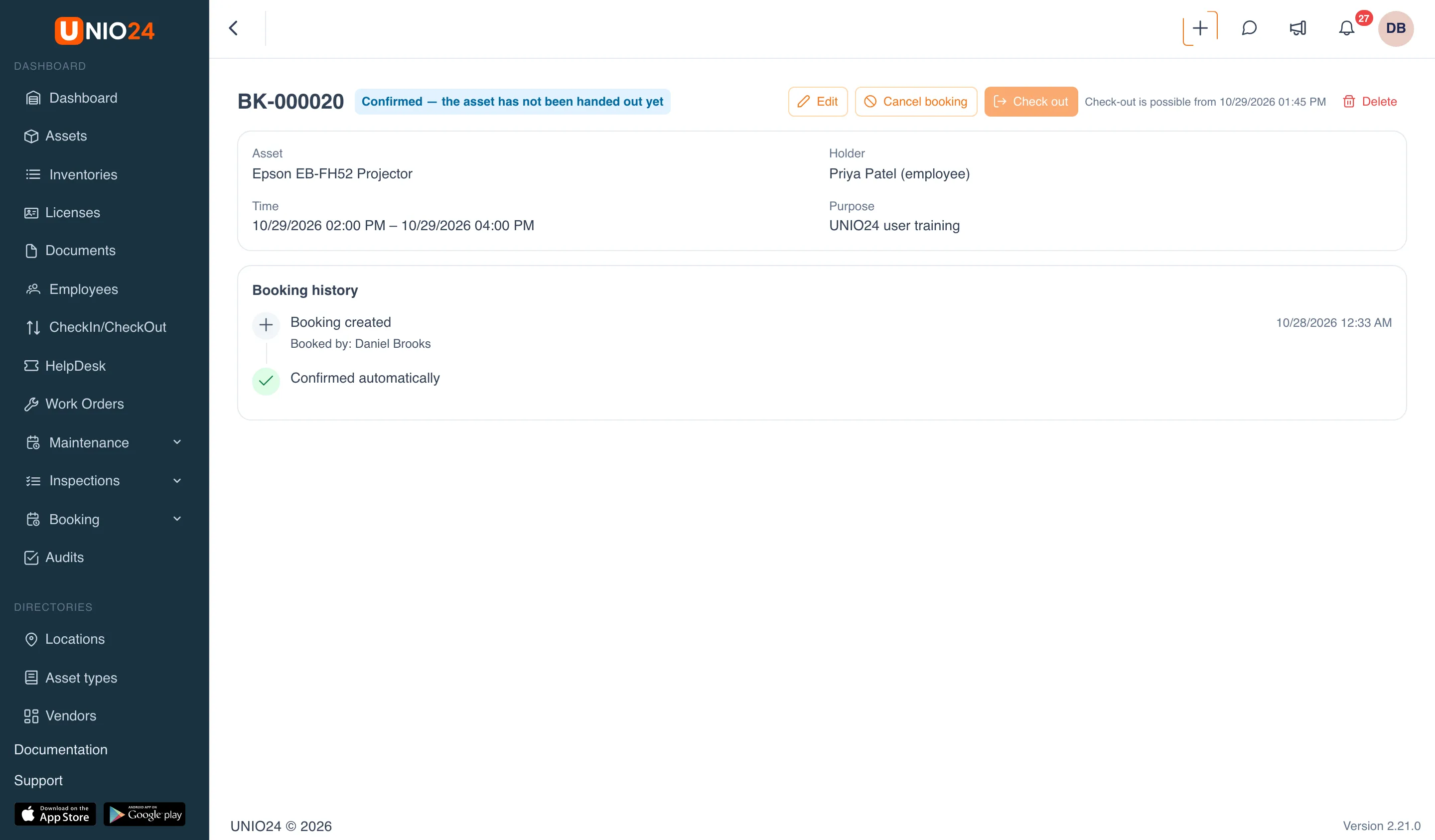
A booking can only be checked out within its check-out window. If the window hasn’t opened yet or has already closed, the Check out button on the booking card is unavailable, with “Check-out is possible from …” or “The check-out window has closed (…)” next to it.
Check in an asset by booking
Section titled “Check in an asset by booking”- Open Booking → Check-out by booking and click Check in in the row of a booking in use. Overdue bookings carry the Check-in overdue tag.
- Check the summary and, if needed, carry out the inspection and enter the meter reading.
- Choose the Check-in location: where the asset was returned.
- Click Check in.
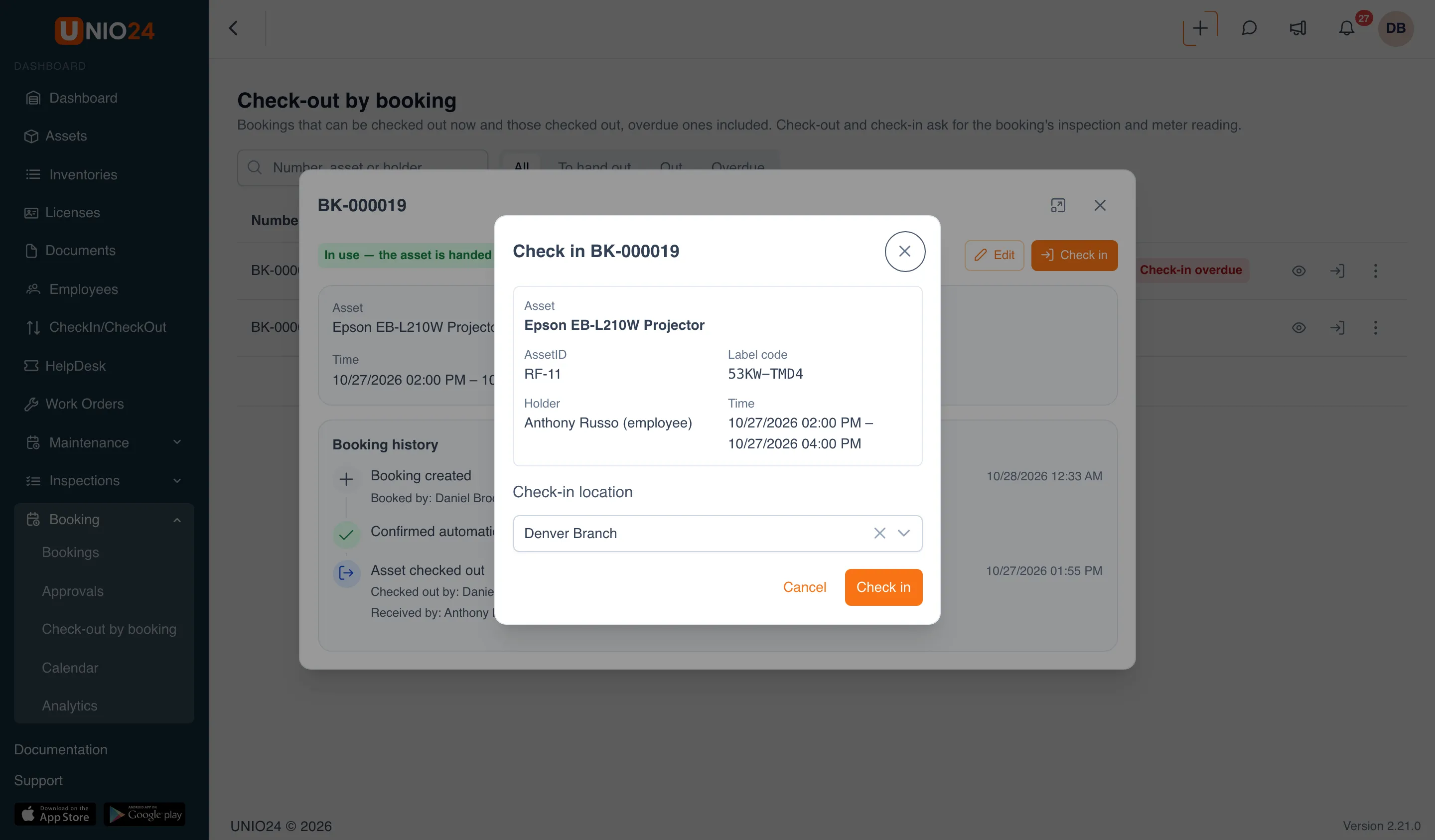
You can also check in a booking from its card or from its row in a list, with the Check in action.
Use the calendar
Section titled “Use the calendar”- Open Booking → Calendar.
- Choose the scale: Day, Week, or Month; use the arrows and Today to move between periods.
- To show only one asset type, choose it in the All types list.
The calendar has a lane for every asset with a booking in the selected period. The color of a booking shows its status; the legend is below the calendar. To create a booking, drag across a free spot in an asset’s lane; to change when a booking ends, drag its edge.
Find out when an asset frees up
Section titled “Find out when an asset frees up”If the asset you need is busy at the chosen time, UNIO24 can tell you when the other booking is cancelled or shortened.
- In the booking form, when the hint shows “Busy at this time”, click Notify me when free.
- When the asset frees up for that time, you get the “A slot opened up” notification. Its link opens the booking form with the asset and time already filled in, so all that’s left is to save the booking.
The notification comes once and doesn’t reserve the asset: until you save the booking, someone else can take it. All such requests are listed on the My bookings tab in the My watchers block; remove one you no longer need with Remove.
Add bookings to your calendar
Section titled “Add bookings to your calendar”You can see your bookings in Google Calendar, Outlook, or your phone’s calendar.
- Open Booking → Bookings and click Calendar on my phone.
- In the Personal calendar feed window, click Get link.
- Copy the link and add it to your calendar app as a subscription by URL.
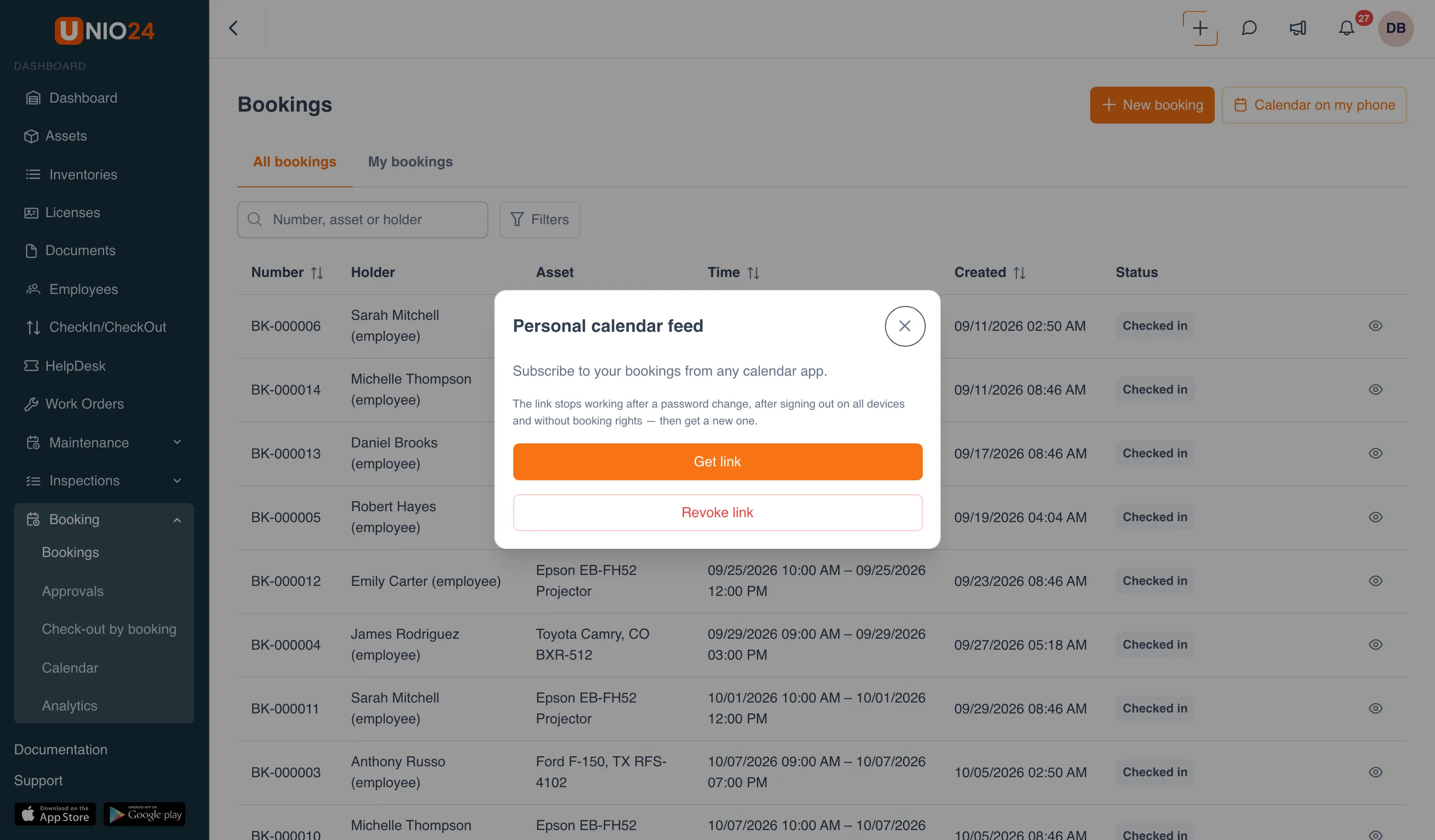
The link is shown once; a new link replaces the old one. The link stops working after a password change, after signing out on all devices, and if you no longer have booking permissions. To turn it off, click Revoke link.
Bookings on the asset card
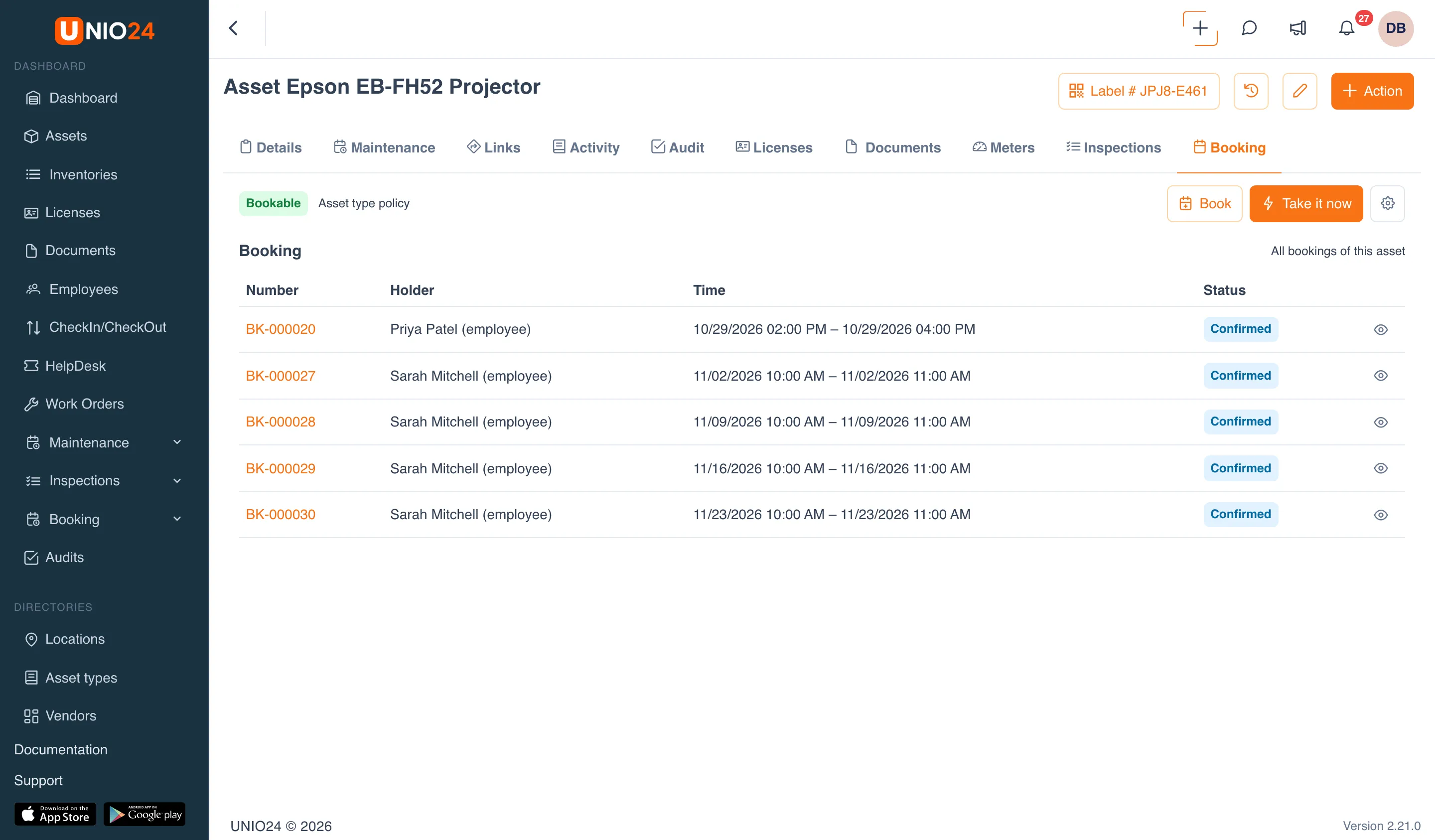
Section titled “Bookings on the asset card”On the asset card, the Booking tab shows whether the asset can be booked and why (“Bookable — Asset type policy”), its upcoming bookings, and the Book and Take it now buttons. The All bookings of this asset link opens the list filtered by this asset.
Change the booking rule for one asset
Section titled “Change the booking rule for one asset”Normally an asset is booked under its type’s policy. On the asset card, you can change that rule for this asset alone: for example, close a laptop assigned to an employee to booking while the other laptops stay bookable. This requires the Settings permission in the “Booking” group.
- Open the asset card: Assets → the asset you need.
- Go to the Booking tab. If the tab isn’t fully visible, scroll the row of tabs with the arrow on the right.
- Click Set up booking for this asset (the gear icon) to the right of the Book and Take it now buttons.
- In the Booking availability of this asset window, choose:
- Same as type: the asset is booked under its type’s policy (the default);
- Always: the asset can be booked even if its type is closed to booking;
- Never: the asset can’t be booked even if its type is open.
- Click Save.
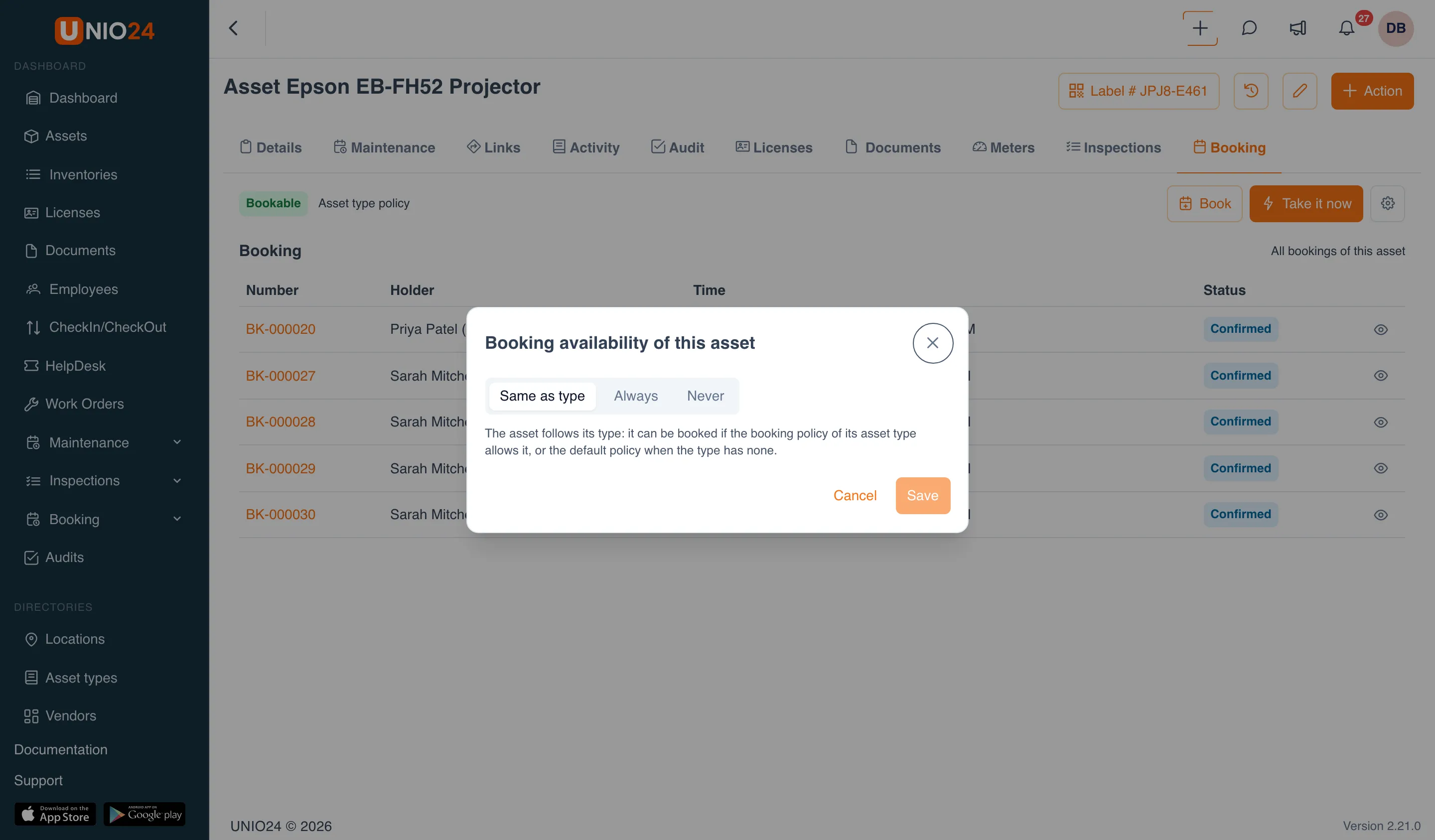
After saving, the tag at the top of the tab shows the reason: “Manual override”. All other policy rules (approval, limits, the inspection and meter reading at check-out) stay the same as for the asset’s type. If the asset has future bookings, you can’t choose Never: UNIO24 lists their numbers, so cancel or move those bookings first.
Useful links
Section titled “Useful links”- Booking: how policies, statuses, and approvals work
- Configure booking: setup
- Bookings in the mobile app: quick booking and check-out by booking on a phone