

Run inspections
This page covers the tasks of an employee who carries out inspections.
To carry out inspections, you need the Perform inspections permission. If there is no Inspections section in the menu, the module is off or you don’t have permission. Contact your administrator.
Start an inspection from the journal
Section titled “Start an inspection from the journal”- In the main menu on the left, open Inspections → Journal.
- Click Start inspection in the top right corner.
- In the Start an inspection window, choose a Template. Only active templates are listed.
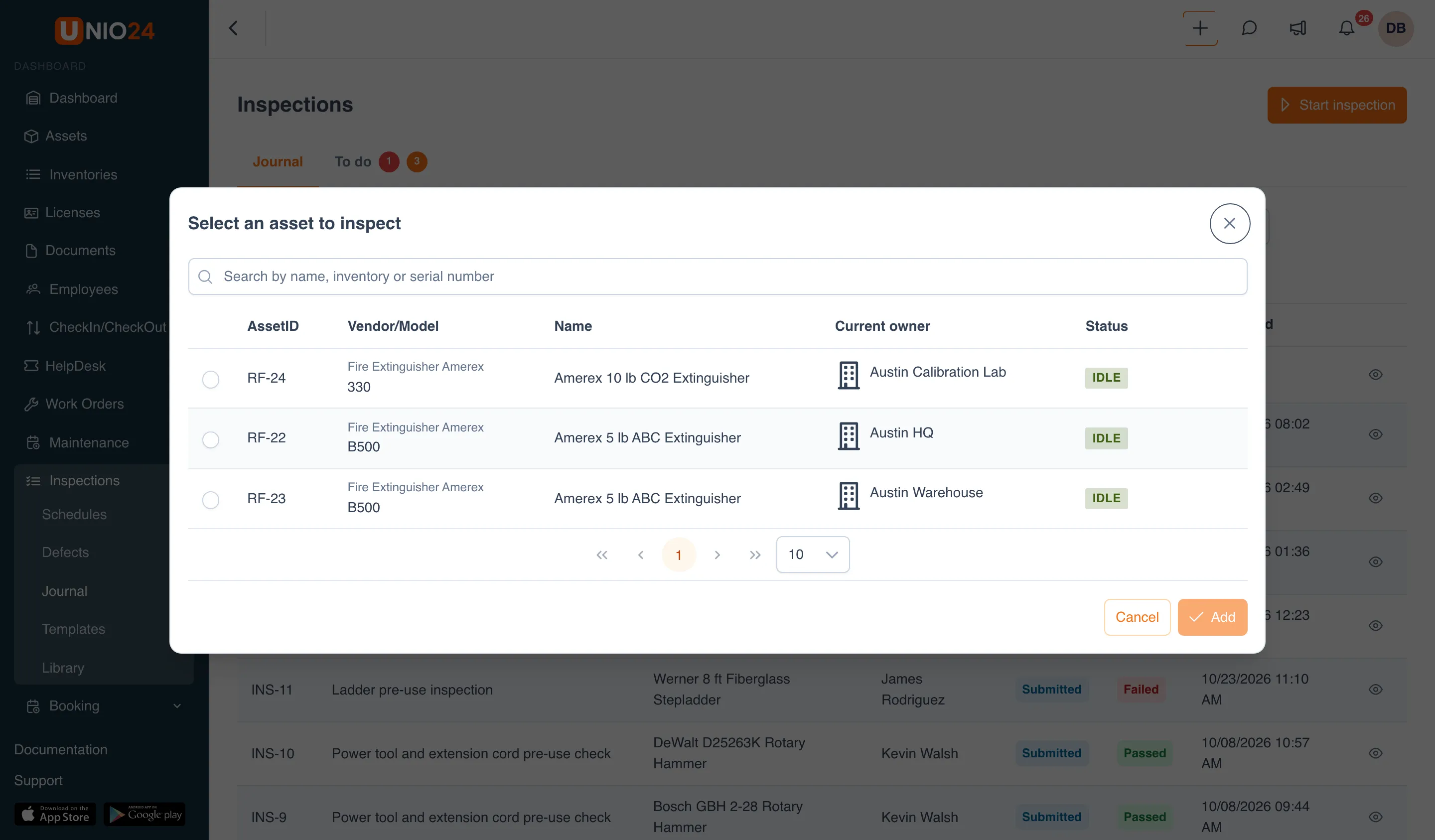
- Click Select asset.
- In the Select an asset to inspect window, find the asset by name, inventory number, or serial number, select it, and click Add. If the template has an asset type, only assets of that type are listed. Written-off assets are not shown.
- Click Start. The inspection screen opens.
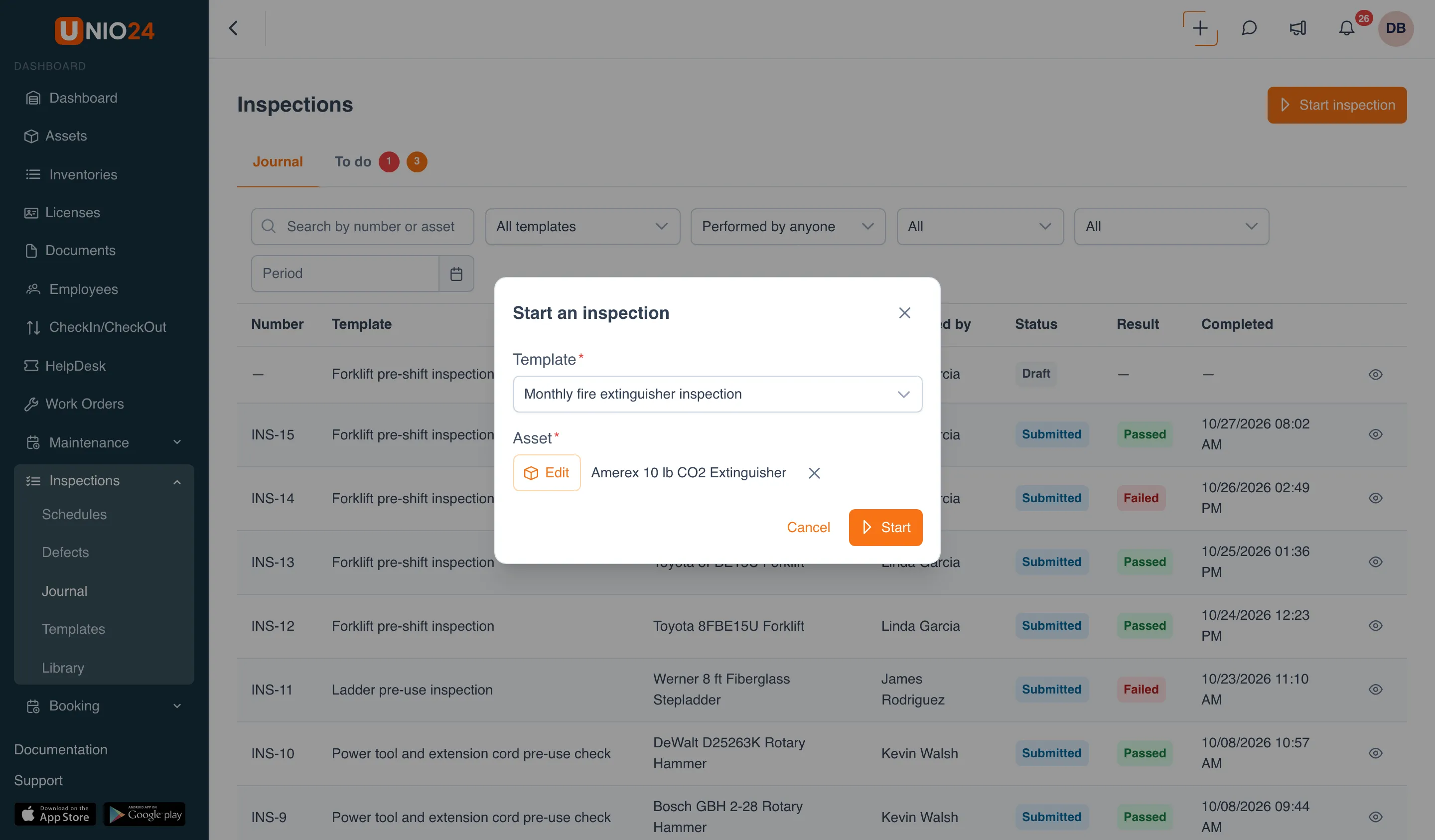
You don’t have to pick an asset: the inspection then follows the template alone, and the window shows the hint “Optional: without an asset the inspection follows the template alone.” If the template needs an asset, the hint reads “This template needs an asset.” instead.
Perform an inspection that is due
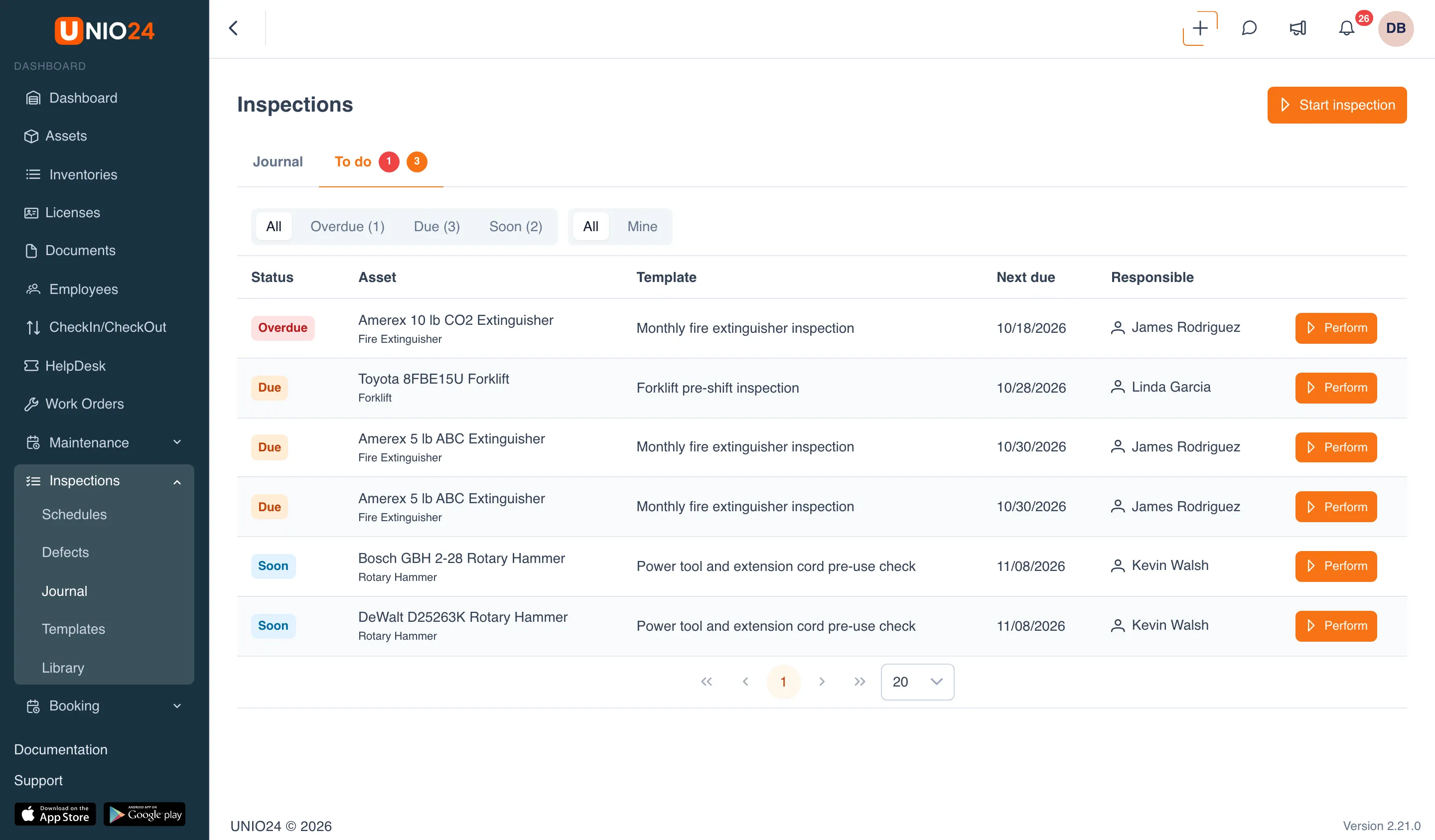
Section titled “Perform an inspection that is due”Every inspection that is overdue, due now, or due within the next two weeks is listed on the To do tab.
- Open Inspections → Journal and go to the To do tab. The red counter next to the tab name is the number of overdue inspections; the orange one is the number due now.
- To see only schedules you are responsible for, click Mine.
- To filter rows by status, click Overdue, Due, or Soon.
- In the row of the asset you need, click Perform. The inspection screen opens.
Perform an inspection from the asset card
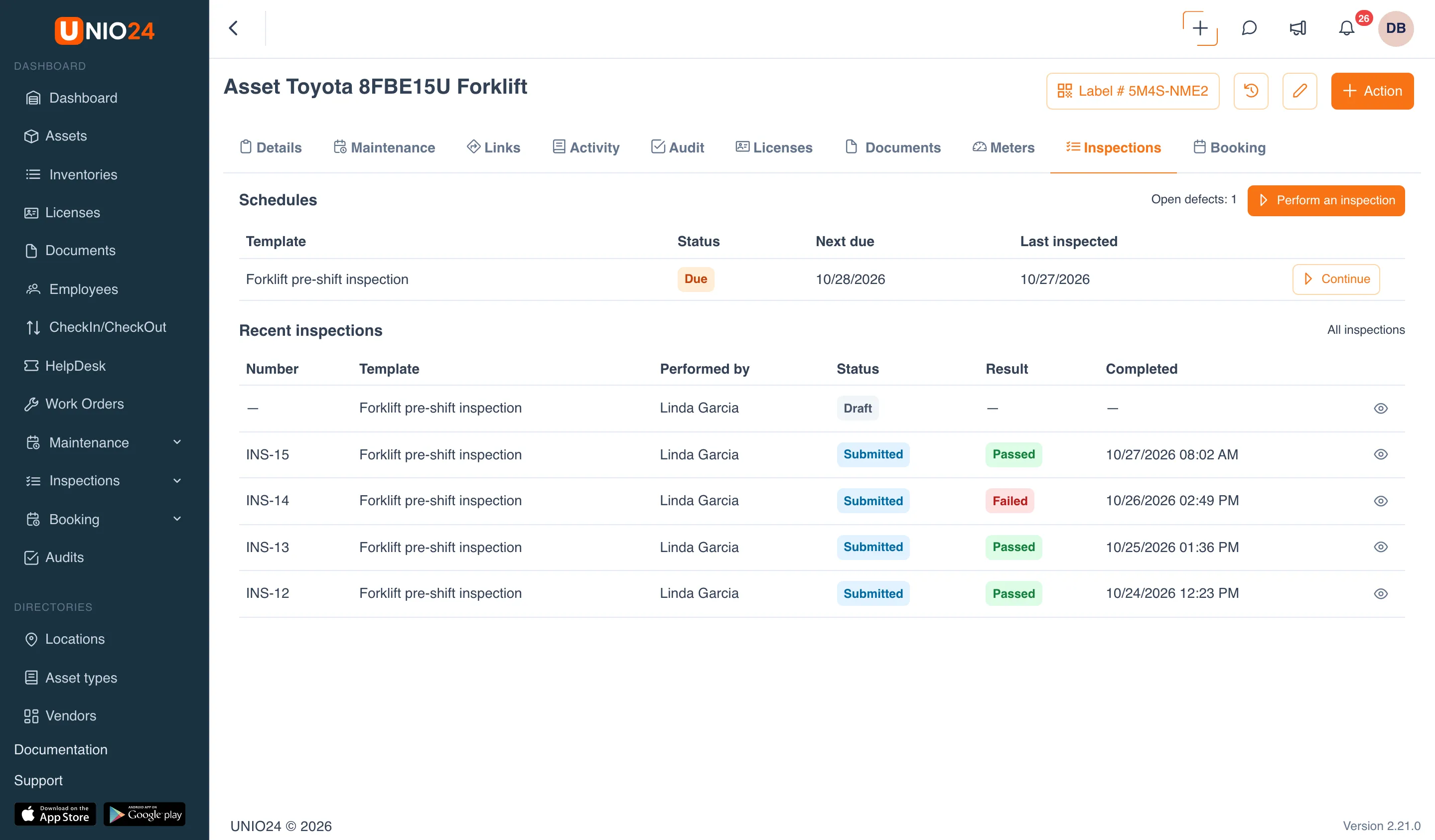
Section titled “Perform an inspection from the asset card”- Open the asset card: Assets → the asset you need.
- Go to the Inspections tab. If the tab isn’t fully visible, scroll the row of tabs with the arrow on the right.
- Click Perform an inspection. The Start an inspection window opens with the asset already selected: choose a Template and click Start. If an inspection under a schedule has already been started, the schedule row has a Continue button.
The same tab shows the schedules that cover the asset, with their status and next due date, and the five most recent inspections. The All inspections link opens the journal filtered by this asset.
Fill in and submit an inspection
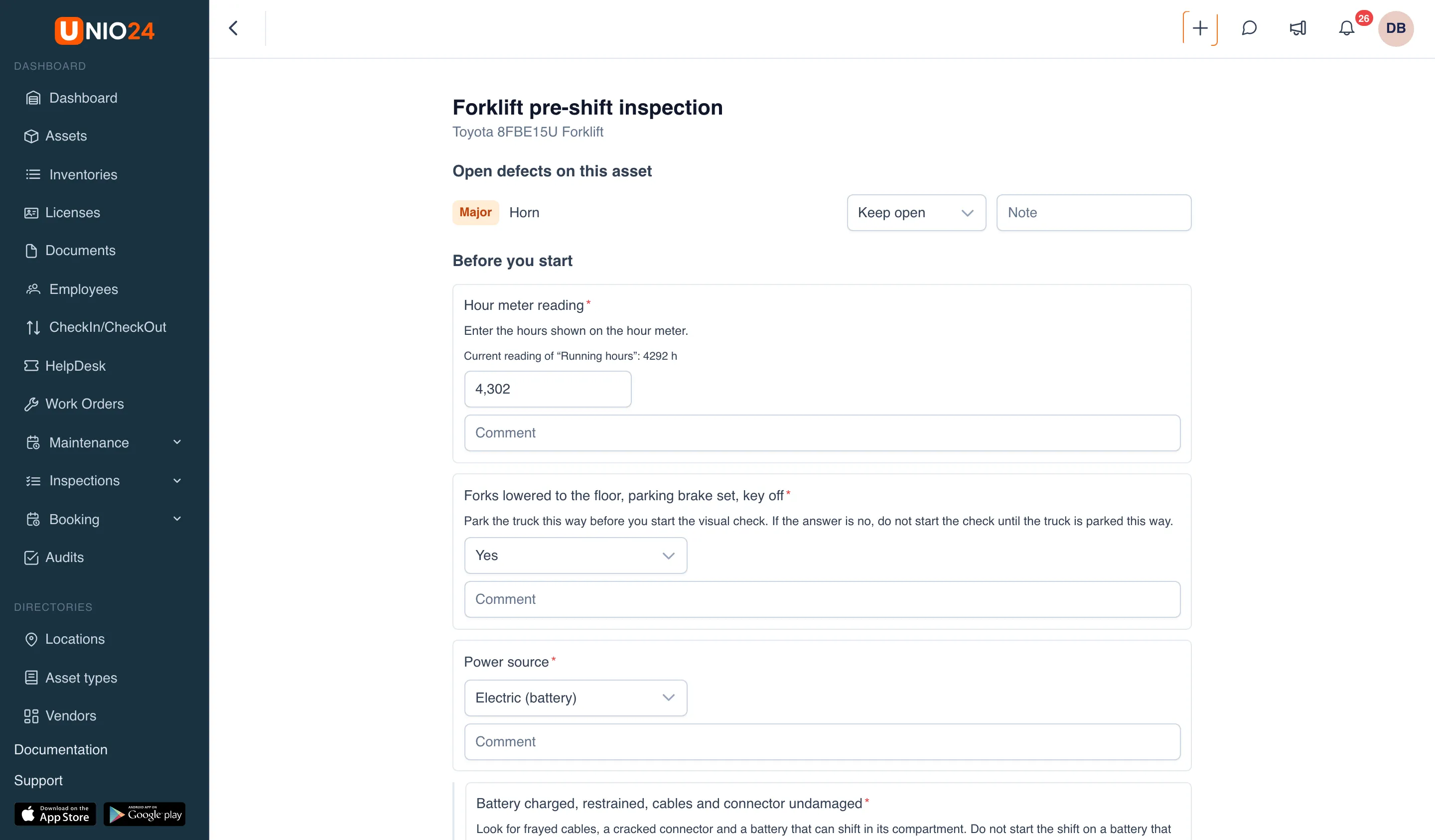
Section titled “Fill in and submit an inspection”On the inspection screen, items are grouped by the template’s sections. Required items are marked with a red asterisk, and an item may have instructions under its name explaining what exactly to check.
- Answer every item:
- Pass / fail: click Pass or Fail;
- Yes / no: click Yes or No;
- Number: enter the value; if the item has an allowed range, a value outside it fails the item;
- Choice: pick an option from the list;
- Rating: click the number of stars;
- Meter reading: enter the reading. The asset’s current meter reading is shown above the field, and the new one can’t be lower;
- Photo: click Upload photos and choose a picture;
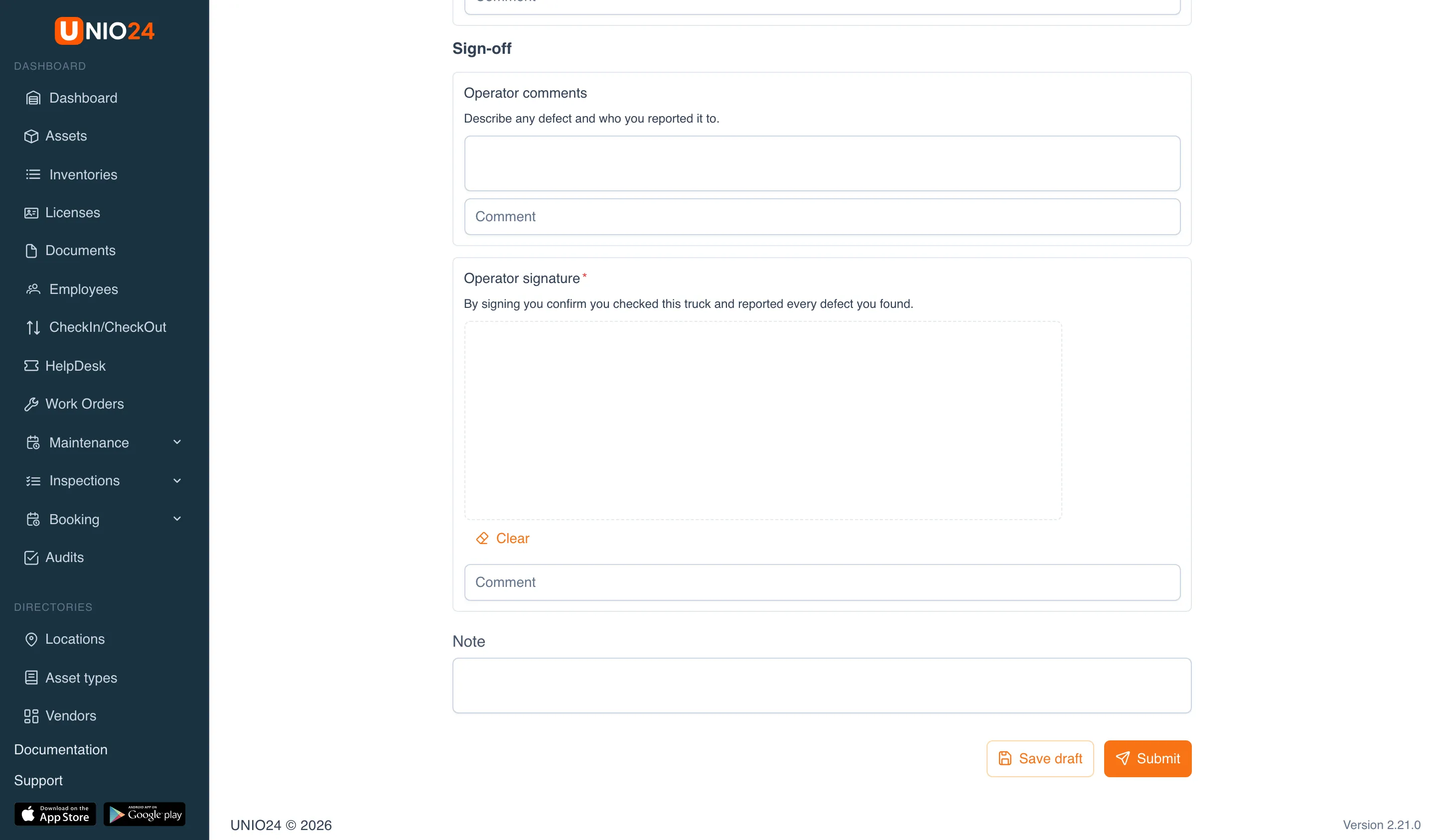
- Signature: sign in the box with a mouse or a finger. The Clear button erases the signature.
- If an item fails, describe the problem in the Comment field under it. The comment is copied into the defect.
- If the template has a repeatable section, click Add record to fill it in once more. Remove record deletes a record you don’t need.
- To stop and come back later, click Save draft at the bottom of the screen.
- When every required item is answered, click Submit and confirm. The inspection is saved in UNIO24.
Once submitted, the inspection gets a number and a result, and defects are recorded for the failed items. A submitted inspection can only be corrected with a reason; see Correct a submitted inspection.
Open defects during an inspection
Section titled “Open defects during an inspection”If the asset already has open defects, the inspection screen shows the Open defects on this asset block at the top. For each defect you can say right away what has happened to it:
- Keep open: the defect stays as it is;
- Fixed: the defect is closed when the inspection is submitted;
- Waived: the defect is closed as waived (available with the Correct inspections and waive defects permission).
Use the Note field next to it to explain the decision.
View an inspection result
Section titled “View an inspection result”- Open Inspections → Journal.
- Narrow the list with the filters if needed: search by number or asset, All templates, Performed by anyone, status, result, and Period.
- At the end of the row, click Open inspection (the eye icon).
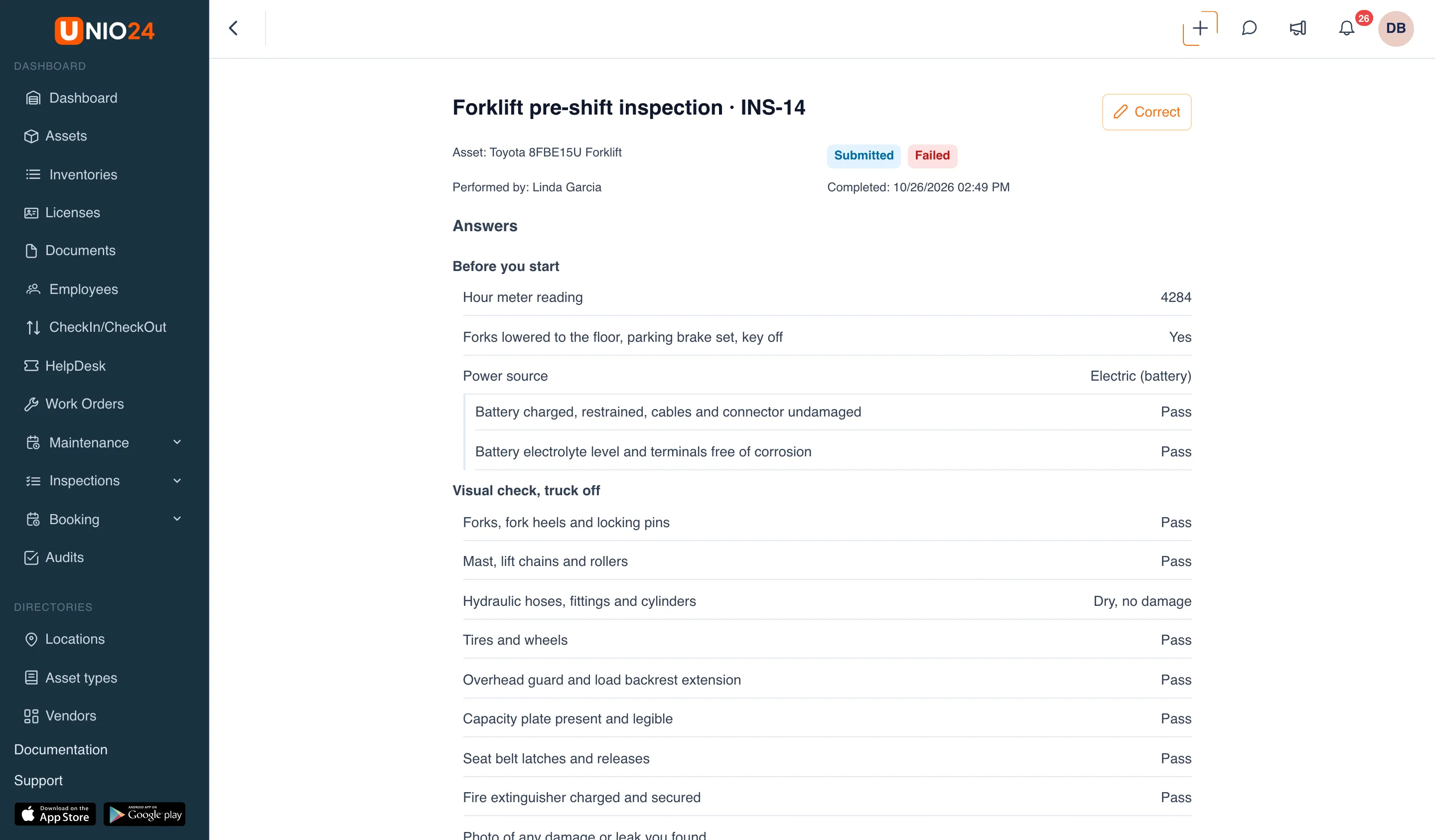
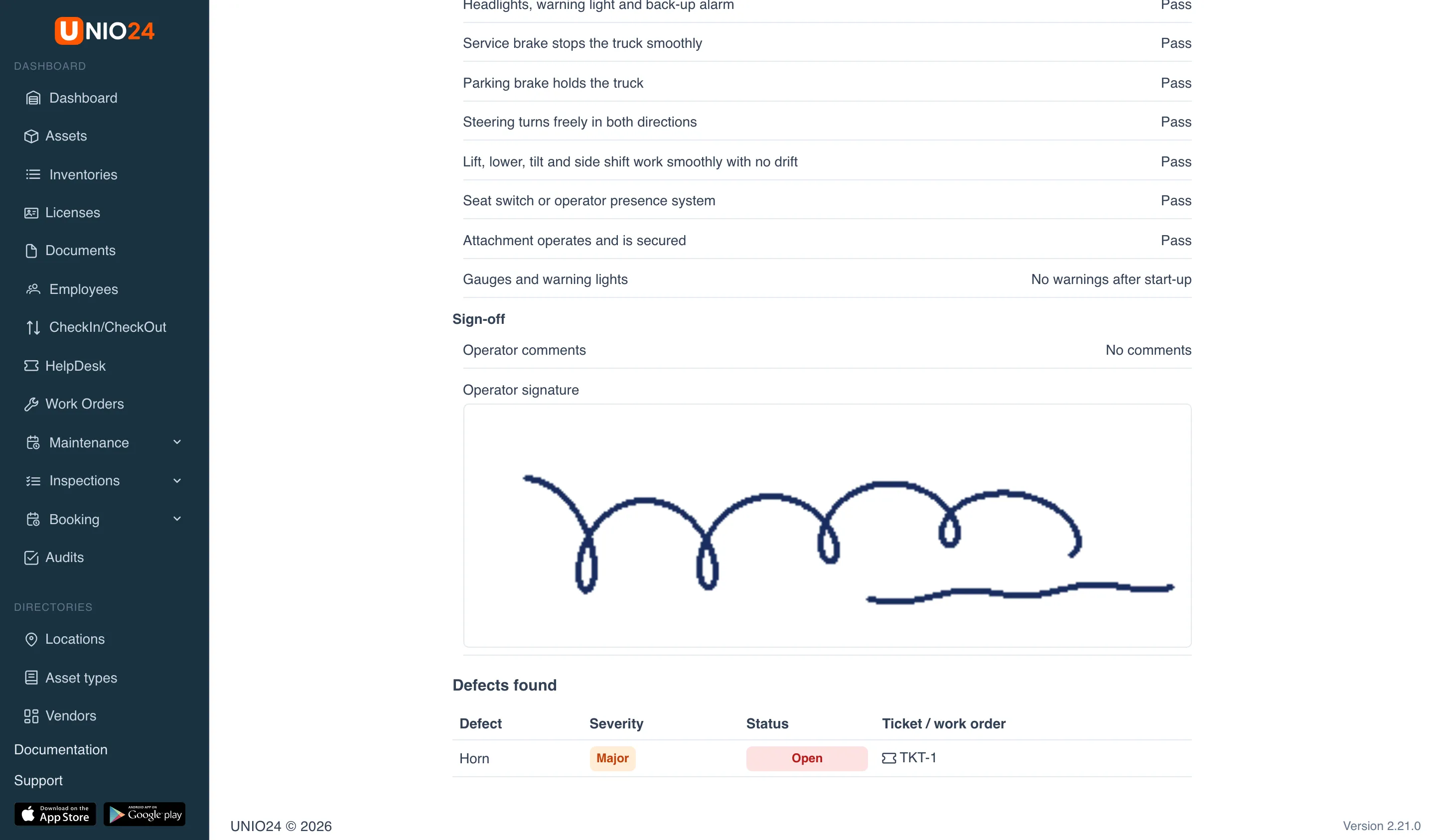
The inspection card shows the asset, who performed the inspection and when, its status and result, all answers by section, and the Defects found block, with each defect’s severity, status, and a link to its ticket or work order, if one was created.
Correct a submitted inspection
Section titled “Correct a submitted inspection”Submitted inspections can be corrected by users with the Correct inspections and waive defects permission.
- Open the inspection card.
- Click Correct.
- Change the answers you need. Signatures and meter readings can’t be changed in a correction.
- Click Save correction.
- In the Reason for the correction field, explain why you are changing the answers, and save.
The result is recalculated, and the card gets a line showing who corrected the inspection, when, and why. The number, completion time, and any defects, tickets, and work orders already created don’t change: close defects that no longer apply by hand.
Close a defect
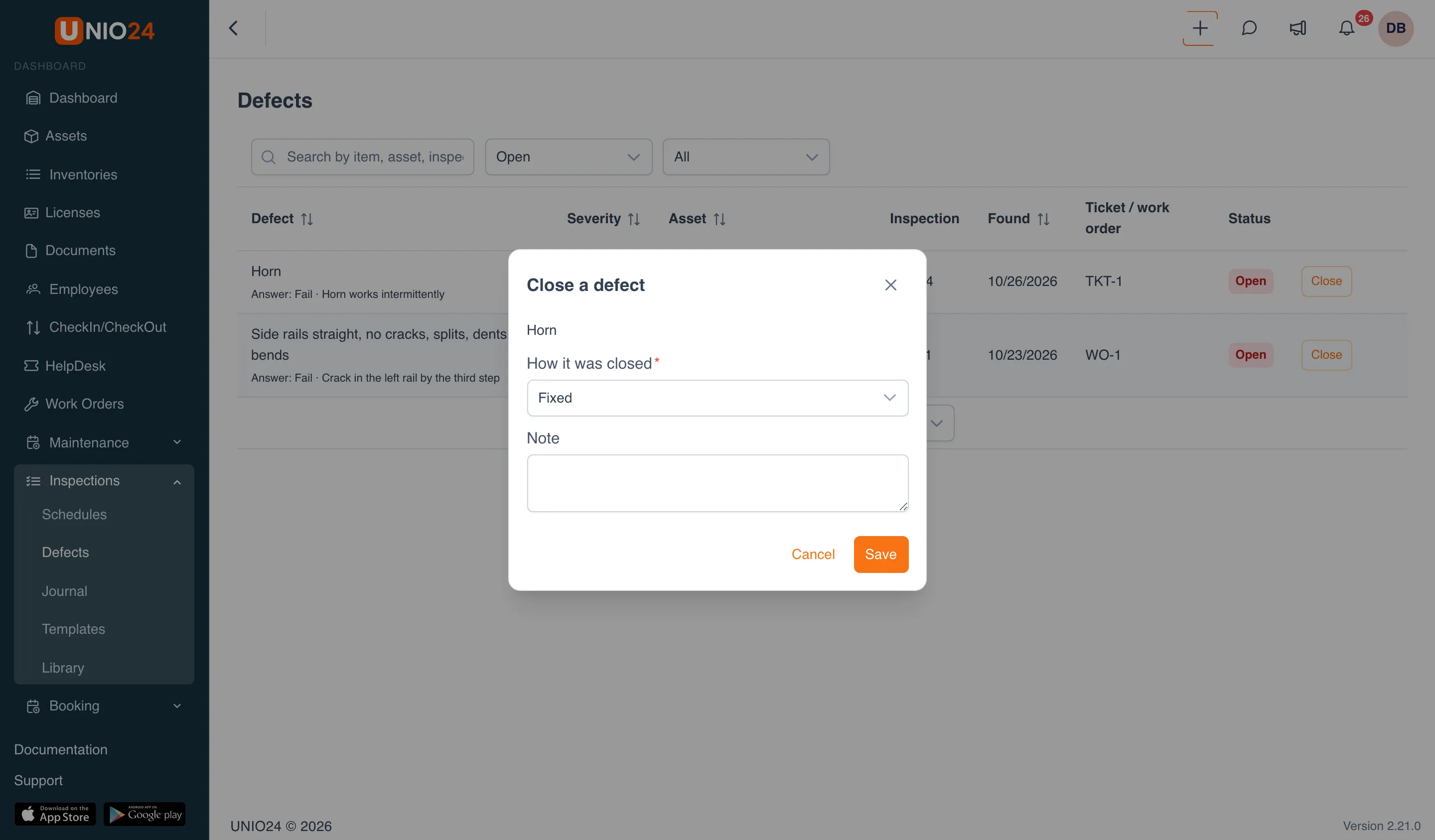
Section titled “Close a defect”- Open Inspections → Defects. Open defects are shown by default; use the status filter to choose All, Fixed, or Waived, and the severity filter to choose a severity.
- In the defect’s row, click Close.
- In the Close a defect window, under How it was closed, choose:
- Fixed: the problem has been fixed;
- Waived: the defect won’t be fixed (available with the Correct inspections and waive defects permission).
- Fill in the Note if needed.
- Click Save.
If a ticket was opened for the defect, a comment about the closing is added to it. A defect linked to a ticket or a work order also closes on its own when that ticket or work order is done.
Run work order inspections
Section titled “Run work order inspections”If inspections have been added to a work order, its card has an Inspections block on the right, with Inspections before the work and Inspections after the work.
- Open the work order: Work Orders → the work order you need.
- In the Inspections block, click Run next to the template. An inspection that has already been started is resumed with Continue.
- Fill in and submit the inspection as described above. You are then taken back to the work order card.
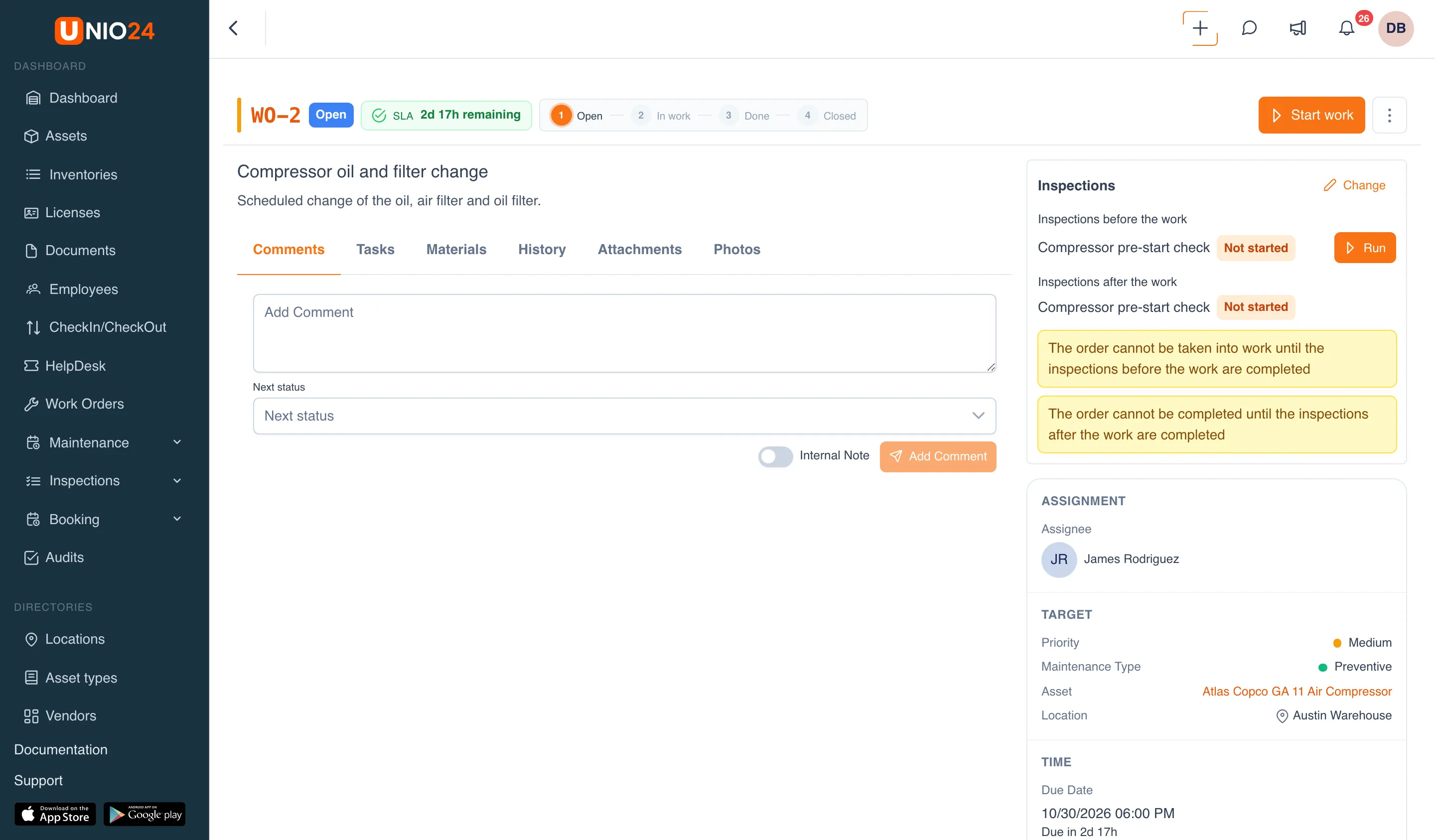
Inspections after the work can only be started once the work order has been taken into work.
Run an inspection at check-out or check-in
Section titled “Run an inspection at check-out or check-in”If an inspection at check-out or check-in is set up for the asset type, the check-out (or check-in) form has an Inspection at check-out (Inspection at check-in) block. The mode is shown next to the template: Optional or Required.
- Start the check-out as usual: for example, on the asset card click Action → Check Out and choose the Responsible person.
- In the Inspection at check-out block, click Carry out the inspection.
- The inspection opens in a window over the form. Fill it in and click Submit.
- When the block shows Inspection carried out, click Save.
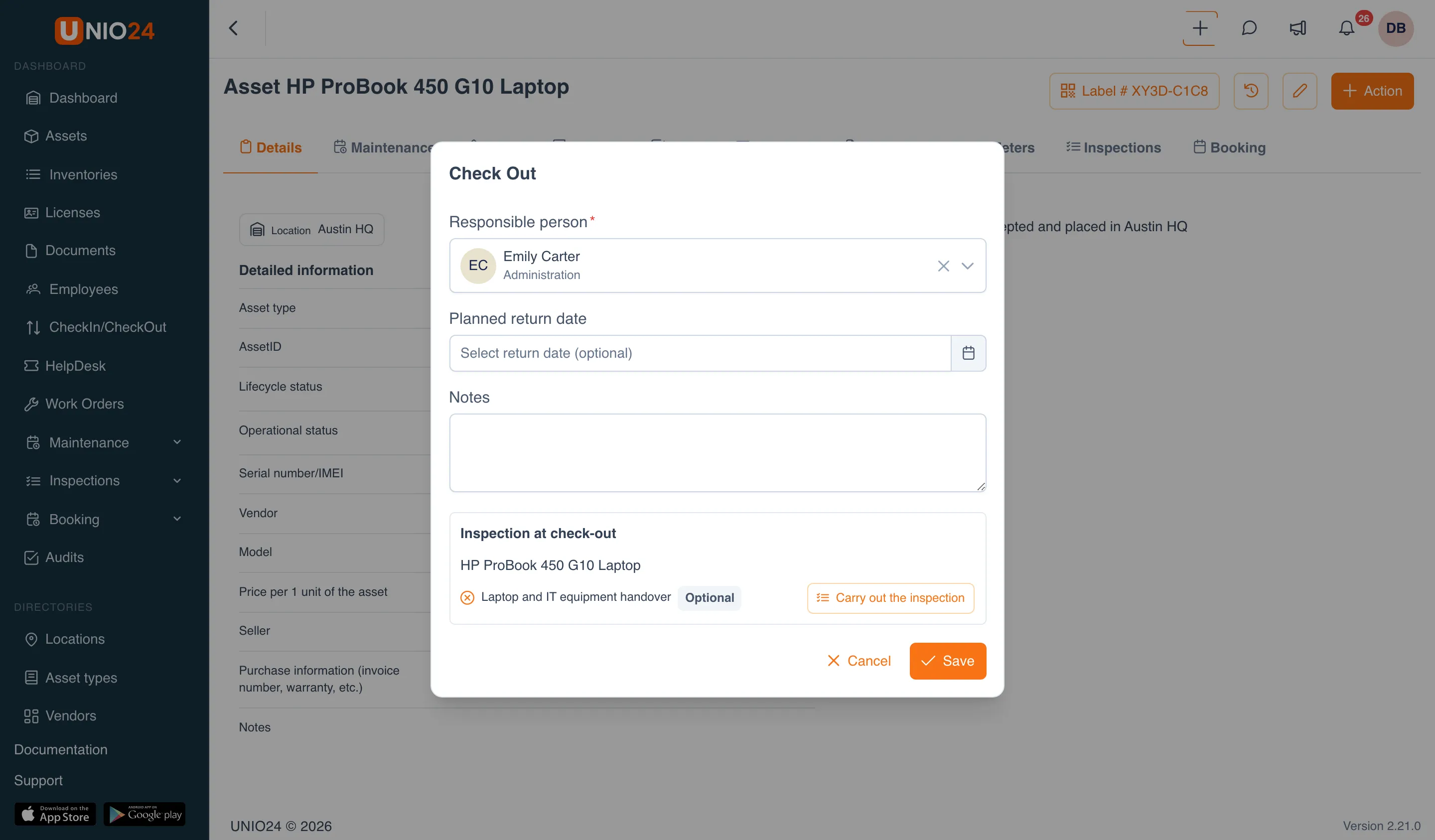
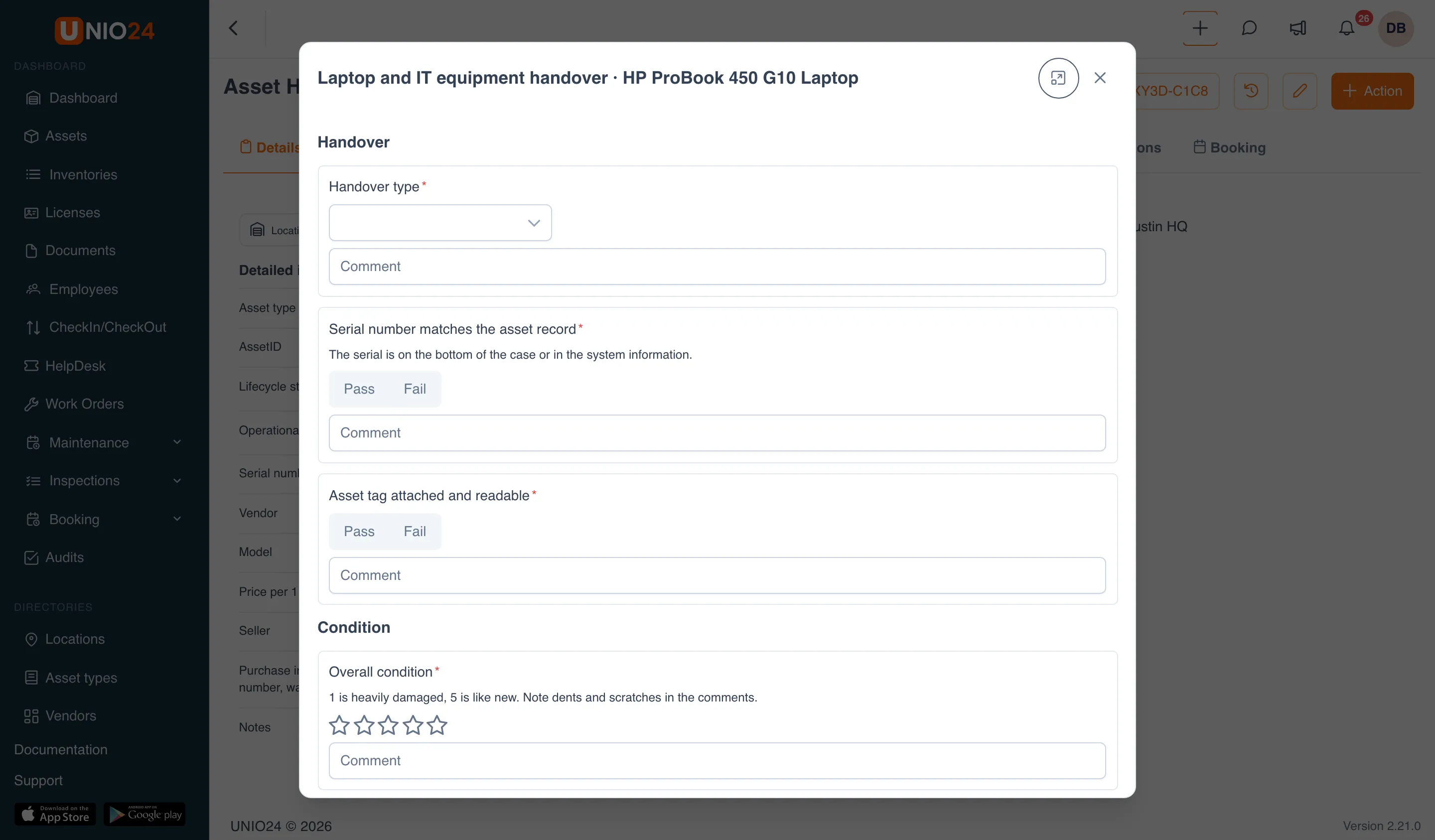
If the inspection is required, the Save button stays unavailable until the inspection is done. An inspection counts if it was submitted no more than 24 hours earlier and hasn’t been used for another check-out, check-in, or work order.
Useful links
Section titled “Useful links”- Inspections: how templates, results, and defects work
- Configure inspections: preparing templates and schedules
- Inspections in the mobile app: how to inspect on a phone, including offline