

Work with maintenance schedules
This page collects the day-to-day tasks of preventive maintenance.
Find what’s due for service
Section titled “Find what’s due for service”- In the main menu on the left, open Maintenance → Schedules.
- Schedules are sorted by the next due date: overdue ones on top, then due and upcoming ones. Click the Next Due column header to change the order.
- To find a specific asset or plan, type its name in the Search schedules box.
- To narrow the list by status or plan, click Filters and choose a Status (Upcoming, Due, Overdue) and/or a Plan.
The Days Until Due column shows how many days are left or how many days the date is overdue. If the plan counts by meter, the Meter Target column shows the current reading and the reading at which service comes due. The Open Work Order column shows the number of a work order already created for the schedule.
Buttons in a schedule row
Section titled “Buttons in a schedule row”Each row has four actions on the right. Hover over a button to see its name.
- Generate work order: create a work order for the schedule right now, without waiting for the due date;
- Skip: skip the current due date;
- Count start: see what the due date is counted from and change the count start for this asset;
- Complete: record service that was done without a work order.
If a work order is already open for the schedule, Skip and Complete are unavailable: the work order records the service itself once it’s completed. The same buttons are on the asset card, on the Maintenance tab → Schedules.
Create a work order ahead of schedule
Section titled “Create a work order ahead of schedule”Normally the work order is created on its own when the date comes up. If the job needs to be done sooner:
- Open Maintenance → Schedules.
- In the asset’s row, click Generate work order.
The work order appears under Work Orders with the job plan’s tasks and materials, and its number shows in the Open Work Order column. This doesn’t move the schedule’s due date: the next date is worked out once the work order is completed.
The button is unavailable if the plan is set to Log only, if a work order is already open for the schedule, or if you don’t have the right to create work orders. If the plan is paused, UNIO24 asks “The plan is paused. Create a work order anyway?”
Mark service as done
Section titled “Mark service as done”Use this for Log only plans or for work that was done without a work order.
- Open Maintenance → Schedules.
- In the asset’s row, click Complete.
- In the Complete Schedule window, fill in:
- Completed At: the date the work was done. It can’t be in the future;
- Meter Value: the reading at the time of service, if the plan counts by meter;
- Cost: what the work cost;
- Note: if needed.
- Click Save.
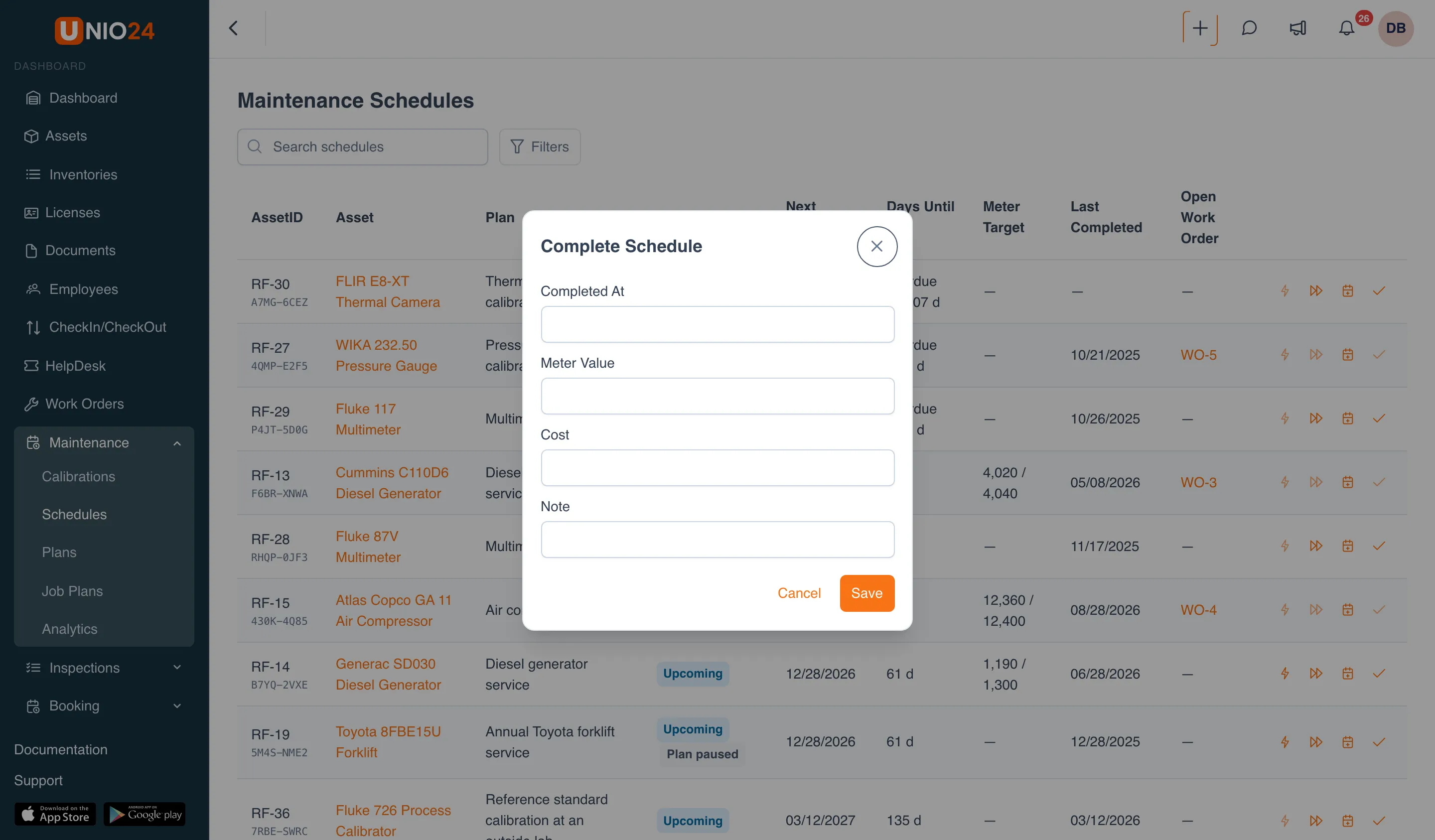
The completion goes into the asset’s maintenance history, and the next due date is recalculated. A completion can be recorded only once per date.
Skip a due date
Section titled “Skip a due date”If the service won’t be done this time, for example because the equipment is being upgraded or a branch office is closed for renovation:
- Open Maintenance → Schedules.
- In the asset’s row, click Skip.
- In the Skip Schedule window, explain in the Note why the date is skipped.
- Click Save.
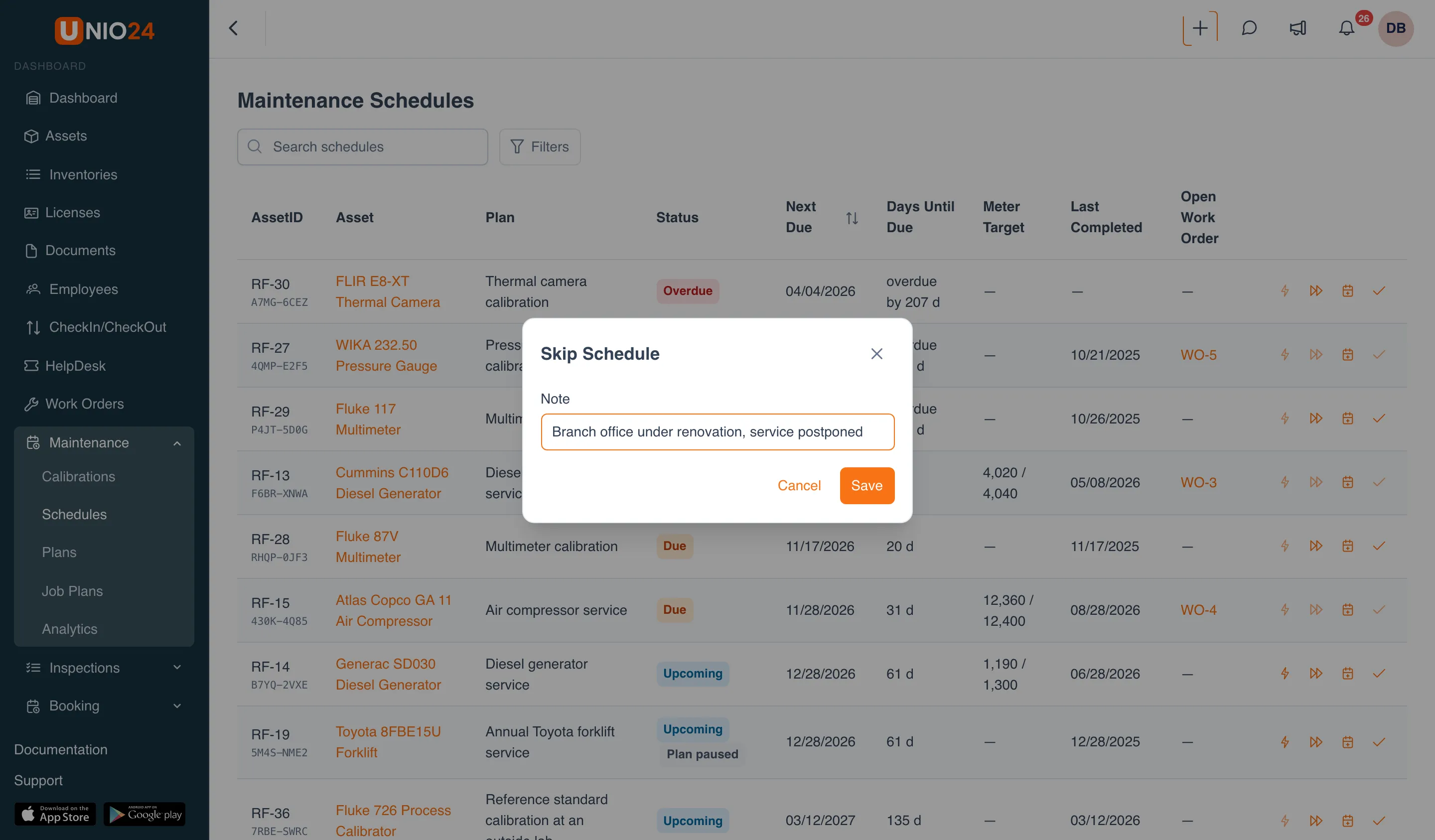
A skip doesn’t count as work done: the last completion date stays the same, and the next due date is counted from the skipped one. In the asset’s history the line is marked Skipped.
Change the count start for an asset
Section titled “Change the count start for an asset”The count start matters while the plan has never been carried out for the asset: UNIO24 counts the first due date from it.
- Open Maintenance → Schedules.
- In the asset’s row, click Count start.
- The Now block shows the current next due date and what it’s counted from.
- To set your own date, enter it in the Count start field. The date is pinned to this asset: plan changes and a new commissioning date won’t move it. To go back to the plan’s rule, click Count as the plan says.
- If the asset was serviced before you started tracking it in UNIO24, enter the date in Last service before tracking; the due date is then counted from it.
- Check in the After saving block what the due date will become, and click Save.
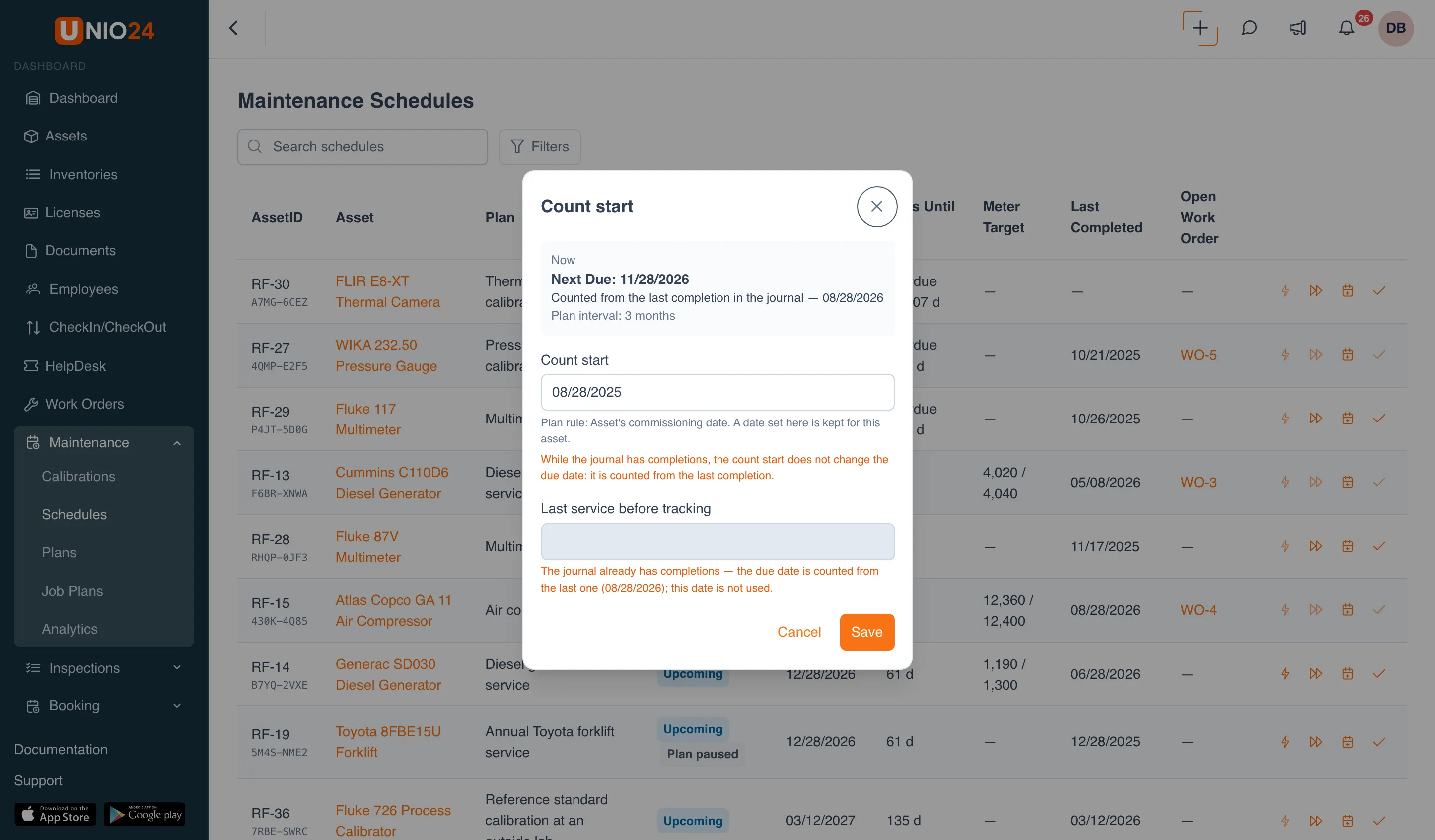
As long as the history has completions, the due date is counted from the latest one and the count start doesn’t affect it; the window warns you about this.
Carry out a work order from a plan
Section titled “Carry out a work order from a plan”A work order created by a plan is carried out like any other work order; see Create and handle work orders. A few things are different:
- the Tasks tab holds the job plan’s tasks. Mandatory tasks have to be checked off, or the work order can’t be completed;
- the Planned materials block on the Materials tab shows what’s planned. To take a material from stock, click Issue in its row: the issue window opens with that material and the remaining quantity. Choose the Location you’re taking it from and save. The Issued and Remaining columns show how much has been taken;
- the work order’s asset can’t be changed; the work order was created for a specific scheduled asset.
When the work order is completed, the service is recorded in the asset’s history and the due date is recalculated.
View an asset’s maintenance
Section titled “View an asset’s maintenance”- Open the asset card: Assets → the asset you need.
- Go to the Maintenance tab.
- Switch between the sections at the top of the tab:
- Schedules: the plans that cover the asset, with their status and next due date;
- History: every completion and skip: due date, completion date, timeliness, cost, note;
- Service: the times the asset was sent to a service center;
- Work Orders and Tickets: the asset’s work orders and tickets.
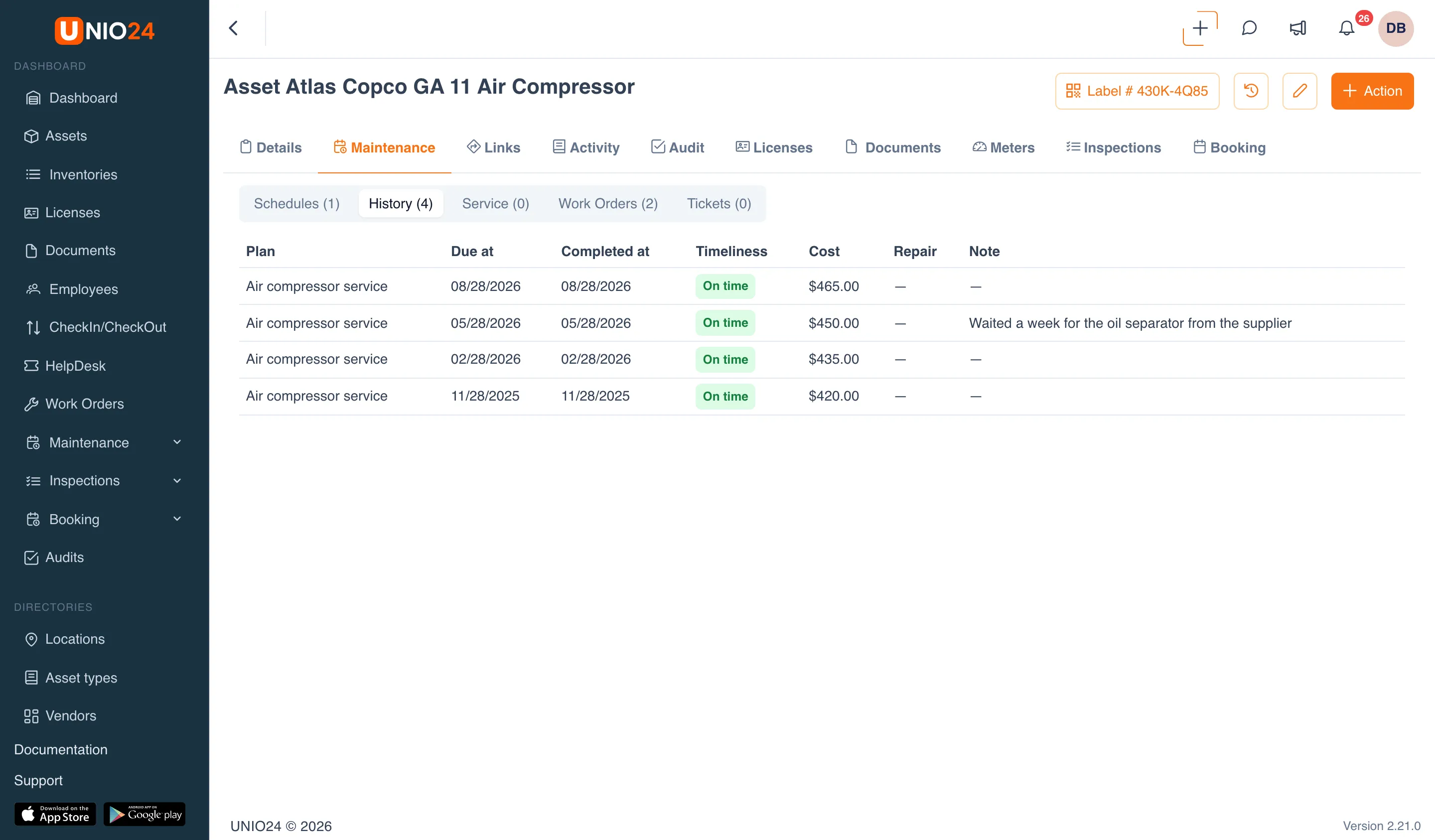
Track asset meters
Section titled “Track asset meters”Meters are needed by plans that count by usage. To add meters and readings, you need the right to edit assets.
Add a meter
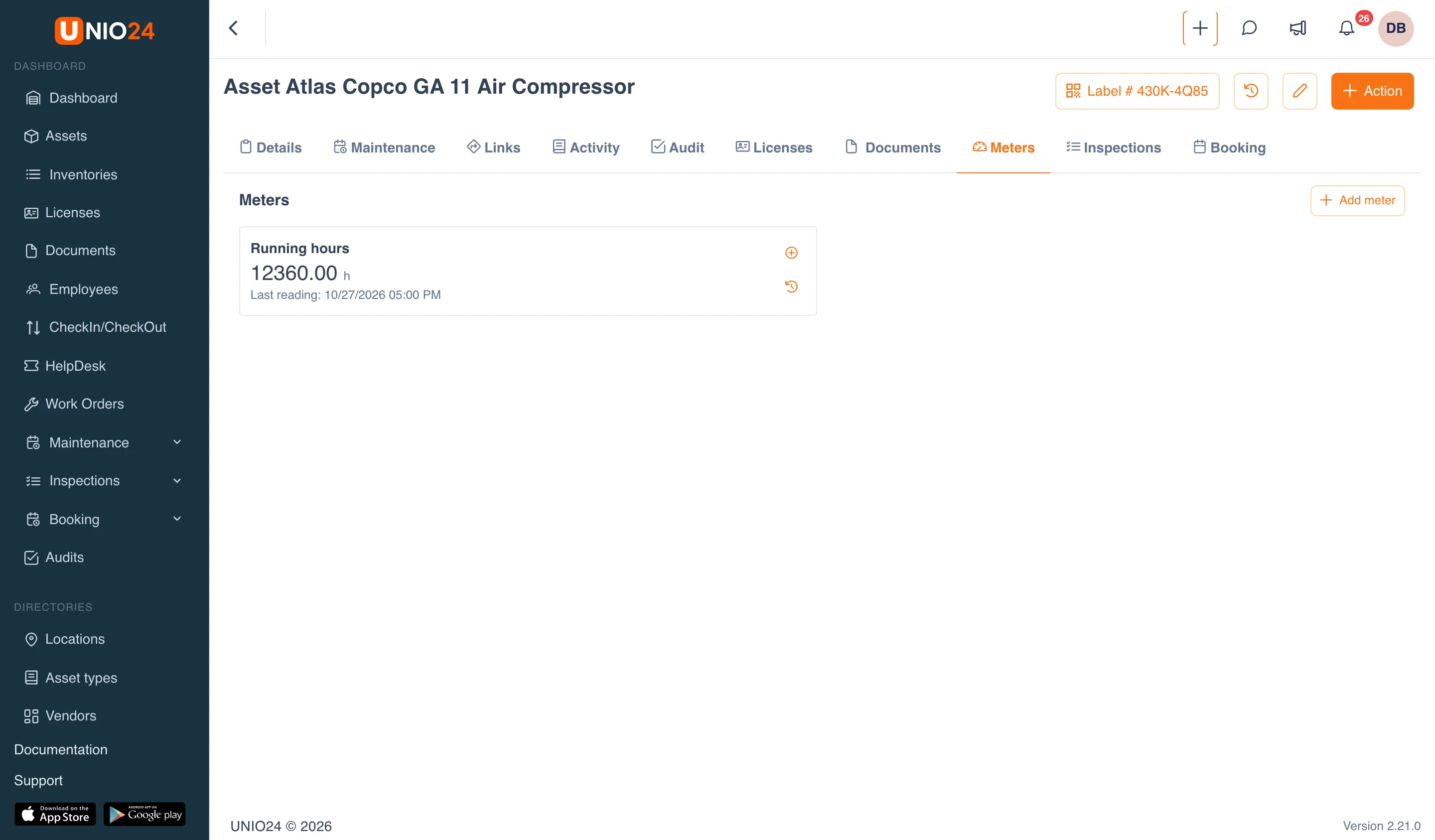
Section titled “Add a meter”- Open the asset card and go to the Meters tab.
- Click Add meter.
- Choose the Type: Running hours, Mileage, Cycles, or Custom. For a custom meter, enter a Name.
- Enter the Unit if needed.
- Leave Increasing only selected if the reading can’t go down.
- Click Save.
Record a reading
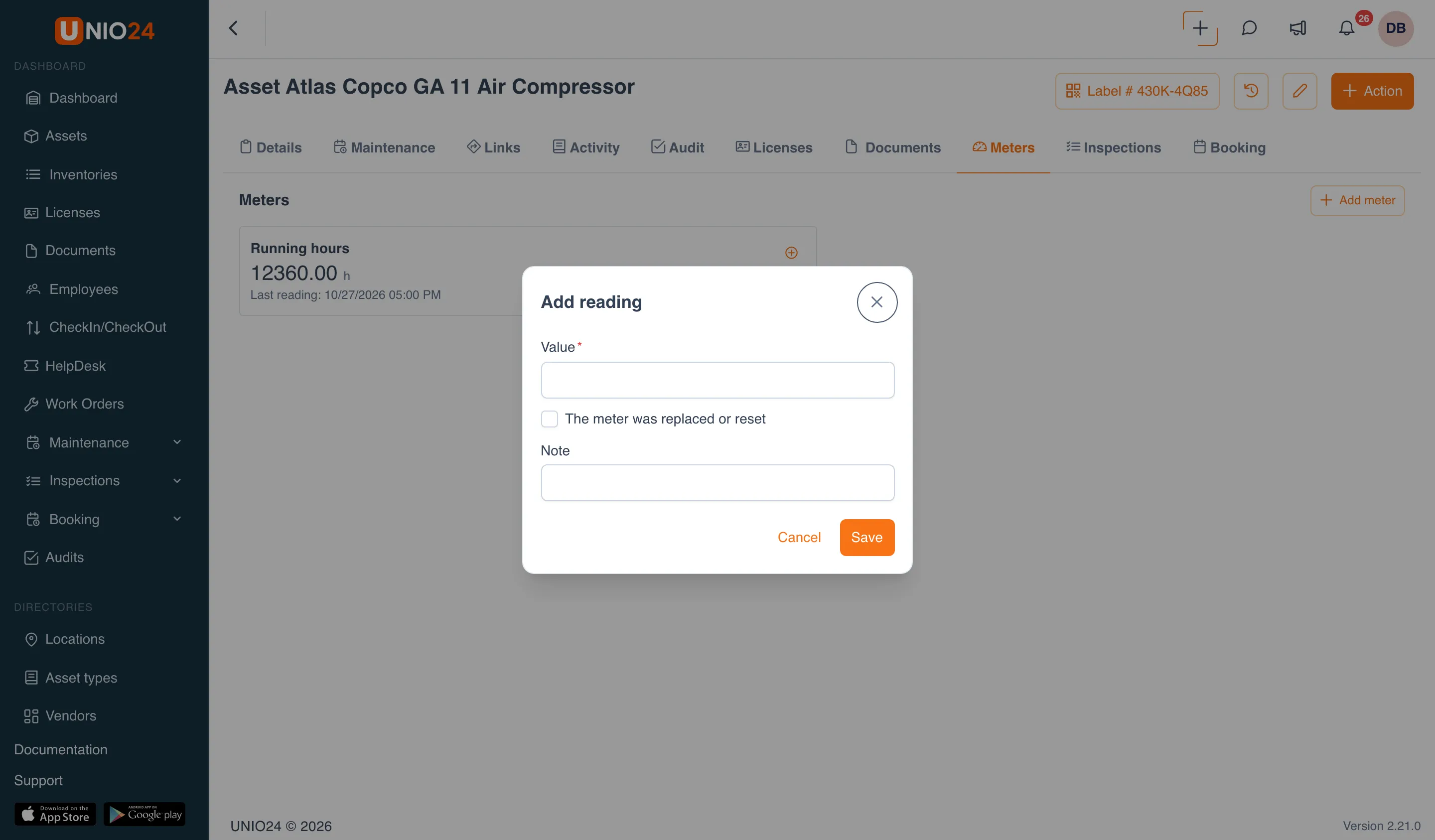
Section titled “Record a reading”- On the Meters tab, click Add reading on the meter’s card.
- Enter the Value. For an increasing-only meter, it can’t be lower than the last reading.
- If the meter was replaced or reset, select The meter was replaced or reset and enter the Reading at installation.
- Fill in the Note if needed and click Save.
All of a meter’s readings open with the Readings action on its card. As soon as a new reading reaches a plan’s threshold, the schedule changes status right away and, if the plan works with work orders, a work order is created. Readings are also recorded in meters when someone performs an inspection with a meter reading item.
Useful links
Section titled “Useful links”- Preventive maintenance: how due dates are worked out and what a plan does
- Configure preventive maintenance: how to create job plans and plans