

Calibration records and signatures
This page collects the tasks of the metrologist and the people responsible for calibration.
Prepare a calibration job plan
Section titled “Prepare a calibration job plan”- Open Maintenance → Job Plans and click New Job Plan.
- Fill in the Code, Name, and Maintenance Type as described in Create a job plan.
- Set Kind to Calibration.
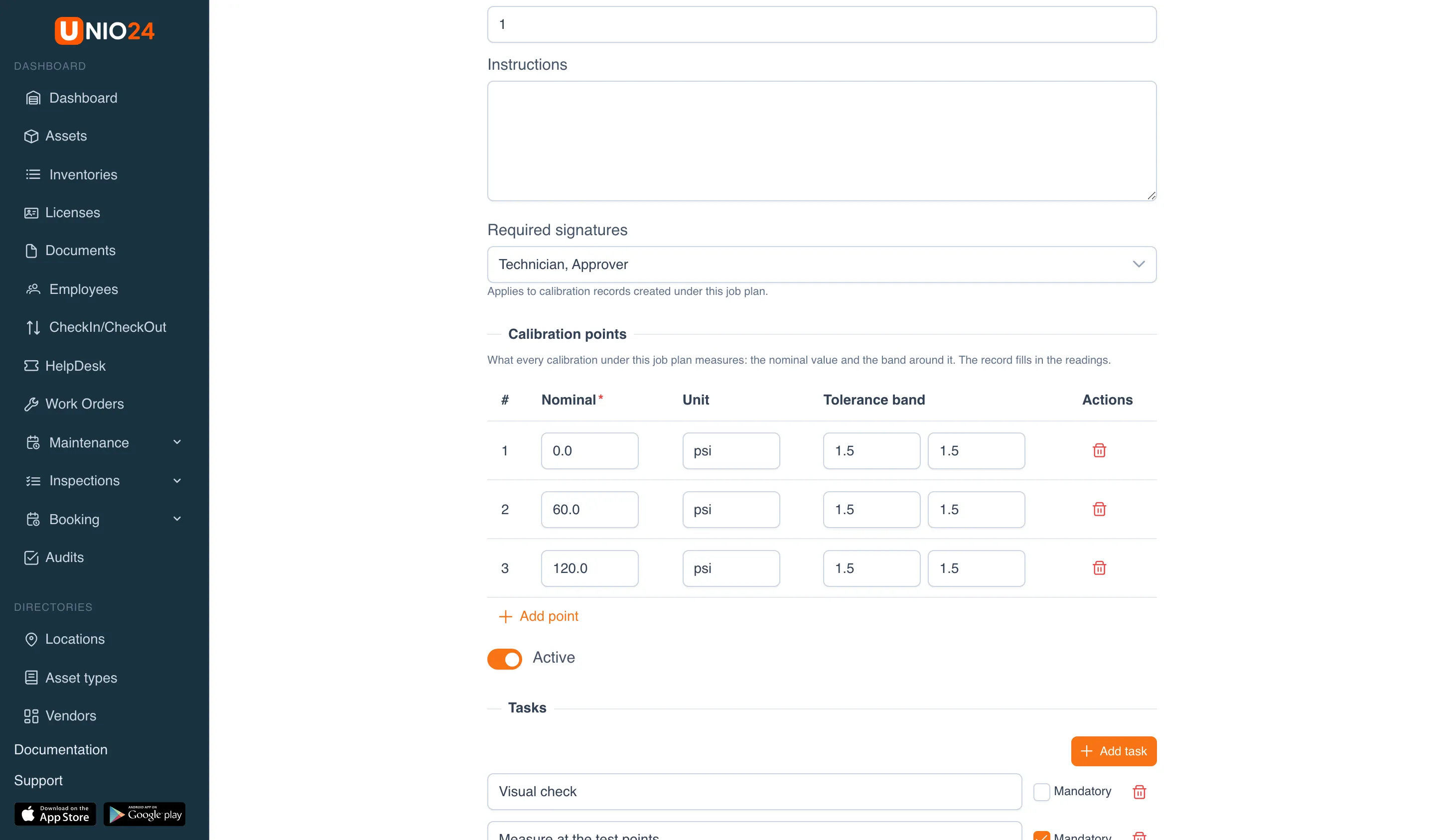
- In Required signatures, choose who signs records under this job plan: Technician, Reviewer, Approver. If you choose no one, records don’t need signing.
- In the Calibration points block, click Add point and for each point enter the Nominal value, the Unit, and the Tolerance band: the lower tolerance (first field) and the upper tolerance (second field).
- Add tasks if the work order needs them, and click Save.
Then create a maintenance plan with this job plan for the right type of instruments. The job plan’s points are filled into every new calibration record under the plan.
Enter a calibration record
Section titled “Enter a calibration record”There are three ways to start a record:
- Maintenance → Calibrations → New record;
- Maintenance → Schedules → Enter a calibration record in the instrument’s row;
- in a calibration work order, the Record a calibration now button.
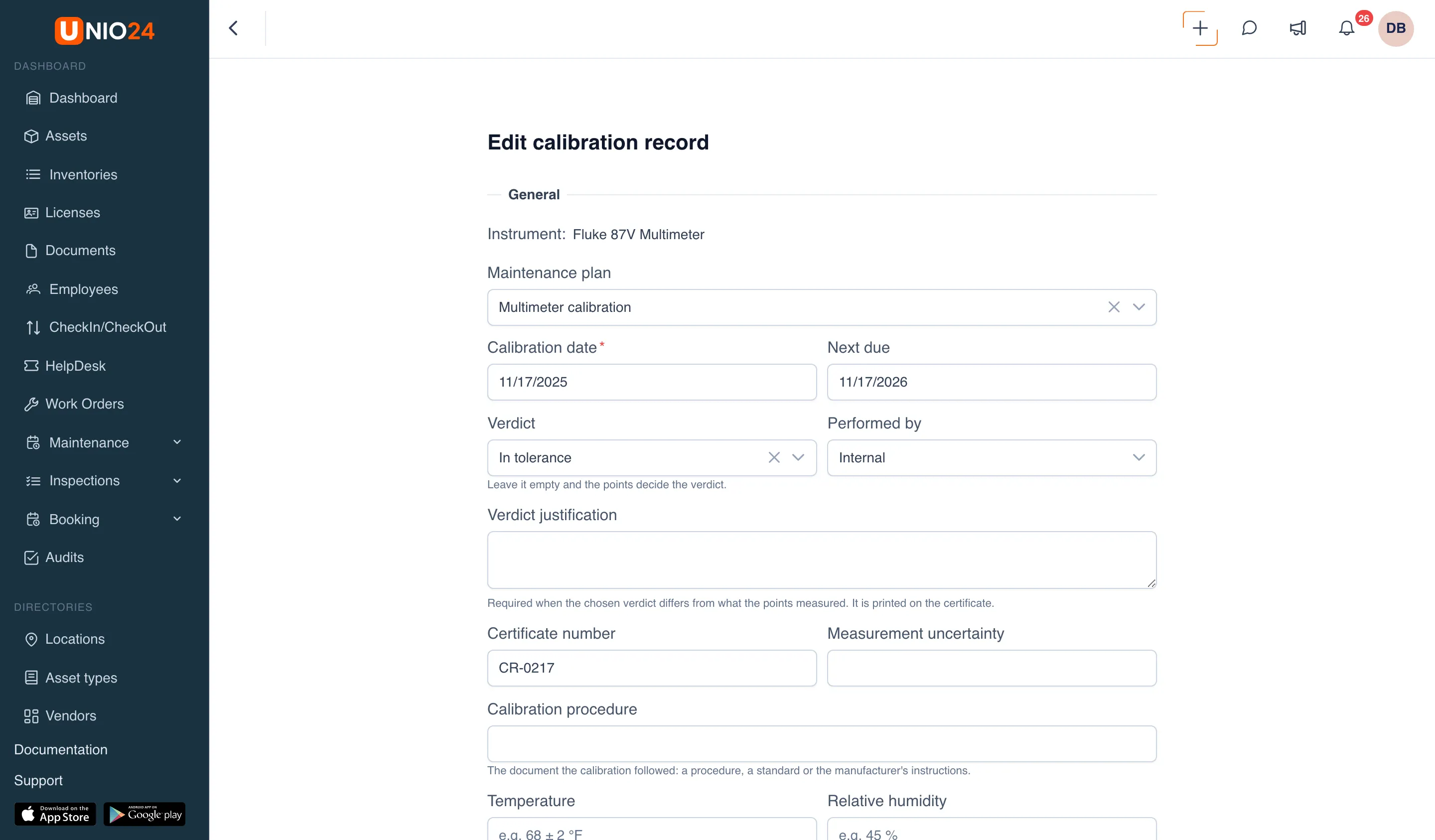
Fill in the form:
- Instrument: the instrument that was calibrated. If you started from a schedule or a work order, it’s already selected.
- Maintenance plan: the instrument’s calibration plan. The record closes the plan’s cycle and takes the points from the job plan.
- Calibration date: required, no later than today.
- Next due: when to calibrate again. It can’t be earlier than the calibration date.
- Verdict: leave it empty for UNIO24 to derive it from the measurements, or choose it yourself. If the verdict you choose doesn’t match the measurements, fill in the Verdict justification; it’s printed on the certificate.
- Performed by: Internal or External. For an outside lab, choose the Service center and, if the lab is accredited, select Accredited calibration (ISO/IEC 17025) and enter the Accreditation number.
- Certificate number, Measurement uncertainty, Calibration procedure: if needed.
- Temperature and Relative humidity: the calibration conditions, for example “68 ± 2 °F” and “45 %”.
- Cost: if needed.
- Reference standards: find and select the instruments used for the check. If something is wrong with a standard, the form shows a warning.
- In the Measured points block, enter the As found value for each point and, if the instrument was adjusted, the As left value. Each value gets an In band or Out of band label. Values can have up to 4 decimal places.
- If the verdict is Limited use, fill in the Limited-use note. If it’s Out of tolerance, fill in the Impact assessment and choose a Decision.
- Click Save.
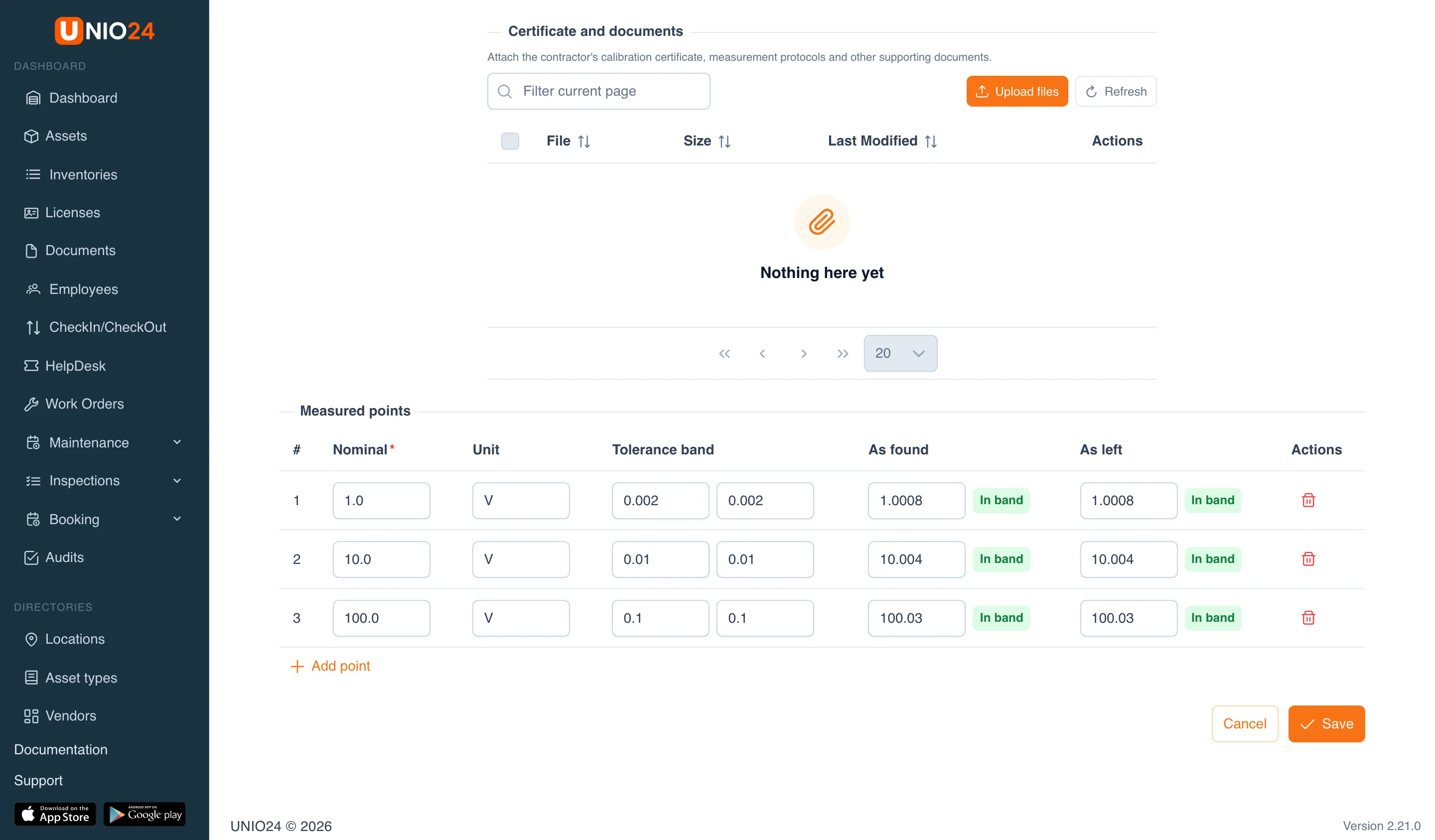
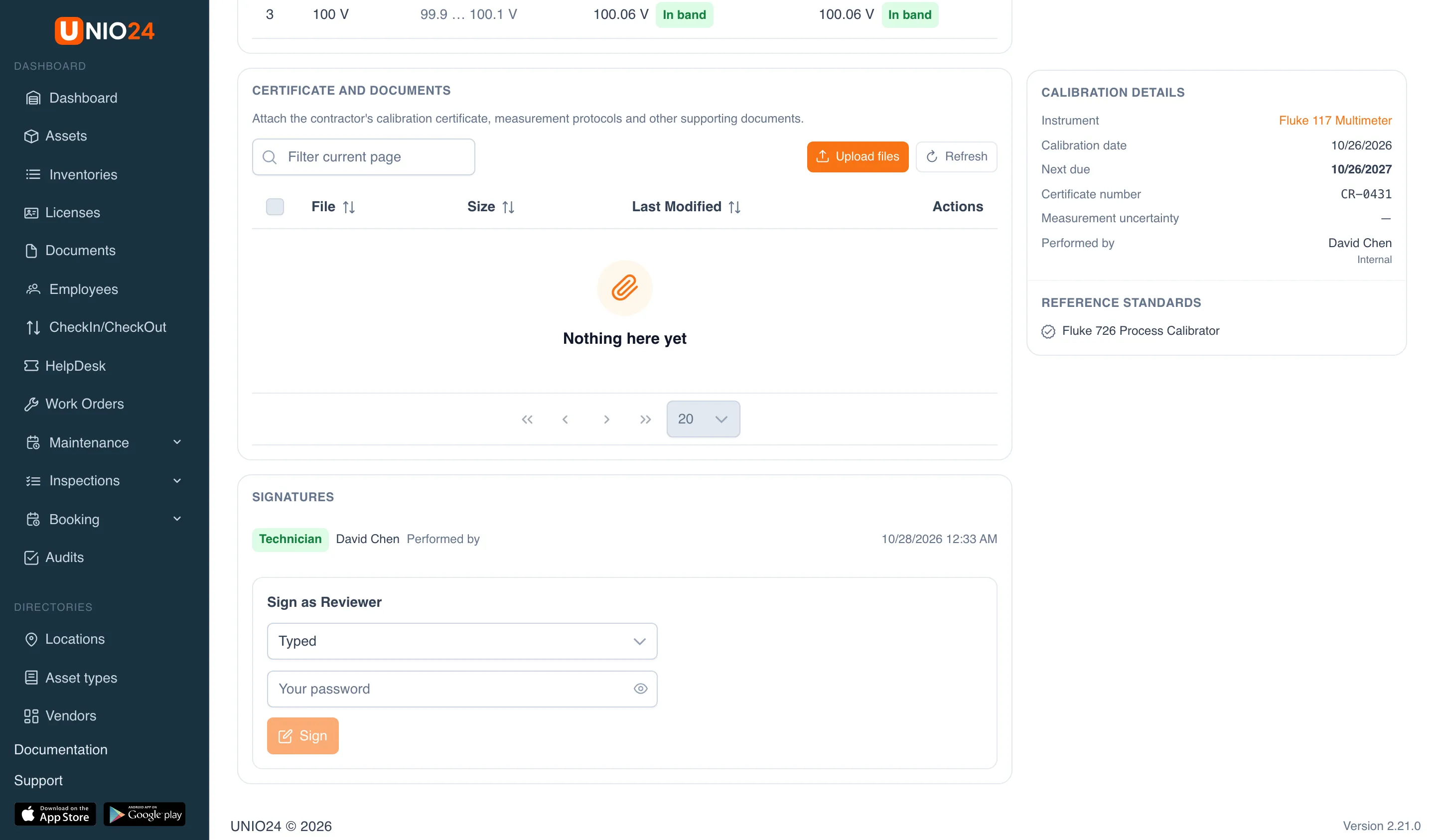
You can attach the lab’s certificate and test reports to the record in the Certificate and documents block on its page, with the Upload files button.
If the record needs signatures, it takes effect after the last signature. If no signatures are needed, the instrument’s status and the schedule’s due date update right away.
Enter an instrument’s last calibration
Section titled “Enter an instrument’s last calibration”If an instrument was calibrated before you started using UNIO24, enter its last calibration from the certificate so that it gets a status and a due date.
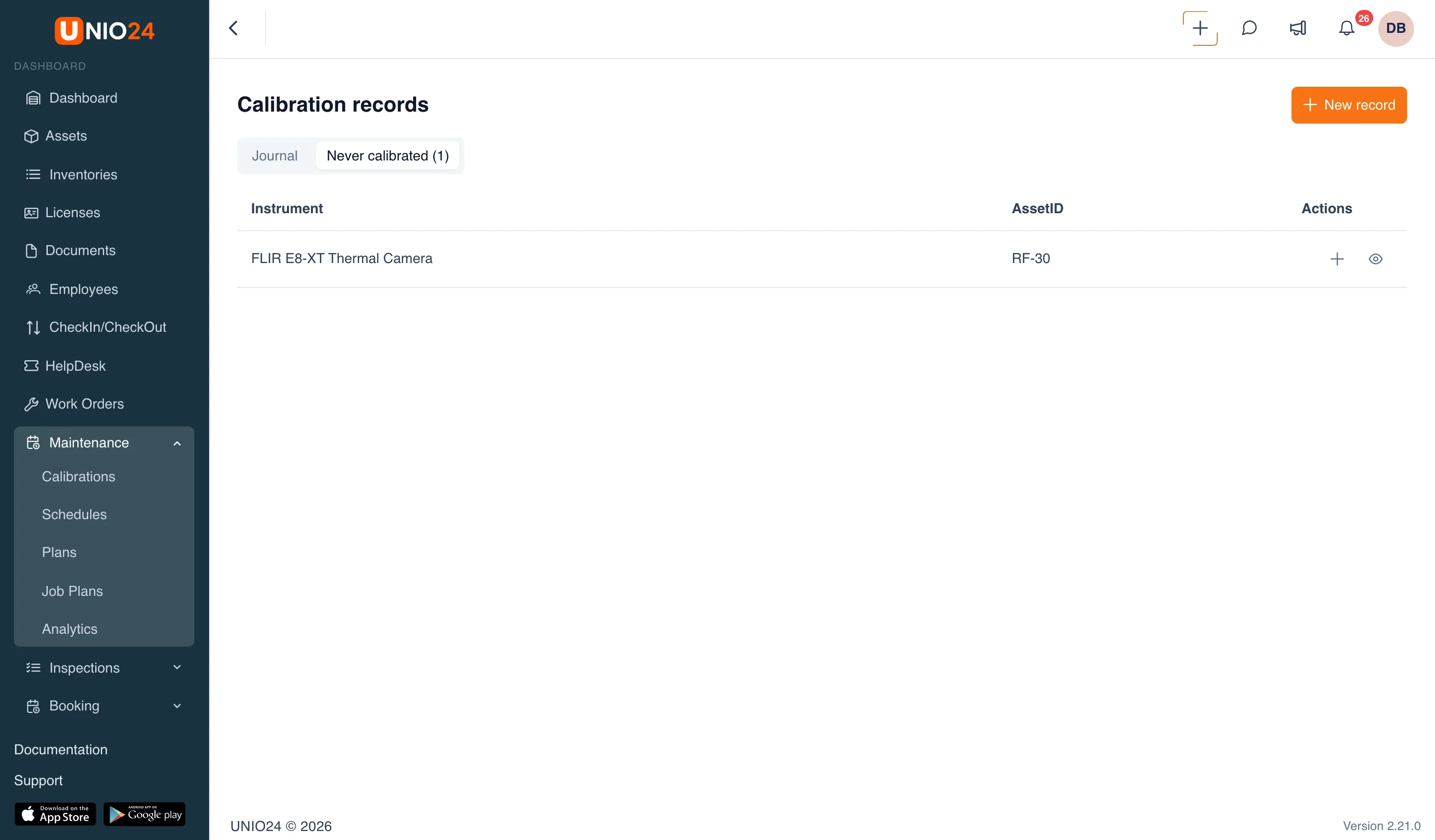
- Open Maintenance → Calibrations and go to the Never calibrated tab. It lists instruments that are on a calibration plan but have no records at all.
- In the instrument’s row, click Enter last calibration.
- Fill in the Last calibration form from the certificate and click Save.
You can do the same from the instrument’s card: the Maintenance tab → the Enter last calibration button in the “No calibration on record” banner.
Sign a calibration record
Section titled “Sign a calibration record”Records can be signed by someone with the Sign calibration records right, and only when it’s their role’s turn.
- Open the record: Maintenance → Calibrations → Open in the record’s row. Records waiting for a signature show “Waiting on …” in the Signatures column.
- Scroll down to the Signatures block. It lists the signatures already in place: role, name, “Performed by”, “Reviewed by”, or “Approved by”, and the time.
- In the Sign as … form, choose how to sign:
- Typed: the signature is made in the name of your account;
- Drawn: sign in the box with your mouse or finger.
- If the settings require re-authentication, enter Your password.
- Click Sign.
If you enter a wrong password several times in a row, signing is locked for a while.
Download the certificate
Section titled “Download the certificate”- Open the calibration record.
- Click Certificate (PDF) in the top right corner.
The certificate for a record that is still waiting for signatures carries the note “Awaiting signatures — this certificate is not valid yet”.
Edit or delete a record
Section titled “Edit or delete a record”Records can be edited and deleted by someone with the Edit calibration records right.
- To edit a record, open it and click Edit. If the record is already signed, changing its content voids the signatures, and it has to be signed again.
- To delete a record, click Delete in its row on the Calibrations page and confirm. The signatures are deleted along with the record.
Calibration settings
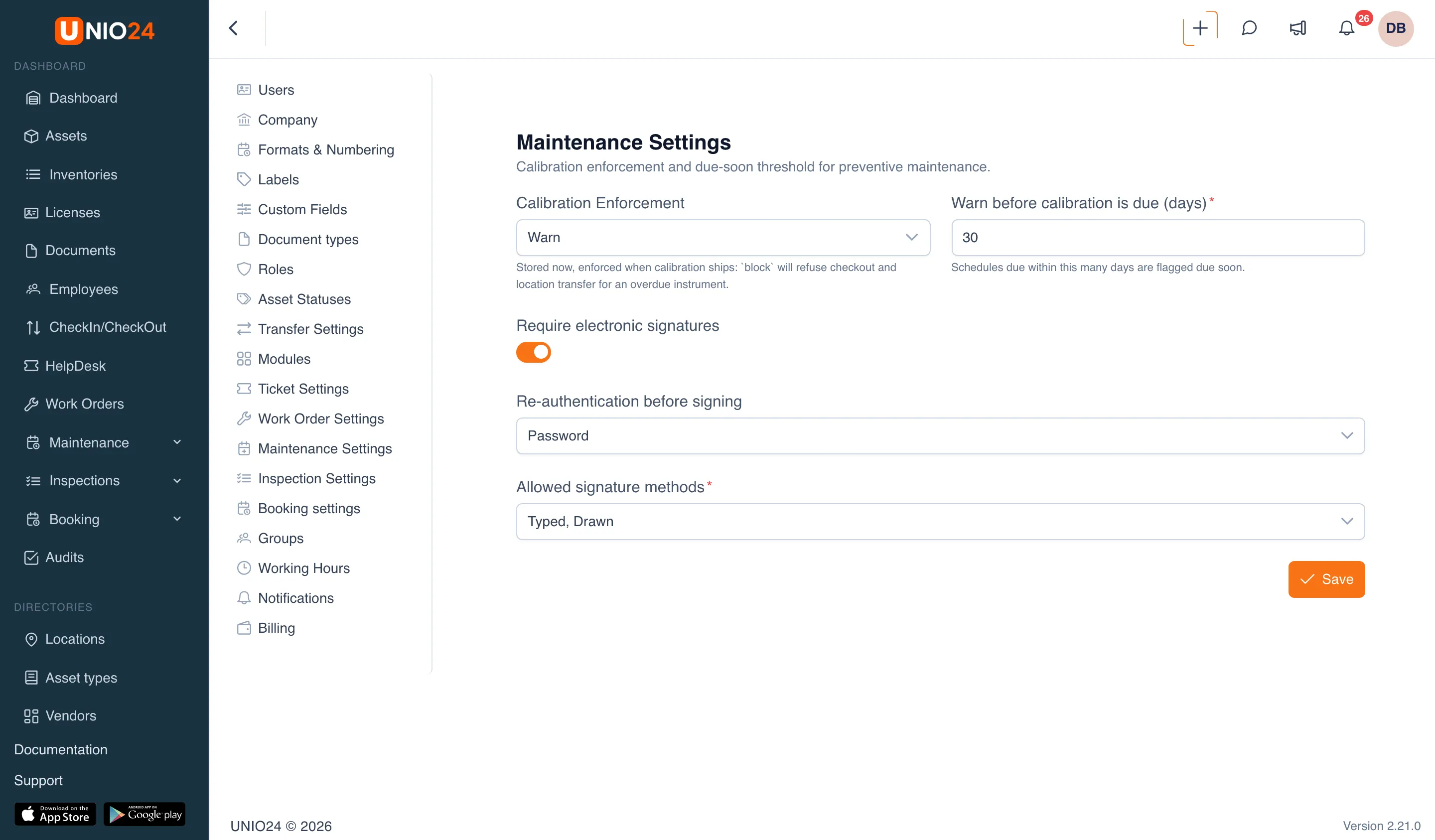
Section titled “Calibration settings”- Open Settings → Maintenance Settings.
- Under Calibration Enforcement, choose Warn or Block: what happens when someone checks out or moves an instrument whose calibration is overdue, out of tolerance, or missing.
- In Warn before calibration is due (days), enter how many days before the due date an instrument gets the “Calibration due soon” status.
- Turn on Require electronic signatures if records have to be signed. Two more fields then appear:
- Re-authentication before signing: Not required or Password;
- Allowed signature methods: Typed and/or Drawn.
- Click Save.
If you turn signatures off while some records are still waiting for them, UNIO24 offers to finish those records without the missing signatures. Such a record then shows when and by whom signatures were turned off.
Useful links
Section titled “Useful links”- Calibration: how the verdict, the instrument status, and signatures work