

Managing your subscription and payment
This page collects the common tasks when working with billing. For how the subscription works and what the statuses mean, see Billing: how it works. For the list of fields and permissions, see the Billing reference.
Payment is processed through the Stripe service.
View your plan and usage
Section titled “View your plan and usage”- In the left menu, open Settings.
- Go to the Billing tab.
- In the Current plan card, see the plan name, its price with the billing period, and the status icon.
- The Current usage bar shows how many of the assets included in the plan you are using.
- For an active subscription, the date of the next payment is shown below — Next payment: for a paid plan or Next plan update: for a free plan.
Choose or change a plan and pay
Section titled “Choose or change a plan and pay”- Open Settings → Billing.
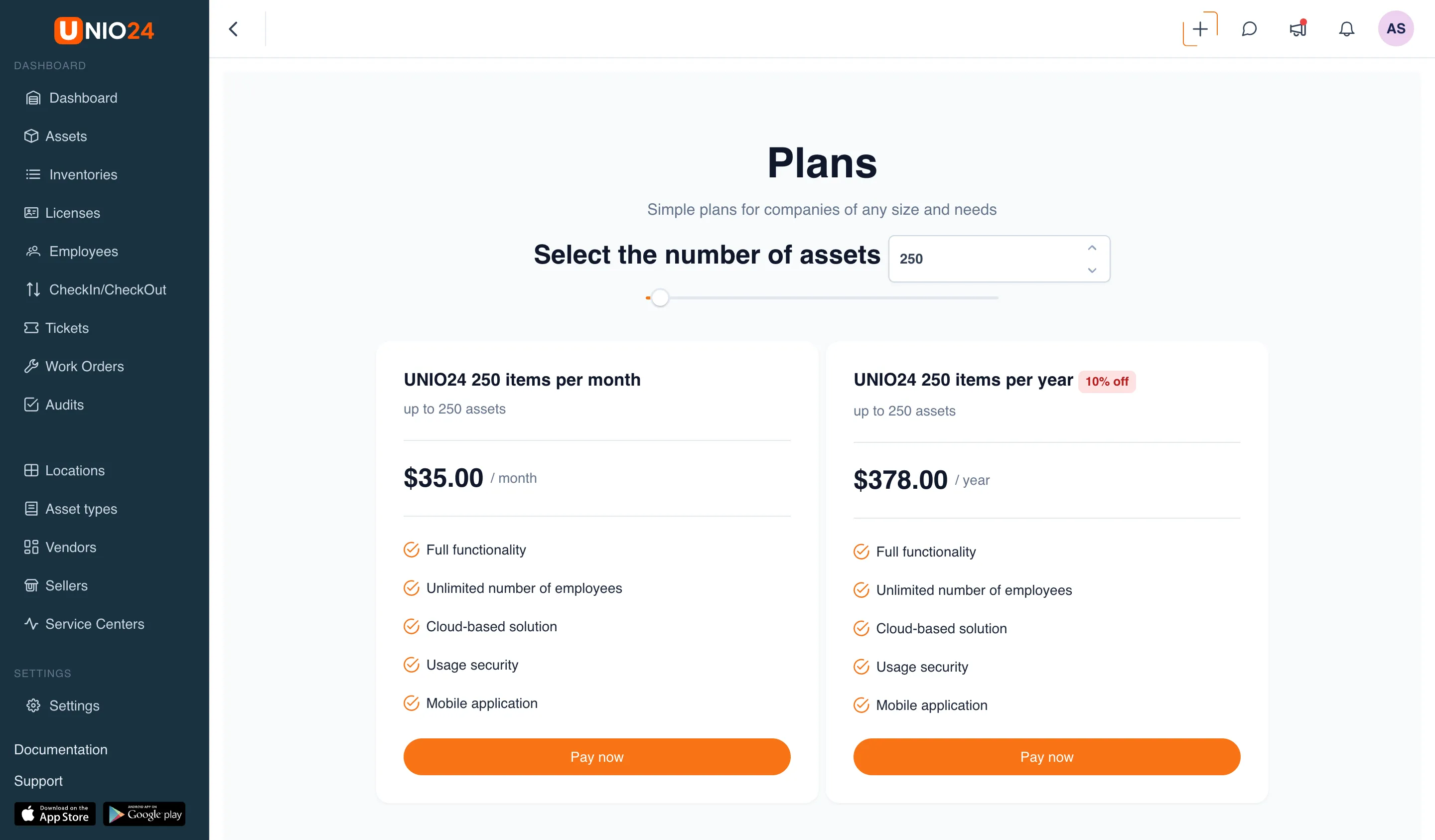
- Click Choose your plan. The Plans page opens. If there is no button, plan selection is not available in this installation — see the explanation.
- In the Select the number of assets block, set the number you need — enter it in the field or drag the slider.
- The matching plans appear below the selected number. Compare the monthly and yearly options; the paid yearly plans show a 10% discount label.
- On the plan you want, click Pay now.
Manage the subscription
Section titled “Manage the subscription”- Open Settings → Billing.
- Click Manage subscription. The Stripe customer portal opens in a new tab. If there is no button, managing through the portal is not available for the current subscription.
- On the portal, update the payment method, change, or cancel the subscription.
- Close the portal tab and return to the application; the changes are reflected on the billing page.
Download an invoice
Section titled “Download an invoice”- Open Settings → Billing.
- Scroll to the Invoices section below the plan card. If there have been no payments yet, the section is not shown.
- Find the invoice you need by the Number, Date, Sum, Currency, and Billing Period columns.
- In the invoice row, click the button with the invoice icon — the full invoice opens in a new tab, where you can save or print it.