

Billing
If you need step-by-step instructions, see Managing your subscription and payment. For the list of statuses, fields, and permissions, see the Billing reference.
Billing is the section where your subscription is visible and where you manage payment. It opens from Settings → Billing. Access to the section is granted by the billing.view permission.
Subscription model
Section titled “Subscription model”A subscription in UNIO24 is calculated by the number of assets. You choose how many assets you need, and a plan is matched to that number. The more assets included in a plan, the higher the price.
A plan has a billing period — month or year. Yearly plans are offered at a discount (paid yearly plans show a 10% discount label). All plans include the same set of capabilities: full functionality, an unlimited number of employees, cloud operation, secure usage, and the mobile app.
Current plan and usage
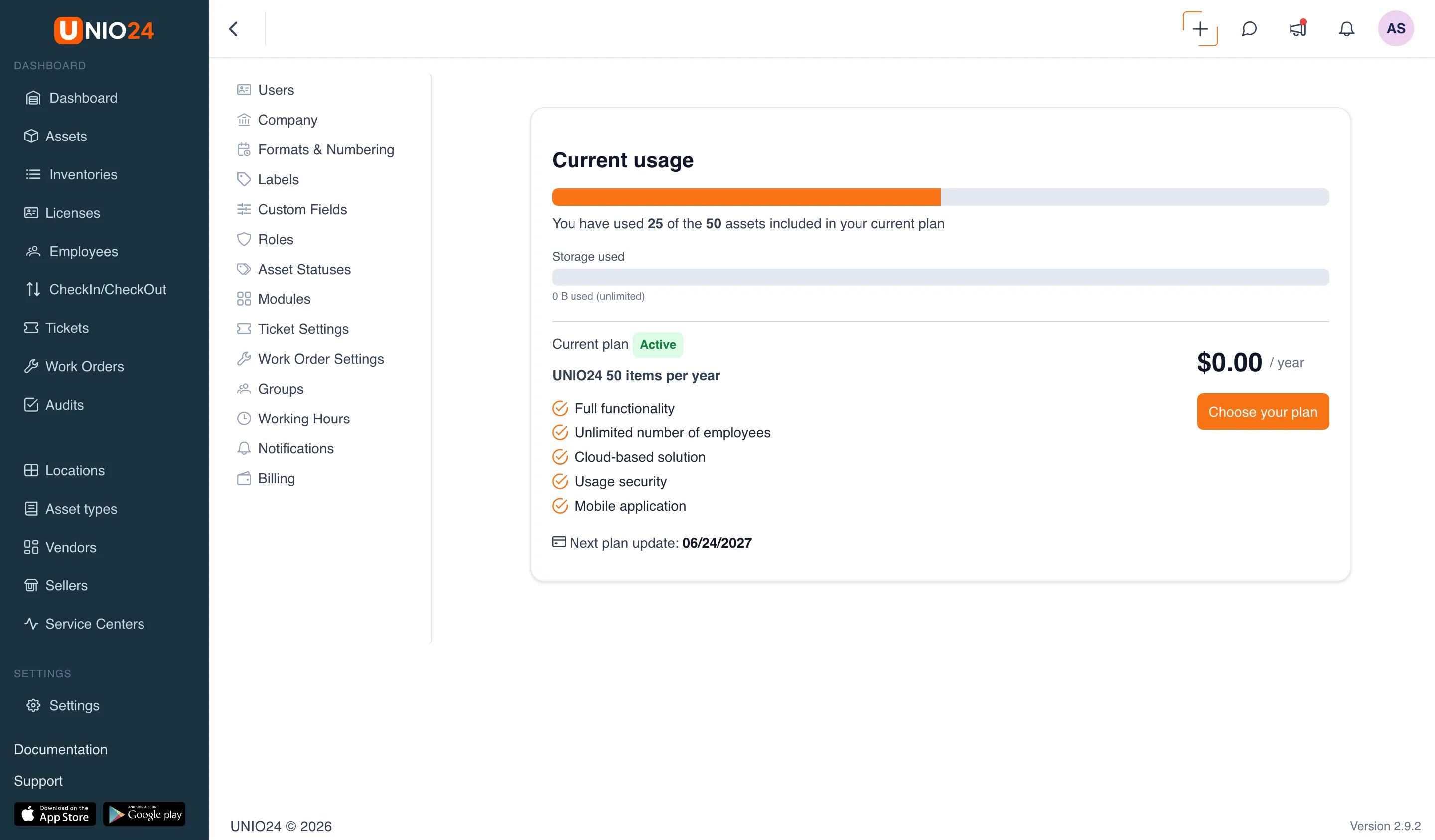
Section titled “Current plan and usage”The Current plan card shows the plan name, its price with the billing period, and the status icon. The Current usage bar shows how many of the assets included in the plan you are already using — for example, “N of M assets used, included in the current plan.”
The date of the next payment is shown only for an active subscription. For a paid plan this is the Next payment: line, for a free plan — Next plan update:.
What the statuses mean
Section titled “What the statuses mean”A subscription has a status, shown by an icon next to the plan name:
- Active — the subscription is in effect.
- Payment pending — payment is not yet confirmed.
- Expired — the subscription term has ended.
- Will be canceled at the end of the term — cancellation is scheduled, the subscription stays in effect until the end of the paid period.
- Cancelled — the subscription is cancelled.
The exact status codes are listed in the Billing reference.
Payment through Stripe
Section titled “Payment through Stripe”Payment and subscription management are processed through the Stripe service. The Pay now button on the plans page opens Stripe Checkout payment, and Manage subscription opens the Stripe customer portal, where you can update the payment method, change, or cancel the subscription.
The Choose your plan button, which leads to the plans page, is not always shown: its display is controlled by a deployment setting. If there is no button, plan selection is not available in this installation. The Manage subscription button is shown only if management through the portal is allowed for the current subscription.
Invoices
Section titled “Invoices”Past payments are collected in the Invoices section below the plan card. If there have been no payments yet, the section is not shown. Each row is one invoice with a number, date, sum, currency, and billing period; next to it is a button that opens the full invoice.
Subscription expiration banner
Section titled “Subscription expiration banner”If there is no active subscription, a banner “Your subscription has expired, please renew your subscription” with a link to the billing section appears in the Analytics section.