

Managing users
Common tasks for working with users.
Invite a user
Section titled “Invite a user”- Open Settings → Users.
- Click Invite user in the top-right corner of the page.
- In the Invite user to UNIO24 window, enter the Email the invitation goes to.
- In Role, pick the access role for this user.
- If assets will be checked out to this person or they’ll use self-service, check Create an employee card and enter a First Name and/or Last Name — a linked card appears in the Employees directory. The checkbox is shown to people who can create and edit employees.
- Click Invite user.
The system sends an invitation email to that address in the company’s language. Until the person activates the account, they appear in the list with the Invited badge.
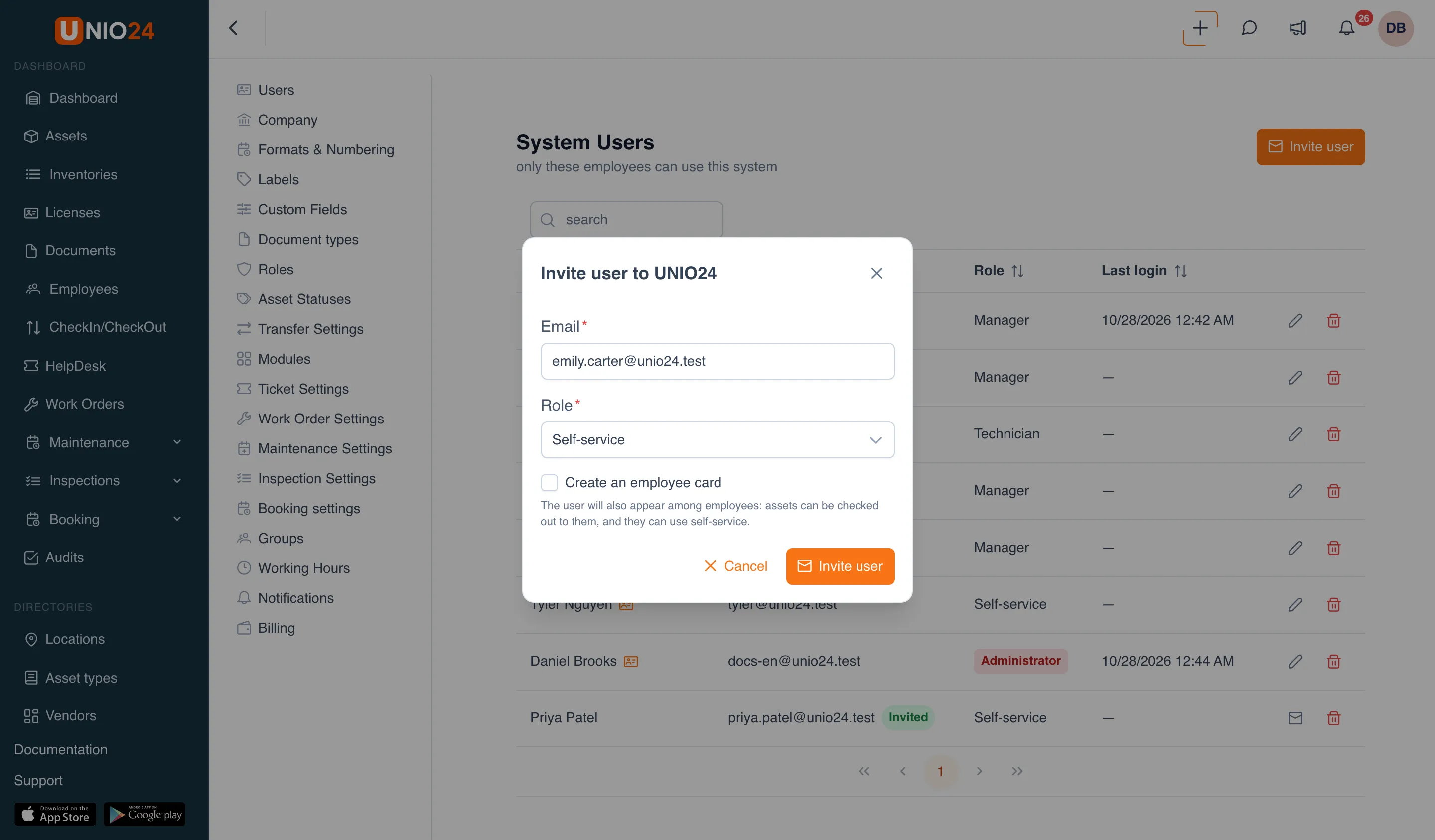
Without Create an employee card, only the account is created. You can link it to an employee card later — see Link an existing user.
Resend an invitation
Section titled “Resend an invitation”For a user with the Invited badge (the invitation hasn’t been accepted yet):
- Open Settings → Users.
- In the user’s row, click the envelope icon (Resend invitation) — the invitation email is sent again.
A deleted user doesn’t need this action — invite them again the usual way (see Invite a user).
Accept an invitation
Section titled “Accept an invitation”These steps are for the invited person.
- Open the link in the invitation email. The Joining UNIO24 page opens.
- If your first and last name weren’t filled in beforehand, enter them.
- Enter a password, then repeat it in the next field. You choose the password yourself.
- Click Accept invitation.
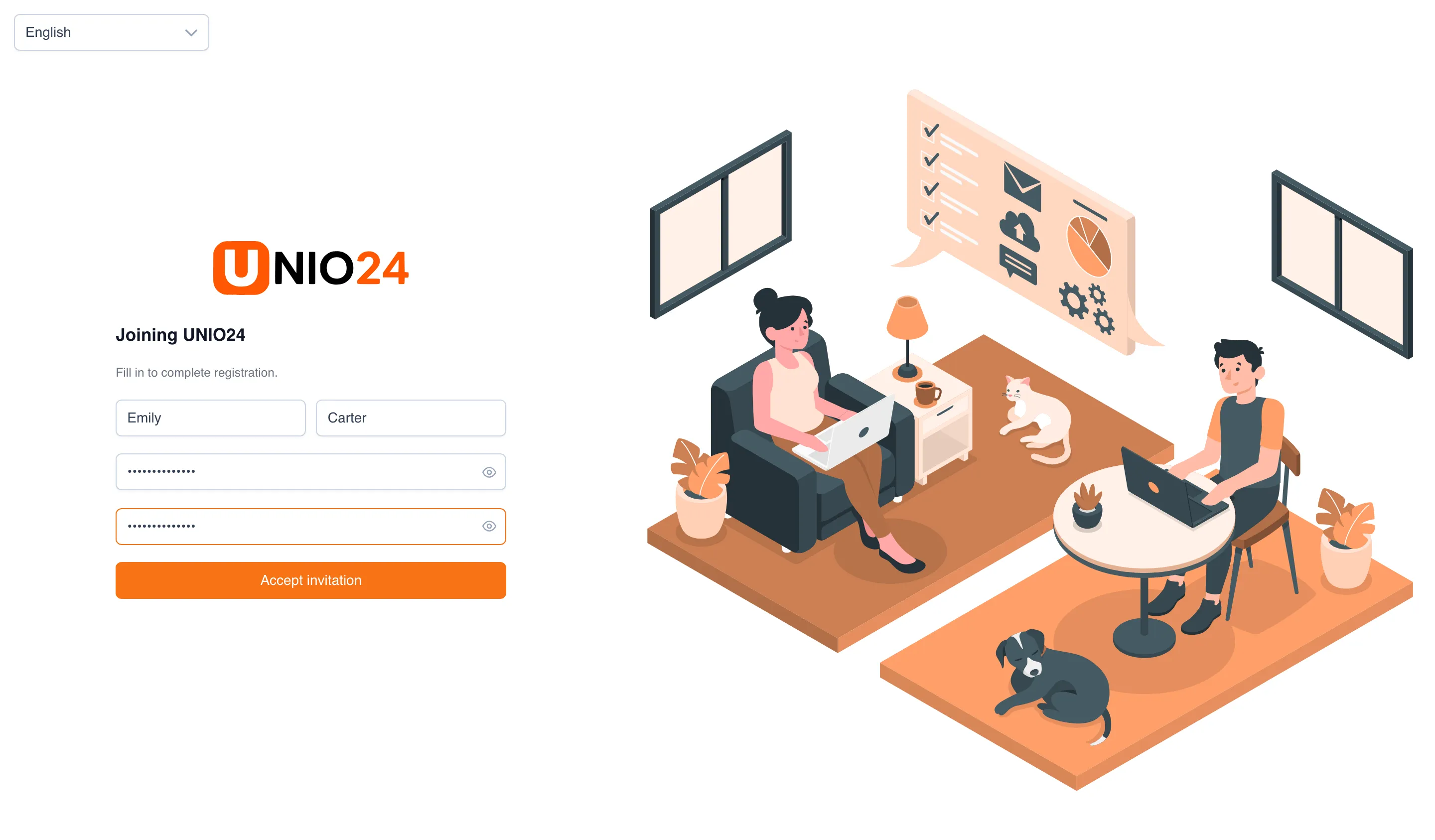
You’ll then see that your account has been activated, with a Go to login button. If the link is out of date, the page says The invitation link is invalid or has expired. — in that case, ask your administrator to resend the invitation.
Invite an employee as a user
Section titled “Invite an employee as a user”To give an existing employee sign-in access:
- Open Employees.
- In the employee’s row, click the envelope icon — Invite user.
- In the Invite user to UNIO24 window, Email is already filled in from the employee card. Change it if needed.
- The Role field appears only if you have full access. If it’s there, pick a role.
- Click Invite user.
The account is linked to the employee card right away. The action is available only if you can edit employees and the employee doesn’t have an account yet. All the ways to link an employee and a user are in Employees and users.
Edit a user
Section titled “Edit a user”You can only edit a user who has accepted the invitation (no Invited badge).
- Open Settings → Users.
- In the user’s row, click the pencil (Edit).
- Change the fields you need: Last Name, First Name, Middle Name, Role, Email.
- Click Save.
Delete a user
Section titled “Delete a user”- Open Settings → Users.
- In the user’s row, click the trash can (Delete).
- Confirm the deletion in the dialog.
The user loses access to the system. The history of their actions is kept and stays available. If needed, you can invite the same person again.
Useful links
Section titled “Useful links”- System users — how the invitation model, roles, and states work
- Users reference — the full list of fields and permissions
- Employees and users — linking an account to an employee card