

Fleet reference
The complete list of fields and values of the Fleet module.
| Item in the “Fleet” menu group | What the page shows | Who sees it |
|---|---|---|
| Analytics | Fleet metrics for a period | Analytics |
| Vehicles | The vehicle list | Any fleet permission; without “View vehicles, fuel entries and trips” or “Manage vehicles”, only your own vehicles |
| Drivers | The driver list | View vehicles, fuel entries and trips, or Manage drivers |
| Trips | The trip log | Any fleet permission; without the view permission, only your own trips |
| Expenses | The Fuel and charging, Expenses, Fines, and Fuel cards tabs | Any fleet permission; the Fuel cards tab: View vehicles, fuel entries and trips, or Manage vehicles |
| Incidents | The incident log | Any fleet permission; without “View incidents” or “Manage incidents”, only your own incidents |
| Maintenance | Maintenance schedules of vehicles | The Maintenance module is on and you can view it |
| Booking | Vehicle bookings | The Booking module is on and you have any booking permission |
| Inspections | Vehicle inspections | The Inspections module is on and you can view or perform inspections |
| Deadlines | The deadline calendar of vehicles, drivers, and fines | View vehicles, fuel entries and trips, Manage vehicles, Manage drivers, View fines, or Manage fines |
| IFTA | The quarterly report of miles and fuel by state and province | Companies in the United States and Canada only; View vehicles, fuel entries and trips, Manage vehicles, or Analytics |
The Fuel card statements and Fine notice import pages open with the Import statement and Fine notice import buttons in the fuel and fines logs. The fleet settings page is the Fleet item under Settings.
Vehicle fields
Section titled “Vehicle fields”| Section | Field | Required | Description |
|---|---|---|---|
| — | New asset / Existing asset | — | Create an asset together with the vehicle, or add a vehicle profile to an existing asset |
| — | Vehicle type | yes | An asset type marked as a vehicle type (for a new asset) |
| — | Asset without a vehicle profile | yes | For an existing asset |
| Registration | VIN | no | 17 characters; the Fill in from VIN button fills in the make, model, and year |
| Plate number | no | Up to 20 characters | |
| Registered on | no | ||
| Country of registration | no | For the United States and Canada, the State of registration too (required) | |
| Make and model | Make, Model, Year, Body type, Color | no | |
| Class | — | Filled in from the vehicle type; you can choose another | |
| Engine and meter | Powertrain | no | |
| Main meter | — | Odometer or engine hours; filled in from the type | |
| Tank capacity, Battery capacity | no | Shown according to the powertrain | |
| Nominal consumption | no | Needed for the High consumption flag and the norm vs actual comparison | |
| Capacity | Seats, Payload, Gross weight | no | |
| Operation | Home location, Vehicle group | no | |
| License categories required | no | Defaults: car and van — B, truck — C, bus — D, motorcycle — A | |
| IFTA-qualified (over 26,000 lb or three or more axles) | no | Companies in the United States and Canada only; qualified vehicles go into the IFTA report | |
| — | Odometer reading today | no | The starting reading for a new vehicle |
Classes and powertrains
Section titled “Classes and powertrains”| Class | Powertrain |
|---|---|
| Car, Van, Truck, Bus, Trailer, Special vehicle, Motorcycle, Other | Petrol, Diesel, Hybrid, Plug-in hybrid, Electric, LPG, CNG, Flex fuel |
Vehicle statuses
Section titled “Vehicle statuses”| Status | When |
|---|---|
| Active | Nothing keeps the vehicle out of use |
| In the shop | An “In the shop” reason is open: a work order on the vehicle is in progress, it’s being repaired at a service center, or it was set by hand |
| Out of service | An “Out of service” reason is open: a critical inspection defect, an incident after which the vehicle can’t be driven or with Critical severity, or it was set by hand |
| Inactive | Chosen in the Status when nothing keeps it out of use field |
| Sold | Chosen in the Status when nothing keeps it out of use field |
If both reasons are open, the status is “Out of service”. When all reasons are closed, the vehicle goes back to the status in Status when nothing keeps it out of use (Active, Inactive, or Sold). Every change is recorded on the Status history tab of the card.
Reasons a vehicle is out of use
Section titled “Reasons a vehicle is out of use”| Source | Opens | Closes |
|---|---|---|
| set by hand | With the Take out of use action (the What happens and Reason fields are required) | With the Return to use action |
| work order | A work order on the vehicle is taken into work | The work order is completed, closed, or cancelled |
| repair | The vehicle is sent to a service center | It returns from repair |
| inspection defect | An inspection finds a critical defect | No open critical defects are left |
| incident | An incident after which the vehicle can’t be driven, or with Critical severity | The incident is closed or no longer keeps the vehicle out of use |
Any reason, including an automatic one, can be closed by hand with Return to use. Writing off the asset closes all reasons.
Driver fields
Section titled “Driver fields”| Field | Required | Description |
|---|---|---|
| Employee | yes | A driver profile is added to an existing employee |
| License number | no | |
| Local / International | — | A license of your own country or one issued in another country |
| Issued in | no | For an international license; for the United States and Canada, the State or Province too |
| Issued on, Expires on | no | “Expires on” is required if the issue date is entered |
| License categories | no | For each: Category, Issued on, Valid until |
| Driver status | yes | Active, Suspended, Inactive |
| Suspension reason | when the status is “Suspended” | |
| Driving since | no | |
| Permissions | no | Dangerous goods (ADR), Passengers, Night driving, International trips |
| Notes | no |
License categories: AM, A1, A2, A, B, BE, C1, C1E, C, CE, D1, D1E, D, DE, T. The list is the same for every country.
The driver’s license itself is kept as an employee document of the “Driver’s license” type (see Documents); on the driver card it shows in the Driver’s license on file field.
License checks
Section titled “License checks”| Field | Required | Values |
|---|---|---|
| Checked on | yes | The date of the check |
| How | yes | Seen in person, Checked in the registry, Other |
| Result | yes | Valid, Invalid, Expired |
| Next check | no | Empty: the check date plus the interval from the settings (180 days by default); after a failed check, the check date itself |
| Note, Scans | no |
| Check state | When |
|---|---|
| Check up to date | The next check is more than 7 days away |
| Check due soon | The next check is within 7 days |
| Check due today | The check is due today |
| Check overdue | The date has passed, or there has been no check |
| Check failed | The result of the last check is “Invalid” or “Expired” |
Driver check at checkout
Section titled “Driver check at checkout”When a vehicle is checked out to an employee, UNIO24 checks the driver and shows all the reasons it finds at once. What happens next depends on the Handing a vehicle to a driver who is not allowed to drive it setting.
| Reason (as shown in the checkout form) | Warn | Block |
|---|---|---|
| … has no driver profile | warning | checkout blocked |
| … no longer works here | warning | checkout blocked |
| … is suspended from driving (status “Suspended” or “Inactive”) | warning | checkout blocked |
| … has no valid license category … (of the categories the vehicle requires) | warning | checkout blocked |
| … has no valid driver’s license on file | warning | checkout blocked |
| The last driver’s license check of … failed | warning | checkout blocked |
| The driver’s license check of … is overdue | warning | warning only |
The check applies only to a checkout to an employee. If a checkout went through with warnings, fleet managers get the “Vehicle checked out to an ineligible driver” notification.
Fuel and charging
Section titled “Fuel and charging”| Field | Required | Description |
|---|---|---|
| Vehicle | yes | A driver without the view permission can choose only their own vehicles |
| When | yes | |
| Driver | no | By default, whoever had the vehicle at that time |
| Fuel | yes | Refueling only; the options depend on the powertrain |
| Quantity | yes | The unit is shown next to it: gallons or liters; for charging, kWh |
| Price per unit, Total | no | |
| Meter reading | yes | Except for AdBlue; must lie between the neighboring readings |
| Full tank | no | Consumption is calculated between full tanks |
| Charge before, %, Charge after, %, Duration, min | no | Charging only |
| State / province | no | Companies in the United States and Canada only; used by the IFTA report |
| Fuel card, Station, Receipt number, Note, Receipts | no |
Fuel types: Petrol, Diesel, Ethanol, LPG, CNG, Electricity, AdBlue, Other. Entry source: Manual, Import, API.
Fuel entry flags
Section titled “Fuel entry flags”| Flag | When it’s set |
|---|---|
| More than the tank holds | More was filled than the tank or battery holds (with a 5% margin) |
| High consumption | Consumption between full tanks is above nominal times the threshold from the settings (1.3 by default) |
| Possible duplicate | Another entry of the same fuel on this vehicle within 30 minutes |
| Outside working hours | Refueling outside the company’s working hours; only if Flag refueling outside working hours is on |
| Card of another vehicle or driver | The fuel card is assigned to another vehicle or driver |
| Meter reading out of order | The distance between neighboring full tanks comes out negative |
A new flag on an entry made by hand sends the “Unusual fuel entry” notification; after a statement import, one notification arrives per file.
| Value | Options |
|---|---|
| Status | Open, Closed |
| Kind | Business, Private, Commute |
A closed trip can be corrected only by a user with the “Edit closed trips” permission, with a required Reason for the correction. Companies in the United States and Canada also split a closed trip’s distance in the Distance by state / province section for the IFTA report.
Expenses
Section titled “Expenses”System expense types: Parking, Tolls, Car wash, Fines, Insurance, Vehicle tax, Registration, Lease, Repair and maintenance, Other. They can be renamed or switched off, but not deleted.
| Source of an automatic expense | When it’s created | Expense type |
|---|---|---|
| a document | A vehicle document is saved with a cost | Insurance, Registration, Lease, or Other, by document type |
| a repair | The vehicle returns from repair with a cost | Repair and maintenance |
| maintenance | Maintenance is marked as done with a cost | Repair and maintenance |
| an incident | An incident is closed with an actual cost and no linked repair | Repair and maintenance |
| a fine | A fine is paid by the company | Fines |
Incidents
Section titled “Incidents”| Value | Options |
|---|---|
| Kind | Accident, Breakdown, Theft, Vandalism, Damage, Other |
| Severity | Minor, Major, Critical |
| Status | Reported, Under review, Insurance claim, In repair, Closed |
| Claim status | No claim, Filed, Approved, Rejected, Paid |
| Value | Options |
|---|---|
| Violation | Speeding, Parking, Toll, Red light, Overload, Documents, Other |
| Status | Received, Assigned, Disputed, Paid, Charged back, Cancelled |
| How the driver was found | from a trip, from a booking, from a check-out, chosen by hand, unknown |
| Paid by | The company, The driver |
| Charge back | None, To deduct, Deducted, Waived |
Unpaid fines are those in the “Received”, “Assigned”, and “Disputed” statuses.
IFTA report
Section titled “IFTA report”| Value | Description |
|---|---|
| Quarter | The current quarter and the seven before it |
| Qualified vehicles | Vehicles with IFTA-qualified checked at any time in the quarter; equipment with an engine hours meter isn’t included |
| Distance | From closed trips of the quarter, by their Distance by state / province breakdown |
| Fuel bought | From refuelings of the quarter, by their State / province; liquid fuel only (no charging, CNG, or AdBlue) |
| Taxable fuel | The jurisdiction’s distance divided by the fleet’s average economy |
| Net taxable | Taxable fuel minus fuel bought |
| not an IFTA member | Alaska, Hawaii, the District of Columbia, and the Canadian territories: their miles count toward the average but aren’t taxed |
The report doesn’t calculate tax or file the return. Details are in Fleet deadlines and analytics.
Fleet settings
Section titled “Fleet settings”| Tab | Field | Default |
|---|---|---|
| General | Handing a vehicle to a driver who is not allowed to drive it | Warn |
| License check interval, days | 180 | |
| Fleet managers | — | |
| Units of measurement | By country | |
| VIN decoder | on | |
| Incident number prefix | INC |
|
| Fine number prefix | FN |
|
| Vehicle types | Asset type, Default class, Main meter | — |
| Vehicle groups | Name, Parent group, Group managers | — |
| Fuel and anomalies | Consumption flag threshold (× nominal) | 1.3 (from 1.01 to 10) |
| Flag refueling outside working hours | off | |
| Trips and waybill | Trip number prefix | TRP |
| Depreciation period, months | 60 | |
| Winter coefficient | 1.1 | |
| Winter months | November through March | |
| Waybill details: Organization, Organization code, Address, Dispatcher, Mechanic, Medic | — | |
| Expense types | Code, Name, In use | System types |
| Analytics | Replacement age, years | 8 (from 1 to 50) |
| Low utilization threshold, % | 30 (from 0 to 100) |
More details are in Configure fleet.
Notifications
Section titled “Notifications”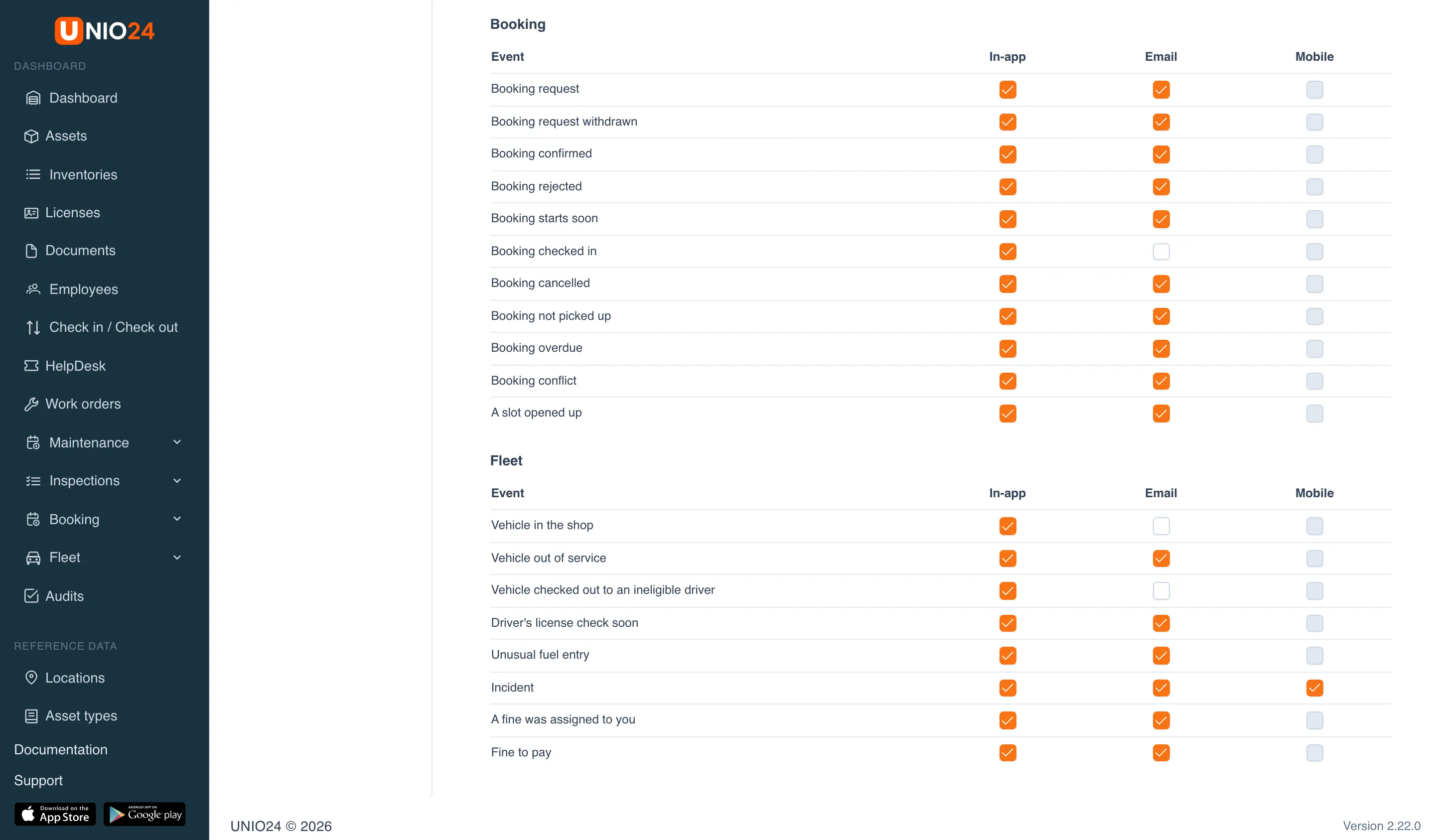
| Event on the Notification settings page | When | Who gets it | Default channels |
|---|---|---|---|
| Vehicle in the shop | The status changed to “In the shop” on its own | Fleet managers | In-app |
| Vehicle out of service | The status changed to “Out of service” on its own | Fleet managers | In-app, Email |
| Vehicle checked out to an ineligible driver | A checkout went through with reasons the driver isn’t allowed | Fleet managers | In-app |
| Driver’s license check soon | 7 days before the license check, on the day of the check, and once a week after it’s overdue | Fleet managers | In-app, Email |
| Unusual fuel entry | A fuel entry got a flag; after an import, one per file | Fleet managers | In-app, Email |
| Incident | An incident was reported | Fleet managers and everyone with “Manage incidents” | In-app, Email, Mobile |
| A fine was assigned to you | A fine was assigned to a driver, or the driver of an assigned fine changed | The driver, if they have a user account and a fleet permission | In-app, Email |
| Fine to pay | 7 days and 1 day before the nearest deadline (end of the discount or the payment deadline); an overdue fine, once a week | Fleet managers | In-app, Email |
Fleet managers are the members of the group in the Fleet managers field of the fleet settings and the members of the Group managers group of the vehicle group the vehicle belongs to. A notification goes only to those who can open its record. If there is no one like that, it goes to everyone with permission to manage that area: vehicles (status and checkout events), drivers (license checks), fleet entries (unusual fuel entry), incidents, or fines.
Fleet emails arrive right away, not in the daily digest. The author of an action doesn’t get a notification about it. A notification opens the card of the vehicle, driver, incident, or fine.
Access rights
Section titled “Access rights”In the role editor, the permissions are in the Fleet group on the Core tab.
| Permission | What it allows |
|---|---|
| View vehicles, fuel entries and trips | See all vehicles, drivers, fuel entries, trips, expenses, and fuel cards, vehicle and driver deadlines, the waybill, and the IFTA report. Doesn’t open incidents or fines |
| Manage vehicles | Add and edit vehicles, take them out of use and return them to use, correct the odometer; see the whole fleet and the IFTA report |
| Manage drivers | Add and edit driver profiles, record license checks |
| Log fuel and trips | Record refuelings, charging, expenses, and trips: on your own vehicles, and together with the view permission, on any vehicle |
| Edit fleet entries | Edit other people’s fuel entries, expenses, and trips with no time limit; upload and roll back fuel card statements |
| Edit closed trips | Correct closed trips with a reason for the correction, close other people’s open trips |
| Report incidents | Report incidents with your own vehicles |
| View incidents | See all incidents |
| Manage incidents | Report incidents with any vehicle, edit incidents and change their status, create a work order or repair from them (together with work order or repair permissions) |
| View fines | See all fines |
| Manage fines | Add, edit, and assign fines, change their status, import fine notices |
| Analytics | Open the fleet Analytics page, the IFTA report, and the Costs tab of the vehicle card |
| Settings | Change the fleet settings, vehicle types, vehicle groups, and expense types |
Without the view permission, a user sees their own: the vehicles they have right now (checked out to them, taken on a booking, or on their open trip), their own driver card, their own entries, and the incidents and fines where they are the driver. The author can edit their own unclosed entry within 24 hours.
Useful links
Section titled “Useful links”- Fleet — how everything works
- Vehicles and drivers — step-by-step tasks
- Fuel, trips and expenses — step-by-step tasks
- Incidents and fines — step-by-step tasks
- Fleet deadlines and analytics — the deadline calendar, analytics, the IFTA report, and widgets
- Configure fleet — module settings