

Fleet
Fleet is for companies that run company cars, trucks, vans, special vehicles, or forklifts. In one place you see which vehicles are working and which are in the shop, who is driving, whether the driver is allowed to drive that vehicle, what you spend on fuel and repairs, which incidents and fines are still open, and which documents are about to expire.
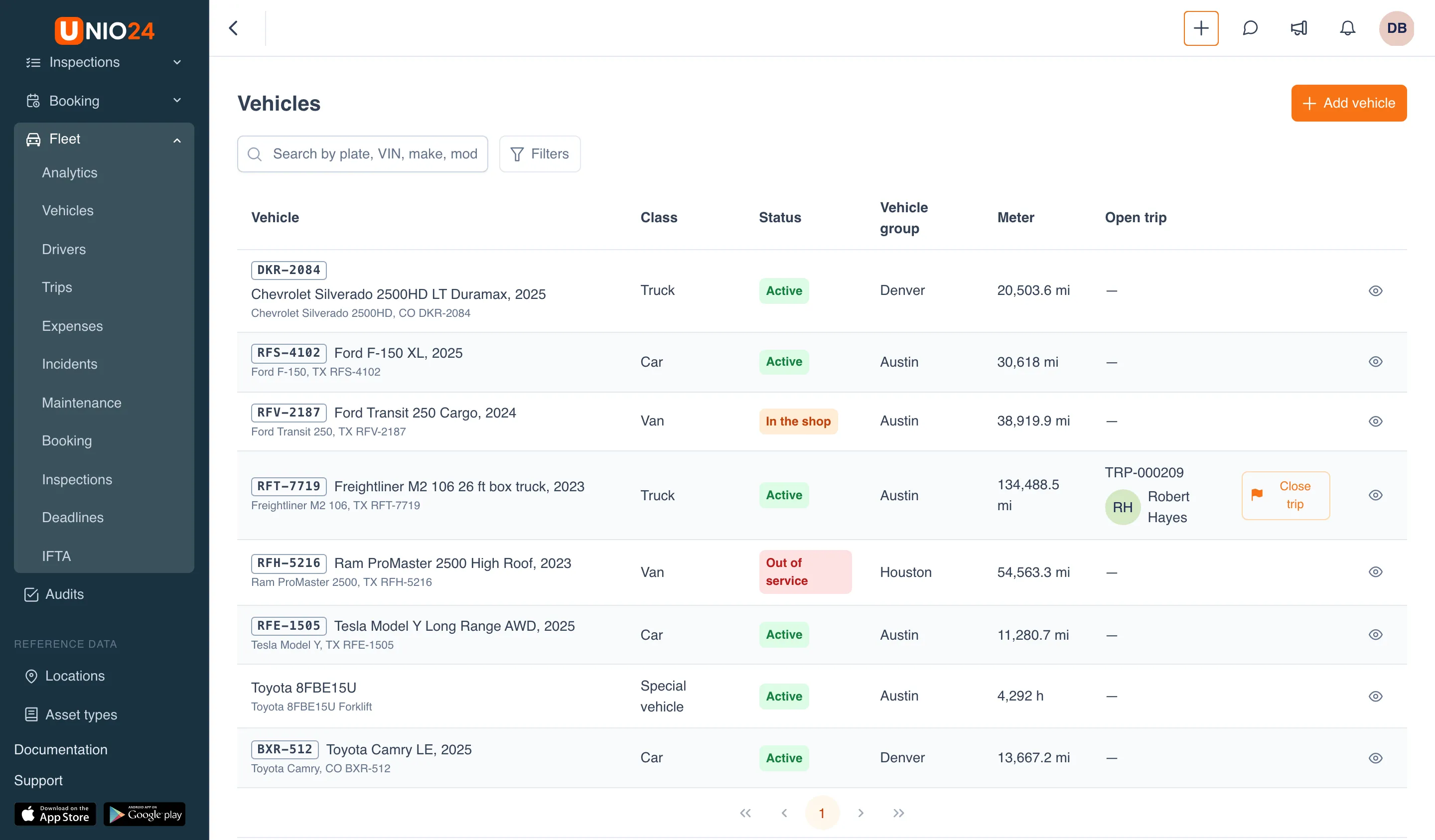
Vehicle
Section titled “Vehicle”A vehicle in UNIO24 is a regular asset with vehicle data added to it: plate number, VIN, make and model, class, powertrain, tank capacity, nominal consumption, and the license categories needed to drive it. There is no separate register of vehicles: a vehicle has the same AssetID, holder, history, documents, label, and tabs as any other asset.
Only an asset whose type is marked as a vehicle type can become a vehicle, for example “Company Vehicle”, “Truck”, or “Forklift”. Types are marked in the fleet settings. An asset of such a type gets a Vehicle tab on its card.
Every vehicle has a main meter: Odometer (miles) or Engine hours (for forklifts and special vehicles). Meter readings are entered with fuel entries, trips, inspections, and bookings.
Vehicle status
Section titled “Vehicle status”In the list and on the card, a vehicle has one of these statuses:
- Active: the vehicle can be used;
- In the shop: it is being serviced or repaired;
- Out of service: it can’t be used, for example after a serious breakdown or accident;
- Inactive and Sold: these are set by hand.
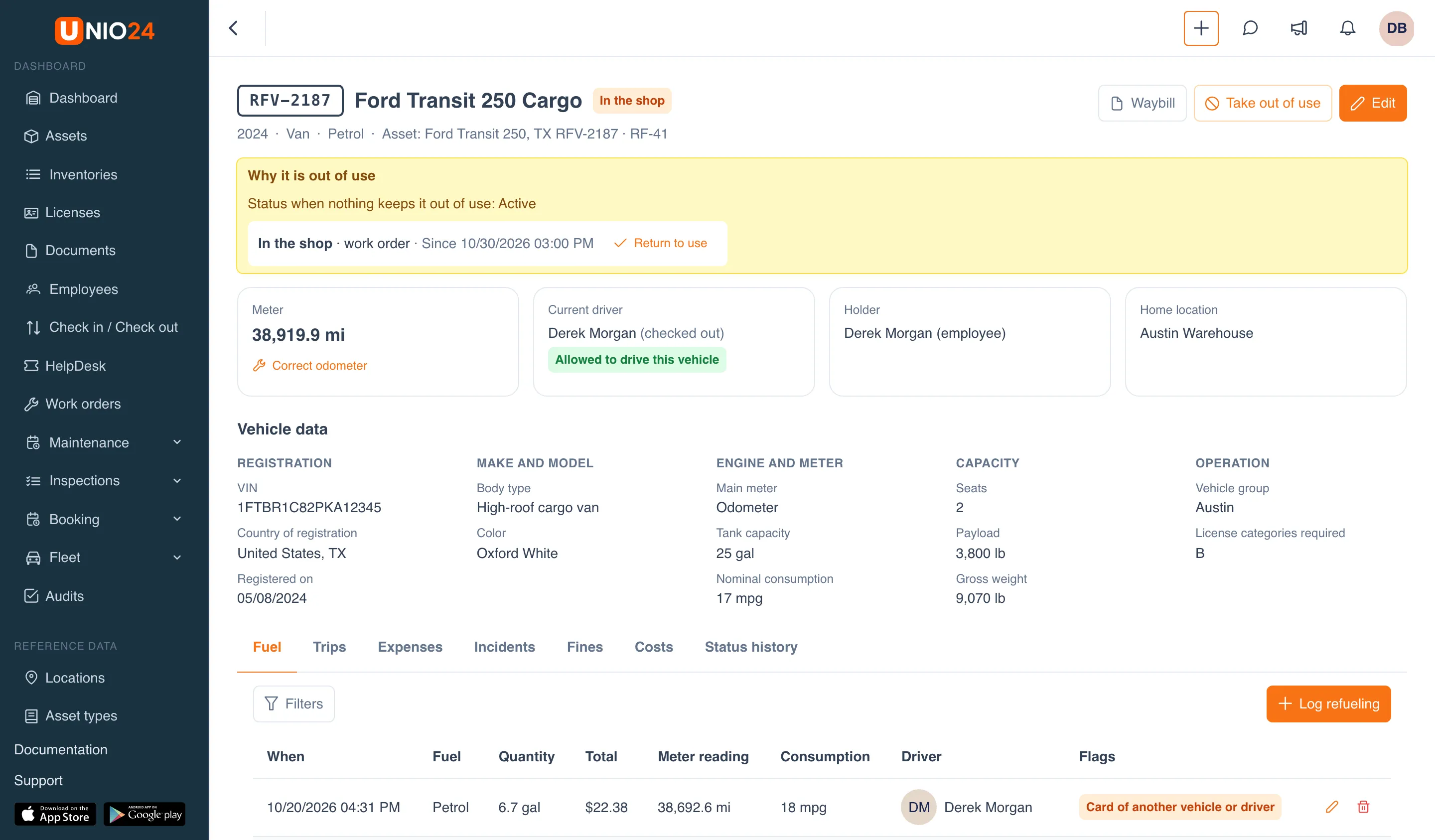
Most of the time the status changes on its own. A vehicle goes In the shop when a work order on it is taken into work or when it is sent for repair to a service center. It goes Out of service when an inspection finds a critical defect, or when an incident is reported after which the vehicle isn’t drivable or whose severity is Critical. When the work order is completed, the repair comes back, the defect is resolved, and the incident is closed, the status returns on its own.
You can also take a vehicle out of use by hand, for example while it waits for parts. All open causes are shown on the card in the Why it is out of use box, and every status change is on the Status history tab.
Drivers
Section titled “Drivers”A driver is an employee with a driver profile: license number, license categories with their expiry dates, driving experience, and permissions (dangerous goods, passengers, night driving, international trips). The driver’s license itself is stored as the employee’s “Driver’s license” document, and UNIO24 tracks its expiry date the same way as for other documents.
The employer checks the driver’s license from time to time, in person or in the registry. Each check is recorded in the profile, with a scan if needed, and the date of the next check is calculated from the company interval. When a check comes due, the people in charge get a reminder.
A driver can be suspended from driving with a reason, for example until the safety review of an accident is over.
Driver check at checkout
Section titled “Driver check at checkout”When a vehicle is checked out to an employee, either with a regular asset checkout or by a booking, UNIO24 checks whether that employee is allowed to drive this vehicle:
- whether the employee has a driver profile and isn’t suspended;
- whether the employee holds every license category the vehicle requires, and whether those categories are still valid;
- whether there is a valid driver’s license on file in the documents;
- whether the employee still works at the company;
- whether the last license check passed and isn’t overdue.
What happens when the driver isn’t allowed is up to the company settings: Warn shows the reasons in the checkout form but lets the checkout go through, and the fleet managers get a notification; Block doesn’t let the vehicle be checked out. An overdue license check only ever warns.
Who was driving
Section titled “Who was driving”The vehicle card shows the Current driver and how UNIO24 knows it. It looks in this order: the driver’s open trip (trip), then the booking the vehicle was checked out on (on a booking), then the latest checkout (checked out). The same rule is used to suggest a driver for a fine, a fuel entry, or an incident at the time it happened, and a person confirms the suggestion.
The Fleet menu
Section titled “The Fleet menu”| Menu item | What’s there |
|---|---|
| Analytics | Fleet costs, availability and utilization, incidents and fines, replacement candidates: Fleet deadlines and analytics |
| Vehicles | The list of vehicles and their cards: Vehicles and drivers |
| Drivers | The list of drivers and their profiles: Vehicles and drivers |
| Trips | The trip log and open trips: Fuel, trips and expenses |
| Expenses | Tabs with fuel and charging entries, other expenses, fines, and fuel cards: Fuel, trips and expenses |
| Incidents | Accidents, breakdowns, thefts, damage: Incidents and fines |
| Maintenance | Maintenance schedules for vehicles only; shown when the Maintenance module is on |
| Booking | Bookings of vehicles; shown when the Booking module is on |
| Inspections | Inspections of vehicles; shown when the Inspections module is on |
| Deadlines | The deadline calendar: maintenance, inspections, documents, license checks, fines: Fleet deadlines and analytics |
| IFTA | Miles and fuel by state and province for the quarterly IFTA return: Fleet deadlines and analytics |
The IFTA item is shown only to companies in the United States and Canada.
Each item is shown only to people who have permission for it. The module settings are under Settings → Fleet.
What a driver sees
Section titled “What a driver sees”A driver doesn’t need access to the whole fleet. If an employee doesn’t have the View vehicles, fuel entries and trips permission, the Vehicles page shows only their own vehicles: those checked out to them, taken on their booking, or with their open trip. On their own vehicle they log fuel and trips, report incidents, and see their fines, with a reminder about unpaid ones above the list. Other vehicles, the driver list, and the cost of ownership are hidden from them. See how it looks in What a driver sees.
How Fleet works with other modules
Section titled “How Fleet works with other modules”- Documents: vehicle registration, insurance policies, driver’s licenses, and medical certificates, with expiry reminders. When Fleet is turned on, document types for vehicles and drivers are added to the document types list.
- Booking: pool cars are booked like any shared asset; a checkout by booking runs the driver check, and taking a vehicle out of use by hand or an incident closes it for booking.
- Inspections: a critical defect takes the vehicle out of service. If the module is on, Fleet adds the “Daily vehicle check” and “Vehicle check-out and check-in” templates.
- Maintenance and work orders: a work order in progress puts the vehicle In the shop, and the cost of repairs and maintenance goes into expenses.
Notifications
Section titled “Notifications”Fleet managers get a notification when a vehicle goes In the shop or Out of service on its own, when a vehicle is checked out to a driver who isn’t allowed to drive it, when a license check comes due, when a fuel entry gets an anomaly flag, and when an incident is reported. A driver gets a notification when a fine is assigned to them, and fleet managers get a reminder when a fine is due. Who counts as a fleet manager is set in the fleet settings. Fleet emails are sent right away, not in the daily digest. Details are in the Fleet reference.
Useful links
Section titled “Useful links”- Vehicles and drivers — step-by-step instructions
- Fuel, trips and expenses — step-by-step instructions
- Incidents and fines — step-by-step instructions
- Fleet deadlines and analytics — the deadline calendar, fleet analytics, and the IFTA report
- Configure fleet — module settings and permissions
- Fleet reference — fields, statuses, permissions, and notifications